Task manager is lying

blackdot

New member
Member
Local time
8:15 PM
Messages
51
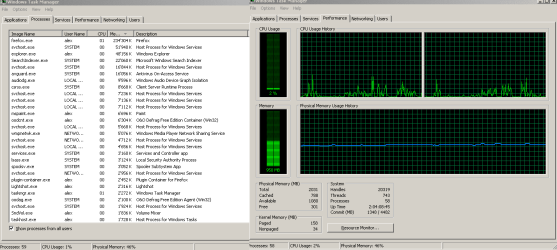
I have 2 gigs of ram, the taskmangager tells me that I am using 45% of it, and confirmes that under 'performance', where it states that 916mb are in use for memory.

But if I sum up all the memory usage under 'processes' i come to about 450mb. What is using the remaining 450mb's ?
 

My Computer

OS
desktop: win7 professional x86, laptop: win7 prof. x64
CPU
desktop: intel e6400 dual @ 2.13ghz, laptop: intel i7 quad
Internet Speed
20Mbit/s dwn, 2Mbit/s up
Hi blackdot, have you clicked "Show Processes for All Users" under Task Manager?
 

My Computer

Computer type
PC/Desktop
Computer Manufacturer/Model Number
Medion Erazer (note to self: insert model number) - with custom additions
OS
Windows 10 Pro x64
CPU
Intel Core i5 7400 @ 3.00GHz
Motherboard
OEM supllied with PC
Memory
8GB 2133Mhz DDR4 (OEM supplied)
Graphics Card(s)
Gygabyte Windforce GTX 1050Ti (Factory Overclocked)
Sound Card
Realtek
Monitor(s) Displays
Acer Al1980 + HKC
Screen Resolution
1360*768(HKC) / 1280*1024(Acer)
Hard Drives
1TB Toshiba
1TB WD Caviar Green
120GB Samsung Evo 840
PSU
OEM supplied (no power rating on case)
Case
OEM Supplied
Cooling
Stock
Keyboard
Logitech Wireless
Mouse
Logitect Wireless
Internet Speed
40Mb/s Down 10Mb/s Up
Antivirus
Defender
Browser
Firefox
Computers generally and software as well, are completely incapable of "lying".

It is not always a good idea to believe everything you see on a screen, because the software shows what it is programmed to show, and that does not necessarily reflect reality.

In order to "lie" you have to know the truth. Machines don't know anything at all.

Summing up various things often results in considerable discrepancies. This can be due to many things. Various units, like GBytes, incorrect interpretation or display of those units, etc etc.

If you want very accurate analysis of various things, then you need accurate tools and the wherewithal to use them.

Regards....Mike Connor
 

My Computer

OS
Several, including Windows 7 x64 Ultimate
Hi blackdot, have you clicked "Show Processes for All Users" under Task Manager?

yes I have.

I've uploaded an image to show my situation:[
 

Attachments

  • Untitled4.png
    Untitled4.png
    59.3 KB · Views: 49

My Computer

OS
desktop: win7 professional x86, laptop: win7 prof. x64
CPU
desktop: intel e6400 dual @ 2.13ghz, laptop: intel i7 quad
Internet Speed
20Mbit/s dwn, 2Mbit/s up
Hello Blackdot,

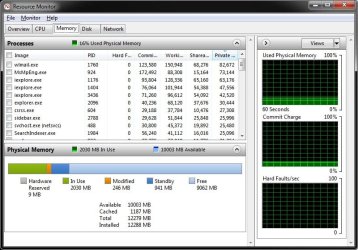
Looking in the Memory tab in Resource Monitor can help ID what is using your memory a bit better. It's most likely memory that has been filled by superfetch and just has not been released yet as needed.

Resoruce_Monitor.jpg

Hope this helps,
Shawn
 

My Computer

Computer type
PC/Desktop
Computer Manufacturer/Model Number
Self built custom
OS
64-bit Windows 11 Pro for Workstations
CPU
Intel i7-8700K OC'd to 5 GHz
Motherboard
ASUS ROG Maximus XI Formula Z390
Memory
64 GB (4x16GB) G.SKILL TridentZ RGB DDR4 3600 MHz
Graphics Card(s)
ASUS ROG-STRIX-GTX1080TI-O11G-GAMING
Sound Card
Integrated
Monitor(s) Displays
2 x Samsung Odyssey G7 27"
Screen Resolution
2560x1440
Hard Drives
1TB Samsung 990 PRO M.2,
4TB Samsung 990 PRO PRO M.2,
TerraMaster F8 SSD Plus NAS
PSU
Seasonic Prime Titanium 850W
Case
Thermaltake Core P3
Cooling
Corsair Hydro H115i
Keyboard
Logitech wireless K800
Mouse
Logitech MX Master 4
Internet Speed
2 Gb/s Download and 100 Mb/s Upload
Antivirus
Malwarebyte Anti-Malware Premium
Browser
Google Chrome
Other Info
Logitech Z625 speaker system,
Logitech BRIO 4K Pro webcam,
HP Color LaserJet Pro MFP M477fdn,
APC SMART-UPS RT 1000 XL - SURT1000XLI,
Galaxy S23 Plus phone
Not everything that consumes memory is a process. Furthermore, the values Task Manager show does not have a 1 to 1 relation to how much physical memory a process is taking. Most of the time the memory reserved or used by a process is virtual memory.
 

My Computer

Computer type
PC/Desktop
Computer Manufacturer/Model Number
Alienware Aurora ALX R4
OS
Windows 10 Pro (x64)
CPU
Intel Core i7-3930K (3.2GHz - 4.5GHz)
Motherboard
Alienware Aurora-R4 x79
Memory
4x Samsung 4GB PC3-12800 DDR3 (16GB 1600MHz)
Graphics Card(s)
Nvidia Geforce GTX 690
Sound Card
SteelSeries Siberia Elite
Monitor(s) Displays
Dell UltraSharp U3011
Screen Resolution
2560x1600
Hard Drives
Samsung 850 Pro 256 GB, Seagate 1TB Desktop Hybrid HDD, 2x Western Digital 4TB Green HDD
PSU
875W Some Dell PSU <.<
Case
Alienware Aurora ALX
Cooling
Custom Liquid Cooling (EK CPU & GPU blocks) dual EK 480RAD
Keyboard
Logitech G710+ Mechanical
Mouse
Logitech G700s
Internet Speed
Verizon Fios (50 mbps average)
Other Info
Server: Intel NUC D54250WYK: i5-4250U, 16GB, 256 GB mSATA, Windows Server 2012 R2
Agreed - task manager is just that, a task manager. Using it to determine accurate values for CPU time, memory (RAM) usage, etc is fraught with peril at best. Using Resource Monitor (resmon.exe) when you want to see what resources your system is using is a much better alternative, and the best one that is installed with Windows by default. Process Explorer from sysinternals is better at more things than ResMon is, but that's a separate download (and has a slight learning curve, which ResMon does not).
 

My Computer

Computer type
PC/Desktop
Computer Manufacturer/Model Number
Custom
OS
Windows 10 Pro x64
CPU
Intel Core i7 4790K @ 4.5GHz
Motherboard
Asus Maximus Hero VII
Memory
32GB DDR3
Graphics Card(s)
Nvidia GeForce GTX970
Sound Card
Realtek HD Audio
Screen Resolution
1920x1200
Hard Drives
1x Samsung 250GB SSD
4x WD RE 2TB (RAIDZ)
PSU
Corsair AX760i
Case
Fractal Design Define R4
Cooling
Noctua NH-D15
Back
Top