
How to Enable or Disable Taskbar Button Grouping in Windows 7
Information
A taskbar button represents an open window on the desktop. These buttons appear on the taskbar as a horizontal bar or icon button.
This tutorial will show you how to have similar open window buttons to group to one button or separate buttons in Windows 7.
This tutorial will show you how to have similar open window buttons to group to one button or separate buttons in Windows 7.
Note
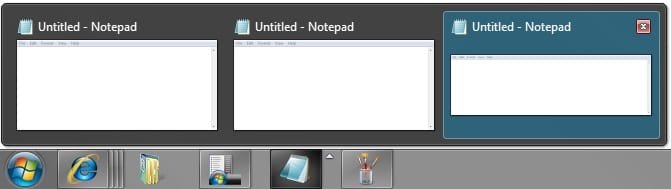
When you have more than one similar window open, say Notepad windows, you could set the taskbar to group the same Notepad taskbar buttons to just one button instead of multiple buttons. This can help organize the taskbar and save space when you have multiple windows open.
Tip
Microsoft has made available a hotfix that will resolve a problem where the taskbar customizations are lost and reset to defaults when automatic logon is enabled in Windows 7 and Windows Server 2008 R2.
More details are available at FIX: The Taskbar is reset to the default settings when you use the "Automatically Log On" feature in Windows 7 and in Windows Server 2008 R2.
More details are available at FIX: The Taskbar is reset to the default settings when you use the "Automatically Log On" feature in Windows 7 and in Windows Server 2008 R2.
EXAMPLE: Taskbar Buttons Grouped


EXAMPLE: Taskbar Buttons Not Grouped

OPTION ONE
Enable or Disable Taskbar Button Grouping in Taskbar and Start Menu Properties
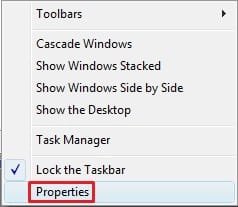
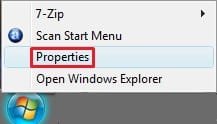
1. Right click on an empty area of the taskbar, and click/tap on Properties. (See screenshot below)

2. Click on the drop down arrow menu to the right of Taskbar buttons, and do step 3, 4, or 5 below for what you would like to do. (See screenshot below)
NOTE: If this option is grayed out, then see this tutorial to "Allow" it: http://www.sevenforums.com/tutorials/118986-taskbar-button-grouping-allow-prevent.html
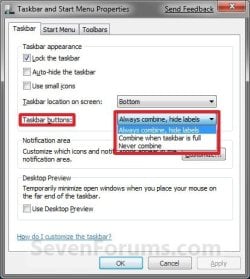

3. To Always Group Taskbar Buttons
NOTE: Taskbar buttons for the same opened program or window will always be grouped to one icon button.
A) Click/tap on Always combine, hide labels to select it, and go to step 6 below. (See screenshot below step 3)
4. To Only Group Taskbar Buttons when the Taskbar is Full
NOTE: Taskbar bar buttons for the same opened program or window will be grouped to one icon button when the taskbar runs out space for the buttons.
A) Click/tap on Combine when taskbar is full to select it, and go to step 6 below. (See screenshot below step 3)
5. To Never Group Taskbar Buttons
NOTE: Open windows will remain as separate bar buttons on the taskbar and not be grouped together.
A) Click/tap on Never combine to select it, and go to step 6 below. (See screenshot below step 3)
6. Click/tap on OK. (See screenshot below step 3)
OPTION TWO
Enable or Disable Taskbar Button Grouping using a BAT File
1. Do step 2, 3, or 4 below for how you would like your taskbar buttons set to do.
2. To Always Group Taskbar Buttons
NOTE: Taskbar buttons for the same opened program or window will always be grouped to one icon button.
A) Click/tap on the download button below to download the file below, and go to step 5 below.
Always_combine_hide_labels.bat
Download
3. To Only Group Taskbar Buttons when the Taskbar is Full
NOTE: Taskbar bar buttons for the same opened program or window will be grouped to one icon button when the taskbar runs out space for the buttons.
A) Click/tap on the download button below to download the file below, and go to step 5 below.
Combine_when_taskbar_is_full.bat
Download
4. To Never Group Taskbar Buttons
NOTE: Open windows will remain as separate bar buttons on the taskbar and not be grouped together.
A) Click/tap on the download button below to download the file below, and go to step 5 below.
Never_combine.bat
Download
5. Save the .bat file to your Desktop.
6. Double click/tap on the downloaded .bat file to run it.
7. If prompted, click/tap on Run.
NOTE: If you like, you can stop getting the Run prompt by unblocking the downloaded .bat file.
8. You will now notice your screen quckly flash as explorer is restarted.
That's it,
Shawn
Related Tutorials
- How to Pin or Unpin a Folder to the Windows 7 Taskbar
- How to Pin or Unpin a Program to the Windows 7 Taskbar
- How to Use Small or Large Icons on the Windows 7 Taskbar
- How to Enable or Disable QuickLaunch in Windows 7
- How to Lock or Unlock the Windows 7 Taskbar
- How to Move the Windows 7 Taskbar Location on the Desktop
- How to Show or Hide the Windows 7 Taskbar with Auto-hide
- How to Change the Windows 7 Taskbar Icon Width Size
- How to Restore All Windows in a Windows 7 Grouped Taskbar Icon
- How to Change the Windows 7 Taskbar Thumbnail and List Mode Threshold
- How to Enable or Disable Internet Explorer 8 Individual Tabbed Browsing Taskbar Preview Windows
- How to Pin or Unpin a Drive to the Windows 7 Taskbar
- How to Allow or Prevent Taskbar Button Grouping in Windows 7
- How to "Pin to Taskbar" Transparent Invisible Icons for Programs in Windows 7
- How to Enable or Disable Taskbar Last Active Click in Windows 7 and Windows 8
Attachments
-
 Always_Grouped.jpg4.2 KB · Views: 253,012
 -
 Grouped_Expanded.jpg13.3 KB · Views: 252,935
 -
 Not_Always_Grouped.jpg16 KB · Views: 254,670
 -
 taskbar.jpg8.3 KB · Views: 253,589
 -
 Start_Menu.jpg5.1 KB · Views: 112,734
 -
Always_combine_hide_labels.bat336 bytes · Views: 4,917
-
Combine_when_taskbar_is_full.bat336 bytes · Views: 2,118
-
Never_combine.bat336 bytes · Views: 4,423
Last edited:




