
How to Change Size of Taskbar Thumbnail Previews in Windows 7 and Windows 8
Information
This will show you how to set the maximum and/or minimum size in pixels that you want for your taskbar thumbnail previews in Windows 7 and Windows 8. You will not be able to have a smaller taskbar thumbnail preview than the default size.
This will only affect the current user that this is applied in.
This will only affect the current user that this is applied in.
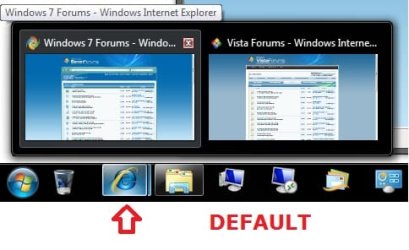
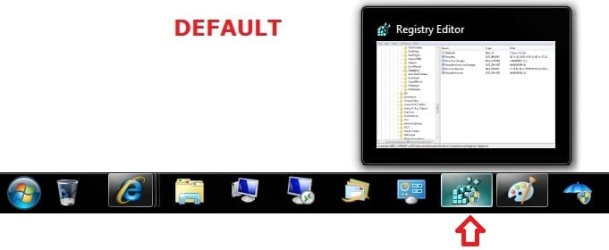
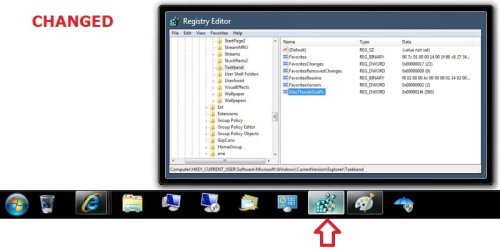
EXAMPLE: Taskbar Thumbnail Previews Default and Changed Size
NOTE: This is an example thumbnail previews of the Internet Explorer icon with multiple tabs opened, and Registry Editor with a 500 pixel change.

OPTION ONE
Change Size of Taskbar Thumbnail Previews using a REG File
NOTE: If you would like to use a custom size of your own, then you will need to do OPTION TWO below to make the changes.
1. To Set a Minimum Taskbar Thumbnail Preview Size of 300 Pixels
A) Click on the Download button below to download the file below.
Set_MinThumbSizePx_300.reg
Download
2. To Undo Minimum Taskbar Thumbnail Preview Size Changes
NOTE: This is the default setting.
A) Click on the Download button below to download the file below.
Undo_MinThumbSizePx_Changes.reg
Download
3. To Set a Maximum Taskbar Thumbnail Preview Size of 300 Pixels
A) Click on the Download button below to download the file below.
Set_MaxThumbSizePx_300.reg
Download
4. To Undo Maximum Taskbar Thumbnail Preview Size Changes
NOTE: This is the default setting.
A) Click on the Download button below to download the file below.
Undo_MaxThumbSizePx_Changes.reg file.
Download
5. Save the .reg file to your desktop.
6. Double click/tap on the downloaded .reg file to merge it.
7. If prompted, click/tap on Run, Yes (UAC), Yes, and OK to approve the merge.
8. Log off and log on, or restart the computer to apply the changes.
9. When done, you can delete the downloaded .reg file(s) if you like.
OPTION TWO
Change Size of Taskbar Thumbnail Previews in Registry Editor
1. Press the Windows + R keys to open the Run dialog, type regedit, and click/tap on OK.
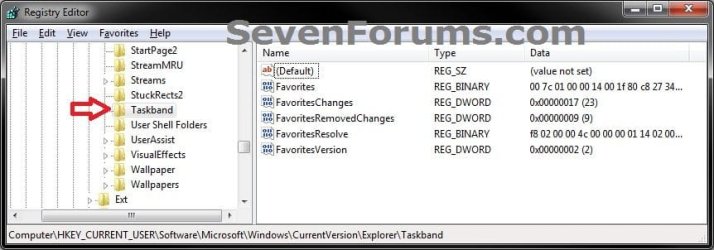
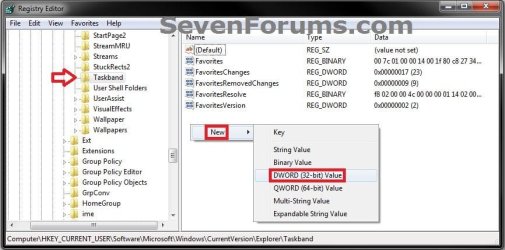
2. In regedit, go to: (see screenshot below)
HKEY_CURRENT_USER\Software\Microsoft\Windows\CurrentVersion\Explorer\Taskband
3. To Set a Minimum Taskbar Thumbnail Preview Size
A) In the right pane of Taskband, right click on a empty space and click on New and DWORD (32-bit) Value. (see screenshot below)
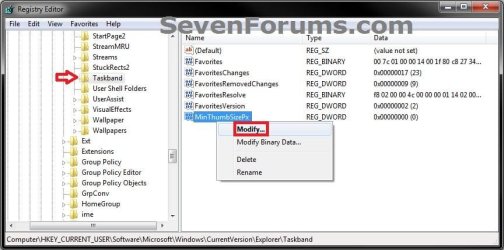
B) Type MinThumbSizePx and press enter, then right click on MinThumbSizePx and click on Modify. (see screenshot below)
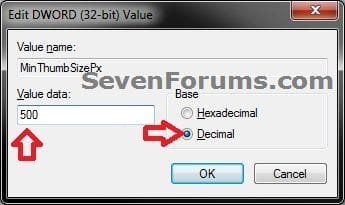
C) Select (dot) Decimal, then type in how many pixels (ex: 500) you want the minimum size to be and click on OK. (see screenshot below)
NOTE: Increase (larger thumbnail) or decrease (smaller thumbnail) the pixel number to adjust the size to how you would like it.
4. To Set a Maximum Taskbar Thumbnail Preview Size
A) In the right pane of Taskband, right click on a empty space and click on New and DWORD (32-bit) Value. (see screenshot below)
B) Type MaxThumbSizePx and press enter, then right click on MaxThumbSizePx and click on Modify. (see screenshot below)

C) Select (dot) Decimal, then type in how many pixels (ex: 500) you want the maximum size to be and click on OK. (see screenshot below)
NOTE: Increase (larger thumbnail) or decrease (smaller thumbnail) the pixel number to adjust the size to how you would like it.

5. To Undo the Max or Min Taskbar Thumbnail Preview Size Changes
NOTE: This is the default setting.
A) In the right pane of Taskband, select and right click on one or both MaxThumbSizePx and/or MinThumbSizePx and click on Delete. (see screenshot below)
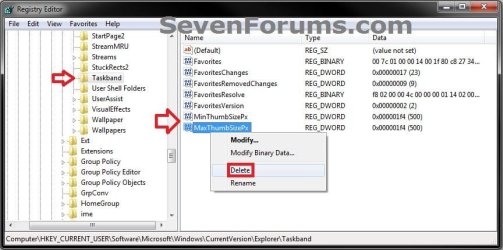
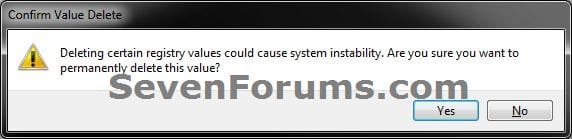
B) Click on Yes to approve deletion. (see screenshot below)
6. Close regedit.
7. Log off and log on, or restart the computer to apply the changes.
That's it,
Shawn
Related Tutorials
- How to Change Taskbar Thumbnail and List Mode Threshold in Windows 7 and Windows 8
- How to Enable or Disable Taskbar Thumbnail Previews in Windows 7 and Windows 8
- How to Change Taskbar Thumbnail Live Preview Delay Time in Windows 7 and Windows 8
- How to Change Taskbar Thumbnail Previews Display Delay Time in Windows 7 and Windows 8
- How to Enable or Disable Internet Explorer Individual Tabbed Browsing Taskbar Preview Windows in Windows 7
- How to Change Space Size Between Taskbar Thumbnail Previews in Windows 7 and Windows 8
- How to Change Margin Size of Taskbar Thumbnail Previews in Windows 7 and Windows 8
Attachments
Last edited:
