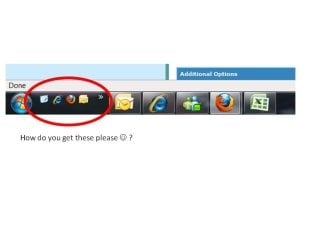
Just one more comment...
As was already implied, you don't need the QuickLaunch area (like in WinXP) in order to "launch" programs. The icons on the taskbar itself double as a launchers. Once the programs represented by those icons are launched (by single left-click on them, just like from a true WinXP QuickLaunch icon) the icon expands into a rectangle to show that it is now running.
If you then just left-click repeatedly on that rectangle (when the program window has the focus... i.e. the rectangle is "lit up"), you will minimize and/or maximize that window. So left-clicking on that rectangle will not launch a second instance of that program... if that's what you wanted to do.
However if you right-click on the rectangle, you'll get a popup menu providing three choices: (1) launch another instance of the program, (2) unpin the icon from the taskbar, thus removing it, or (3) close the currently open program/window.
Note that the top item in the popup list from right-click, if you then right-click on it (rather than left-clicking on it to launch another instance of the program) you will get yet another popup menu, including "Properties" as a selection item. So you can actually investigate or change the properties of this taskbar icon itself, if that's what you want to do.
So, the default Win7 taskbar, with no QuickLaunch area enabled, serves multiple uses... including really being a built-in QuickLauncher (not to mention "Aero peek" to get a thumbnail preview of the program's window current contents)! And right-clicking on an open program's rectangle on the taskbar will allow you to launch another instance if you want.
Finally, if you really have lots of programs you use all the time and would like to have "instantly available" for quick single-click launching from the taskbar, you can stretch it to be double-high or triple-high if that's what it takes. Obviously, you'd probably want to use "small icons" to maximize use of the available space.
Just right-click on some open area of the taskbar to get the popup menu, and click on the "lock taskbar" item (which is no doubt currently checked) to UNLOCK the taskbar. Then you can hover the mouse near the top edge of the single-high taskbar until the cursor turns into an up/down-arrow. Then left-click and hold, and drag that upper-edge up... say to double-high which is generally enough.
Then right-click again on the taskbar, and select the "lock taskbar" item (which is currently unchecked from your earlier action), to re-lock it in this new double-high orientation.
Early on with my Win7 experience, I thought I would be missing the WinXP Quicklaunch area. Once I figured out how multi-purpose the standard default Win7 taskbar was, and that I could really do and see everything I used to do in WinXP plus lots more... I never gave it another thought.
One more note... if you want to add a new program's icon to the taskbar (for "always visible quick single-click launching") you would normally right-click on the program's desktop shortcut or Start menu shortcut, and then select the "pin to taskbar" choice. This will add that icon to the END of the list of icons already on the taskbar.
Often, this is NOT where you'd prefer to have it placed. You're prefer to have it inserted somewhere of your own choosing, just because you want to maybe group program icons together that are similar in your mind for some reason.
You can actually do the same thing in Win7 that you could do in WinXP, namely POSITION the icon on the taskbar where you actually want it, and not be required to accept its "pin to taskbar" next available location at the end of the currently shown series of icons.
If the icon shortcut is already on the desktop, fine. If it's not, go to the Start menu (not the presentation of most recently used programs, but the other "list" of programs which appears after a few seconds if you just hover the mouse after clicking on the Start orb), right-click on it, and select "send to... desktop (create shortcut)".
Then, with the program's shortcut now on the desktop, just left-click on it and drag it down to right between two existing icons on the taskbar in between those two being where you want this new shortcut to be placed. Keep the left mouse button pressed when you drag it down to the right spot on the taskbar.
In a moment or two with your keeping the left mouse button held with the icon in this position over the taskbar, Win7 will then spread the two icons apart at that area, now providing an "open space" for the new icon to be dropped. Now you can release the left mouse button, and your icon will be inserted exactly where you want it to go.
If you screw this up and it goes in the wrong place, unfortunately you can't just right-click on it and drag it to a new correct location. That doesn't work. You'll have to right-click on it, select "unpin from taskbar" to remove it, and then repeat the process I described above all over again which hopefully this time will drop it into the properly spot on the taskbar where you want it.
Of course, once you complete this process of getting a program icon's shortcut onto the taskbar where you want it, you can delete the original desktop shortcut icon you started from. No need to keep that any longer.
Keep your desktop "clean" for other things, and put these frequently used program launching icons on the Win7 taskbar. You'll soon get used to it and start to love it... including using small icons rather than large icons just because it's actually easier to see, especially when you have many open program windows which have spread into rectangles on the taskbar.