Solved The root drive (C:\) is shared, nevertheless there is no access to sub

Jamal NUMAN

New member
Member
VIP
Local time
8:17 AM
Messages
144
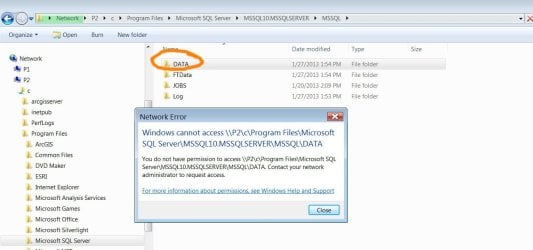
The root drive (C:\) is shared, nevertheless there is no access to subfolders,

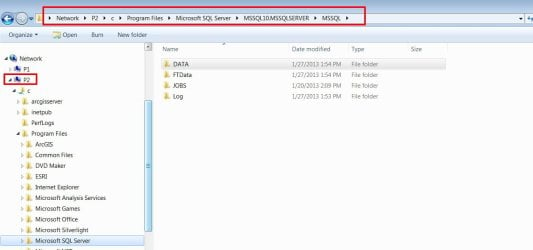
How come that the root drive (C:\) is shared but no access is permitted to a particular subfolder (attached)?

How to force the sharing for the root and ALL the subfolders

Thank you

Best

Jamal
 

Attachments
  • Clip_2.jpg
    Clip_2.jpg
    50.7 KB · Views: 10
  • Clip_3.jpg
    Clip_3.jpg
    75.9 KB · Views: 13

My Computer My Computer

At a glance

Windows 7 Ultimate x64
OS
Windows 7 Ultimate x64
In addition to the sharing, you must check that both share and file permission are granted on the connected user for the folder to be visible, even with full disk being shared.

Particular from your screenshot, by default SQL Sever applies specific permissions on its data folders, granting only admins, the service account and system access to it. Most likely it will fail with the same error if you navigate normally on the local machine, not from the share.
 

My Computer My Computer

At a glance

Windows 7 Ultimate x64Intel Core i7-740QM8 GB DDR3NVIDIA GeForce 330GT
Computer type
Laptop
Computer Manufacturer/Model Number
Toshiba Sattelite A665-S6092
OS
Windows 7 Ultimate x64
CPU
Intel Core i7-740QM
Memory
8 GB DDR3
Graphics Card(s)
NVIDIA GeForce 330GT
Screen Resolution
1366x768
Hard Drives
Samsung 840 SSD 500GB
1TB USB3 external HD
Cooling
Coolermaster Notepal U3 notebook cooling pad
Internet Speed
3mbps ASDL
Antivirus
ClamWin 0.98.7
Browser
Opera 12.17 x86 (main), Firefox 38 (sec), IE11 (last resort)
In addition to the sharing, you must check that both share and file permission are granted on the connected user for the folder to be visible, even with full disk being shared.

Particular from your screenshot, by default SQL Sever applies specific permissions on its data folders, granting only admins, the service account and system access to it. Most likely it will fail with the same error if you navigate normally on the local machine, not from the share.

Thank you Alejandro85 for the answer.

Then how can I give file permission to a particular user?

Best

Jamal
 

Attachments

  • Clip_227.jpg
    Clip_227.jpg
    77.7 KB · Views: 8

My Computer My Computer

At a glance

Windows 7 Ultimate x64
OS
Windows 7 Ultimate x64
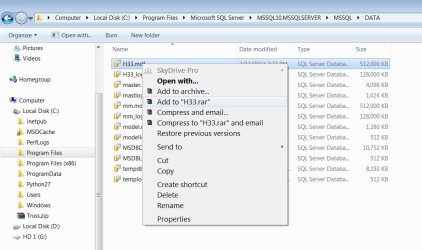
Just right click on the folder (not in a file as you're doing in the screenshot), click properties, security tab, add, select the user and give him read or write access as needed.

BTW, and again particular for what is seen in the screens, it's generally not a good idea to manually touching files in the data folder of SQL Server, they're best handled though a normal connection with a query. Most times, the server will simply block the files when attached to the server so you can't even read them, from network or not.
 

My Computer My Computer

At a glance

Windows 7 Ultimate x64Intel Core i7-740QM8 GB DDR3NVIDIA GeForce 330GT
Computer type
Laptop
Computer Manufacturer/Model Number
Toshiba Sattelite A665-S6092
OS
Windows 7 Ultimate x64
CPU
Intel Core i7-740QM
Memory
8 GB DDR3
Graphics Card(s)
NVIDIA GeForce 330GT
Screen Resolution
1366x768
Hard Drives
Samsung 840 SSD 500GB
1TB USB3 external HD
Cooling
Coolermaster Notepal U3 notebook cooling pad
Internet Speed
3mbps ASDL
Antivirus
ClamWin 0.98.7
Browser
Opera 12.17 x86 (main), Firefox 38 (sec), IE11 (last resort)
Just right click on the folder (not in a file as you're doing in the screenshot), click properties, security tab, add, select the user and give him read or write access as needed.

BTW, and again particular for what is seen in the screens, it's generally not a good idea to manually touching files in the data folder of SQL Server, they're best handled though a normal connection with a query. Most times, the server will simply block the files when attached to the server so you can't even read them, from network or not.


Many thanks Alejandro85 for the answer.

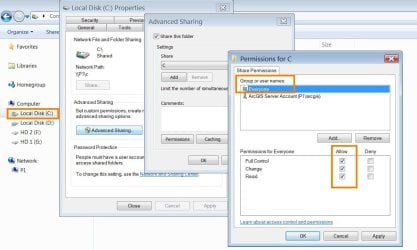
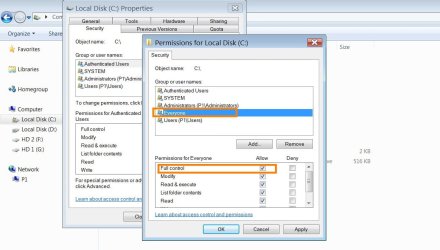
That was my original issue! I gave the root folder sharing + security to everyone (!), nevertheless, I got the message shown in my first post.

By the way, I couldn’t even know the difference between the sharing and security properties (attached)! Are they doing the same kind of thing?


Best

Jamal
 

Attachments

  • Clip_230.jpg
    Clip_230.jpg
    84.2 KB · Views: 8
  • Clip_231.jpg
    Clip_231.jpg
    80.6 KB · Views: 8

My Computer My Computer

At a glance

Windows 7 Ultimate x64
OS
Windows 7 Ultimate x64
Both the sharing and the security tab are very similar, they set permissions but work on different levels.

The sharing permissions work only on network accesses though Windows shares, users must be granted permissions here to be able to view files though the network, even though they can access locally.
The security tab works for every access, no matter how it's made. It controls both local access and network too, and can be set at a file level and folder by folder (sharing permissions work on whole shared folders).

To use a file though the network, you need BOTH sharing permission and security tab permission.

Now, the problem I guess is that on the security tab, you've assigned permission to the root folder only. Some folder don't automatically inherit those permissions and apply their own (program files, windows folder, users folders are examples of those). SQL Server also apply custom permissions and ignore the parent's ones. That's why I said before that you should look there, at the SQL data folder, not the root of drive.
 

My Computer My Computer

At a glance

Windows 7 Ultimate x64Intel Core i7-740QM8 GB DDR3NVIDIA GeForce 330GT
Computer type
Laptop
Computer Manufacturer/Model Number
Toshiba Sattelite A665-S6092
OS
Windows 7 Ultimate x64
CPU
Intel Core i7-740QM
Memory
8 GB DDR3
Graphics Card(s)
NVIDIA GeForce 330GT
Screen Resolution
1366x768
Hard Drives
Samsung 840 SSD 500GB
1TB USB3 external HD
Cooling
Coolermaster Notepal U3 notebook cooling pad
Internet Speed
3mbps ASDL
Antivirus
ClamWin 0.98.7
Browser
Opera 12.17 x86 (main), Firefox 38 (sec), IE11 (last resort)
Both the sharing and the security tab are very similar, they set permissions but work on different levels.

The sharing permissions work only on network accesses though Windows shares, users must be granted permissions here to be able to view files though the network, even though they can access locally.
The security tab works for every access, no matter how it's made. It controls both local access and network too, and can be set at a file level and folder by folder (sharing permissions work on whole shared folders).

To use a file though the network, you need BOTH sharing permission and security tab permission.

Now, the problem I guess is that on the security tab, you've assigned permission to the root folder only. Some folder don't automatically inherit those permissions and apply their own (program files, windows folder, users folders are examples of those). SQL Server also apply custom permissions and ignore the parent's ones. That's why I said before that you should look there, at the SQL data folder, not the root of drive.

Thank you Alejandro85 for the very informative answer. This is really helpful.


Best

Jamal
 

My Computer My Computer

At a glance

Windows 7 Ultimate x64
OS
Windows 7 Ultimate x64
Back
Top