
Solved "The server threw an exception error" when running Excel-to-CSV.Vbs

JohnSmithWin7

New member
Local time
7:04 PM
Messages
11
"The server threw an exception error" when running Excel-to-CSV.Vbs

Hi,
new to the forum, I am encountering an issue that is driving me mad :mad2:I cannot find a solution anywhere to fix it.


I am running this script below from cmd prompt calling it with this command line: Excel-to-Csv.vbs test.xlsx test.csv (where test.xlsx is a NON-empty .xlsx file and test.csv is expected to be the output file, i.e. it is a conversion of a file from .xlsx to .csv).
-----------------------------------------------------
if WScript.Arguments.Count < 2 Then
WScript.Echo "Please specify the source and the destination files. Usage: ExcelToCsv <xls/xlsx source file> <csv destination file>"
Wscript.Quit
End If

csv_format = 6

Set objFSO = CreateObject("Scripting.FileSystemObject")

src_file = objFSO.GetAbsolutePathName(Wscript.Arguments.Item(0))
dest_file = objFSO.GetAbsolutePathName(WScript.Arguments.Item(1))

Dim oExcel
Set oExcel = CreateObject("Excel.Application")

Dim oBook
Set oBook = oExcel.Workbooks.Open(src_file)

oBook.SaveAs dest_file, csv_format

oBook.Close False
oExcel.Quit

-----------------------------------------------

I have Excel 2007 installed on a Windows 7 Home edition - 64 bit PC.

As I said, the script (used to) simply converts a .xlsx/.xls file to a .csv file, but recently it stopped working
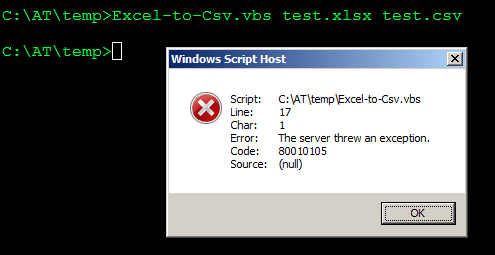
and when I run the script, I get this error message as seen in image below, I cannot understand why it comes out.
Any idea how to fix this?

Line: 17
Char: 1
Error:The server threw an exception
Code: 80010105
Source: (null)

Here is a screenshot of the error:
cLeXO.png
 
Last edited:

My Computer

Computer type
PC/Desktop
Computer Manufacturer/Model Number
custom build
OS
Windows 7 32 and 64 bit (dual boot)
CPU
Intel Core i7 2600K
Motherboard
ASRock H61M/U3S3
Memory
16GB DDR3
Graphics Card(s)
Intel HD Graphics 3000 (GT2+)
Works for me.

What’s the error you get when you run this command?
Code:
(New-Object -ComObject Excel.Application).Workbooks.Open("[COLOR="Red"]C:\path\to\file.xlsx[/COLOR]")
 

My Computer

Computer type
PC/Desktop
OS
Windows 10, Windows 8.1 Pro, Windows 7 Professional, OS X El Capitan
tried to run the command line you proposed changing the red text with the actual directory/file, I hope I did it right, this is what I get:

C:\Program Files (x86)\Console2>(New-Object -ComObject Excel.Application).Workbooks.Open("C:\AT\temp\test.xlsx")
.Workbooks.Open("C:\AT\temp\test.xlsx") was unexpected at this time.
 
Last edited:

My Computer

Computer type
PC/Desktop
Computer Manufacturer/Model Number
custom build
OS
Windows 7 32 and 64 bit (dual boot)
CPU
Intel Core i7 2600K
Motherboard
ASRock H61M/U3S3
Memory
16GB DDR3
Graphics Card(s)
Intel HD Graphics 3000 (GT2+)
Unfortunately I don't have PowerShell installed.
 

My Computer

Computer type
PC/Desktop
Computer Manufacturer/Model Number
custom build
OS
Windows 7 32 and 64 bit (dual boot)
CPU
Intel Core i7 2600K
Motherboard
ASRock H61M/U3S3
Memory
16GB DDR3
Graphics Card(s)
Intel HD Graphics 3000 (GT2+)
Powershell is included as part of W7,
So who removed it.

Roy
 

My Computer

Computer type
PC/Desktop
Computer Manufacturer/Model Number
medionl/Aspire 6930G/acer x55a
OS
W7 home premium 32bit/W7HP 64bit/w10 tp insider ring
CPU
E5300 dual core
Motherboard
medion MS7366
Memory
3gb
Graphics Card(s)
Nvidia Geforce 7100 Nforce 630i
Monitor(s) Displays
avixc
Internet Speed
n (isp resticted to 72)
Antivirus
mse/pands
Browser
palemoon
Other Info
Belkin Fd7050 n USB using Railink RT2870 drivers, more upto date
I am sorry, I did not know PowerShell was installed by default, I never used it before.
Attached is the result of writing that command in PowerShell.
 

Attachments

  • Capture.JPG
    Capture.JPG
    48.4 KB · Views: 2

My Computer

Computer type
PC/Desktop
Computer Manufacturer/Model Number
custom build
OS
Windows 7 32 and 64 bit (dual boot)
CPU
Intel Core i7 2600K
Motherboard
ASRock H61M/U3S3
Memory
16GB DDR3
Graphics Card(s)
Intel HD Graphics 3000 (GT2+)
I’m unable to observe the error firsthand, thus, any suggestions here are derived from Google searches.

Firstly, if you haven’t already, manually create an Excel file in a secure location such as your desktop and test the script with that.

Use this VBScript instead.
Code:
If WScript.Arguments.Count < 2 Then
	WScript.Echo "Please specify the source and the destination files. Usage: ExcelToCsv <xls/xlsx source file> <csv destination file>"
	Wscript.Quit
End If

csv_format = 6

Set objFSO = CreateObject("Scripting.FileSystemObject")

src_file = objFSO.GetAbsolutePathName(Wscript.Arguments.Item(0))
dest_file = objFSO.GetAbsolutePathName(WScript.Arguments.Item(1))

Set oExcel = CreateObject("Excel.Application")
oExcel.Visible = True
WScript.Sleep 1200
Set oWb = oExcel.Workbooks
WScript.Sleep 1200
Set oBook = oWb.Open(src_file)
WScript.Sleep 1200

oBook.SaveAs dest_file, csv_format

oBook.Close False
oExcel.Quit

Report back if you still get an error.
 

My Computer

Computer type
PC/Desktop
OS
Windows 10, Windows 8.1 Pro, Windows 7 Professional, OS X El Capitan
Wow, this worked! (from any directory not just from desktop)
Thank you so much!

Just one question: previously the script just converted directly the file from .xlsx to .csv, in a nanosecond, while now:
-it opens up Excel
-then it opens up the input file
- then it waits ~1 second, then it closes Excel.
At that point the .csv has been created, no error messages.

I wonder if basically the issue is that it is necessary to open first Excel?

I am asking because I have found a similar issue with a Perl script I have: it used to work fine, then it started to give me an error:
Win32::OLE(0.1709) error 0x80010105: "The server threw an exception"
in METHOD/PROPERTYGET "Open" at C:\AT\temp\excel-matrix-writer.pl line 61

Note that this happened exactly at the same time when the above .vbs started to give the similar "The server threw an exception" error, so I think this may originate from the same problem.

I resolved that issue for that Perl script by creating a .bat that contained this instruction BEFORE the Perl command line:
start input.xlsx

So basically Excel was started before launching the Perl command line and with this workaround it worked, no error messages.

It seems you have used something similar to solve the .vbs issue subject of this thread, I do not know if you agree.

I am just trying to see if I can get to the root of the problem in Windows and solve it once forever without having to resort to start-Excel-first workarounds.

 
Last edited:

My Computer

Computer type
PC/Desktop
Computer Manufacturer/Model Number
custom build
OS
Windows 7 32 and 64 bit (dual boot)
CPU
Intel Core i7 2600K
Motherboard
ASRock H61M/U3S3
Memory
16GB DDR3
Graphics Card(s)
Intel HD Graphics 3000 (GT2+)
Good start.

Just to be sure, try this code, and repeat swapping the indicated boolean value to “False”.
Code:
If WScript.Arguments.Count < 2 Then
	WScript.Echo "Please specify the source and the destination files. Usage: ExcelToCsv <xls/xlsx source file> <csv destination file>"
	Wscript.Quit
End If

csv_format = 6

Set objFSO = CreateObject("Scripting.FileSystemObject")

src_file = objFSO.GetAbsolutePathName(Wscript.Arguments.Item(0))
dest_file = objFSO.GetAbsolutePathName(WScript.Arguments.Item(1))

Set oExcel = CreateObject("Excel.Application")
oExcel.Visible = [B][COLOR="Red"]True[/COLOR][/B]
Set oWb = oExcel.Workbooks
Set oBook = oWb.Open(src_file)

oBook.SaveAs dest_file, csv_format

oBook.Close False
oExcel.Quit

If after this, having Excel open prior to running the script definitely masks the problem I would reinstall the Office suite to see if that may cure the issue for good. It should not be a necessary requirement that Excel be open for this script to succeed.


Just one question: previously the script just converted directly the file from .xlsx to .csv, in a nanosecond, while now: [...]
It’s purposely slow. At this stage we’re only trying to identify the error. Don’t always expect instant automagical solutions.
 

My Computer

Computer type
PC/Desktop
OS
Windows 10, Windows 8.1 Pro, Windows 7 Professional, OS X El Capitan
OK, thanks for your help with this.

I have tried the new code and it works OK with "True", but when I change it to "False" it returns the same old error: "the server threw an exception" at line 16 this time (in my original script it was at line 17).

Re: installing Office again, that was the first thing I did when the error came up, and nothing changed: still same error messages, with both Perl and .vbs scripts.
 

My Computer

Computer type
PC/Desktop
Computer Manufacturer/Model Number
custom build
OS
Windows 7 32 and 64 bit (dual boot)
CPU
Intel Core i7 2600K
Motherboard
ASRock H61M/U3S3
Memory
16GB DDR3
Graphics Card(s)
Intel HD Graphics 3000 (GT2+)
According to other sources, there may be an issue with this particular COM object in Windows 7 if the object doesn’t have administrative rights. I’m not using Windows 7 to test your script so I can’t tell you if this issue is actually the expected behaviour for this platform.

Try using an Elevated Command Prompt.


I’m linking your SO cross post here.
 

My Computer

Computer type
PC/Desktop
OS
Windows 10, Windows 8.1 Pro, Windows 7 Professional, OS X El Capitan
I wonder if using an Elevated Command Prompt would work in a .bat context.

I need to use this script converter xls to csv from a .bat, I will not type the instruction manually in cmd prompt each time.
 

My Computer

Computer type
PC/Desktop
Computer Manufacturer/Model Number
custom build
OS
Windows 7 32 and 64 bit (dual boot)
CPU
Intel Core i7 2600K
Motherboard
ASRock H61M/U3S3
Memory
16GB DDR3
Graphics Card(s)
Intel HD Graphics 3000 (GT2+)
Maybe I have found a way to do it:
Bat To Exe Converter | F2KO Software

Basically: create a .bat, convert it to an .exe with the above program and then run the .exe as admin.

I have not tested this yet, I will report if it works or not.

EDIT: I have tested it and it does not work.
Basically I have created the .bat containing the following command line as an .exe, then run the .exe as administrator:
Excel-to-Csv.vbs test.xlsx test.csv

The Excel-to-Csv.vbs file contains the original code I posted at the start of the thread, the one that gave the error. I still get the same error even if I run it as administrator, when compiled as an .exe.

So, I guess the issue is somewhere else, the mysteries of Windows 7...
 
Last edited:

My Computer

Computer type
PC/Desktop
Computer Manufacturer/Model Number
custom build
OS
Windows 7 32 and 64 bit (dual boot)
CPU
Intel Core i7 2600K
Motherboard
ASRock H61M/U3S3
Memory
16GB DDR3
Graphics Card(s)
Intel HD Graphics 3000 (GT2+)
No, no, no. Don’t do that. If you introduce yourself to complications while doing this you’ll just confuse yourself.

It would seem to me that you are unsure of how to run a VBScript on the command line. But how are you running the script currently then?

In an Elevated Command Prompt run,
Code:
"C:\path\to\Excel-to-CSV.Vbs" "C:\path\to\input.xlsx" "C:\path\to\output.csv"
 

My Computer

Computer type
PC/Desktop
OS
Windows 10, Windows 8.1 Pro, Windows 7 Professional, OS X El Capitan
Currently, I have a .bat that contains several command lines that trigger different scripts (a poor man's way of writing a code, I use it to manipulate a number of Excel files quickly, mostly copy and paste data and perform some calculation, if done manually it would be too long and too tedious while with the .bat is quick and precise).

For example, my bat could look like this:

script.pl do this and that operation on file1.xlsx
ren file1.xlsx file2.xlsx
excel-to-csv.vbs file2.xlsx file2.csv

here is where I get stuck: the .vbs command line fails and triggers the error message discussed in this thread.

How would I run the command line above from within a .bat with an elevated prompt?
 

My Computer

Computer type
PC/Desktop
Computer Manufacturer/Model Number
custom build
OS
Windows 7 32 and 64 bit (dual boot)
CPU
Intel Core i7 2600K
Motherboard
ASRock H61M/U3S3
Memory
16GB DDR3
Graphics Card(s)
Intel HD Graphics 3000 (GT2+)
We’re not going to use batch files at all right now, alright? It’s called isolating the problem.

Just open an elevated CMD and enter commands similar to this.

Code:
[COLOR="Silver"]C:\>[/COLOR]cd C:\path\to\folder\containing\execl-to-csv\script
[COLOR="Silver"]C:\path\to\folder\containing\execl-to-csv\script>[/COLOR]excel-to-csv.vbs file2.xlsx file2.csv


I’ll have to get back to you later on this.
 

My Computer

Computer type
PC/Desktop
OS
Windows 10, Windows 8.1 Pro, Windows 7 Professional, OS X El Capitan
In an Elevated Command Prompt run,
Code:
"C:\path\to\Excel-to-CSV.Vbs" "C:\path\to\input.xlsx" "C:\path\to\output.csv"

No worries, so I have run the above from a cmd prompt (run as administrator), changing path to the folder where I have the old/original Excel-to-CSV.Vbs:

"C:\AT\temp\Excel-to-Csv.vbs" "C:\AT\temp\test.xls" "C:\AT\temp\test.csv"


The result is the usual error msg: the server threw an exception, etc.
 

My Computer

Computer type
PC/Desktop
Computer Manufacturer/Model Number
custom build
OS
Windows 7 32 and 64 bit (dual boot)
CPU
Intel Core i7 2600K
Motherboard
ASRock H61M/U3S3
Memory
16GB DDR3
Graphics Card(s)
Intel HD Graphics 3000 (GT2+)
Pyprohly, just wanted to say thanks, your workaround solved somehow the issue. Worksforme.
 

My Computer

Computer type
PC/Desktop
Computer Manufacturer/Model Number
custom build
OS
Windows 7 32 and 64 bit (dual boot)
CPU
Intel Core i7 2600K
Motherboard
ASRock H61M/U3S3
Memory
16GB DDR3
Graphics Card(s)
Intel HD Graphics 3000 (GT2+)
Back
Top
