"These files might be harmful to your computer" warning

y2ken

New member
Local time
12:10 PM
Messages
11
Every time I move or copy any file from one folder to another on my local computer [not over a network]
I get the following "Windows Security" warning "These files might be harmful to your computer , your internet security settings suggest that one or more files may be harmful, do you want to use it anyway?"

I've Googled the message and in every instance it only occurred when someone was moving files across a network and the solution was to add the IP address of the other machine/server to the Local Intranet Zone. http://*******/14M4FtC

I've haven't seen anyone who has had this problem when simply moving files from one folder to another on the same local hard drive. Any suggestions?

Things I've tried:
Resetting IE Security Setting to default levels.
Turning UAC on/off
Turning Windows Firewall on/off
Resetting IE
I changed every IE security setting to be exactly the same as another computer which is NOT getting this message.
 

Attachments
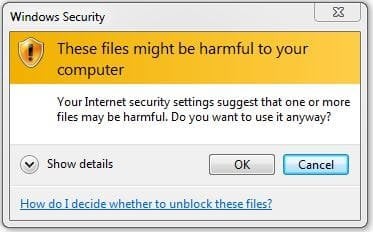
  • THESE FILES MIGHT BE HARMFUL TO YOUR COMPUTER.JPG
    THESE FILES MIGHT BE HARMFUL TO YOUR COMPUTER.JPG
    23.5 KB · Views: 59

My Computer My Computer

At a glance

Windows 7 Home Premium x64Intel Core 2 Quad 95504 Gigs Mushkin Enhanced Redline PC28000 / DDR...Radeon HD3870
Computer Manufacturer/Model Number
Self Built
OS
Windows 7 Home Premium x64
CPU
Intel Core 2 Quad 9550
Motherboard
Asus P5B
Memory
4 Gigs Mushkin Enhanced Redline PC28000 / DDR2 1000
Graphics Card(s)
Radeon HD3870
Monitor(s) Displays
Westinghouse 25.5 LCD
Screen Resolution
1920 x 1200
Hard Drives
HHD #1 Seagate 500G
HHD #2 Western Digital 500G
HHD #3 Western Digtial 500G
PSU
OCZ 750W xTreme Gamer
Case
Thermaltake Tsunami Dream
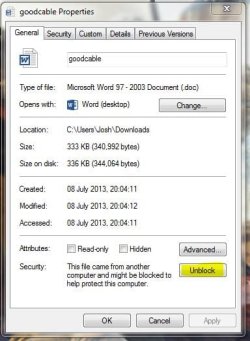
Does the files contain files which have been downloaded from a network before? I ask this because by default files downloaded by the internet will be 'blocked'

To unblock right click the file then click on properties > Unblock

block.JPG

Josh! :)
 

My Computer My Computer

At a glance

Windows 7 Professional x64 SP1 ; Windows Serv...Intel Core i5 2400 @ 3.10GHz8.0GB DDR3 @ 665MHz (2GBx4)AMD Radeon HD 6870
Computer type
PC/Desktop
Computer Manufacturer/Model Number
Custom Built
OS
Windows 7 Professional x64 SP1 ; Windows Server 2012 R2 Standard
CPU
Intel Core i5 2400 @ 3.10GHz
Motherboard
Foxconn H67MP-S/-V/H67MP
Memory
8.0GB DDR3 @ 665MHz (2GBx4)
Graphics Card(s)
AMD Radeon HD 6870
Sound Card
Realtek High Definition Audio
Monitor(s) Displays
AOC 2243W & SMB1930NW
Screen Resolution
1440x900 & 1920x1080
Hard Drives
977GB Seagate ST31000524AS ATA Drive (SATA)
250GB WD iSCSI attached Drive
PSU
750W Gaming PSU
Case
Novatech Night
Cooling
Fan
Keyboard
Dell Standard PS/2 Keyboard
Mouse
R.A.T 07 Gaming Mouse
Internet Speed
Download: 10 Mbps Ping: 30ms Upload: 0.81 Mbps
Browser
Google Chrome
Other Info
Optiarc DVD RW AD-5260S ATA Device
Thank Josh,

No, I get this message with ANY file or folder regardless of it's origin. A photo from my camera, a Word document I created, etc. Windows will allow me to move the but only after I click the 'OK' button in the dialogue box. It's very annoying to have to do this for each and every file/folder I want to move on my PC!

I'm not on the effected computer right now, but I'll try it when I get home. But curious, will your solution unblock all files of the type I am moving, .jpg, .doc, etc. Or will work only once on the specific file that I'm trying to move.
 

My Computer My Computer

At a glance

Windows 7 Home Premium x64Intel Core 2 Quad 95504 Gigs Mushkin Enhanced Redline PC28000 / DDR...Radeon HD3870
Computer Manufacturer/Model Number
Self Built
OS
Windows 7 Home Premium x64
CPU
Intel Core 2 Quad 9550
Motherboard
Asus P5B
Memory
4 Gigs Mushkin Enhanced Redline PC28000 / DDR2 1000
Graphics Card(s)
Radeon HD3870
Monitor(s) Displays
Westinghouse 25.5 LCD
Screen Resolution
1920 x 1200
Hard Drives
HHD #1 Seagate 500G
HHD #2 Western Digital 500G
HHD #3 Western Digtial 500G
PSU
OCZ 750W xTreme Gamer
Case
Thermaltake Tsunami Dream
As a test see if you can unblock one file then try and move it. Does the prompt occur? If not then this could well be the issue
 

My Computer My Computer

At a glance

Windows 7 Professional x64 SP1 ; Windows Serv...Intel Core i5 2400 @ 3.10GHz8.0GB DDR3 @ 665MHz (2GBx4)AMD Radeon HD 6870
Computer type
PC/Desktop
Computer Manufacturer/Model Number
Custom Built
OS
Windows 7 Professional x64 SP1 ; Windows Server 2012 R2 Standard
CPU
Intel Core i5 2400 @ 3.10GHz
Motherboard
Foxconn H67MP-S/-V/H67MP
Memory
8.0GB DDR3 @ 665MHz (2GBx4)
Graphics Card(s)
AMD Radeon HD 6870
Sound Card
Realtek High Definition Audio
Monitor(s) Displays
AOC 2243W & SMB1930NW
Screen Resolution
1440x900 & 1920x1080
Hard Drives
977GB Seagate ST31000524AS ATA Drive (SATA)
250GB WD iSCSI attached Drive
PSU
750W Gaming PSU
Case
Novatech Night
Cooling
Fan
Keyboard
Dell Standard PS/2 Keyboard
Mouse
R.A.T 07 Gaming Mouse
Internet Speed
Download: 10 Mbps Ping: 30ms Upload: 0.81 Mbps
Browser
Google Chrome
Other Info
Optiarc DVD RW AD-5260S ATA Device
Hmmmm.... I don't have an "Unblock" box on the files/folder General Properties tab. ?? I have "Attributes" but no "Security/Unblock". Also, I should've mentioned that I have an SSD drive with my OS installed on it and two mechanical data drives. I can move files around on my C: drive without the warning. It's only on my data drives that I have this issue. ???
 

My Computer My Computer

At a glance

Windows 7 Home Premium x64Intel Core 2 Quad 95504 Gigs Mushkin Enhanced Redline PC28000 / DDR...Radeon HD3870
Computer Manufacturer/Model Number
Self Built
OS
Windows 7 Home Premium x64
CPU
Intel Core 2 Quad 9550
Motherboard
Asus P5B
Memory
4 Gigs Mushkin Enhanced Redline PC28000 / DDR2 1000
Graphics Card(s)
Radeon HD3870
Monitor(s) Displays
Westinghouse 25.5 LCD
Screen Resolution
1920 x 1200
Hard Drives
HHD #1 Seagate 500G
HHD #2 Western Digital 500G
HHD #3 Western Digtial 500G
PSU
OCZ 750W xTreme Gamer
Case
Thermaltake Tsunami Dream
I've got the same when handling files on the Desktop of my notebook PC, but not on my main PC. Very annoying.
 

My Computer My Computer

At a glance

Windows 7 Professional x64Intel Core i5-2500K @ 3.3GHz8GBZotac ZONE GeForce GT 240 1GB [ZT-20404-20L]
Computer Manufacturer/Model Number
Homebrew
OS
Windows 7 Professional x64
CPU
Intel Core i5-2500K @ 3.3GHz
Motherboard
Fatal1ty P67 Professional
Memory
8GB
Graphics Card(s)
Zotac ZONE GeForce GT 240 1GB [ZT-20404-20L]
Sound Card
On board
Monitor(s) Displays
2x Samsung SyncMaster 203B
Screen Resolution
1400 x 1050
Case
CoolerMaster Elite
Cooling
Zalman
Keyboard
Microsoft Natural Wireless Ergonomic 7000
Mouse
Microsoft Natural Wireless Laser 7000
Same thing here, no pop up when moving files on my C drive (my ssd), and annoing pop ups on my two data drives...
 

My Computer My Computer

At a glance

Windows 8.1 Pro x64
Computer type
PC/Desktop
OS
Windows 8.1 Pro x64
Same problems as Y2ken and Ludopoot, Any solution?
 

My Computer My Computer

At a glance

Windows 7 Ultimate x64
Computer type
PC/Desktop
OS
Windows 7 Ultimate x64
I think all of us have more than one harddrives/ ssd or combination. And like y2ken said: "I can move files around on my C: drive without the warning", same for me. So the machine assumes the C drive is 'safe'. And that a specific other (date drive also in my case) isn't 'safe'.

I have 2 data drives and 2 ss's in my pc, only one data drive had the message when moving files. A while ago I reinstalled my pc. I think I'd format the other date drive, that came form another pc, all the other storage devices I bought new for the pc. Soow maybe the machine thinks the drive isn't 'safe because it came from somewhere else and didn't get formatted... just speculating here
 

My Computer My Computer

At a glance

Windows 8.1 Pro x64
Computer type
PC/Desktop
OS
Windows 8.1 Pro x64
just found an interesting thread, as the guy explains he had a 'fake' desktop folder located somewhere else than it should be. In my case the pictures and documents folders are not at the default location, namely D:/pictures not C:/ pictures. So maybe thats it!

possible fixes down below

IlakkiyanJeyakumar replied :
I found the answer. Let me ask you this, are you running your pc as an administrator and have you created a second user account? If so, your user account that is related to your desktop is conflicting with your administrative account. On the pop-up you will see a drop down and it will reveal the user account that is related to the pop-up. On mine it was an old user account that I didn't delete and when I did the problem vanished plus other problems disappeared as well. One account was telling the other account that any files you create "on my desktop" I will keep in check with a warning pop-up. I hope this helps you. It was a long hard road for me but I wasn't going to give up because I wanted to find out why.

Hey! Thank you very much for your help. Unfortunately your fix didn't work for me BUT it did prompt me to keep working on the problem (I just /sighed and left it as is).

Turns out, the problem was I had two desktop folders! I went into C:\users\"yourname"\favourites. There was a desktop folder here and I had to move it to the regular desktop folder (located in C:\user\"yourname". I right clicked on the "fake desktop folder" and went into properties. From here I browsed to the location tab, and clicked "move to" and selected the "real" desktop folder. It solved all the problems!

Despite your fix not working, I'm really grateful that you helped reinvigorate the willingness to fix this problem for me. Thank you, and I hope this fix helps anyone else!

Tl:dr: Browse for a "fake" desktop folder in C:\users\yourname\favourites. Right click it>properties>location>move to and select the "REAL" desktop folder located in C:\users\yourname.

Windows Security - These Files Might Be Harmful - Microsoft Community
 

My Computer My Computer

At a glance

Windows 8.1 Pro x64
Computer type
PC/Desktop
OS
Windows 8.1 Pro x64
Thank you for the reply, Ludopoot.
Firsr in reply to your helps
1, users' desktops conflicting---- from the start I only have one account.
2, the "fake" and real desktop folders--- I dont have that


Let me explain my situation.
I got my Pc reinstall half year ago it was divided to C drive and D drive. My uncled did the reinstall, he put the desktop folder in D and other things remained dafault. Its win7 64 ultimate. I was Ok with that and I didnt get the security pop-up. the C is 80GB and D is 500GB. so I let the program files be in C and my own stuff be in D.


One month ago I wanted to change the IE's favourites folder to D, but I mistakenly made the whole D drive the fav folder which made things messy. So I restored its default location.
( first I use the regedit-hkey thing to change the fav folder to D; then I use location tab in properties to restore its default location )


Everyone knows that when you move a bookmark(a internet short cut) in the fav folder to an outside folder, you will get the pop-up"Your Internet security settings suggest that one or more files do you want to use it anyway?". It is by design of microsoft, not a bug or anything you can fix.


So since I moved my fav folder to D, then restored its location to C, my D drive was like infect by the "pop-up disease"---(maybe coz it had once been a fav folder for IE) --- that everytime I drag a file or folder inbetween the D the security message always comes up---- annoys me.

But it doesnt happen when I use the cut and paste combination to move files---- not dragging. It also doesnt happen when I drag a file (was in D drive) from the bin back to desktop.


solutions I have tried:
1. restore the desktop folder to C drive. since everything I use frequently are in D.---turns out that this doesnt fit the way I organise my files.
( Its still a good option to restore desktop to C. but I need to move the files I recently deal with to C which has 40GB room now----so when I deal with them, I dont have the pop-up; and leave other things in D--- 400GB room)


2. put fav folder in D:\favourites. message stills pop up--- restore its default location----- message stills pop up


3. system restore--- the problem began like 1 month ago, and restore only has options for recent 2 days.

4. solutions from the searching "Your Internet security settings suggest that one or more files do you want to use it anyway?" in the first page of google. I will list 2 below:
4a- add internal ip address in internet option-security-local intranet-site-advanced--
doesnt work for me

4b- this
=====================
You can control this with Group Policy, as well. Use gpedit.msc and drill down to User Configuration->Policies->Administrative Templates->Windows Components->Internet Explorer->Internet Control Panel->Security Page. Enable "Intranet Zone Template" with the Low option. Then enable "Site to Zone Assignment List" and use the Show button to add your "sites" (servername, servername.domain, ipaddress - the values you enter depend on what name or IP you use to access the share) with a value of 1.
Lastly - and this is the most important step - drill down one folder in gpedit to "Intranet Zone" and enable for "Launching programs and unsafe files", choosing Enable from the drop-down.
Close gpedit, reboot or run "gpupdate /force" and enjoy no more annoying Windows Security dialogues!
=================
pretty like doing the same thing as 4a----- still doesnt work for me

conclude: solution 1 is the only way for now to minimize the number of times of the annoying security pop-up.
(sorry for the long post */\* )
 

My Computer My Computer

At a glance

Windows 7 Ultimate x64
Computer type
PC/Desktop
OS
Windows 7 Ultimate x64
Moving Icons on desktop -These Files Might be Harmful to your Computer

I have the same issues as the previous posts in this thread. It's frustrating when the solution(s) given are "try this" or "this could work". Something more definitive is required.

I am using a work computer, but, alas the same problem existed at home. On returning to work after a vacation,. the computer has regressed to a former state of being cranky and spiteful. "These files might be harmful to your computer" message is prompted when I tried moving the icons around my desktop, in an arrangment more useful and appealing to me for my workspace.

1. Yes, I have set the internet security settings. Actually, these were setup previously by our IT department, but I added to it with no changes.

2. Yes, I have all the necessary updates.

3. It is already stated, but NO I am not moving stuff across a network

4. NO I do not have a "fake" desktop (whatever that is) I do have additional hard drives but they are mapped network drives and not physically present in the computer and should not have anything to do with this. I assume it (a "fake" desktop) could be a "Desktop" that resides on a cloud storage medium, or some other remote access. Mine is not setup that way.

5. I have fixed this before, but it was tedious, and over many days I got the prompt to go away.

6. SOLVED? I noticed this is only when I right click, not left click. Left clicking moves the icons without incident, but... still.... perhaps I just fixed it? May this be useful if it fixes your problem!
 

My Computer My Computer

At a glance

Windows 7 Professional SP1Athlon II X2 B22 2.80Ghz8.00GBATI Radeio HD 3400, ATI Radeon HD 4200
Computer type
PC/Desktop
Computer Manufacturer/Model Number
HP
OS
Windows 7 Professional SP1
CPU
Athlon II X2 B22 2.80Ghz
Memory
8.00GB
Graphics Card(s)
ATI Radeio HD 3400, ATI Radeon HD 4200
Hard Drives
Hitachi HDS721016CLA382 SATA
Back
Top