
Thumbnail Cache - Enable or Disable

How to Enable or Disable the Thumbnail Cache in Windows


   Information
By default Windows stores the images for thumbnail previews in cache memory so that it can redisplay the images quickly each time you reopen a folder in Windows Explorer. However, with thumbnail caching enabled by default, this may pose a security issue with some people or companies since all of the thumbnail picture view images stored in the thumbnail cache can be view by anyone.

This will show you how to enable or disable thumbnail views from being cached in thumbs_*.db files, and force Vista, Windows 7, or Windows 8 to load the thumbnail picture views each time you reopen a folder.

You must be logged in as an administrator to be able to do the steps in this tutorial.

   Note
The thumbnail cache thumbs_*.db database files are stored at the hidden system folder below:

C:\Users\User-Name\AppData\Local\Microsoft\Windows\Explorer

   Warning
When the thumbnail cache is disabled, it may cause a delay when opening folders while the thumbnail picture views are loaded from the hard disk instead of the thumbnail cache.
   Tip
If you like you can use the free ThumbCacheViewer program to automatically detect the thumbnail caches present on your computer, and lets you view all the thumbnail images in each cache.

This way you can verify that your thumbnails are gone or not.

thumbcache1.jpg


OPTION ONE

To Enable or Disable Thumbnail Caching using a REG File


NOTE: This option is recommended to use and is more thorough than OPTION TWO below.
1. To Enable Thumbnail Caching for All Users
A) Click/tap on the Download button below to download the file below.
Enable_Thumbnail_Cache.reg

Download


B) Go to step 3.
2. To Disable Thumbnail Caching for All Users
A) Click/tap on the Download button below to download the file below.
Disable_Thumbnail_Cache.reg

Download


3. Save the .reg file to your desktop.

4. Double click/tap on the downloaded .reg file to merge it.

6. Click/tap on Run, Yes, Yes, and OK when prompted.

7. Log off and log on, or restart the computer to apply.

8. When done, you can delete the downloaded .reg file if you like.


OPTION TWO

To Enable or Disable Thumbnail Caching in Group Policy


1. Open the all users, specific users or groups, or all users except administrators Local Group Policy Editor for how you want this policy applied.

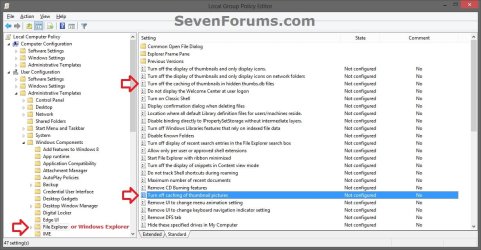
2. In the left pane, click/tap on the arrow to expand User Configuration, Administrative Templates, Windows Components, and on Windows Explorer (Windows 7) or File Explorer (Windows 8). (See screenshot below)
GPEDIT-1.jpg
3. In the right pane of Windows Explorer (Windows 7) or File Explorer (Windows 8), double click/tap on Turn off caching of thumbnail pictures to edit it. (See screenshot above)

4. To Enable Thumbnail Caching
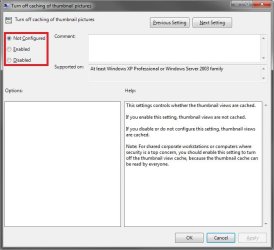
A) Select (dot) Not Configured or Disabled. (See screenshot below step 6)

B) Go to step 6.
5. To Disable Thumbnail Caching
A) Select (dot) Enabled. (See screenshot below step 6)
6. Click/tap on OK. (See screenshot below)
Properties.jpg
7. In the right pane of Windows Explorer (Windows 7) or File Explorer (Windows 8), double click/tap on Turn off the caching of thumbnails in hidden thumbs.db files to edit it. (see screenshot below step 2)

8. Do step 4 or 5 above, and go to step 9 below.

9. Close the Local Group Policy Editor. (See screenshot below step 2)

10. Log off and log on, or restart the computer to apply.
That's it,
Shawn


Attachments

Last edited:
Cool, at the end of Dmitry Brant's article he provides a link to this tutorial on how to disables caching. ;)
 

My Computer

Computer type
PC/Desktop
Computer Manufacturer/Model Number
Home Built Desktop By DataTech
OS
Windows 7 Ultimate X64 SP1
CPU
Intel i5-2550K, Differing ~4.4-4.8GHz No built in GPU
Motherboard
ASUS P8Z68-V PRO/GEN3
Memory
16GB G.Skill Sniper 1866MHz @ 2133MHz 2x8GB
Graphics Card(s)
ASUS GTX650TIB-DC2OC-2GD5, (650TI Boost)
Sound Card
Onboard Realtek 5-1
Monitor(s) Displays
Samsung P2570HD
Screen Resolution
1920x1080
Hard Drives
Samsung 840 Pro 256GB SSD for OS, 500GB Seagate Constellation (Enterprise drive) for Data
PSU
Corsair HX650W
Case
Inwin Dragon Rider
Cooling
Hyper 212 EVO w/two Noctua fans, push-pull, @1300 RPM
Keyboard
E-Z Eyes, bright yellow keys with large characters
Mouse
steelseries SENSEI Laser Pro Gaming
Internet Speed
48-51Mbs Mbs down, 11 Mbs up Xfinity Cable
Antivirus
Norton Internet Security 2013
Browser
IE 10, Opera, Pale Moon if needed
Other Info
4 case fans, LG BluRay-RE, ASUS DVD-RW, Mr. Fusion power supply, 1.21 gigawatts.
Ok fellas, I've updated the .reg file in step 2 OPTION ONE to see if that may help more.

I just love it when a group policy doesn't do completely what it claims anymore.

I tried the latest .reg file and it has no impact on Win7 Home Premium 32-bit - cleared out explorer thumbnail cache with Windows Disk Cleanup utility before adding thumbnail-disable registry entries and then rebooted, then cache continues to be rebuilt as directories are browsed. Editing / rotating an image still leaves explorer thumbnails out of sync with image.

I will be going with terry60's approach (thanks for the info!):

Did you read on down the thread ?
In post #6 I mentioned the only thing that actually works.
Ignore all the subsequent stuff about the cats, turns out that that was just embedded metadata and nothing to do with caching at all.
Setting group policy etc. has no effect whatsoever, so why MS provides such policy settings when they do nothing is a major question.
Turns out, the only way to prevent W7 (and W8) from cluttering your valuable SSD C drive space with unwanted junk in the form of thumbnails, is to navigate down to ...Users/yourname/appdata/local/Microsoft/Windows/Explorer
right click on that folder, select properties> security and remove all access to it.
Leave it so that only you (not the system) have access and remove your own ability to write inside it.
Just leave yourself with ownership and read access.

Make sure you do a disk cleanup first, or what's inside the cache will be stuck there forever wasting space.
 

My Computer

Computer type
Laptop
OS
Windows 7 Home Premium 32bit
I have Win7 Pro SP1 64bit

NEITHER of the Options in post worked, IconCache.db is rebuilt EVERY time I boot :mad:

I even verified the Registry entries after using Option One.

I use Local Policy Editor and set to disable icon cache (enable settings in policy).

Something in your post is missing.
 

My Computer

Computer type
PC/Desktop
Computer Manufacturer/Model Number
Custom build
OS
Windows 7 64bit
CPU
Intel(R) Core(TM) i5-4690 CPU @ 3.50GHz
Motherboard
Gigabyte Technology Co., Ltd. Z97X-UD5H
Memory
8gb
Graphics Card(s)
GeForce GTX 770, 2gb memory
Hard Drives
Seagate ST4000DX001-1CE16 4tb Hybread (SSD + SATA)

Western Digital WDC WD1600BB-32DWA0 USB Device 160gb (external)
Antivirus
ESET NOD32 Antivirus
Browser
Firefox & IE
I have Win7 Pro SP1 64bit

NEITHER of the Options in post worked, IconCache.db is rebuilt EVERY time I boot :mad:

I even verified the Registry entries after using Option One.

I use Local Policy Editor and set to disable icon cache (enable settings in policy).

Something in your post is missing.

Hello tecknomage, :)

This only disables the thumbnail cache thumbs_*.db database files stored at the hidden system folder below.

C:\Users\User-Name\AppData\Local\Microsoft\Windows\Explorer
 

My Computer

Computer type
PC/Desktop
Computer Manufacturer/Model Number
Self built custom
OS
64-bit Windows 11 Pro for Workstations
CPU
Intel i7-8700K OC'd to 5 GHz
Motherboard
ASUS ROG Maximus XI Formula Z390
Memory
64 GB (4x16GB) G.SKILL TridentZ RGB DDR4 3600 MHz
Graphics Card(s)
ASUS ROG-STRIX-GTX1080TI-O11G-GAMING
Sound Card
Integrated
Monitor(s) Displays
2 x Samsung Odyssey G7 27"
Screen Resolution
2560x1440
Hard Drives
1TB Samsung 990 PRO M.2,
4TB Samsung 990 PRO PRO M.2,
TerraMaster F8 SSD Plus NAS
PSU
Seasonic Prime Titanium 850W
Case
Thermaltake Core P3
Cooling
Corsair Hydro H115i
Keyboard
Logitech wireless K800
Mouse
Logitech MX Master 4
Internet Speed
2 Gb/s Download and 100 Mb/s Upload
Antivirus
Malwarebyte Anti-Malware Premium
Browser
Google Chrome
Other Info
Logitech Z625 speaker system,
Logitech BRIO 4K Pro webcam,
HP Color LaserJet Pro MFP M477fdn,
APC SMART-UPS RT 1000 XL - SURT1000XLI,
Galaxy S23 Plus phone
I have Win7 Pro SP1 64bit

NEITHER of the Options in post worked, IconCache.db is rebuilt EVERY time I boot :mad:

I even verified the Registry entries after using Option One.

I use Local Policy Editor and set to disable icon cache (enable settings in policy).

Something in your post is missing.
Check post #16
That's the only way to kill thumbnail caching in W7/8/8.1/10
The GPE and regedit methods should work in theory, but demonstrably don't do what they claim.
 

My Computer

OS
Windows 7 Enterprise x64
I just ran the disable program in Option 1 to get rid of thumbs.db files because I was trying to sync all my backup folders and it was making it really difficult when file counts weren't exactly matching because of hidden thumbs.db folders.

Now I just tried to turn it back on using the enable program because I need to be able to see thumbnails of my photography but it didn't work.

Help.

EDIT

I just ran Option 3.2 on this link

Thumbnail Previews - Enable or Disable - Windows 7 Help Forums

and that has fixed the problem.

If anyone can elucidate further as to which of all these options is the best to use if I want to turn this feature on and off as required then please let me know.
 
Last edited:

My Computer

Computer Manufacturer/Model Number
SONY VAIO PCG-81312M
OS
Windows 7 Home Premium 64
CPU
Intel Core i7-2630QM
Memory
4GB
Graphics Card(s)
NVidia GeForce with Cuda
Hard Drives
Hitachi 500GB
Hello Stu, :)

All three options in that tutorial set the same setting. The only difference is Option 3 (all users steps) and Option 4 get applied to all users and override Options 1 and 2.
 

My Computer

Computer type
PC/Desktop
Computer Manufacturer/Model Number
Self built custom
OS
64-bit Windows 11 Pro for Workstations
CPU
Intel i7-8700K OC'd to 5 GHz
Motherboard
ASUS ROG Maximus XI Formula Z390
Memory
64 GB (4x16GB) G.SKILL TridentZ RGB DDR4 3600 MHz
Graphics Card(s)
ASUS ROG-STRIX-GTX1080TI-O11G-GAMING
Sound Card
Integrated
Monitor(s) Displays
2 x Samsung Odyssey G7 27"
Screen Resolution
2560x1440
Hard Drives
1TB Samsung 990 PRO M.2,
4TB Samsung 990 PRO PRO M.2,
TerraMaster F8 SSD Plus NAS
PSU
Seasonic Prime Titanium 850W
Case
Thermaltake Core P3
Cooling
Corsair Hydro H115i
Keyboard
Logitech wireless K800
Mouse
Logitech MX Master 4
Internet Speed
2 Gb/s Download and 100 Mb/s Upload
Antivirus
Malwarebyte Anti-Malware Premium
Browser
Google Chrome
Other Info
Logitech Z625 speaker system,
Logitech BRIO 4K Pro webcam,
HP Color LaserJet Pro MFP M477fdn,
APC SMART-UPS RT 1000 XL - SURT1000XLI,
Galaxy S23 Plus phone
Think I might just keep is on enabled thumbs.db files. Really slowing my computer down reestablishing this, which I need for my photography. Just need to remember to keep all my backup folders in order and tidy from now on...:confused:
 

My Computer

Computer Manufacturer/Model Number
SONY VAIO PCG-81312M
OS
Windows 7 Home Premium 64
CPU
Intel Core i7-2630QM
Memory
4GB
Graphics Card(s)
NVidia GeForce with Cuda
Hard Drives
Hitachi 500GB
[MENTION=47]Brink[/MENTION]: While reviewing some of my favorite Registry tweaks for a new computer, I just found that I "do not have permission to access" the "Enable_Thumbnail_Cache.reg" file linked at the top of this page. (Not that I'll ever have reason to use that file; I just wanted to keep a copy on hand for completeness.)
 

My Computer

OS
Windows 7 Home Premium (64bit)
@Brink: While reviewing some of my favorite Registry tweaks for a new computer, I just found that I "do not have permission to access" the "Enable_Thumbnail_Cache.reg" file linked at the top of this page. (Not that I'll ever have reason to use that file; I just wanted to keep a copy on hand for completeness.)
I've just checked your permissions and you have permissions to downlaod that file.

I've added it here for you.

View attachment Enable_Thumbnail_Cache.reg
 
I've just checked your permissions and you have permissions to downlaod that file.
Sorry, but I still can't get to it - not by the link at the top of the page, nor by the link in your post. Both links open a new tab with a login page - which apparently isn't aware that I'm already logged in.
 

My Computer

OS
Windows 7 Home Premium (64bit)
Sorry, but I still can't get to it - not by the link at the top of the page, nor by the link in your post. Both links open a new tab with a login page - which apparently isn't aware that I'm already logged in.

Hello, :-)

As a test, try right clicking on the download link, and clicking on open in new tab and/or window to see if it may work then.

If not, test with another browser.
 

My Computer

Computer type
PC/Desktop
Computer Manufacturer/Model Number
Self built custom
OS
64-bit Windows 11 Pro for Workstations
CPU
Intel i7-8700K OC'd to 5 GHz
Motherboard
ASUS ROG Maximus XI Formula Z390
Memory
64 GB (4x16GB) G.SKILL TridentZ RGB DDR4 3600 MHz
Graphics Card(s)
ASUS ROG-STRIX-GTX1080TI-O11G-GAMING
Sound Card
Integrated
Monitor(s) Displays
2 x Samsung Odyssey G7 27"
Screen Resolution
2560x1440
Hard Drives
1TB Samsung 990 PRO M.2,
4TB Samsung 990 PRO PRO M.2,
TerraMaster F8 SSD Plus NAS
PSU
Seasonic Prime Titanium 850W
Case
Thermaltake Core P3
Cooling
Corsair Hydro H115i
Keyboard
Logitech wireless K800
Mouse
Logitech MX Master 4
Internet Speed
2 Gb/s Download and 100 Mb/s Upload
Antivirus
Malwarebyte Anti-Malware Premium
Browser
Google Chrome
Other Info
Logitech Z625 speaker system,
Logitech BRIO 4K Pro webcam,
HP Color LaserJet Pro MFP M477fdn,
APC SMART-UPS RT 1000 XL - SURT1000XLI,
Galaxy S23 Plus phone
Okay, weird - Edge still won't work to download that file, but Chrome does! Edge does work for the "Disable" file, tho. Can't imagine what's different that only Edge detects, and only for that one file.
 

My Computer

OS
Windows 7 Home Premium (64bit)
Okay, weird - Edge still won't work to download that file, but Chrome does! Edge does work for the "Disable" file, tho. Can't imagine what's different that only Edge detects, and only for that one file.

Odd.

Any extensions installed that could be causing the issue?
 

My Computer

Computer type
PC/Desktop
Computer Manufacturer/Model Number
Self built custom
OS
64-bit Windows 11 Pro for Workstations
CPU
Intel i7-8700K OC'd to 5 GHz
Motherboard
ASUS ROG Maximus XI Formula Z390
Memory
64 GB (4x16GB) G.SKILL TridentZ RGB DDR4 3600 MHz
Graphics Card(s)
ASUS ROG-STRIX-GTX1080TI-O11G-GAMING
Sound Card
Integrated
Monitor(s) Displays
2 x Samsung Odyssey G7 27"
Screen Resolution
2560x1440
Hard Drives
1TB Samsung 990 PRO M.2,
4TB Samsung 990 PRO PRO M.2,
TerraMaster F8 SSD Plus NAS
PSU
Seasonic Prime Titanium 850W
Case
Thermaltake Core P3
Cooling
Corsair Hydro H115i
Keyboard
Logitech wireless K800
Mouse
Logitech MX Master 4
Internet Speed
2 Gb/s Download and 100 Mb/s Upload
Antivirus
Malwarebyte Anti-Malware Premium
Browser
Google Chrome
Other Info
Logitech Z625 speaker system,
Logitech BRIO 4K Pro webcam,
HP Color LaserJet Pro MFP M477fdn,
APC SMART-UPS RT 1000 XL - SURT1000XLI,
Galaxy S23 Plus phone
Back
Top