Thumbnail Previews - Enable or Disable

How to Enable or Disable Explorer Thumbnail Previews in Windows 7 and Windows 8

   Information
This tutorial will show you how to enable or disable thumbnail previews in Windows Explorer for all or specific users in Windows 7 and Windows 8.

   Note
Displaying thumbnails in Windows Explorer will require that Windows Photo Viewer is set as the default program with all of it's default associations (except .gif files) set with it as well.

If you disable thumbnail previews, then they will also not display in the preview pane in Windows 7 or Windows 8.

   Tip
If there are a lot of thumbnails in a Windows Explorer window, then it can slow down your computer while you wait for the thumbnails to load. If this happens, then disabling thumbnails will speed up how fast a Windows Explorer window will open by displaying only icons instead of thumbnails.

   Warning
When thumbnail previews is enabled, you will need to have the icon view size in the Windows Explorer window set to either Medium Icons, Large Icons, or Extra Large Icons to see a thumbnail of the file or folder.


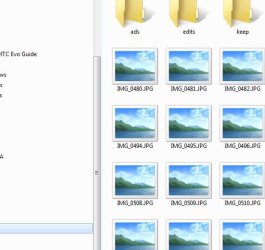
EXAMPLE: Thumbnails Enabled in Windows Explorer

images.jpgFolder_ON.jpgImage_On.jpg
EXAMPLE: Thumbnails Disabled in Windows Explorer Folder_OFF.jpgImage_Off.jpg



OPTION ONE

To Enable or Disable Thumbnail Previews in Folder Options


NOTE: This option will only enable or disable thumbnails in your account. If this option is not available in Folder Options, then you will need to enable either OPTION THREE or OPTION FOUR below to enable for all users. 1. Open Folder Options in Windows 7 or Windows 8, and click/tap on the View tab. (see screenshot below) Folder_Options.jpg
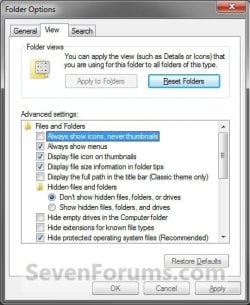
2. Do step 3 or 4 below for what you would like to do.

3. To Turn Off Thumbnails A) Check Always show icons, never thumbnails, and click/tap on OK. (See screenshot above)
4. To Turn On Thumbnails
NOTE: This is the default setting. A) Uncheck Always show icons, never thumbnails, and click/tap on OK. (See screenshot below step 2)


OPTION TWO

To Enable or Disable Thumbnail Previews in Visual Effects


NOTE: This option will only enable or disable thumbnails in your user account. 1. Open Visual Effects settings in Windows 7 or Windows 8. (see screenshot below) Visual_Effects.jpg
2. To Turn Off Thumbnails A) Uncheck Show thumbnails instead of icons, and click/tap on OK. (See screenshot above)
3. To Turn On Thumbnails
NOTE: This is the default setting. A) Check Show thumbnails instead of icons, and click/tap on OK. (See screenshot below step 1)
NOTE: If this option will not stay checked when you reopen this window, then you will need to enable either OPTION THREE or OPTION FOUR below.


OPTION THREE

To Enable or Disable Thumbnail Previews using a REG File

1. To Disable All Users Thumbnails
NOTE: This option will disable thumbnails for all users on the computer and overrides step 3 and 4 below. This is the same as doing OPTION FOUR with Group Policy. You must be logged in as an administrator to be able to do this option. A) Click/tap on the Download button below to download the file below, and go to step 5 below. Disable_Explorer_Thumbnails_All_Users.reg


Download


2. To Enable All Users Thumbnails
NOTE: This is the default setting. This option will enable thumbnails for all users on the computer and overrides step 3 and 4 below. This is the same as doing OPTION FOUR with Group Policy. You must be logged in as an administrator to be able to do this option. A) Click/tap on the Download button below to download the file below, and go to step 5 below. Enable_Explorer_Thumbnails_All_Users.reg

Download


3. To Disable Only Your Thumbnails
NOTE: This option will disable thumbnails for only the currently logged in user. This is the same as doing OPTION ONE or OPTION TWO above. A) Click/tap on the Download button below to download the file below, and go to step 5 below. Disable_Explorer_Thumbnails_Current_User.reg


Download


4. To Enable Only Your Thumbnails
NOTE: This is the default setting. This option will enable thumbnails for only the currently logged in user. This is the same as doing OPTION ONE or OPTION TWO above. A) Click/tap on the Download button below to download the file below, and go to step 5 below. Enable_Explorer_Thumbnails_Current_User.reg

Download


5. Save the .reg file to your desktop.

6. Double click/tap on the downloaded .reg file to merge it.

7. Click/tap on Run, Yes (UAC), Yes, and OK when prompted.

8. Log off and log on, or restart the computer to apply.

9. When finished, you can delete the downloaded .reg file if you like.


OPTION FOUR

To Enable or Disable Thumbnail Previews in Group Policy


NOTE: You must be logged in as an administrator to be able to do this option. 1. Open the all users, specific users or groups, or all users except administrators Local Group Policy Editor for how you want this policy applied.

2. In the left pane, click on the arrow to expand User Configuration, Administrative Templates, Windows Components, and Windows Explorer (Windows 7) or File Explorer (Windows 8). (see screenshot below) Group_Policy.jpg
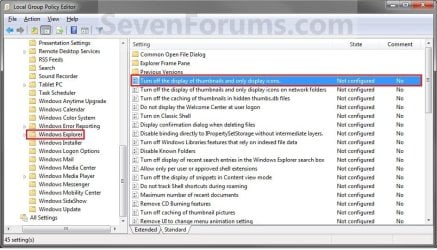
3. In the right pane of Windows Explorer (Windows 7) or File Explorer (Windows 8), double click/tap on Turn off the display of thumbnails and only display icons to edit it. (see screenshot above)

4. Do step 5 or 6 below for what you would like to do.

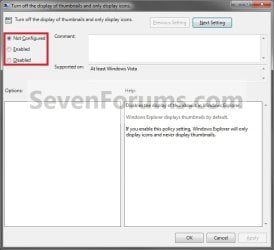
5. To Enable Thumbnails A) Select (dot) Not Configured or Disabled, and go to step 7 below. (see screenshot below step 7)
NOTE: Not Configured is the default setting.
6. To Disable Thumbnails A) Select (dot) Enabled, and go to step 7 below. (see screenshot below step 7)
7. Click/tap on OK. (See screenshot below) Poperties.jpg
8. Close the Local Group Policy Editor.
That's it,
Shawn


Attachments

Last edited:
Folder Options

The whole thumbnails thing is a PITA. I would prefer there was an option to have windows redraw the thumbs every time and not have a thumbs.db that prevents renaming and deletion of folders due to "open files".

However I have also noticed something more annoying.

I have some NFS mounts which I regularly use, and some of them have thousands of files for which I need no thumbnails. I also have my ordinary documents and picture files for which I do like thumbnails.

When I go to folder options, the setting for thumbnails applies systemwide, even if I do NOT click the "apply to all folders" button.

I just want some drives / folder trees to have thumbnails, and some to not, however I have to change the setting on the fly every 10 minutes. Is this a bug, or intended behaviour?
 

My Computer

Computer type
PC/Desktop
Computer Manufacturer/Model Number
Custom
OS
Win 7 Pro 64 Bit
CPU
i5-3400k
Motherboard
Asus P8Z77-V Pro
Memory
16GB
Graphics Card(s)
2xATI Firepro 4800v
Hard Drives
2x512GB SSD
2x3TB WD
Browser
Chrome

My Computer

Computer type
PC/Desktop
Computer Manufacturer/Model Number
Self built custom
OS
64-bit Windows 11 Pro for Workstations
CPU
Intel i7-8700K OC'd to 5 GHz
Motherboard
ASUS ROG Maximus XI Formula Z390
Memory
64 GB (4x16GB) G.SKILL TridentZ RGB DDR4 3600 MHz
Graphics Card(s)
ASUS ROG-STRIX-GTX1080TI-O11G-GAMING
Sound Card
Integrated
Monitor(s) Displays
2 x Samsung Odyssey G7 27"
Screen Resolution
2560x1440
Hard Drives
1TB Samsung 990 PRO M.2,
4TB Samsung 990 PRO PRO M.2,
TerraMaster F8 SSD Plus NAS
PSU
Seasonic Prime Titanium 850W
Case
Thermaltake Core P3
Cooling
Corsair Hydro H115i
Keyboard
Logitech wireless K800
Mouse
Logitech MX Master 4
Internet Speed
2 Gb/s Download and 100 Mb/s Upload
Antivirus
Malwarebyte Anti-Malware Premium
Browser
Google Chrome
Other Info
Logitech Z625 speaker system,
Logitech BRIO 4K Pro webcam,
HP Color LaserJet Pro MFP M477fdn,
APC SMART-UPS RT 1000 XL - SURT1000XLI,
Galaxy S23 Plus phone
That's really a bit mad. means when I am browsing linux file shares etc, I leave behind me a veritable trail of rubbish on those file systems.

There used to be a "apply to all subfolders" option in XP, however we seem to have gone backwards since then!
 

My Computer

Computer type
PC/Desktop
Computer Manufacturer/Model Number
Custom
OS
Win 7 Pro 64 Bit
CPU
i5-3400k
Motherboard
Asus P8Z77-V Pro
Memory
16GB
Graphics Card(s)
2xATI Firepro 4800v
Hard Drives
2x512GB SSD
2x3TB WD
Browser
Chrome
There's an Apply to Folders option in Windows 7, but that's for folder view settings instead.
 

My Computer

Computer type
PC/Desktop
Computer Manufacturer/Model Number
Self built custom
OS
64-bit Windows 11 Pro for Workstations
CPU
Intel i7-8700K OC'd to 5 GHz
Motherboard
ASUS ROG Maximus XI Formula Z390
Memory
64 GB (4x16GB) G.SKILL TridentZ RGB DDR4 3600 MHz
Graphics Card(s)
ASUS ROG-STRIX-GTX1080TI-O11G-GAMING
Sound Card
Integrated
Monitor(s) Displays
2 x Samsung Odyssey G7 27"
Screen Resolution
2560x1440
Hard Drives
1TB Samsung 990 PRO M.2,
4TB Samsung 990 PRO PRO M.2,
TerraMaster F8 SSD Plus NAS
PSU
Seasonic Prime Titanium 850W
Case
Thermaltake Core P3
Cooling
Corsair Hydro H115i
Keyboard
Logitech wireless K800
Mouse
Logitech MX Master 4
Internet Speed
2 Gb/s Download and 100 Mb/s Upload
Antivirus
Malwarebyte Anti-Malware Premium
Browser
Google Chrome
Other Info
Logitech Z625 speaker system,
Logitech BRIO 4K Pro webcam,
HP Color LaserJet Pro MFP M477fdn,
APC SMART-UPS RT 1000 XL - SURT1000XLI,
Galaxy S23 Plus phone
Option 2 worked fine for me guys i don't know why it changed, but it's fixed now

Thanks
 

My Computer

Computer type
PC/Desktop
Computer Manufacturer/Model Number
Custom Build
OS
Microsoft Windows 7 Professional 64-bit
CPU
Intel Core i7 4770 Haswell @3.4GHz
Motherboard
ASUSTeK Z87-PRO LGA1150 ATX Motherboard
Memory
G.Skill 16GB Kit (2x8GB) DDR3 Ripjaws X C10 1600MHz
Graphics Card(s)
Leadtek Quadro 410 192-CUDA Core 512MB DDR3 DVI
Sound Card
Realtek® ALC1150 8-Channel High Definition Audio CODEC
Monitor(s) Displays
Asus MX239H 23" Full HD AH-IPS WS 5MS Frameless LED Monitor
Screen Resolution
1920 x 1080 x 32 bits (4294967296 color 50 Hz/75 Hz
Hard Drives
Samsung 840 Pro Series 2.5" 7mm 256GB SSD
Hitachi HDS722020ALA330 ATA Device 2TB
WDC WD2002FAEX-007BA0 ATA Device 2TB
PSU
XFX Core Edition 550W 80PLUS Bronze Power Supply
Case
Gigabyte GZ-X7 Black Mid Tower Case -
Cooling
Standard Fans in Case
Keyboard
Microsoft Wireless Desktop 2000
Mouse
Microsoft Wireless Desktop 2000
Internet Speed
Reasonable
Antivirus
Trend Micro Titanium Maximum Security
Browser
Firefox 95% - Exploror 5%
Other Info
On board Wi-Fi 802.11 a/b/g/n Qualcomm Atheros AR946x Wireless Ethernet 802.3 Network Adapter
Supports dual band frequency 2.4/5 GHz
I'm glad it could help mojo53. :)
 

My Computer

Computer type
PC/Desktop
Computer Manufacturer/Model Number
Self built custom
OS
64-bit Windows 11 Pro for Workstations
CPU
Intel i7-8700K OC'd to 5 GHz
Motherboard
ASUS ROG Maximus XI Formula Z390
Memory
64 GB (4x16GB) G.SKILL TridentZ RGB DDR4 3600 MHz
Graphics Card(s)
ASUS ROG-STRIX-GTX1080TI-O11G-GAMING
Sound Card
Integrated
Monitor(s) Displays
2 x Samsung Odyssey G7 27"
Screen Resolution
2560x1440
Hard Drives
1TB Samsung 990 PRO M.2,
4TB Samsung 990 PRO PRO M.2,
TerraMaster F8 SSD Plus NAS
PSU
Seasonic Prime Titanium 850W
Case
Thermaltake Core P3
Cooling
Corsair Hydro H115i
Keyboard
Logitech wireless K800
Mouse
Logitech MX Master 4
Internet Speed
2 Gb/s Download and 100 Mb/s Upload
Antivirus
Malwarebyte Anti-Malware Premium
Browser
Google Chrome
Other Info
Logitech Z625 speaker system,
Logitech BRIO 4K Pro webcam,
HP Color LaserJet Pro MFP M477fdn,
APC SMART-UPS RT 1000 XL - SURT1000XLI,
Galaxy S23 Plus phone
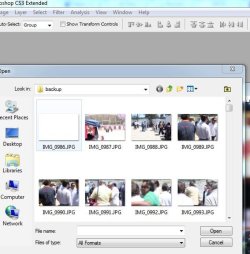
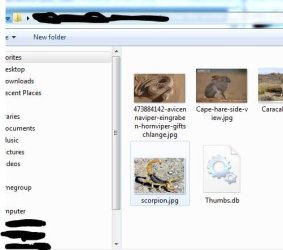
If I may chime in I cant get thumbnails to come back up. I already tried all these options, rebooted several times and they dont come back, even tried resetting defaults but still no luck. The weird thing is that as there are no thumbnails being built in Explorer, I can get thumbnails while opening files in Photoshop, so the thumbnail cache is being built for Photoshop but not for Explorer.

I've attached 3 images, from explorer, photoshop (open file), and here (manage attachments-open).

G
 

Attachments

  • thumbnails-explorer-01.JPG
    thumbnails-explorer-01.JPG
    45.5 KB · Views: 1,191
  • thumbnails-photoshop-01.JPG
    thumbnails-photoshop-01.JPG
    60.4 KB · Views: 1,214
  • thumbnails-7forums-attachments-01.JPG
    thumbnails-7forums-attachments-01.JPG
    39.9 KB · Views: 1,149

My Computer

Computer Manufacturer/Model Number
Self built
OS
W764 & W764
CPU
AMD Phenom II X4 810 2.6ghz & AMD|PH II X6 1055T 2.8G AM3 RT
Motherboard
Asus M4A79T Deluxe & ASUS| M4A88TD-V EVO/USB3 880G
Memory
6.0 gb & 16.0 gb (64bit)
Graphics Card(s)
GForce 9800 GTX 512gb & Sapphire HD6870
Sound Card
Integrated
Monitor(s) Displays
1 32" LG 1080 TV
Screen Resolution
1920x1080
Hard Drives
(Phenom X4)
WD 10K 74 GB 3.0gb/s
WD 320 GB
2 X WD 7200 1TB 3.0gb/s
-External HDs-
3 X WD 1 TB 3.0gb/s

(Phenom X6)
WD 10K 300 GB 3.0gb/s
WD 1TB 6.0 gbs
-External HDs-
WD 1 TB 6.0gb/s thru eSATA
WD 1 TB 6.0gb/s thre USB 3.0
PSU
Corsair 750 W & CoolerMaster 700W
Case
CM690 & CM690
Cooling
Both CM690 have 7 120mm Fans
Keyboard
stock USB
Mouse
logitech wireless
Internet Speed
cable
Other Info
I do alot of Video and DVD burning
If this has just recently started to happen, then you might see if doing a system restore using a restore point dated before this started may be able to sort it for you. :)
 

My Computer

Computer type
PC/Desktop
Computer Manufacturer/Model Number
Self built custom
OS
64-bit Windows 11 Pro for Workstations
CPU
Intel i7-8700K OC'd to 5 GHz
Motherboard
ASUS ROG Maximus XI Formula Z390
Memory
64 GB (4x16GB) G.SKILL TridentZ RGB DDR4 3600 MHz
Graphics Card(s)
ASUS ROG-STRIX-GTX1080TI-O11G-GAMING
Sound Card
Integrated
Monitor(s) Displays
2 x Samsung Odyssey G7 27"
Screen Resolution
2560x1440
Hard Drives
1TB Samsung 990 PRO M.2,
4TB Samsung 990 PRO PRO M.2,
TerraMaster F8 SSD Plus NAS
PSU
Seasonic Prime Titanium 850W
Case
Thermaltake Core P3
Cooling
Corsair Hydro H115i
Keyboard
Logitech wireless K800
Mouse
Logitech MX Master 4
Internet Speed
2 Gb/s Download and 100 Mb/s Upload
Antivirus
Malwarebyte Anti-Malware Premium
Browser
Google Chrome
Other Info
Logitech Z625 speaker system,
Logitech BRIO 4K Pro webcam,
HP Color LaserJet Pro MFP M477fdn,
APC SMART-UPS RT 1000 XL - SURT1000XLI,
Galaxy S23 Plus phone
Dont think it was too recent, think a program might have changed it, but did try all of the options and no luck. I have W10 setup to install this PC, so perhaps will work now lol, just have to use the windows photo viewer and go one by one for now, at least the images are bigger.

thanks
 

My Computer

Computer Manufacturer/Model Number
Self built
OS
W764 & W764
CPU
AMD Phenom II X4 810 2.6ghz & AMD|PH II X6 1055T 2.8G AM3 RT
Motherboard
Asus M4A79T Deluxe & ASUS| M4A88TD-V EVO/USB3 880G
Memory
6.0 gb & 16.0 gb (64bit)
Graphics Card(s)
GForce 9800 GTX 512gb & Sapphire HD6870
Sound Card
Integrated
Monitor(s) Displays
1 32" LG 1080 TV
Screen Resolution
1920x1080
Hard Drives
(Phenom X4)
WD 10K 74 GB 3.0gb/s
WD 320 GB
2 X WD 7200 1TB 3.0gb/s
-External HDs-
3 X WD 1 TB 3.0gb/s

(Phenom X6)
WD 10K 300 GB 3.0gb/s
WD 1TB 6.0 gbs
-External HDs-
WD 1 TB 6.0gb/s thru eSATA
WD 1 TB 6.0gb/s thre USB 3.0
PSU
Corsair 750 W & CoolerMaster 700W
Case
CM690 & CM690
Cooling
Both CM690 have 7 120mm Fans
Keyboard
stock USB
Mouse
logitech wireless
Internet Speed
cable
Other Info
I do alot of Video and DVD burning
Back
Top