Thumbnails Corrupted

SmithO

New member
Local time
12:06 AM
Messages
1
This has been a On & Off issue. When I first got the laptop I did not get any of these issues. It's when I installed updates it's been happening. The thumbnails for some files will not load & get corrupted (not showing anything just the name). Sometimes I reboot it clears the issue but it just happens again it's getting annoying & it's happening more often now. I thought I resolved the problem a while back installing a update but it's happening again. The green bar at the top does not fully finish & it just stops there.

I've tried refreshing but it doesn't change a thing. I've cleared the the thumbnail cache (there was nothing in there, the file size was around 70MB) didn't change anything. I've also downloaded the Icon Cache Rebuild bat it didn't do anything. There are some optional updates I haven't installed yet I could try that. I did install it in the past but it slowed down my laptop so I had to do a System Restore. I never experienced this problem on Vista. So I'm wondering what the problem is.
 

My Computer

Computer type
Laptop
OS
64
It sounds like you may have to do a system restore again to get it back to normal(hopefully).
 

My Computer

Computer type
PC/Desktop
Computer Manufacturer/Model Number
custom built
OS
Windows 7 ultimate 64-bit
CPU
Intel I7 2600K 3.4ghz
Motherboard
Asus Evo P8P67
Memory
Corsair 16gb ddr3 1600mhz
Graphics Card(s)
Nvidia Geforce gt 430
Sound Card
Sound Blaster Titanium x-fi pci express
Monitor(s) Displays
Dell E198WFP
Hard Drives
1 western digital 2TB drive.
PSU
Antec 1200 watt
Case
Inwin Dragon Rider
Cooling
6 case supplied cooling fans
Keyboard
logitech mk700
Mouse
logitech m705
Internet Speed
25-50mbps download; 10mbps upload(i think)
Antivirus
avg free 2014
Browser
mozilla firefox
Other Info
Also have a pretty bad speaker setup which is a klipsch promedia 5.1 surround speaker setup with huge subwoofer and lg blu ray player/writer. Also a hp officejet pro 8600 plus wireless all in one and a logitech s7500 webcam.

My Computer

Computer type
PC/Desktop
Computer Manufacturer/Model Number
Custom Bulid/Self made
OS
Windows 11 x64
CPU
i5 2500K @ 3.3 GHz
Motherboard
ASUS P8 Z77 V pro
Memory
16 GB DDR 3 @ 1600Mhz
Graphics Card(s)
MSI 1050TI 4GB OC version
Sound Card
On Board (Realtek HD audio)
Monitor(s) Displays
Samsung 22" LCD
Screen Resolution
1920*1080
Hard Drives
Seagate 1 TB, WD 1TB, Seagate 2 TB ( I use a lot of space)
PSU
coolermaster 750 W
Case
Coolermaster HAF912
Cooling
Coolermaster hyper 212 EVO
Keyboard
Samsung
Mouse
Dell Wireless
Internet Speed
Wireless 50 Mbps
Antivirus
AVG 2016 Internet Security
Browser
Google Chrome
Icon issues

Try either rebooting or logging off then log back on again after rebuilding the icon cache.

I had the same issues constantly and in the end after much research I decided that it's down to scheduled Windows maintenance. You can read the thread here:

https://social.technet.microsoft.co.../desktop-icons-disappear?forum=w7itprogeneral

Solution that worked for me is below. If you want to try this make sure that you can undo all the changes or make a system image backup first.


take ownership of this file (edit permissions):
C:\ Windows\ Diagnostics\Scheduled\ Maintenance\TS_BrokenShortcuts.ps1

Edit it by adding # in front of lines 44-49

2014-01-06 19_29_25-C__Windows_System32_WindowsPowerShell_v1.0_powershell_ise.jpg


and do the same for this file:
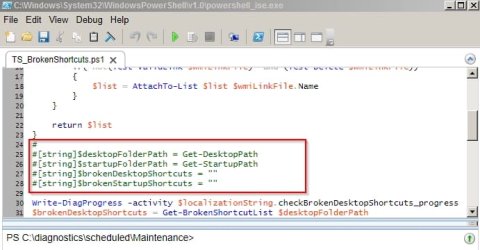
C:\diagnostics\scheduled\Maintenance\TS_BrokenShortcuts.ps1

but add # in front of lines 24-28

2014-01-06 19_34_09-C__Windows_System32_WindowsPowerShell_v1.0_powershell_ise.jpg

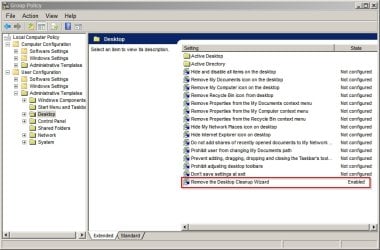
Disable the desktop cleanup wizard by opening Group Policy Editor (Start> Run then type gpedit.msc) Press Enter.

Navigate to:

User Configuration>Administrative Templates>Desktop

In the right hand pane, locate and double click on an entry labeled Remove the Desktop Cleanup Wizard.

Find Remove the Desktop Cleaning Wizard in the window. The current state should be Not Configured. Click on the Enabled option, click the OK button.

2014-01-06 19_39_50-Group Policy.jpg

Additionally you can try the following.

Download Advanced System Tweaker

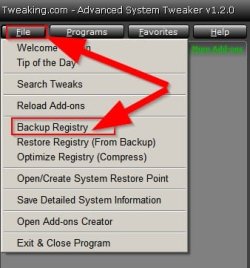
Backup the registry before doing anything else (From File menu)

2014-01-06 20_09_Reg Backup.jpg

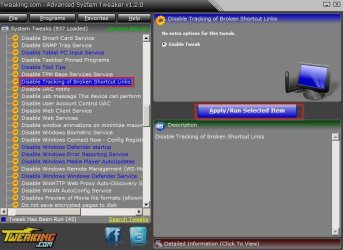
Then run the program and find and highlight Disable Tracking of Broken Shortcut Links in the "Windows 7 System Tweaks" section and run that tweak only by clicking Apply in the right hand pane. Don't mess about with the rest of the tweaks unless you have researched what they do and why you might wish to apply them.

2014-01-06 19_56_37-Tweaking.jpg

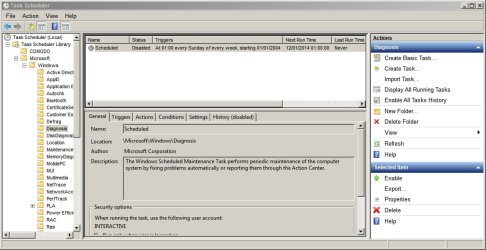
Also run the Windows Scheduled Maintenance Task in Task Scheduler manually after applying the above fixes. If your icons promptly vanish - set this task to disabled.

2014-01-06 19_04_57-Task Scheduler.jpg

EDIT: Forgot to mention the following:

Create the following registry entries:

[HKEY_LOCAL_MACHINE\Software\Microsoft\Windows\ScheduledDiagnostics]
“IsBrokenShortcutsTSEnabled”=dword:00000000
“IsUnusedDesktopIconsTSEnabled”=dword:00000000

2014-01-06 20_20_53-Registry Editor.jpg

Reboot for changes to take effect.
 
Last edited:

My Computer

Computer type
Laptop
Computer Manufacturer/Model Number
ASUS
OS
Microsoft Windows 7 Home Premium 64-bit 7601 Multiprocessor Free Service Pack 1
CPU
AMD C-60 APU with Radeon(tm) HD Graphics
Motherboard
ASUSTeK COMPUTER INC. X501U
Memory
4.00 GB
Graphics Card(s)
AMD Radeon HD 6290 Graphics
Sound Card
(1) AMD High Definition Audio Device (2) Realtek High Defi
Screen Resolution
1366 x 768 x 32 bits (4294967296 colors) @ 60 Hz
Hard Drives
Hitachi HTS545050A7E380 SATA Disk Device
Antivirus
Comodo CIS & FW, SecureAplus App Whitelisting, Threatfire
Browser
Cyberfox 64bit, Opera 64bit, Airfox
Other Info
Spy-The-Spy, HitmanPro.Alert, Norton Connect Safe, MJRegWatcher, BitDefender TrafficLight, Voodoo Shield, Zemana AntiMalware
Back
Top