Totally Confused on restoring system image

huffman

New member
Pro User
Local time
12:27 PM
Messages
715
Yesterday I had a system failure and was not able to boot into Windows. Previously I had created an image using the built-in imager in Windows on an external hard drive. I had also created an image using Macrium (thank goodness).

I used the Repair Disk I had created to boot up expecting to be able to use the Windows created image to restore my C-drive.

I have read all the tutorials on how to restore the image, all that did was confuse me. It seems there are just too many "IFs ands Buts" in the tutorials I have read.

The restore would NOT see the image I had created on the external HDD. I ended up restoring with Macrium which did a fine job.

What I would like is some simple instructions on how to restore an image created on an external HDD using the built-in imager.

If there is such instructions, I would appreciate I would appreciate directions to them.

Thank you
 

My Computer My Computer

At a glance

Windows 7 ProIntel(R) Pentium(R) Duel CPU E2200 2.20 Ghz4 gb 2.96 UsableOnboard
OS
Windows 7 Pro
CPU
Intel(R) Pentium(R) Duel CPU E2200 2.20 Ghz
Motherboard
GA-G41M-ES2L
Memory
4 gb 2.96 Usable
Graphics Card(s)
Onboard
Sound Card
Onboard
Hard Drives
2 - 1TB WD Sata Drives
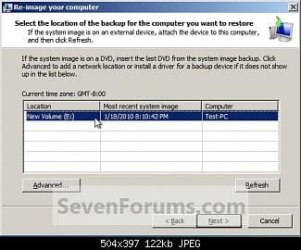
Did you use the Advanced options to find the image?

Step8A.jpg
 

My Computer My Computer

At a glance

ME/XP/Vista/Win7
OS
ME/XP/Vista/Win7
I thought I used the Advanced Option, but I am not totally sure.

Here is more information that might be helpful:

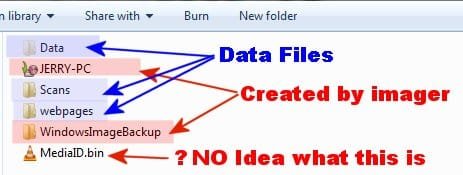
backkup1.jpg

This shows all the files and folders on the external hard drive.

I assume (right or wrong) that the "JERRY-PC" file is the file that is used for restoring the image?

I have no idea what the "MediaID.bin" is for.

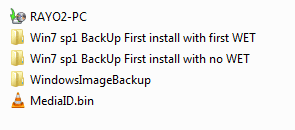
backkup2.jpg

This shows all the files/folders inside the "WindowsImageBack" folder. Again I would assume the restore function will find these automatically as needed.

I am still looking for simplest instructions for restoring the image created under the conditions I stated in the first post.

Thank You
 

My Computer My Computer

At a glance

Windows 7 ProIntel(R) Pentium(R) Duel CPU E2200 2.20 Ghz4 gb 2.96 UsableOnboard
OS
Windows 7 Pro
CPU
Intel(R) Pentium(R) Duel CPU E2200 2.20 Ghz
Motherboard
GA-G41M-ES2L
Memory
4 gb 2.96 Usable
Graphics Card(s)
Onboard
Sound Card
Onboard
Hard Drives
2 - 1TB WD Sata Drives
Why not just forget about using it. As you have found out it isn't very intuitive and doesn't work some times.

Just think if you hadn't use that other program to make a backup image of your system.

So just forget about the built in image program. It's not worth your time trying to figure it out.
 

My Computer My Computer

At a glance

Windows 7 Pro x64i5 76016GBNvidia GTS450
Computer Manufacturer/Model Number
Built be Me
OS
Windows 7 Pro x64
CPU
i5 760
Motherboard
Asus P7P55D-E Pro
Memory
16GB
Graphics Card(s)
Nvidia GTS450
Sound Card
On board
Monitor(s) Displays
Dell 2007WFP Dell 1800FP
Screen Resolution
1680x1050 1280x1024
Hard Drives
Seagate 250GB & 750GB
WD 1TB
PSU
Antec 750
Case
In Win
Cooling
Cooler Master Hyper 212+
Keyboard
IBM
Mouse
MS
I thought I used the Advanced Option, but I am not totally sure.

Here is more information that might be helpful:

View attachment 149078

This shows all the files and folders on the external hard drive.

I assume (right or wrong) that the "JERRY-PC" file is the file that is used for restoring the image?

I have no idea what the "MediaID.bin" is for.

View attachment 149081
JERRY-PC is your data backup, not your image. Your image is

This shows all the files/folders inside the "WindowsImageBack" folder. Again I would assume the restore function will find these automatically as needed.

I am still looking for simplest instructions for restoring the image created under the conditions I stated in the first post.

Thank You
JERRY-PC is your data backup, not your image. Your image is "WindowsImageBackup"
 

My Computer My Computer

At a glance

Windows 7 Pro/32 Academic. Build 7600Intel 2.3 Duo core4 GB DDRNvidia GeForce 9500 GT
Computer Manufacturer/Model Number
Custom Build
OS
Windows 7 Pro/32 Academic. Build 7600
CPU
Intel 2.3 Duo core
Motherboard
EliteGroup G31T-M
Memory
4 GB DDR
Graphics Card(s)
Nvidia GeForce 9500 GT
Sound Card
Built in
Monitor(s) Displays
Viewsonic 15" 4:3
Screen Resolution
1280 x 1024
Hard Drives
WD Caviar Black 750 GB
WD 250 GB External
PSU
Antec 450w
Keyboard
Standard windows
Mouse
Logitech USB
Internet Speed
Bellsouth DSL 6.0
I thought I used the Advanced Option, but I am not totally sure.

Here is more information that might be helpful:

View attachment 149078

This shows all the files and folders on the external hard drive.

I assume (right or wrong) that the "JERRY-PC" file is the file that is used for restoring the image?

I have no idea what the "MediaID.bin" is for.

View attachment 149081
JERRY-PC is your data backup, not your image. Your image is

This shows all the files/folders inside the "WindowsImageBack" folder. Again I would assume the restore function will find these automatically as needed.

I am still looking for simplest instructions for restoring the image created under the conditions I stated in the first post.

Thank You
JERRY-PC is your data backup, not your image. Your image is "WindowsImageBackup"

And "mediaID.bin" is a file used by Windows Backup and must be in the root of the drive where the "JERRY-PC" data backup folder is at. You lose that file, you be in big poopoo.

You can find, in the Tutorials here, straightfoward tutorials on using the Windows 7 Backup/ Restore /Imaging program.

http://www.sevenforums.com/tutorials/615-backup-user-system-files.html

http://www.sevenforums.com/tutorials/648-restore-backup-user-system-files.html

http://www.sevenforums.com/tutorials/663-backup-complete-computer-create-image-backup.html

http://www.sevenforums.com/tutorials/675-system-image-recovery.html
 

My Computer My Computer

At a glance

Windows 7 64bitPentium dual-core E5200(2.50GHz) 2MB L2 Cache...4 GB of DDR2 667/800 MHz SDRAMNVIDIA GeForce 7100 Integrated Graphics
Computer Manufacturer/Model Number
Gateway DX4720-03
OS
Windows 7 64bit
CPU
Pentium dual-core E5200(2.50GHz) 2MB L2 Cache 2MB FSB 800MHz
Memory
4 GB of DDR2 667/800 MHz SDRAM
Graphics Card(s)
NVIDIA GeForce 7100 Integrated Graphics
Sound Card
8-Channel (7.1) High Definition Audio
Monitor(s) Displays
Gateway 19'' flat-screen monitor
Screen Resolution
1024 X 768
Hard Drives
640GB SATA II, 16MB Cache 7200 RPM
500GB Parallel ATA hard disk 5400 RPM
Case
16.34" x 7.09" x 11.22" 24.25 lbs
Keyboard
Premium Multimedia Keyboard
Mouse
USB Optical 2-Button Wheel Mouse
Internet Speed
Cable Internet Road Runner
Other Info
18X DVD+/-R/RW SuperMulti Drive featuring Labelflash Technology

10/100/1000 Mbps Ethernet LAN

300W

Card Reader - 15-in-1 High Speed Digital Media Card Reader w/Smart Copy Button
Compact Flash I & II, IBM Microdrive, Secure Digital (SD & Mini SD), Multi Media Card (MMC, MMC Plus, RS-MMC, and MMC Mobile), Memory Stick (MS, MS Duo, MS Pro, and MS Pro Duo), xD-Picture Card, SmartMedia Card
  • Like
Reactions: JMH
Why not just forget about using it. As you have found out it isn't very intuitive and doesn't work some times.

Far as I am concerned the more options I have to restore an image when seemingly unsolvable problems arise the better off I am.

Tinkerdog I have read and reread all those tutorials. I even printed them out so I could take my time and not miss anything. I think they are still too many "IFs, Ands, and Buts".

The best one and most straight forward I found is "System Recovery Options" at

http://www.sevenforums.com/tutorials/668-system-recovery-options.html

It seems easy and straight forward and addressed my situation. At least I will try it next time I have to.

Thanks for the responses
 

My Computer My Computer

At a glance

Windows 7 ProIntel(R) Pentium(R) Duel CPU E2200 2.20 Ghz4 gb 2.96 UsableOnboard
OS
Windows 7 Pro
CPU
Intel(R) Pentium(R) Duel CPU E2200 2.20 Ghz
Motherboard
GA-G41M-ES2L
Memory
4 gb 2.96 Usable
Graphics Card(s)
Onboard
Sound Card
Onboard
Hard Drives
2 - 1TB WD Sata Drives
Far as I am concerned the more options I have to restore an image when seemingly unsolvable problems arise the better off I am.

In the abstract, I agree with you.

However---in actuality, you have to guard against THINKING you understand an imaging application. You think you understand it, so you use it. Then, a few months later, you get in a jam and try to restore. Only then do you discover you didn't really understand it--and you can't restore due to some fine point that wasn't in the help file or was glossed over in the tutorial. You were lulled into complacency--which is deadly when applied to something as critical as backup.

If you in fact DO understand it, fine. But, as you are learning, Windows Backup is a bit cryptic and hardly user-friendly. In an attempt to dumb it down and still include a bunch of features, Microsoft actually made it more complex to understand.
 

My Computer My Computer

At a glance

Windows 7 Home Premium SP1, 64-bitIntel Skylake i5-6600K, not overclocked8 GB HyperX DDR4-2666 (2 x 4 GB)none; graphics are integrated on CPU
Computer type
PC/Desktop
Computer Manufacturer/Model Number
Ignatz Special; 4 speed manual gearbox; factory air conditioning; one of one
OS
Windows 7 Home Premium SP1, 64-bit
CPU
Intel Skylake i5-6600K, not overclocked
Motherboard
AsRock Z170M Extreme 4, micro ATX
Memory
8 GB HyperX DDR4-2666 (2 x 4 GB)
Graphics Card(s)
none; graphics are integrated on CPU
Sound Card
onboard: Realtek ALC1150; external: USB Behringer UF0-202
Monitor(s) Displays
Dell S2340M 23 inch IPS
Screen Resolution
1600 x 900
Hard Drives
System: Crucial MX100 series SSD, 128 GB;
Data: Samsung Spinpoint 103SJ, 1 TB;
Backup: WD Caviar Green WD30EZRX-00D8PB0, 3 TB
PSU
Rosewill SilentNight 500 watt fanless, semi-modular
Case
Antec Solo II
Cooling
Noctua NH-U12S; Noctua F12 intake, Noctua S12A exhaust
Keyboard
Microsoft 200 6JH-00001 USB
Mouse
Dell or Microsoft optical wired; USB
Antivirus
Microsoft Security Essentials and Malwarebytes Premium
Browser
Pale Moon
Other Info
All fans PWM; speeds at idle: CPU circa 500 rpm; intake circa 600 rpm; exhaust circa 600 rpm; CPU temps 27 idle and 47 C load in a warm room (27 C/81 F) when running Intel Extreme Tuning Utility stress test.

My Computer My Computer

At a glance

ME/XP/Vista/Win7
OS
ME/XP/Vista/Win7
Back
Top