Totally remove a printer?

stefanmaine

New member
Local time
4:09 PM
Messages
21
How do I get Windows 7 32-bit to stop displaying at Devices & Printers, an HP Deskjet 1500 series printer (D1520) which I no longer have? When I right-click the icon and choose "Remove Device", it disappears but then later reappears, although the icon is blurred or dulled. The printer is not connected to the laptop by USB cable or in any other way, and has not been for several days. At Add/Remove Programs, there is no HP program listed. At Start's All Programs menu, there is no mention of HP. I believe the driver is hpd1500t.gpd. A search for that file does not find it. At c:/windows/sxs there are a lot of gpd files, but not that one. Autoruns does not show any HP files at logon, but at the Drivers tab there is c:\windows\system32\drivers\hpsamd.sys. I unchecked that, and then restarted the computer, but the printer reappeared at Devices & Printers. (What is hpsamd.sys? Is it okay to leave it unchecked at Autoruns>Drivers anyway? I have no HP devices -- no printers, no handhelds, etc.) I suppose it doesn't matter if the printer appears at Devices & Printers, but having removed it, I guess I'd like it to appear removed. Thank you.
 

My Computer

Computer Manufacturer/Model Number
Toshiba Satellite L505D-S5983
OS
Windows 7
CPU
AMD Athlon II Dual-Core M-300 2Ghz
Memory
3 GB
Welcome

Possibly the driver is not fully unistalled. If you have uninstalled the driver make sure that it is done so fully with this
Guru3D - Driver Sweeper (Setup) download from Guru3D.com

Always make a system restore point first and check for virus before downloading anything.
 

My Computer

Computer type
PC/Desktop
Computer Manufacturer/Model Number
Dell XPS 420
OS
Windows 10, Home Clean Install
CPU
Intel Core2 processsor Q8200(2.33Ghz 1333FSB) Quad Core Tech
Motherboard
Dell
Memory
6 gb
Graphics Card(s)
ATI Radeon 256MB HD3650
Sound Card
Intergrated 7.1 Channel Audio
Monitor(s) Displays
Dell SP2009W 20"
Hard Drives
640 GB Serial ATA Hard drive
Cooling
Fan
Keyboard
Dell USB Keyboard
Mouse
Dell Premium Optical USB
Internet Speed
DSL 2.85
How do I get Windows 7 32-bit to stop displaying at Devices & Printers, an HP Deskjet 1500 series printer (D1520) which I no longer have? When I right-click the icon and choose "Remove Device", it disappears but then later reappears, although the icon is blurred or dulled. The printer is not connected to the laptop by USB cable or in any other way, and has not been for several days. At Add/Remove Programs, there is no HP program listed. At Start's All Programs menu, there is no mention of HP. I believe the driver is hpd1500t.gpd. A search for that file does not find it. At c:/windows/sxs there are a lot of gpd files, but not that one. Autoruns does not show any HP files at logon, but at the Drivers tab there is c:\windows\system32\drivers\hpsamd.sys. I unchecked that, and then restarted the computer, but the printer reappeared at Devices & Printers. (What is hpsamd.sys? Is it okay to leave it unchecked at Autoruns>Drivers anyway? I have no HP devices -- no printers, no handhelds, etc.) I suppose it doesn't matter if the printer appears at Devices & Printers, but having removed it, I guess I'd like it to appear removed. Thank you.

Maybe you could have a go in your Control Panel=>DeviceManager=>(Tab Display) Show Hidden Peripherals.

Search & scroll the list in printers then uninstall, keeping or not the Printer pilote driver.

This tutorial might help you:

http://www.sevenforums.com/tutorials/77614-device-manager-hidden-devices.html
 

My Computer

Computer type
PC/Desktop
Computer Manufacturer/Model Number
Custom Build
OS
Windows 7 Professional SP1 - x64 [Non-UEFI Boot]
CPU
Ivy Bridge Core i5 3570K (Delidded)
Motherboard
Asus P8Z77-V LE PLUS
Memory
G.Skill "Ares" DDR3 PC3-12800 - 1600MHz (16Gb)
Graphics Card(s)
Asus Dual-RX480-O4G
Sound Card
Creative Sound Blaster Z w/5.1 sound system
Monitor(s) Displays
Asus IPS 23"
Screen Resolution
16/9
Hard Drives
Internal:
500Go Sata 6Gb/s (x2)
500Go Sata 3Gb/s (x2)
SSD 60Go Sata 6Gb/s
PSU
In Win C 900W Series 80+ Platinum
Case
Thermaltake Chaser A71
Cooling
Custom Water Cooling Loop
Keyboard
Cooler Master QuickFire XTi
Mouse
Razer Imperator 2012 (4G)
Antivirus
MSE
Browser
IE 11.0.xxx Rtm
Other Info
"Raid0" with Intel Smart Response Technology (HDD/SSD)
Thank you. Logged in as Administrator, I followed the tutorial, and at Computer Management>System Tools>Device Manager>Printers, with "Show hidden devices" selected, there appears "HP Deskject D1500 series". I right-clicked it, selected "uninstall", and it's still there. Any thoughts? Otherwise I'll just live with it.
 

My Computer

Computer Manufacturer/Model Number
Toshiba Satellite L505D-S5983
OS
Windows 7
CPU
AMD Athlon II Dual-Core M-300 2Ghz
Memory
3 GB
I now what I would do IMO........After making a restore point...
Install software for HP deskjet 1500 series. Then reboot. Use Revo Uninstall Pro (free) and try removing it that way.
There also may be a registry key that is lingering somewhere in regedit BUT I wouldn't go there and mess with it.
Just close your eyes and ignore it if the above install and have Revo remove it doesn't work.
Keep us posted on your efforts.
There is a member here who is a printer tech and I will get back to you with his name.

The member's name is
OSHOLT who specializes in printers.
 
Last edited:

My Computer

Computer Manufacturer/Model Number
HP M9077c
OS
Windows 7 Home Premium 64bit
CPU
Intel(R)Core(TM)2 quad [email protected] 2.39GHz
Motherboard
ASUSeK
Memory
6GB DDR2 6400
Graphics Card(s)
GeForce 8500/512MB
Sound Card
Realtek High Def Audio
Monitor(s) Displays
HP w2408 LCD 24" widescreen
Screen Resolution
1920x1200
Cooling
6 pack of Bud
Keyboard
MS wireless Inteli
Mouse
MS wireless Inteli
This issue is a douzie and something I've battled with before.

You will notice that when you delete a device from devices and printers and then add a printer of the same name as the one just deleted it won't let you because the printer actually hasn't been deleted at all, thus why it comes back.

One thing you might try is putting in the driver disk for your printer and run the installer which will attempt to remove both the driver and possibley the printer, sometimes it doesn't though but the driver will be gone.

If you've lost the disk you can get the installer from HP Deskjet D1520 Printer - HP Customer Care (United States - English).

Once you have restarted once after doing this and deleted the printer again it should now be completely gone as well as the driver.

Another thing you could try if this doesn't work is to delete the printer with elivated privilages by right clicking on the icon and selecting run as Administrator then deleting it.

I hope one of these techniques works for you, they usually do for me.

Thank you the Howling Wolves for your praise but I'm not a be all and end all Guru, sure I have a fair bit of expierience but it's with a fairly limited market (and some of the situations that come up on here aren't even possible in my neck of the woods :p).
It's like all problems with computers, you find out what works and what doesn't after a couple of goes and from there on it's just a set list, my most used one on here is try a System Restore, if that doesn't work try a repair install. Thanks again for your kind words.


Oli
 

My Computer

Computer Manufacturer/Model Number
Apple MacBook 5,1
OS
Windows 7 Profesional x86, Mac OS X 10.6 Snow Leopard
CPU
Intel Core 2 Duo 2.4Ghz
Memory
4GB DDR3
Graphics Card(s)
Nvidia 9400m
Monitor(s) Displays
13.3" Internal + 22" DVI + 21.5" USB
Screen Resolution
1280x800 + 1920x1080 + 1920x1080
Hard Drives
Internal SATA 2.5" 500GB (395GB Mac HFS+, 105GB Windows NTFS)
2.48TB RAID consisting of 5 disks (HFS+)
Case
Aluminium Unibody
Keyboard
Apple Late 2009 Wireless Keyboard (US)
Mouse
Apple Magic Mouse
Internet Speed
6.33Mb/s up. 0.36Mb/s down.
Other Info
Harman Kardon Soundsticks II Speakers
Thank you. Logged in as Administrator, I followed the tutorial, and at Computer Management>System Tools>Device Manager>Printers, with "Show hidden devices" selected, there appears "HP Deskject D1500 series". I right-clicked it, selected "uninstall", and it's still there. Any thoughts? Otherwise I'll just live with it.

You could have a look in the registry if your printer is still there. In case you have uninstall in the Device Manager, some keys might be left (delete the key with the named printer):

Therefore In Start Menu=>Run Command=>(Type) regedit=>(open command prompt) Yes.
 

Attachments

  • Capture.PNG
    Capture.PNG
    16.4 KB · Views: 1,117

My Computer

Computer type
PC/Desktop
Computer Manufacturer/Model Number
Custom Build
OS
Windows 7 Professional SP1 - x64 [Non-UEFI Boot]
CPU
Ivy Bridge Core i5 3570K (Delidded)
Motherboard
Asus P8Z77-V LE PLUS
Memory
G.Skill "Ares" DDR3 PC3-12800 - 1600MHz (16Gb)
Graphics Card(s)
Asus Dual-RX480-O4G
Sound Card
Creative Sound Blaster Z w/5.1 sound system
Monitor(s) Displays
Asus IPS 23"
Screen Resolution
16/9
Hard Drives
Internal:
500Go Sata 6Gb/s (x2)
500Go Sata 3Gb/s (x2)
SSD 60Go Sata 6Gb/s
PSU
In Win C 900W Series 80+ Platinum
Case
Thermaltake Chaser A71
Cooling
Custom Water Cooling Loop
Keyboard
Cooler Master QuickFire XTi
Mouse
Razer Imperator 2012 (4G)
Antivirus
MSE
Browser
IE 11.0.xxx Rtm
Other Info
"Raid0" with Intel Smart Response Technology (HDD/SSD)
Thank you. Logged in as Administrator, I followed the tutorial, and at Computer Management>System Tools>Device Manager>Printers, with "Show hidden devices" selected, there appears "HP Deskject D1500 series". I right-clicked it, selected "uninstall", and it's still there. Any thoughts? Otherwise I'll just live with it.

You could have a look in the registry if your printer is still there. In case you have unistall in the Device Manager some keys might be left (delete the key with the named printer):

Therefore In Start Menu=>Run Command=>(Type) regedit=>(open command prompt) Yes.

Be sure to make a registry backup using a System Restore before making any manual registry changes and preferably a full system backup too.

Oli
 

My Computer

Computer Manufacturer/Model Number
Apple MacBook 5,1
OS
Windows 7 Profesional x86, Mac OS X 10.6 Snow Leopard
CPU
Intel Core 2 Duo 2.4Ghz
Memory
4GB DDR3
Graphics Card(s)
Nvidia 9400m
Monitor(s) Displays
13.3" Internal + 22" DVI + 21.5" USB
Screen Resolution
1280x800 + 1920x1080 + 1920x1080
Hard Drives
Internal SATA 2.5" 500GB (395GB Mac HFS+, 105GB Windows NTFS)
2.48TB RAID consisting of 5 disks (HFS+)
Case
Aluminium Unibody
Keyboard
Apple Late 2009 Wireless Keyboard (US)
Mouse
Apple Magic Mouse
Internet Speed
6.33Mb/s up. 0.36Mb/s down.
Other Info
Harman Kardon Soundsticks II Speakers
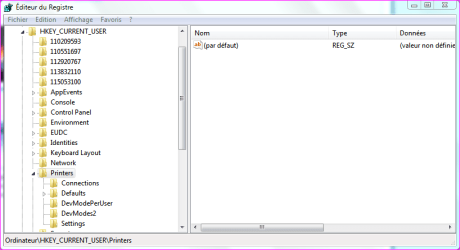
Nothing worked. So after creating a Restore Point (how would I do a full system backup?), I opened the Registry as suggested, and here is what I found (I don't know how to insert a graphic into this reply window):

http://www.eastbrookwind.org/regedit.gif

There was no mention of HP in any of the other folders under Printers, just here at Settings, where it appears twice.
 

My Computer

Computer Manufacturer/Model Number
Toshiba Satellite L505D-S5983
OS
Windows 7
CPU
AMD Athlon II Dual-Core M-300 2Ghz
Memory
3 GB
If you've found the correct printer and there's no ambiguous signs then go ahead and delete it as long as you've got your restore point, I wouldn't worry about backing up too much this time.

If you don't already make regular system backups I recommend you start, you wouldn't believe how many problems they solve and how many people come to us about corrupted HDDs and they haven't EVER backed up their PC.

They really are life savers and an ABSOLUTE NECESSITY in a business environment.

Would you trust leaving all your work on the table next to the shredder when the cleaners come in, of course not you'd make a copy if you were going to leave it anywhere near there and the same applies to computers.

One of the built in ways to do a backup is to do a system image backup to an external drive or if none are available partition. Doing this once a week will usually suffice and deleting older ones as you go is fine if you have no use for them.

Oli
 

My Computer

Computer Manufacturer/Model Number
Apple MacBook 5,1
OS
Windows 7 Profesional x86, Mac OS X 10.6 Snow Leopard
CPU
Intel Core 2 Duo 2.4Ghz
Memory
4GB DDR3
Graphics Card(s)
Nvidia 9400m
Monitor(s) Displays
13.3" Internal + 22" DVI + 21.5" USB
Screen Resolution
1280x800 + 1920x1080 + 1920x1080
Hard Drives
Internal SATA 2.5" 500GB (395GB Mac HFS+, 105GB Windows NTFS)
2.48TB RAID consisting of 5 disks (HFS+)
Case
Aluminium Unibody
Keyboard
Apple Late 2009 Wireless Keyboard (US)
Mouse
Apple Magic Mouse
Internet Speed
6.33Mb/s up. 0.36Mb/s down.
Other Info
Harman Kardon Soundsticks II Speakers
Nothing worked. So after creating a Restore Point (how would I do a full system backup?), I opened the Registry as suggested, and here is what I found (I don't know how to insert a graphic into this reply window):

http://www.eastbrookwind.org/regedit.gif

There was no mention of HP in any of the other folders under Printers, just here at Settings, where it appears twice.


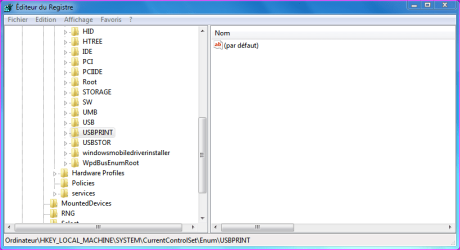
If you're still in trouble...you might look again at the registry and Export the key before any actions. There, are listed printers in "USBPRINT" key.

See bottom bar of the screenshot for the way to navigate in...

There's more places to trace old printers install, but after those two...you should be Ok and the others keys will be unactivated.

Otherwise come back and let us know if you're solved!
 

Attachments

  • Capture.PNG
    Capture.PNG
    16.2 KB · Views: 159

My Computer

Computer type
PC/Desktop
Computer Manufacturer/Model Number
Custom Build
OS
Windows 7 Professional SP1 - x64 [Non-UEFI Boot]
CPU
Ivy Bridge Core i5 3570K (Delidded)
Motherboard
Asus P8Z77-V LE PLUS
Memory
G.Skill "Ares" DDR3 PC3-12800 - 1600MHz (16Gb)
Graphics Card(s)
Asus Dual-RX480-O4G
Sound Card
Creative Sound Blaster Z w/5.1 sound system
Monitor(s) Displays
Asus IPS 23"
Screen Resolution
16/9
Hard Drives
Internal:
500Go Sata 6Gb/s (x2)
500Go Sata 3Gb/s (x2)
SSD 60Go Sata 6Gb/s
PSU
In Win C 900W Series 80+ Platinum
Case
Thermaltake Chaser A71
Cooling
Custom Water Cooling Loop
Keyboard
Cooler Master QuickFire XTi
Mouse
Razer Imperator 2012 (4G)
Antivirus
MSE
Browser
IE 11.0.xxx Rtm
Other Info
"Raid0" with Intel Smart Response Technology (HDD/SSD)
This worked for me!

I came across this thread and nothing here helped. What I did find to help is that there were documents pending to printer even though the printer was no longer available or online. Open up the documents waiting to print window, and cancel all print jobs (I had one in there from several months ago). Then in the Devices and Printers window, right click and delete device - the YES button will now have a User Control Access Shield next to it. Click yes, refresh your devices (hitting F5) and it is gone and won't return!

Hope this works for you!

Turtle D
 

My Computer

OS
Windows 7
Remove a printer

The best way I have found is to run regedit.exe (Here I must put in a disclaimer - If you are not well versed in the use of Regedit, PLEASE secure the services of an It Professional! Regedit is a VERY powerful tool and can cause a lot of harm to your system if used improperly).

I strongly suggest that you 1. Do a complete backup of your system
2. create a restore point 3. Backup your registry (you can go here for instructions on how to do that - Back up the registry)

NOTE...if you do not have admin privileges on your box, you may no0t be able to delete entries. Make SURE you are logged in as Admin before you use Regedit.

Using the 'Find' (at the top, click on Edit) menu item, put in a portion of the offending printer name (as it is listed in the Printers and Devices folder (when you print something the box opens and shows you the printers that are installed on your system)).

Make sure that what you are trying to find is NOT the default printer you have but the one you are trying to remove. For example, if you have two instances of HP Series L7700, they should have different names (often one will say Copy 1 or something similar). In the example, you might want to put in EXACTLY the name of the offending printer you want removed (e.g. HP Officejet L7700 Series Copy 1).

Click OK and Regedit will search out all the references one at a time. Delete each reference CAREFULLY.

When you have deleted all of the references for the orphaned printer, Regedit will say it has reached the end. Close Regedit and reboot. When restarted, your system should now be rid of the old printer.

Aescalus - Microsoft MVP
 

My Computer

OS
Win 7 64
How to finally delete a printer

Make sure that there are no print jobs for it. "Cancel all print jobs". Then delete the printer in Administrative Tools as mentioned. This worked for me!
 

My Computer

Computer Manufacturer/Model Number
Dell
OS
windows 7
CPU
Core i7
Memory
8 gB
Back
Top