Trouble Installing Windows 7 "cannot install to this disk"

Bdr187

New member
Local time
9:30 AM
Messages
11
Recently my nephew's netbook has crashed. Windows 7 Starter would not load. I tried a few fixes which proved unsuccessful. Right now I am trying to install Windows 7 but am having much trouble. When the setup screen loads up and asks me to choose a partition the following items are present: Disk 0 Partition 1:RECOVERY, Disk 0 Partition 3: SYSTEM, Disk 0 Partition 3: Primary (40GB), Disk 0 Partition 4: Primary (178GB). It will not allow me to install to either Primary partition with the following reason: "Windows cannot be installed to this disk. This computer's hardware may not support booting to this disk. Ensure that the disk's controller is enabled in the computer's BIOS menu.". I have also tried to format both the 3,4 partitions but always get an error message, although the one that had windows on is now showing nearly all memory space free. I would appreciate any help that could lead me in the right direction so I can get Windows 7 Starter installed on this computer. Thank you.
 

My Computer

OS
Windows 7 Starter 32 bit
Have you tried running Factory Recovery from its partition? Tap the key(s) given to trigger it on first boot screen or in the User Manual for your model.

Try also deleting the last three partitions during booted Custom install using Drive Options: Clean Install Windows 7

If this fails try creating a Primary partition there and marking it Active using Step 2.2 here: SSD - HDD Optimize for Windows Reinstallation

If install still fails, wipe the HD using the above tutorial and try install again both with and within pre-partitioning. Note that the Recovery Partition will be deleted if you do this so make sure it is not working first.

You can do the operations in the last two paragraphs with a graphical interface using free Partition Wizard bootable CD.
 
   Information
We always assume you have made your Recovery Disks using the OEM manufacturer's Recovery Media Creator app the first day you had your new PC.
& made the Startup Repair CD.
startup repair disc-create


Did you make the OEM manufacturer's Recovery Disks?


For better help with problems, Can you post your specs.
http://www.sevenforums.com/general-discussion/22550-filling-out-system-specs.html
http://www.sevenforums.com/tutorials/180324-system-info-see-your-system-specs.html

http://www.sevenforums.com/hardware-devices/6936-dont-know-what-hardware-you-have.html
VistaForums SysInfo Tool - Vista Forums
 

My Computer

OS
ME/XP/Vista/Win7
theog - No, I did not make the OEM manufacturer's Recovery Disks. Computer came like that. I went to the Samsung support website and found all the drivers and recovery software downloads that I will probably need if I ever get Windows installed. Any suggestions?

Gregrocker - Tried the clean install, no luck. Gives me an error 0x80300025. About to try the second option to see if that works. Thanks for the suggestions - Gregrocker - will let u know if any of them work.
 

My Computer

OS
Windows 7 Starter 32 bit
Read the experience of Nicole here who accidentally deleted the small OEM Recovery partition during Clean Reinstall to Samsung, then was not able to get Elan Touchpad and Cam software working correctly. Samsung told her the software to make them work is accessed via the Recov partition and it could not be restored.

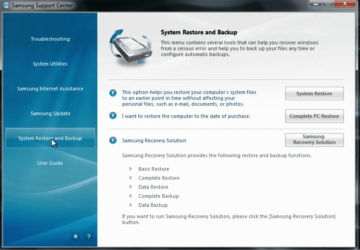
This all sounds very shady because the software posted on website is supposedly is the same software stored as apps on Recov partition, although there also remains the option then to run full Factory Recovery which appears to be their convoluted solution to how to use the clean reinstall DVD they provide.

Research shows that only using the DVD backup method for Recovery (not external HD storage) will reinstate the Recov partition if it fails or is deleted.

All in all, the worst ever reported clean reinstall experience with Samsung whose abysmal tech support bullied Nicole until the retailer took notice and replaced the machine.

To add to the outrage, they provide a Win7 Reinstallation DVD!
 
After I did a few things in the diskpart window I exited and later attempted to restart the computer. Now it starts loading windows and just stays on a black screen with the mouse active. This computer is frustrating me, never had this much trouble with any others. Any suggestions?
 

My Computer

OS
Windows 7 Starter 32 bit

My Computer

Computer type
PC/Desktop
Computer Manufacturer/Model Number
Ignatz Special; 4 speed manual gearbox; factory air conditioning; one of one
OS
Windows 7 Home Premium SP1, 64-bit
CPU
Intel Skylake i5-6600K, not overclocked
Motherboard
AsRock Z170M Extreme 4, micro ATX
Memory
8 GB HyperX DDR4-2666 (2 x 4 GB)
Graphics Card(s)
none; graphics are integrated on CPU
Sound Card
onboard: Realtek ALC1150; external: USB Behringer UF0-202
Monitor(s) Displays
Dell S2340M 23 inch IPS
Screen Resolution
1600 x 900
Hard Drives
System: Crucial MX100 series SSD, 128 GB;
Data: Samsung Spinpoint 103SJ, 1 TB;
Backup: WD Caviar Green WD30EZRX-00D8PB0, 3 TB
PSU
Rosewill SilentNight 500 watt fanless, semi-modular
Case
Antec Solo II
Cooling
Noctua NH-U12S; Noctua F12 intake, Noctua S12A exhaust
Keyboard
Microsoft 200 6JH-00001 USB
Mouse
Dell or Microsoft optical wired; USB
Antivirus
Microsoft Security Essentials and Malwarebytes Premium
Browser
Pale Moon
Other Info
All fans PWM; speeds at idle: CPU circa 500 rpm; intake circa 600 rpm; exhaust circa 600 rpm; CPU temps 27 idle and 47 C load in a warm room (27 C/81 F) when running Intel Extreme Tuning Utility stress test.
I gave you a link to Partition Wizard to use to wipe the HD if Diskpart gives you problems.
 
I was able to load the setup in Safe Mode and I attempted to clean the disk in diskpart but i get the following error: DiskPart has encountered an error: The device is not ready.
See the System Event Log for more information.

How can I use the mini-partition tool? I haven't figured out how to create a bootable USB from the free version?

Any other suggestions? Do you think there is a problem with the hard drive?
 

My Computer

OS
Windows 7 Starter 32 bit
Are you aware the cleaning the HD and installing the OS are done in Boot Mode, not Safe Mode?

Where did you get the Win7 installation DVD? Did you burn it yourself? If so confirm the ISO and burn another using ImgBurn at 4x speed
How to Boot your Computer from a Bootable CD or DVD

Or write the ISO to flash stick using Universal USB Installer with Win7 in dropdown menu. Boot under USB, Removable or HD's.

Then follow these steps to get a perfect clean reinstall of factory OEM: Reinstalling Windows 7
 
Yes, I am aware but it doesn't boot up to the setup screen unless I choose safe mode. Regardless, I can get to the setup screen and perform actions in diskpart or attempt to install windows but it is not detecting the hard drive, but it is there because it shows up in the BIOS. Sometimes the disk shows up and other times it doesn't. Either way when I attempt to install, or do any type of partition, formatting, it fails. The problem seems to be that the drive is not being detected correctly, therefore it won't allow me to do a clean install.

I am booting windows from a usb (netbook doesn't have dvd drive). I have tried 2 different versions and it doesn't make any difference.
 

My Computer

OS
Windows 7 Starter 32 bit
After our experience with a clean reinstall on Nicole's Samsung laptop I recounted to you earlier I would want to try to repair your laptop first so that you can get it started to make the Recovery Disks and keep the HD Recov partition intact. It's possible that if it is set up like Nicole's that key software will not work correctly when clean reinstalled - in her case the webcam and touchpad gesture features. You should at least be aware of this by reading through her thread to see what you might expect if you are able to clean reinstall to it: http://www.sevenforums.com/installation-setup/200607-new-laptop-changing-partition-disks.html

So I would try repairs first once we help get you a bootable installer which works. Choose Repair My Computer on second screen, run Startup Repair repeatedly, report back what it finds.

Where did you get the Win7 Installer? Is it provided by Samsung? If you're confident of the ISO file then try writing it to flash stick using Universal USB Installer with Win7 in the dropdown menu. Boot under USB, Removable or HD's using one-time BIOS BOot Menu key given on first screen, or set stick to boot first in BIOS setup.

If there is any question of the ISO file download this one then Unlock any version using eicfg removal tool, write to stick, try repairs, later if necessary install your licensed version: Win7 Home Premium x86 English Official ISO download .
 
Yes, I am aware but it doesn't boot up to the setup screen unless I choose safe mode. Regardless, I can get to the setup screen and perform actions in diskpart or attempt to install windows but it is not detecting the hard drive, but it is there because it shows up in the BIOS. Sometimes the disk shows up and other times it doesn't. Either way when I attempt to install, or do any type of partition, formatting, it fails. The problem seems to be that the drive is not being detected correctly, therefore it won't allow me to do a clean install.

I am booting windows from a usb (netbook doesn't have dvd drive). I have tried 2 different versions and it doesn't make any difference.

I would Check the hard drive with the manufacturer's diagnostic tools.
Hard Drive Diagnostics Tools and Utilities (Storage) - TACKtech Corp.
HD Diagnostic
 

My Computer

OS
ME/XP/Vista/Win7
System Repair tool is not working. It has been running for at least 12 hours and still says: "Attempting repairs...". I will try running diagnostics on the hard drive.
 

My Computer

OS
Windows 7 Starter 32 bit
Ran diagnostics on the hard drive. Service code => AJ36 : Bad Sector. Any salvaging this hard drive?
 

My Computer

OS
Windows 7 Starter 32 bit
The diagnostics CD can also sometimes repair the HD. It may take several passes. It should tell you if it does.

I always follow up diagnostics/repair CD with Disk Check - if necessary run from Repair Command Line and creating a full disk partition to get the whole HD.
 
I ran the diagnostic but it never completed. It was running for 14 hours and seemed to be stuck. I stopped it and that is when I got the error message.

dskchk did not allow me to perform any functions on c:, stating it was RAW

Should I try any of the other options from the ES-tool (Samsung hd diagnostic) - they include: low level format, dco set max address, set max address, set max udma mode, aam mode, lba mode, enable smart, disable smart, information, auto detect

Also I am running this tool from the Ultimate Boot Cd which has other hd tools that include: disk wiping, cloning, editing, boot management, data recovery, device info and management, installation, partition management

Are any of those useful?
 

My Computer

OS
Windows 7 Starter 32 bit
I am using the tool for Samsung hard drives. I have tried other tools and they do not work. A few of them detect the drive but errors occurs as soon as a test is run.

There are no files to view in the recovery console. The C: drive is empty. If I try and click on it, it just says it needs formatted.

At this point I am not worried about the driver issue that may happen. I just want to see if I can salvage the hard drive and re-install windows.
 

My Computer

OS
Windows 7 Starter 32 bit
Back
Top