Solved Trouble saving customized desktop backgrounds theme

DaveR

New member
Local time
1:09 PM
Messages
39
I like to change my desktop background pictures with the changing seasons. I'm trying to save four themes (Autumn, Winter, Spring, Summer), with the only difference among the themes being the desktop backgrounds (a set of 6 or so pictures that will cycle every 20 minutes). I've chosen the pictures and set other options on the Control Panel > Appearance and Personalization > Personalization > Desktop Background page.

The changes I make there are applied when I click Save Changes and go back to the Control Panel > Appearance and Personalization > Personalization page. However, since I want to be able to access these themes every year, I click Save Theme, and then I'm not quite sure what happens. Sometimes a theme with the name I picked to save with appears in the list, sometimes not. Even if it does, if I right-click it and select Delete theme, the information given about the theme always shows a date modified in 2010, even though I've just now saved it.

This feature has always been a little mysterious to me, but lately it seems to be less functional than ever. I've located the place where Windows seems to store the themes (C:\Users\Username\AppData\Local\Microsoft\Windows\Themes), but even there I don't necessarily see what I expect to see. For instance, I just selected a group of pictures and saved it as a theme. This theme's name does not appear in the list in Control Panel > Appearance and Personalization > Personalization, but it does appear in C:\Users\Username\AppData\Local\Microsoft\Windows\Themes. The .theme file's properties there so a created and accessed date of today, but again a date modified in 2010. What the what??

I'm not interested in patches or installing theme customizers. I just want to do this simple thing with desktop backgrounds. Is it possible that some bit of data has gotten "stuck" somewhere and is causing Windows to misinterpret existing customized themes? Where could I look? I'm willing to peek into the Registry if necessary.

Thanks for any advice!
 

My Computer

OS
Windows 7 Pro 64-bit SP 1
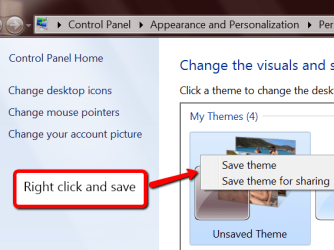
You have to save the theme.
 

Attachments

  • 2012-09-21_1249.png
    2012-09-21_1249.png
    87.7 KB · Views: 13

My Computer

Computer Manufacturer/Model Number
HP, Dell, Gateway, Toshiba - 4 laptops and 2 desktops
OS
Vista, Windows7, Mint Mate, Zorin, Windows 8
CPU
from 1.6GHz Duo to i7
Monitor(s) Displays
2x HP w2207
Hard Drives
5x HDD, 7x SSD, 12x Externals
Keyboard
with trackball - no mices
Mouse
Trackball mice
Internet Speed
DSL 6000
Thanks. However, I have no "Unsaved Theme" showing. I can't remember the last time I did (if ever). I do have two themes labeled "My current theme." Both of them show a desktop background that is not in fact part of the current theme. One of them is highlighted, as in your screenshot, and if I right-click over it I do get that little dialog. But I don't see any point saving this theme if it's not in fact going to contain the right pictures.

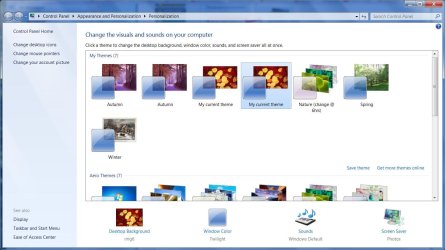
Below is a screenshot of what I have in Control Panel > Appearance and Personalization > Personalization. The highlighted "My current theme" shows a picture that is not actually included among the pictures currently cycling as my desktop background.

FWIW, here's the list of files in C:\Users\Username\AppData\Local\Microsoft\Windows\Themes:
Name________________________Size________Modified
Autumn.theme_________________3.89 KB_____11/29/2010 12:22:01 PM
Custom.theme_________________3.89 KB_____11/29/2010 12:22:01 PM
My current theme (2).theme_____3.90 KB_____9/24/2010 4:43:27 PM
Nature (change @ 6hrs).theme___5.81 KB_____7/18/2010 4:23:31 PM
oem.theme____________________1.88 KB_____7/18/2010 11:06:13 AM
Spring (2).theme_______________3.90 KB_____3/3/2011 1:13:31 PM
Summer.theme_________________3.90 KB_____9/24/2010 4:43:27 PM
Winter.theme__________________3.92 KB_____Today 4:57:42 AM

Note that this list is not at all identical to what appears in the screenshot. Also note the modified dates. I've actually tried to save themes under a couple of names today, but I don't think Winter was one of them.
 

Attachments

  • Theme customization.jpg
    Theme customization.jpg
    132.7 KB · Views: 12

My Computer

OS
Windows 7 Pro 64-bit SP 1
As far as I can see from your screenshot, the seasonal themes are already saved. What happens if you click on e.g. Spring.
 

My Computer

Computer Manufacturer/Model Number
HP, Dell, Gateway, Toshiba - 4 laptops and 2 desktops
OS
Vista, Windows7, Mint Mate, Zorin, Windows 8
CPU
from 1.6GHz Duo to i7
Monitor(s) Displays
2x HP w2207
Hard Drives
5x HDD, 7x SSD, 12x Externals
Keyboard
with trackball - no mices
Mouse
Trackball mice
Internet Speed
DSL 6000
Yes, some of the seasonal themes are saved, with a certain set of pictures. But if I want to change the pictures, or create a new theme (Summer, for instance), the problems I described occur. Windows will not allow me to save a new set of pictures under a new theme name.
 

My Computer

OS
Windows 7 Pro 64-bit SP 1
1. Delete the doubles - e.g. 'My current theme'.
2. If you want to change pics in an existing theme, change them in the corresponding folder.
 

My Computer

Computer Manufacturer/Model Number
HP, Dell, Gateway, Toshiba - 4 laptops and 2 desktops
OS
Vista, Windows7, Mint Mate, Zorin, Windows 8
CPU
from 1.6GHz Duo to i7
Monitor(s) Displays
2x HP w2207
Hard Drives
5x HDD, 7x SSD, 12x Externals
Keyboard
with trackball - no mices
Mouse
Trackball mice
Internet Speed
DSL 6000
I appreciate your persistence. Here's the most recent story: Focusing on the two "Autumn" themes, and working with a folder two levels underneath My Pictures where I have gathered 16 autumn-related pictures, I select the first theme in the Personalization dialog. Problem 1: I try to delete the second "Autumn" theme by right-clicking it and selecting Delete theme. I get the confirmation dialog (which tells me this theme is called Autumn.theme) and click Yes. But nothing seems to happen: the theme is still displayed.

At any rate, with the first Autumn theme selected, I click on Desktop Background at the bottom left, and am taken to the Desktop Background selection dialog. I browse to the folder I'm using, select 6 or 8 of the 16 pictures, set them to change every 10 seconds shuffled, and click Save changes. This set of background pics immediately begins to display and cycle as it should. Back in the Personalization dialog I right-click the currently selected Autumn theme and select Save theme; when the dialog appears, I name it Autumn again. But this apparently does not work, because (a) the pic displayed as the icon for this theme (in the My Themes list and in the Desktop Background link) remains a picture that is no longer one of the 6 or 8 selected pictures; and (b) when I select another theme, which is then activated, and then reselect the Autumn theme, it is not configured as I just supposedly saved it -- there is only one picture (the one shown for the icon, which I had not selected), and therefore of course there is no cycling. Interestingly, in C:\Users\Username\AppData\Local\Microsoft\Windows\Themes there is now no Autumn.theme file.

Finally, I've discovered that neither saves nor deletions take effect in the My Themes list in the Personalization dialog (or in the Themes folder) until I click Desktop Background, go to that dialog, and return (whether or not I do anything in the dialog, whether I click Save changes or Cancel). After that, a deleted theme will be gone; and a second copy of Autumn will appear, supposedly the one I'd saved. But it still hasn't got the configuration that I selected and supposedly saved. If I try to right-click either of these Autumn themes and delete it, I learn from the confirmation dialogs that one of them is really called Custom.theme and the other is called Autumn.theme. Both of these files also appear in the C:\Users\Username\AppData\Local\Microsoft\Windows\Themes folder, the former showing created and accessed dates of 9/20/2011 and a modified date of 11/29/10, and the latter showing created and accessed dates of today and a modified date of 11/29/10.

I'm sorry for the length of all this, but I'm trying to give enough detail to make the situation clear. I've been using Windows since Windows 95, and I'm not a novice, but this has me stumped. It is a very, very minor part of what a computer should do; and I can always modify a theme, which modifications will take effect immediately, and just not try to save it. But if we're going to have this capability, why shouldn't it work right?

One further question: should I really expect C:\Users\Username\AppData\Local\Microsoft\Windows\Themes to correspond to the Personalization dialog in Control Panel? If not, where would I look to find the actual themes? Thanks again for your help and persistence. And I do apologize for violating your motto about keeping it simple. I just don't seem to be able to! :)
 

My Computer

OS
Windows 7 Pro 64-bit SP 1
2. If you want to change pics in an existing theme, change them in the corresponding folder.

I realize that I haven't really tried this, mainly because I'm not sure I understand it. Do you mean in the folder on disk where the pics are stored? When I create the theme I should just browse to that folder in the Desktop Background dialog and then select all? And then move pics in and out of that folder and Windows will pick up the changes?
 

My Computer

OS
Windows 7 Pro 64-bit SP 1
I am kind of stumped too. I would clear everything in C:\Users\{username}\AppData\Local\Microsoft\Windows\Themes and start anew.
 

My Computer

Computer Manufacturer/Model Number
HP, Dell, Gateway, Toshiba - 4 laptops and 2 desktops
OS
Vista, Windows7, Mint Mate, Zorin, Windows 8
CPU
from 1.6GHz Duo to i7
Monitor(s) Displays
2x HP w2207
Hard Drives
5x HDD, 7x SSD, 12x Externals
Keyboard
with trackball - no mices
Mouse
Trackball mice
Internet Speed
DSL 6000
2. If you want to change pics in an existing theme, change them in the corresponding folder.

I realize that I haven't really tried this, mainly because I'm not sure I understand it. Do you mean in the folder on disk where the pics are stored? When I create the theme I should just browse to that folder in the Desktop Background dialog and then select all? And then move pics in and out of that folder and Windows will pick up the changes?
Yes, you make a folder of all the pics you want in the theme and then you browse to the folder (see pic) and use that folder. Later when you want to add/delete any pics, you do it in that folder.
 

Attachments

  • 2012-09-21_2340.png
    2012-09-21_2340.png
    17.2 KB · Views: 4

My Computer

Computer Manufacturer/Model Number
HP, Dell, Gateway, Toshiba - 4 laptops and 2 desktops
OS
Vista, Windows7, Mint Mate, Zorin, Windows 8
CPU
from 1.6GHz Duo to i7
Monitor(s) Displays
2x HP w2207
Hard Drives
5x HDD, 7x SSD, 12x Externals
Keyboard
with trackball - no mices
Mouse
Trackball mice
Internet Speed
DSL 6000
Yes, you make a folder of all the pics you want in the theme and then you browse to the folder (see pic) and use that folder. Later when you want to add/delete any pics, you do it in that folder.

OK, I'll give that a try, though it seems like an odd way to do things. I'll also try deleting the contents of the Themes folder. I didn't have these specific problems when I first started using Win7 (though I've never found the theme management very intuitive), which makes me think that something has gone hinky. Hopefully clearing the Themes folder will de-hinkify it. So to speak.
 

My Computer

OS
Windows 7 Pro 64-bit SP 1
Let us know how you make out. I find the facility to be very intuitive. But maybe after 52 years around computers I react differently.
 

My Computer

Computer Manufacturer/Model Number
HP, Dell, Gateway, Toshiba - 4 laptops and 2 desktops
OS
Vista, Windows7, Mint Mate, Zorin, Windows 8
CPU
from 1.6GHz Duo to i7
Monitor(s) Displays
2x HP w2207
Hard Drives
5x HDD, 7x SSD, 12x Externals
Keyboard
with trackball - no mices
Mouse
Trackball mice
Internet Speed
DSL 6000
OK, sports fans, here's how things stand now.

Not wanting to lose them permanently yet, I created a subfolder under C:\Users\Username\AppData\Local\Microsoft\Windows\Themes called Junk and moved the *.theme files there. When I opened the Control Panel Personalization window, I found all the themes still present, plus a new one, Unsaved Theme, which was the actual most recent, active theme I'd created and been unable to save. When I right-click any of the themes that had now been moved to Junk and select Delete theme, I am asked whether I want to move the folder Junk to the Recycle Bin (with the proper created date of today listed for it). So far I've been saying no. I also saved the Unsaved Theme to the name Autumn, and now yet a third Autumn theme appears, with proper pictures showing in the icon and highlighted as the active theme. A file Autumn.theme also appears in C:\Users\Username\AppData\Local\Microsoft\Windows\Themes, with the expected created, modified, and accessed dates of today.

I've only been using computers for around 34 years, so call me a newbie, but I find this behavior beyond counterintuitive, headed rapidly toward bizarre. :confused:

But I press on. I'm going to close the Personalization dialog, manually delete the Junk folder altogether, and try creating a theme using the method you suggested of pointing to one specific folder and moving pics in and out of it. Back soon.
 

My Computer

OS
Windows 7 Pro 64-bit SP 1
Well, I'd say it's 90% solved. After manually moving the folder Junk to the Recycle Bin, I reopened Control Panel > Appearance and Personalization > Personalization, and the old themes had finally disappeared, leaving only the recently saved Autumn, as I desired. I manually created a new folder and moved the pictures I wanted into it. In the Personalization dialog I clicked Desktop Background, browsed to the new folder, selected all, and clicked Save changes. Back in the Personalkization dialog, a new Unsaved Theme had appeared with the items I wanted in it. I right-clicked it and saved it as "Active theme." Hopefully, I'll just be able to customize it as I wish in the future.

But here's the 10% not yet solved: I tried a little moving pics in and out of the designated folder to see what showed up in the icons in Personalization, which now seemed to be working right. At one point, however, after I clicked Desktop Background, did another Select all in that folder, and clicked Save changes, when it went back to Personalization what should be waiting there, with sarcastic grins on their faces, but the themes in the Junk folder that was now actually in the Recycling bin. This time I right-clicked one of them, selected Delete theme, was again given the option of moving the folder Junk to the Recycling Bin (where it already was), and clicked Yes. All the old themes disappeared from the dialog.

It looks to me like the Personalization dialog is reading some data from somewhere other than C:\Users\Username\AppData\Local\Microsoft\Windows\Themes, and that source occasionally gets messed up. As long as the darn thing is working now, I'm going to leave it alone and mark this Solved.

Thanks, whs, for your patience and advice.
 

My Computer

OS
Windows 7 Pro 64-bit SP 1
Have a look into C:\Windows\Resources
 

My Computer

Computer Manufacturer/Model Number
HP, Dell, Gateway, Toshiba - 4 laptops and 2 desktops
OS
Vista, Windows7, Mint Mate, Zorin, Windows 8
CPU
from 1.6GHz Duo to i7
Monitor(s) Displays
2x HP w2207
Hard Drives
5x HDD, 7x SSD, 12x Externals
Keyboard
with trackball - no mices
Mouse
Trackball mice
Internet Speed
DSL 6000
Hmm, that just seems to be the preinstalled themes that come with Win7. I don't see anything related to my customizations there. At any rate, things are working OK now, and I've made myself some notes about how to do it in the future.

BTW, I discovered recently that the folder C:\Windows\Globalization\MCT has subfolders with country-specific themes and photos. Just because I'm in the US doesn't mean I don't want to throw a photo from the UK or South Africa onto my desktop, so I copied those photos to a more accessible location.
 

My Computer

OS
Windows 7 Pro 64-bit SP 1
Good work. Looks like things are in good order.
 

My Computer

Computer Manufacturer/Model Number
HP, Dell, Gateway, Toshiba - 4 laptops and 2 desktops
OS
Vista, Windows7, Mint Mate, Zorin, Windows 8
CPU
from 1.6GHz Duo to i7
Monitor(s) Displays
2x HP w2207
Hard Drives
5x HDD, 7x SSD, 12x Externals
Keyboard
with trackball - no mices
Mouse
Trackball mice
Internet Speed
DSL 6000
Back
Top