TrueCrypt 1.7a: steps followed but USB stick not encrypted

BlackLion

New member
Local time
4:46 PM
Messages
6
Hi all. I have tried using TrueCrypt 7.1a, which encrypts USB sticks. I have a 2 GB USB stick which didn't get encrypted although I followed every step. I have been trying for more than an hour, even with a different USB stick, but with no success :( Here are the points which I followed (Sorry for the bombardment of info but please bear with me...)

These are the steps I followed:

*Loaded TrueCrypt.exe and clicked Create volume

*I clicked Next (Create a file container selected)

*Clicked Next (Standard TrueCrypt volume selected)

*Under Volume Location I selected a file (My Volume.tc , which I created in my USB folder)

*Under Encryption Options left it as it is, clicked Next

*My Volume Size I chose 100 MB

*Chose a password under Volume Password, clicked Next

*I formatted my USB

*Once it was done I closed the window

*Then in the TrueCrypt window I clicked Tools-->Traveler Disk Setup

*I chose my drive letter (I)

*I selected Auto-mount TrueCrypt volume

*Under TrueCrypt volume to mount I selected my file, My Volume.tc

*Finally for Mount volume as drive letter, I chose T: (a different drive to my USB)

*Those were the only changes made under TrueCrypt Traveler Disk Setup


*I safely removed my USB and plugged it back in. It auto played and when I opened the folder the files didn't get encrypted. I am really confused :(

Help would be really appreciated.
 

My Computer My Computer

At a glance

Windows 7 Ultimate x86
OS
Windows 7 Ultimate x86

My Computer My Computer

At a glance

Windows 10 Pro x64 ; Xubuntu x64Intel i7 860 @ 2.80 GHz O/C'ed to 4.0GHz16GB Corsair Vengance DDR3 @ 661 MHz Dual Cha...EVGA NVidia GTX 560 1024MB
Computer type
PC/Desktop
Computer Manufacturer/Model Number
Golden Mk. I.4
OS
Windows 10 Pro x64 ; Xubuntu x64
CPU
Intel i7 860 @ 2.80 GHz O/C'ed to 4.0GHz
Motherboard
Gigabyte P55A-UD3R Rev.1. Award BIOS F13
Memory
16GB Corsair Vengance DDR3 @ 661 MHz Dual Channel (9-9-9-24)
Graphics Card(s)
EVGA NVidia GTX 560 1024MB
Sound Card
Realtek Integrated
Monitor(s) Displays
Dual Samsung SyncMaster 2494HS
Screen Resolution
1920*1080 and 1920*1080
Hard Drives
1*Samsung 840 EVO 120GB SSD;
1*OCZ Vertex 2 60GB SSD;
2*Samsung F3 SpinPoint 1TB in RAID0;
1*Samsung F1 SpinPoint 1TB;
2*Western Digital 1TB External USB 3.0
1*Western Digital 500GB External USB 3.0
1*Seagate 500GB External USB 2.0
PSU
Thermaltake ToughPower QFan 750W
Case
Thermaltake Element S VK60001W2Z
Cooling
Corsair H60 Water Cooling, 2*230mm and 2*80mm case fans
Keyboard
Logitech G110
Mouse
Logitech MX518
You created a 100mb encrypted file container. You didn't encrypt the whole disk.

How you have it setup if you open the t drive when its mounted you can place files in it that will be encrypted. Then once you unmount the volume.tc all you will be able to see is the encrypted file container.

Golden great work on the link provided above. Always the highest quality of work.
 

My Computer My Computer

At a glance

Windows 7 Ultimate x64
OS
Windows 7 Ultimate x64
I followed all the steps and all the diagrams of each process and they matched mine until the following:

When I clicked "Favorites", there was no "encrypted H:" to click (on the guide its "Encrypted_Investments H:", but I named my volume "encrypted" and chose H: drive). However my volume, "encrypted" still appeared in the panel (its name was Local disk, not "encrypted").

I added some files to it, and safely removed my USB to test it. I put my USB back in and the volume drive (H:) was not there any more and I my USB didn't ask for any password. Sigh...:(
 

My Computer My Computer

At a glance

Windows 7 Ultimate x86
OS
Windows 7 Ultimate x86
Hi,

It will probably be easier if you post a screen capture image of your USB showing the volume in Windows Explorer, and then also how it appears when you try to mount it in TrueCrypt. Can you do that?

Regards,
Golden
 

My Computer My Computer

At a glance

Windows 10 Pro x64 ; Xubuntu x64Intel i7 860 @ 2.80 GHz O/C'ed to 4.0GHz16GB Corsair Vengance DDR3 @ 661 MHz Dual Cha...EVGA NVidia GTX 560 1024MB
Computer type
PC/Desktop
Computer Manufacturer/Model Number
Golden Mk. I.4
OS
Windows 10 Pro x64 ; Xubuntu x64
CPU
Intel i7 860 @ 2.80 GHz O/C'ed to 4.0GHz
Motherboard
Gigabyte P55A-UD3R Rev.1. Award BIOS F13
Memory
16GB Corsair Vengance DDR3 @ 661 MHz Dual Channel (9-9-9-24)
Graphics Card(s)
EVGA NVidia GTX 560 1024MB
Sound Card
Realtek Integrated
Monitor(s) Displays
Dual Samsung SyncMaster 2494HS
Screen Resolution
1920*1080 and 1920*1080
Hard Drives
1*Samsung 840 EVO 120GB SSD;
1*OCZ Vertex 2 60GB SSD;
2*Samsung F3 SpinPoint 1TB in RAID0;
1*Samsung F1 SpinPoint 1TB;
2*Western Digital 1TB External USB 3.0
1*Western Digital 500GB External USB 3.0
1*Seagate 500GB External USB 2.0
PSU
Thermaltake ToughPower QFan 750W
Case
Thermaltake Element S VK60001W2Z
Cooling
Corsair H60 Water Cooling, 2*230mm and 2*80mm case fans
Keyboard
Logitech G110
Mouse
Logitech MX518
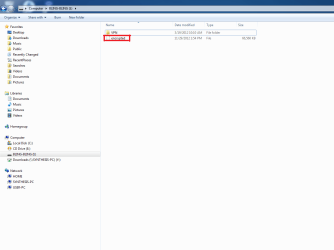
This screen shot shows the container (encrypted) I created in my USB drive ( I:/BLING-BLING)

1. encrypted (container).png

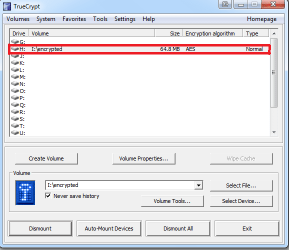
Here I mounted my container (encrypted) to the H: drive (after entering password and selecting file)

2. Mounted container.png

As can be seen here there was no link displayed to select my mounted volume as a favorite

3. Favorites.png

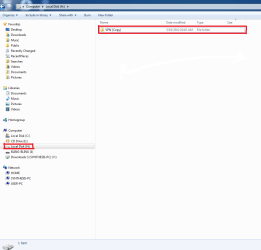
Finally here is my mounted container (Local Disk: H). The name of the drive didn't change to "encrypted" although I followed the steps.

No password was asked when accessing this mounted container

4. Encrypted drive.png
 

My Computer My Computer

At a glance

Windows 7 Ultimate x86
OS
Windows 7 Ultimate x86
Back
Top