
I have about 30 years of experience building and maintaining computers, but I'm working with Windows 7 x64 for the first time in a new build that's only a month old. So far I'm impressed with Win7 with modern hardware compared to XP x86 using 2009-vintage hardware, an OS I became very familiar with over a 10-year period. There are a few things that I'm unclear about, and one involves the BIOS and the boot order. First, some pertinent hardware info:
Motherboard: Gigabyte GA-Z77X-D3H (Z77 chipset, LGA 1155)
CPU: Intel 3770K
RAM: 2 x 8gb Kingston HyperX Black (1600)
BIOS: f16
From the BIOS splash screen I have some options, one of which is F12 which launches the "Boot Menu." That reveals a list of eight items:
1. Windows Boot Manager
2. Windows Boot Manager
3. P5: (DVD drive)
4. Lexar SD (Dual-slot USB card reader)
5. Lexar CF (Dual-slot USB card reader)
6. Crucial M4 (SSD that contains the OS)
7. WD RE4 2TB SATA (storage only)
8. WD Green 2TB SATA (storage only)
Another option in the BIOS splash screen is the standard DEL for Setup, which looks more familiar. What I see here under BIOS Features > Boot Option Priorities are a list of five items:
1. Windows Boot Manager
2. Windows Boot Manager
3. P0: Crucial M4 (SSD)
4. Disabled
5. Disabled
Despite quite a bit of searching I'm still baffled about the "Windows Boot Manager" and why it shows up twice in the boot order. Further, when I select the SSD as the first item in the boot order the computer will not boot. Let's keep in mind that everything seems to be working fine, but I am not content being ignorant of what's going on in the boot process.
I suspect that two iterations of "Windows Boot Manager" may be present because about three weeks ago I accidentally allowed the system to boot with both the SSD and a cloned drive running. I had just cloned the SDD to a SATA HDD for backup purposes with Acronis True Image and it rebooted with both drives active, which is something I know better than to do and did so quite by accident. Nonetheless, when this happened in the old XP machine there was never a problem. In this case when it booted it apparently had done so from the cloned drive, not the SDD, and when I powered down the hot-swappable SATA HDD everything went black on the screen. I rebooted with the clone out of the system and all was well.
What I would like to know is:
1. Exactly what is the Windows Boot Manager as it relates to the boot order in the BIOS?
2. Can I disable the second instance of Windows Boot Manager?
3. Can I manually establish only the SSD and DVD burner in the boot order, as these are the only two drives from which I would routinely boot. If so, what would be my boot order considering the SSD appears to be unable to boot on its own? BTW, the Lexar card reader and two 2TB HDD's will never be boot devices, so I would like to eliminate these from the list, and I can't imagine ever booting from anything else, unless the SSD becomes inoperable and I must use a cloned HDD.
4. Why won't the system boot when the SSD is selected as the first boot option?
5. In the BIOS under CSM Support the default setting is "Always." There are options under CSM and I'd like to know more about them (option and current setting):
a. Boot Mode: UEFI and Legacy
b. PXE Boot Option Control: Disabled
c. Storage Boot Option Control: Legacy only
d. Display Boot Option Control: Legacy only
e. Other PCI Device ROM Priority: UEFI OpROM
I know this is long, but I hope enough of you Win7 gurus read it and respond so that I can understand this better. Thanks in advance.
Motherboard: Gigabyte GA-Z77X-D3H (Z77 chipset, LGA 1155)
CPU: Intel 3770K
RAM: 2 x 8gb Kingston HyperX Black (1600)
BIOS: f16
From the BIOS splash screen I have some options, one of which is F12 which launches the "Boot Menu." That reveals a list of eight items:
1. Windows Boot Manager
2. Windows Boot Manager
3. P5: (DVD drive)
4. Lexar SD (Dual-slot USB card reader)
5. Lexar CF (Dual-slot USB card reader)
6. Crucial M4 (SSD that contains the OS)
7. WD RE4 2TB SATA (storage only)
8. WD Green 2TB SATA (storage only)
Another option in the BIOS splash screen is the standard DEL for Setup, which looks more familiar. What I see here under BIOS Features > Boot Option Priorities are a list of five items:
1. Windows Boot Manager
2. Windows Boot Manager
3. P0: Crucial M4 (SSD)
4. Disabled
5. Disabled
Despite quite a bit of searching I'm still baffled about the "Windows Boot Manager" and why it shows up twice in the boot order. Further, when I select the SSD as the first item in the boot order the computer will not boot. Let's keep in mind that everything seems to be working fine, but I am not content being ignorant of what's going on in the boot process.
I suspect that two iterations of "Windows Boot Manager" may be present because about three weeks ago I accidentally allowed the system to boot with both the SSD and a cloned drive running. I had just cloned the SDD to a SATA HDD for backup purposes with Acronis True Image and it rebooted with both drives active, which is something I know better than to do and did so quite by accident. Nonetheless, when this happened in the old XP machine there was never a problem. In this case when it booted it apparently had done so from the cloned drive, not the SDD, and when I powered down the hot-swappable SATA HDD everything went black on the screen. I rebooted with the clone out of the system and all was well.
What I would like to know is:
1. Exactly what is the Windows Boot Manager as it relates to the boot order in the BIOS?
2. Can I disable the second instance of Windows Boot Manager?
3. Can I manually establish only the SSD and DVD burner in the boot order, as these are the only two drives from which I would routinely boot. If so, what would be my boot order considering the SSD appears to be unable to boot on its own? BTW, the Lexar card reader and two 2TB HDD's will never be boot devices, so I would like to eliminate these from the list, and I can't imagine ever booting from anything else, unless the SSD becomes inoperable and I must use a cloned HDD.
4. Why won't the system boot when the SSD is selected as the first boot option?
5. In the BIOS under CSM Support the default setting is "Always." There are options under CSM and I'd like to know more about them (option and current setting):
a. Boot Mode: UEFI and Legacy
b. PXE Boot Option Control: Disabled
c. Storage Boot Option Control: Legacy only
d. Display Boot Option Control: Legacy only
e. Other PCI Device ROM Priority: UEFI OpROM
I know this is long, but I hope enough of you Win7 gurus read it and respond so that I can understand this better. Thanks in advance.
Last edited:
My Computer
- Computer Manufacturer/Model Number
- n/a (homemade)
- OS
- Win7 x64
- CPU
- Intel 3770K
- Motherboard
- Gigabyte GA-Z77X-D3H
- Memory
- DDR3 16gb @ 1600
- Graphics Card(s)
- Intel HD-4000 (on board)
- Sound Card
- Realtek (on board)
- Monitor(s) Displays
- Dell U2412M and Dell 2007FP
- Hard Drives
- Crucial M4 128gb SSD
WD 2TB EARX green
WD 2TB RE4
- PSU
- Antec 650W EA-650
- Case
- Coolermaster HAF X
- Cooling
- Zalman HSF
- Keyboard
- Northgate Omni Key Ultra (legacy)
- Mouse
- MS Trackball Optical
- Internet Speed
- Broadband

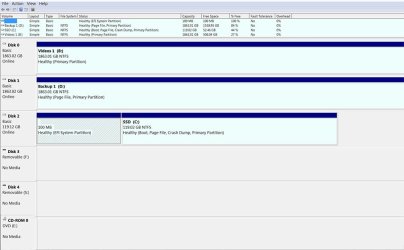
 . After that I installed B: and D:, but I don't recall if C: ever was Drive 0 except when the OS was originally installed.