Solved Unknown installer

grand7

New member
Member
Local time
11:21 AM
Messages
13
Every day or so I have been getting a popup asking me to install a program . . .but it does not say what the program is. This popup occurs at various times, not at computer startup.
I am hesitant to install, as it might be a rogue program. So I have been clicking the red "X" in the upper right hand corner to exit.
See the JPG that I have attached to this message. Any way to tell what this program is?
 

Attachments

  • program.JPG
    program.JPG
    34.3 KB · Views: 47

My Computer

Computer Manufacturer/Model Number
SONY VAIO VPCF11JFX/B
OS
Windows 7 Ultimate x64
Graphics Card(s)
NVIDIA GeForce GT 330M
Every day or so I have been getting a popup asking me to install a program . . .but it does not say what the program is. This popup occurs at various times, not at computer startup.
I am hesitant to install, as it might be a rogue program. So I have been clicking the red "X" in the upper right hand corner to exit.
See the JPG that I have attached to this message. Any way to tell what this program is?

Do you have a dvd in the dvd player?
 

My Computer

Computer Manufacturer/Model Number
HP Pavillion dv-7 1005 Tx
OS
Win 8 Release candidate 8400
CPU
[email protected]
Memory
4 gigs
Graphics Card(s)
Nvidia 9600M
Sound Card
HD built-in
Monitor(s) Displays
17" Wxga
Screen Resolution
1440x900
Cooling
none
Internet Speed
45Mb down 5Mb up
Ah -- good question. No, I just checked. Nothing in the DVD player.
 

My Computer

Computer Manufacturer/Model Number
SONY VAIO VPCF11JFX/B
OS
Windows 7 Ultimate x64
Graphics Card(s)
NVIDIA GeForce GT 330M
Next time this happens, could you do the following before you close the installer:

  • Open Task Manager
  • Switch to the Processes tab
  • Make sure that Show processes from all users at the bottom of the window is checked
  • Maximize the window and expand the columns so all the information is readable without too much being cut off
  • Take a screenshot
  • Post it here
I'm sure we'll be able to identify what this program is then.
 

My Computer

Computer type
PC/Desktop
Computer Manufacturer/Model Number
Custom-built
OS
Windows 7 Professional SP1 32-bit
CPU
Intel Core 2 Duo E6600 2.4GHz
Motherboard
Asus PL5D2
Memory
4GB DDR2-667 (4x1GB in dual-channel config)
Graphics Card(s)
nVidia GeForce 9800 GT
Sound Card
Creative X-Fi XtremeMusic
Monitor(s) Displays
Acer P236H
Screen Resolution
1920x1200 (DVI)
Hard Drives
OCZ SSD Vertex Plus 60GB SATA (Firmware 3.55), 64MB cache
Hitachi HD321KJ SATA, 320GB, 7200rpm, 16MB cache
PSU
Antec TruePower 2.0
Case
Cooler Master Centurion
Cooling
Too many fans
Keyboard
Standard
Mouse
Microsoft wireless optical mouse
Internet Speed
AT&T U-verse (18mbit/sec)
Antivirus
Microsoft Security Essentials
Browser
Firefox
Other Info
Other devices:
Compaq CQ-60 laptop
Google Nexus 7 (2012) tablet
Nvidia SHIELD tablet (US/LTE)
Hardkernel ODROID-XU single-board computer (Samsung Exynos 5420)
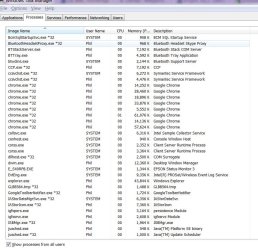
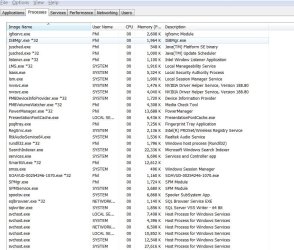
Here are the processes. Turns out there were a lot of processes going on, so I had to use three screen shots.
mystery.JPG
[/ATTACH]
 

Attachments

  • Mysteery2.JPG
    Mysteery2.JPG
    119.2 KB · Views: 29

My Computer

Computer Manufacturer/Model Number
SONY VAIO VPCF11JFX/B
OS
Windows 7 Ultimate x64
Graphics Card(s)
NVIDIA GeForce GT 330M
I'm doing guesswork here (an educated guess that is), but two of the processes, IMHO, are candidates for being the installer that's trying to run itself.

One is SOAVUD-00254246-1070.exe, quite a particular filename. I'm not sure about this one. It could also be an antivirus update that happened to install itself at the time you took the screenshots.

The other candidate which I'm far more curious about is GLBB564.tmp which might be an executable (despite the .tmp extension) which was unpacked by a package setup file into your temp folder and started from there.

What you might do next is following the same steps as above when the setup runs itself again, but this time rightclick on the process in Task Manager and select Open file location. Once there, rightclick the file itself and select Properties.
Try to find out as much as you can about the file, especially in the Details tab. Any clues as to what it is, which company it's from, etc.?
 

My Computer

Computer type
PC/Desktop
Computer Manufacturer/Model Number
Custom-built
OS
Windows 7 Professional SP1 32-bit
CPU
Intel Core 2 Duo E6600 2.4GHz
Motherboard
Asus PL5D2
Memory
4GB DDR2-667 (4x1GB in dual-channel config)
Graphics Card(s)
nVidia GeForce 9800 GT
Sound Card
Creative X-Fi XtremeMusic
Monitor(s) Displays
Acer P236H
Screen Resolution
1920x1200 (DVI)
Hard Drives
OCZ SSD Vertex Plus 60GB SATA (Firmware 3.55), 64MB cache
Hitachi HD321KJ SATA, 320GB, 7200rpm, 16MB cache
PSU
Antec TruePower 2.0
Case
Cooler Master Centurion
Cooling
Too many fans
Keyboard
Standard
Mouse
Microsoft wireless optical mouse
Internet Speed
AT&T U-verse (18mbit/sec)
Antivirus
Microsoft Security Essentials
Browser
Firefox
Other Info
Other devices:
Compaq CQ-60 laptop
Google Nexus 7 (2012) tablet
Nvidia SHIELD tablet (US/LTE)
Hardkernel ODROID-XU single-board computer (Samsung Exynos 5420)
We are making progress.

I Googled "SOAVUD-00254246-1070.exe" and discovered it is a SONY VAIO Update. See the following web page:
Sony eSupport - Electronics - Software & Drivers

As for GLBB564.tmp:
That process has been replaced by a file with a slightly different name:
GLB5EE9.tmp *32
"Open file location" sent me to:
C:\Users\Phil\AppData\Local\Temp
I notice there are a bunch of other files in that folder with similar names. (eg, GLC6456).
Alas, nothing in the properties entries is of any value. Just says it opens with "windows shell common."
However, I also noticed there is an EXE file, in the same folder, with a similar name:
GLF68CE.EXE from 6/21/2010
And sure enough, it's another SONY item. The file's "product name" is "GetVAIOInfo" and file description is "Get VAIO Information." Original file name: VAIOInfo.exe
Copyright SONY Electronics.

So, assuming you have spotted the processes that are indeed causing the installation dialog box to pop up, it seems that this is a way for SONY to update itself.
 

My Computer

Computer Manufacturer/Model Number
SONY VAIO VPCF11JFX/B
OS
Windows 7 Ultimate x64
Graphics Card(s)
NVIDIA GeForce GT 330M
Excellent work! Yes, seems the Sony VAIO update tool is the one. We haven't really figured out why it keeps launching itself periodically, but perhaps it set itself up this way to nag you until you actually proceed with the installation.

At least we can now assume it's not a rogue app, and we know what its purpose is. You might as well simply allow the install to run, and that should get it out of the way for good then.

If you decide to go this route, let us know how it all works out. :)
 

My Computer

Computer type
PC/Desktop
Computer Manufacturer/Model Number
Custom-built
OS
Windows 7 Professional SP1 32-bit
CPU
Intel Core 2 Duo E6600 2.4GHz
Motherboard
Asus PL5D2
Memory
4GB DDR2-667 (4x1GB in dual-channel config)
Graphics Card(s)
nVidia GeForce 9800 GT
Sound Card
Creative X-Fi XtremeMusic
Monitor(s) Displays
Acer P236H
Screen Resolution
1920x1200 (DVI)
Hard Drives
OCZ SSD Vertex Plus 60GB SATA (Firmware 3.55), 64MB cache
Hitachi HD321KJ SATA, 320GB, 7200rpm, 16MB cache
PSU
Antec TruePower 2.0
Case
Cooler Master Centurion
Cooling
Too many fans
Keyboard
Standard
Mouse
Microsoft wireless optical mouse
Internet Speed
AT&T U-verse (18mbit/sec)
Antivirus
Microsoft Security Essentials
Browser
Firefox
Other Info
Other devices:
Compaq CQ-60 laptop
Google Nexus 7 (2012) tablet
Nvidia SHIELD tablet (US/LTE)
Hardkernel ODROID-XU single-board computer (Samsung Exynos 5420)
Hi grand7,
I've been having the same problem for a while. Did you proceed with the installation? Do you know now if this is indeed a Sony software update?
Any help to decipher this mystery will be appreciated!
Thx,
 

My Computer

OS
Windows 7 Home Professional 64bit
Thank you Corazon; I will try installing the program this weekend. JVR-- I'll post back here when I get results
 

My Computer

Computer Manufacturer/Model Number
SONY VAIO VPCF11JFX/B
OS
Windows 7 Ultimate x64
Graphics Card(s)
NVIDIA GeForce GT 330M
Yeah, please keep us posted!
Many thx!
 

My Computer

OS
Windows 7 Home Professional 64bit
Today I ran the VAIO CARE program on my computer, which requested that I run an update to Vaio Care. This launched the dialog box described in my first post. After the installation, I looked in C:\Users\Phil\AppData\Local\Temp and saw that the old GLF* file was gone, although the previously mentioned EXE is still there. But there was also an INSTALL.LOG dated today. When I opened that file I saw that the aforementioned files were indeed referenced during the installation.

So the mystery is solved: The dialog box in my opening post referred to a SONY VAIO CARE program update.

Thanks for your assistance; hope this helps others. :party:
 

My Computer

Computer Manufacturer/Model Number
SONY VAIO VPCF11JFX/B
OS
Windows 7 Ultimate x64
Graphics Card(s)
NVIDIA GeForce GT 330M
Excellent! I'm glad everything went well in the end. No cookies for Sony, though. ;)

Thanks for reporting back :)
 

My Computer

Computer type
PC/Desktop
Computer Manufacturer/Model Number
Custom-built
OS
Windows 7 Professional SP1 32-bit
CPU
Intel Core 2 Duo E6600 2.4GHz
Motherboard
Asus PL5D2
Memory
4GB DDR2-667 (4x1GB in dual-channel config)
Graphics Card(s)
nVidia GeForce 9800 GT
Sound Card
Creative X-Fi XtremeMusic
Monitor(s) Displays
Acer P236H
Screen Resolution
1920x1200 (DVI)
Hard Drives
OCZ SSD Vertex Plus 60GB SATA (Firmware 3.55), 64MB cache
Hitachi HD321KJ SATA, 320GB, 7200rpm, 16MB cache
PSU
Antec TruePower 2.0
Case
Cooler Master Centurion
Cooling
Too many fans
Keyboard
Standard
Mouse
Microsoft wireless optical mouse
Internet Speed
AT&T U-verse (18mbit/sec)
Antivirus
Microsoft Security Essentials
Browser
Firefox
Other Info
Other devices:
Compaq CQ-60 laptop
Google Nexus 7 (2012) tablet
Nvidia SHIELD tablet (US/LTE)
Hardkernel ODROID-XU single-board computer (Samsung Exynos 5420)
Back
Top