Upgrade Win 7 (second partition) or recover registry?

almirony

New member
Local time
6:09 PM
Messages
6
I bought laptop with Windows Vista. Last year I upgraded Vista Business to Win 7 Professional with genuine Upgrade disk. All works fine until yesterday. Startup repair find that my registry corrupted and that it's impossible to repair. I try everything, I try this Corrupt Registry: Root Cause in Startup Repair. - Microsoft Answers and doesn't work.
Luckily I have two partition, so I installed clean install on second partition (D - after instalation it become C drive). Now I want to upgrade/reinstall Win 7 on my first default partition (now D drive), but when I start upgrade procedure, Win setup only recognize new partition (C). Is it possible to somehow I upgrade/reinstall my old partition with my programs, setting and file be intact, or perhaps is possible to somehow I run registryclean tool on old partition registry? Any idea?
 

My Computer My Computer

At a glance

Windows 7 Professional
OS
Windows 7 Professional
Most Registry cleaners/optimizers are sales scam operations that do nothing but muck up your System. For regular maintenance use CCleaner Disk and Registry tabs, but these will not repair a Corrupt Registry.

Unfortunately you cannot run a Repair Install, which is an in-place Upgrade over itself, except from the desktop.

Run Malwarebytes from Safe Mode, and from flash stick or CD run Microsoft Standalone System Sweeper

Next from the booted Win7 DVD Repair console or Repair CD run Startup Repair repeatedly. Since you have a second installation now you will have to determine by size which is the correct one to select Repair. System Repair Disc - Create

Startup Repair should automate System Restore and System File Checker but if it fails run them separately from System Recovery Options: SFC -SCANNOW Run in Command Prompt at Boot

If these attempts fail then Win7 is likely irreparable. You can try to copy your files over (once thoroughly disinfected using steps above) using Explorer from new Win7, or using Install DVD/Repair CD: Copy & Paste - in Windows Recovery Console

Then boot free Partition Wizard bootable CD, rightclick on old Win7 to Delete, click OK, then right click on new Win7 to Resize into the old 7's space by sliding left grey border to the left. If you have the 100mb System Reserved partition, you can delete it too unless it is still marked System Active as that means it is booting the new Win7 now.
 
Thx a lot for the answer but it doesn't work. At least, I was forced to copy files :( Thx dude!
 

My Computer My Computer

At a glance

Windows 7 Professional
OS
Windows 7 Professional
There were multiple steps. Did you try each of them? What happened after each?

How were you "forced to copy files?" What does that mean?

Where are you now?
 
I tried every steps that you described. It didn't work. Malwarebytes doesn't find anything just as Microsoft Standalone System Sweeper. When after those steps I tried to repair Windows (startup repair console) I get always same message Corrupt registry and startup repair failed. Even after sfc scannow from cmd I get same messages. After that, I copied documents and settings from old partition to new.
 

My Computer My Computer

At a glance

Windows 7 Professional
OS
Windows 7 Professional
Did you boot the Win7 installer to install the second Win7 so that it will show up as C when booted into it, or did you run installer from the old Win7 forcing the new one to take the letter D when it's booted?

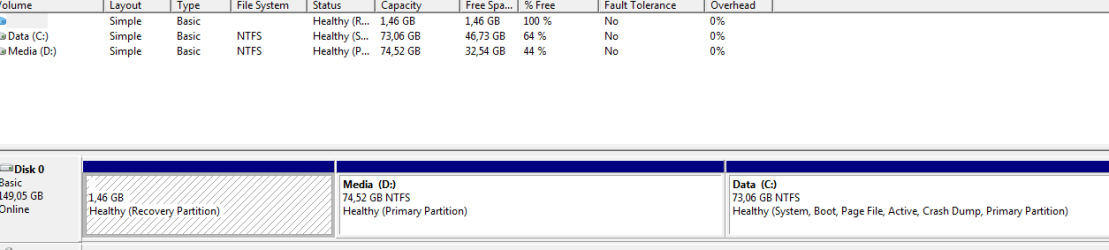
If you'd like to keep the new Win7, delete the old one and recover its space into Win7 then post back a screenshot of your maxmimized Disk Mgmt drive map with listings using the Snipping Tool in Start Menu. We will give you the exact steps after seeing it.
 
New Windows is now C drive and old windows (broken) is now D drive. I delete old windows and after two loooong days I managed to have exactly same PC as been before with two partition (one for media files - D drives and one for windows C). There is no need to have resize new Windows 7 to old partition. Today I run Acronis Image Home, made backup and bootable Acronis disk. I moved backup image 20gb to external disk, cause I suspect that something is wrong with hardware (perhaps memory or motherboard).

Diskmgm screenshot

Download diskmgm.jpg for free on Filesonic.com
 

My Computer My Computer

At a glance

Windows 7 Professional
OS
Windows 7 Professional
Sounds good.

If you want to post up the Disk Mgmt screenshot so we can look it over for you, use the Snipping Tool in STart Menu to make a rectangular Snip of maximized Disk Mgmt window, attach it in Reply box using Paper clip.
 
I already posted link for diskmgmt screenshot above. Here is from snipping tool.
 

Attachments

  • Capture.PNG
    Capture.PNG
    8.1 KB · Views: 11

My Computer My Computer

At a glance

Windows 7 Professional
OS
Windows 7 Professional
It looks fine, but I would want my OS partition in the lower address (left side) of HD closer to the disk reader for faster reads/writes. But if performance is satisfactory, the listings are correct.

The Recovery Partition will not run any longer and is too small to contain native Vista - it must have linked to another partition's storage. So you can eventually delete during reinstall or recover its space into Data partition using free Partition Wizard bootable CD to Delete Recovery, then Resize D to the left into the space.

Be aware that you don't need to have Vista installed to boot to clean reinstall Win7 Upgrade version: Clean Install with a Upgrade Windows 7 Version
 
What I suspected it seems that happened today :( Computer freezed today and after that it doesn't can't to startup BIOS. Hdd led flash once and that's it. I'm going to service tomorrow.

Sent from my HTC
 

My Computer My Computer

At a glance

Windows 7 Professional
OS
Windows 7 Professional
We have not yet helped you troubleshoot your hardware using bootable CD scans which will autostart on their own. If you want to do this yourself to possibly save the Repair bill:

Test your RAM with memtest86 booted CD for 5-6 passes or overnight: RAM - Test with Memtest86+

Test your HD using maker's diagnostics/repair extended CD scan: HD Diagnostic
 
Back
Top