Solved USB Bricked and Testdisk reports "Space conflict between 2 partitions"

dkja

New member
Local time
6:39 AM
Messages
6
USB Bricked and Testdisk reports "Space conflict between 2 partitions"

Hy Guys,

This is my first forum post albeit with a problem and here it is:

I wanted to make a Win7 bootable installation USB without formatting and so google came up with the following tutorial:

How To Make Bootable Windows USB Without Formatting

But it did not work and eventually bricked the USB/un-bootable, though the data is still there.

I was able to successfully recovered the data using Photorec. The main challenge is to reinstate the USB state prior to bricking it.

I found Teskdisk (cgsecurity.org) and analyzed the drive. Testkdisk detects 2 partitions. "(Space conflicts between two partitions) - 2 * Sys=74 & 1 * Sys=6E." (the partition structure as shown in linked image).

I also posted this on cgsecurity forums, but haven't received any resolution nor found a solution elsewhere:

!!!PLS DO CHECK THIS POST!!!
https://forum.cgsecurity.org/phpBB3/...php?f=6&t=6384

But Testdisk doesn't offer options to fix conflicts and I'm no expert in fixing MBR issues so really don't know how to fix it?

How do I reinstate the USB state prior to bricking it?

Currently, using Win 7 (32bit). USB drive - file system prior to bricking: FAT32.

Can any buddy help me out. Infact I also tried the EasyBCD (https://neosmart.net/forums/) but they couldn't help either.

Can anybuddy/guys take a look and help me get the usb to pre-bricking state.

Thanks
dkja
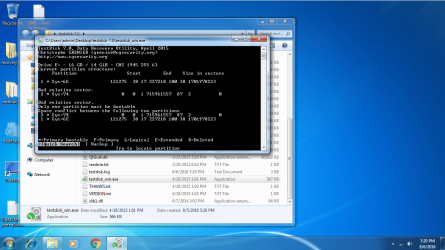
After-testdisk_analysis.png
partition-table-detection-TD.png
 

My Computer My Computer

At a glance

Windows 7Dual Core2 GB RAM
Computer type
PC/Desktop
Computer Manufacturer/Model Number
HP
OS
Windows 7
CPU
Dual Core
Memory
2 GB RAM
Last edited:

My Computers My Computers

  • At a glance

    Windows 7 HP 64i5 6600K - 800MHz to 4200MHz4+4G GSkill DDR4 3000IG - Intel 530
    Computer type
    PC/Desktop
    Computer Manufacturer/Model Number
    custom build
    OS
    Windows 7 HP 64
    CPU
    i5 6600K - 800MHz to 4200MHz
    Motherboard
    GA-Z170-HD3P
    Memory
    4+4G GSkill DDR4 3000
    Graphics Card(s)
    IG - Intel 530
    Monitor(s) Displays
    Samsung 226BW
    Screen Resolution
    1680x1050
    Hard Drives
    (1) -1 SM951 – 128GB M.2 AHCI PCIe SSD drive for Windows 7 and Lubuntu
    (2) -1 WD SATA 3 - 1T for Data
    (3) -1 WD SATA 3 - 1T for backup
    PSU
    Thermaltake 450W TR2 gold
    Keyboard
    Old and good Chicony mechanical keyboard
    Mouse
    Logitech mX performance - 9 buttons (had to disable some)
    Internet Speed
    500Mb/s
    Browser
    Firefox 64
    Other Info
    TinyWall firewall
  • At a glance

    Windows 7 Proi7-4500U 800MHz to 3.0GHz(4+4)G DDR3 1600IG intel 4400 + NVIDIA GeForce GT 745M
    Computer type
    Laptop
    System Manufacturer/Model Number
    Asus Q550LF
    OS
    Windows 7 Pro
    CPU
    i7-4500U 800MHz to 3.0GHz
    Motherboard
    Asus Q550LF
    Memory
    (4+4)G DDR3 1600
    Graphics Card(s)
    IG intel 4400 + NVIDIA GeForce GT 745M
    Sound Card
    Realtek
    Monitor(s) Displays
    LG Display LP156WF4-SPH1
    Screen Resolution
    1920 x 1080
    Hard Drives
    BX500 120G SSD for Windows and programs +
    1T HDD for data
    Internet Speed
    500 Mb/s
    Browser
    Firefox
    Other Info
    TinyWall firewall
Hi dkja,

With the link you provided I couldn't see your post dated 05 Aug 2016 in TestDisk Forums. You seem to have shortened the link and that is why it can't be accessed. The proper link is https://forum.cgsecurity.org/phpBB3/viewtopic.php?f=6&t=6384. ( You should actually access the link copy it and paste it directly in your post without modifying it in anyway. Also you should try to access the link in your post and check everything is OK)

You tried PhotoRec without knowing that it cannot recover file/folder structure.You were rightly advised by Christopher Grenier to use TestDisk.

Again you made a mistake while running TestDisk by selecting "none" partition structure when you very well know that it had a FAT32 partition structure. You should have selected only "[Intel] Intel/PC partition"

Anyway, now stop using TestDisk for now. We shall come back to it if it is necessary after analysing your 16GB SD Card. ( Most OPs try something or other on their own - like you tried EasyBCD - and more often end mucking up the device further before coming here and that makes data recovery difficult. Remember that even Chris cannot assure you that you could get back to the prebootable disk creation stage.He had chosen to remain silent after seeing the mistake. He is a busy author and not a busybody like me :D)

Please do this now:

1. Post a screenshot of Windows Disk Management showing your 16GB SD Card. Make sure to remove all other USB storage devices like external drives/other pendrives to avoid confusion. Adhere to the guidelines here to present an untruncated screenshot showing all the information. http://www.sevenforums.com/tutorials/274797-disk-management-post-screen-capture-image.html

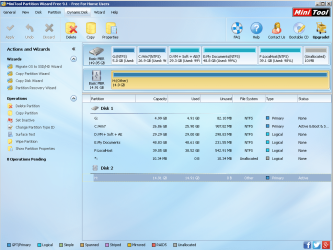
2. Also install and run Minitool Partition Wizard Free Edition 9.1 https://www.partitionwizard.com/download.html

Post the screenshot of how it looks in Partition Wizard.( The first screen as soon as you launch the program)

Upload to Seven Forums : Screenshots and Files - Upload and Post in Seven Forums

Make sure you take the screenshot of the Window of interest only. We do not need to see anything in the background (as in your previous screenshots - the other Window, your desktop etc.,).
 
Last edited:

My Computer My Computer

At a glance

Windows 7 Home Premium 32 bit
OS
Windows 7 Home Premium 32 bit

My Computer My Computer

At a glance

Win 10 Pro x64Intel I5-2500K @3.3GHz16GB G.Skill Ripjaws X (4x4GB)EVGA GeForce 750 Ti SC 2GB
Computer type
PC/Desktop
Computer Manufacturer/Model Number
Self Built
OS
Win 10 Pro x64
CPU
Intel I5-2500K @3.3GHz
Motherboard
Asrock P67 Extreme4
Memory
16GB G.Skill Ripjaws X (4x4GB)
Graphics Card(s)
EVGA GeForce 750 Ti SC 2GB
Sound Card
ASUS Xonar DG 5.1 Channels 24-bit 96KHz PCI Interface Sound
Monitor(s) Displays
auria eq2367
Screen Resolution
1920 x 1080
Hard Drives
250GB Samsung 850 EVO SSD
1TB WD Blue
1TB Hitachi
PSU
SeaSonic X 650W 80 Plus Gold
Case
Corsair Obsidian 750D
Cooling
Corsair H60, Three 140mm case fans
Keyboard
Logitech Wireless Keyboard K520
Mouse
Logitech Wireless Mouse M310
Internet Speed
Wave Broadband ~ 100 dn 5 up
Antivirus
Windows Defender, Malwarebytes Premium
Browser
Edge, IE11, Chrome
Other Info
Laptop specs: HP g7-1365dx /
CPU: AMD A6-3420M APU with Radeon(tm) HD Graphics /
RAM: Crucial 8Gb (2x4Gb) /
SSD: Crucial M4-CT128M4SSD2 ATA Device/ FW 000F /
GFX: AMD Radeon HD 6520G /
OS: Windows 10 Pro x64
Yep, I had to register myself to see the attachments there. ( Nothing different)

The OP had, prior to making the attempt to create a bootable pendrive without formatting it, had 8GB of data in it.

When he attempted it, he lost access to the pendrive and therefore access to that 8GB of data.

He now wants the restore the pendrive as it was before the failed attempt so that he could access the 8GB data as before.

This was not very clear in his first post and the result was Megahertz07 here and the member in the other forum suggesting to format it to the factory condition. Even I was confused :) until I read his post in TestDisk forum where he is very clear he wants the flash drive back with the 8GB data readable as before.
 

My Computer My Computer

At a glance

Windows 7 Home Premium 32 bit
OS
Windows 7 Home Premium 32 bit
Hello Jumanji,

Here is what the Windows Disk-management sees:
dkj-win7-diskmgmt.png

Here is what Partition Wizard sees(first screen):
win7-partition-wizard-disk-image.png

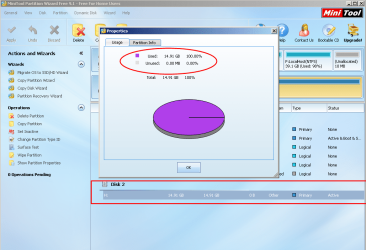
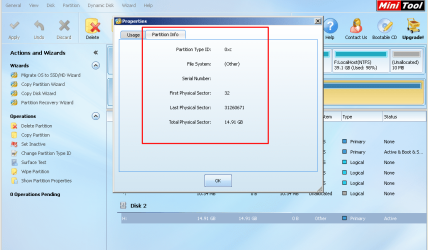
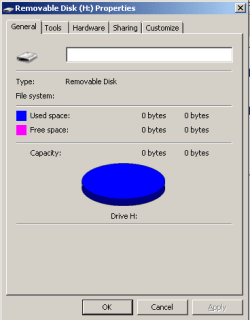
Interestingly Mini-tool partition wizard detects the USB drive (H:) size and shows it's partition info to which Windows 7 detects & reports zero bytes. Here's what partition wizard and Win7 detects and shows:

win7-partition-wizard-H_drive-size_recognized.png

Partition Info
win7-partition-wizard-H_drive_partition-info.png

Win7 shows:
win7-inbuilt_reports_0bytes_H_drive.png

Will the above screenshot help solve this? Thanks for help.
dkja
 

My Computer My Computer

At a glance

Windows 7Dual Core2 GB RAM
Computer type
PC/Desktop
Computer Manufacturer/Model Number
HP
OS
Windows 7
CPU
Dual Core
Memory
2 GB RAM
OK, I have just read your post in Neosmart forum and the responses you got..( I have seen the above screenshots also but at this point I make no comments though I have them at the back of my mind)

Let us get going and try your and my luck. Now this is going to be a laborious task. It requires patience and perseverance and adhering to the instructions given. We will also be going back and forth at times. Do not be in a hurry to do things asked for. Take your time. ( It also helps me to research into the problem created by EasyBCD)

We are still in the investigative stage. Download and run the free demo version GetdatabackSimple https://www.runtime.org/data-recovery-software.htm (Read the How-to guides and documentation also)

As soon as you start the program it will scan your system and show you the drives found.( Have only your 32GB Flash drive connected) Click on the 32GB Flash drive and it will scan it and show you the partition/s found. Please take a screenshot. Click on the partition found and it will try to show the files found. If the files are found ok. If not and if it throws any error message take a screenshot or note the verbatim error message and post.

Close the program.

If you have any doubts in executing let me know.

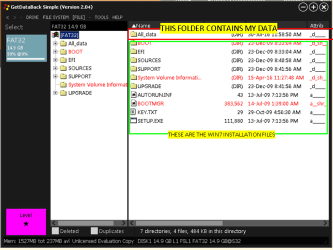
The following screenshot shows the only partition found on my 32GB Trial Flash drive. ( It is not adulterated in any way as yet :) and shows the folders. I shall now try to adulterate it with EasyBCD to study what changes it makes in the Flash drive and whether it can be undone without destroying the data.)

25-08-2016 18-13-59.jpg
 
Last edited:

My Computer My Computer

At a glance

Windows 7 Home Premium 32 bit
OS
Windows 7 Home Premium 32 bit
Here is the first screen showing file system (FAT32) found at Sector 32

get_data-partition-found-screen-at-sector32.png

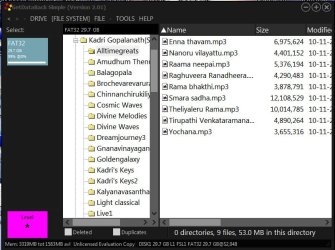
Here is the screen after Get Data scanned selected file system.

get_data-data-found-after-selection-file-system-screen.png

It shows the USB state as before.
 

My Computer My Computer

At a glance

Windows 7Dual Core2 GB RAM
Computer type
PC/Desktop
Computer Manufacturer/Model Number
HP
OS
Windows 7
CPU
Dual Core
Memory
2 GB RAM
OK, I have noted the start sector at 32. I am not concerned about it now- though a bit surprised.I have seen that in your PW Partition Info screenshot also. ( We are used to Sector 63 or 2048. When I formatted my Trial Flash drive to FAT32 with Partition Wizard, the start is at 2048)

Now why don't you open the All data folder and see whether it shows all your subfolders? ( In the screenshot I posted I have opened the KadriGopalnath Folder which then shows all subfolders in it. I have then opened the first subfolder Alltimegreats to show the files in it.) Right click on a selected file and you can preview it. Click on the Open Icon in the ribbon that appears below when you right click on the file. That way you can confirm that all your folders/and files are there in good shape with their original structure

If you confirm then we will get back to TestDisk and start recovery or you pay USD69 and register the software to copy the files - whichever course you choose :D . ( Don't try TestDisk on your own. I shall tell you how to proceed step by step.)

(I know your Flash is 16GB. Somehow 32GB got stuck in my mind.)
 
Last edited:

My Computer My Computer

At a glance

Windows 7 Home Premium 32 bit
OS
Windows 7 Home Premium 32 bit
On a side-note
Try to give a bit more storage space for the each partition.

As too small, less than 1 GB, may be quite restricted for the OS and any other programs, problems.
 

My Computer My Computer

At a glance

Windows 7 x64
Computer type
Laptop
Computer Manufacturer/Model Number
Toshiba L630 and L735
OS
Windows 7 x64
Hard Drives
240 GB SSD
"Jumanji", checked as instructed and can confirm that my data is intact, plz instruct further.
 

My Computer My Computer

At a glance

Windows 7Dual Core2 GB RAM
Computer type
PC/Desktop
Computer Manufacturer/Model Number
HP
OS
Windows 7
CPU
Dual Core
Memory
2 GB RAM
1. You must have a pendrive or an external drive with adequate space to copy your files. If it is a pen drive choose a 32GB pendrive so that you can distinguish your source drive ( which you want to copy) -16GB and Destination drive to which you want to copy.

2. Create a folder named Recovery on the Destination drive. You will navigate to this folder to copy from your source drive.

3. Plug in your faulty Flash drive and the Destination drive before you start TestDisk for TestDisk to recognise those when run.

Run TestDisk.

1. [No Log] Enter - We do not need the log file

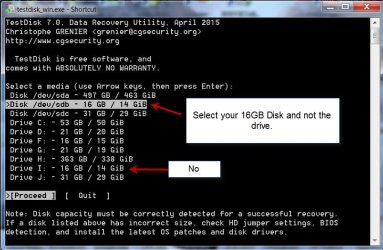
2. Select your 16 GB Flash. [Proceed] highlighted Press Enter.
Note: Select Disk and not drive with the drive letter.

26-08-2016 18-12-34.jpg

3. Select/highlight [Intel] Intel/PC Partition Enter

Note: By default TestDisk will auto Select the Partition type which it feels is correct. But this need not be correct always. In your case because the file system is corrupt it may show none. But you know that it is/was FAT32. So select/highlight [Intel] Intel/PC Partition. This was the mistake you did when you ran TestDisk.You let it be none.

4.[Analyse] Enter

5. (Irrespective of what you get in this screen) [Quick Search] Enter

6. If it shows your partition/s , highlight the correct partition which shows as FAT32 and Press P to list the files.

7. You may get a screen showing all the folders/files.

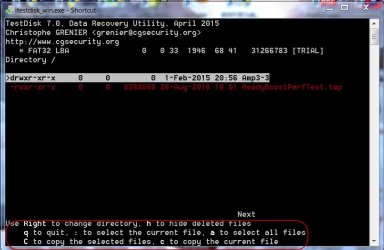
Select and then copy to the "Recovery" Folder you created in the Destination drive.

26-08-2016 18-20-58.jpg

Copying files listed by TestDisk during Recovery:

http://www.sevenforums.com/hardware...suddenly-became-unllocated-3.html#post2395385

At any point when carrying out these instructions you have any doubts, post the relevant screenshot and ask for help.

You can quit TestDisk at any point by pressing the X in the top bar or repeatedly pressing Q.

As long as you do not give any write command to write something on the drive under recovery - the source disk you are safe. Here you will only be copying the files to your destination pen drive/external HDD

Do not copy the files to your system drive. Copy to another flash or external HDD only.
 
Last edited:

My Computer My Computer

At a glance

Windows 7 Home Premium 32 bit
OS
Windows 7 Home Premium 32 bit
[Solved] Got USB back to previous state. (HUGE THANK YOU) THUMBS-UP

:thumbsup:Thanks you so much for your kind help & greatest effort. FINALLY I was able to get my data back and re-instate the USB to previous state.

Though in Step 6, TD, it did not show any partition, so I thought to try my luck;) and so I went back to Analyze screen (step 4) then I chose:

1. "ADVANCED" >>
2. [Boot] (at bottom) >>
3.
  • or [Rebuild BS] (I am not sure, but list showed all my files ,deleted(red) and current(white))

    then continued with Step 7 onward (as you showed) and copied data to another USB.

    Moreover I think, it somehow also made the usb bootable again cause when I ejected and inserted again, it came to LIFE implying it was in again in the state before it was messed up following that stupid tutorial.

    The main thing is you gave me the courage :dinesh: to work through the problem rather than be a bitch :cry: and seeking merciful help from everyone. These might come across as big words, SERIOUSLY by helping out, you are helping the world be better, or at-least, your hand holding changed me cause if at all someone get into the same situation then I will be more than willing to help that guy out.

    You should be recommended for Internet Helpers award of the Year. :party::party::thumbsup:
 

My Computer My Computer

At a glance

Windows 7Dual Core2 GB RAM
Computer type
PC/Desktop
Computer Manufacturer/Model Number
HP
OS
Windows 7
CPU
Dual Core
Memory
2 GB RAM
Glad you were able to recover the data/restore your pendrive. :thumbsup:

That was actually the next step. Go to Advanced click on Boot, check whether Boot Sector and Backup boot Sector is OK, if boot sector is bad but backup is ok, click on Backup to write the back up, if both are bad, Rebuild BS. And yes I am a paranoid when it comes to Data Recovery. It is not my drive. I have to take all possible steps to preserve the OP's data. A slip on my part or the OP's part can make matters worse. Even here I would have advised you to go to List to list all the files and copy those. Once all the data is copied only then I will make that attempt to restore the drive by giving the Rebuild Boot sector command. You overtook me in a way. You are more courageous than me. Congrats. And I know now that you have become an expert in using TestDisk :).

Except a few routine cases, where Partition Recovery and Disk restore is a simple affair, most cases that come are unique and each a different kind and have no precedence. If there were a precedent you would have got an instant solution in TestDisk /Bleeping Computers/Neosmart forums.. Now go over to those forums and tell them how you resolved it in Seven Forums and blow your trumpet. You have a right to. It will also help others in such a situation.

On your behalf, and for the same reasons, I shall be requesting the admins/Mods to mark this thread solved. ( I have been going through a dry run for almost a month now and that spell ends now.:))

Enjoy some Indian music here What are you listening to? [10]
 
Last edited:

My Computer My Computer

At a glance

Windows 7 Home Premium 32 bit
OS
Windows 7 Home Premium 32 bit
Back
Top