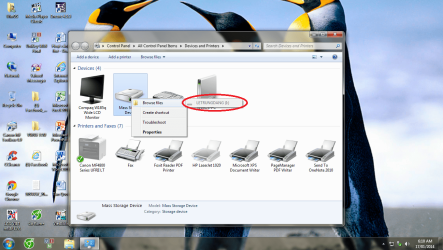
nhkhang,
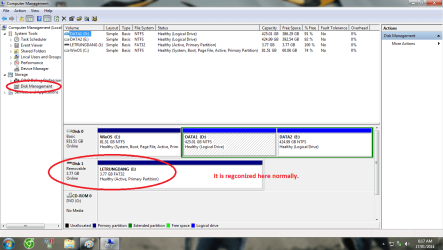
The drive has a letter assigned in Disk Management, but is the drive enabled?
With the USB drive connected, go to Start > Computer
Right-click Computer and select
Properties
Go to
Device Manager
Locate in the list and click the small arrow to the left to expand the list of drives
If the USB drive is disabled you see an icon with an arrow pointing down over the drive
Double-click the icon and click the
Enable Device button
Click
Next on the Enabling a device dialog box, click Next, and then click Finish
Close the open windows.
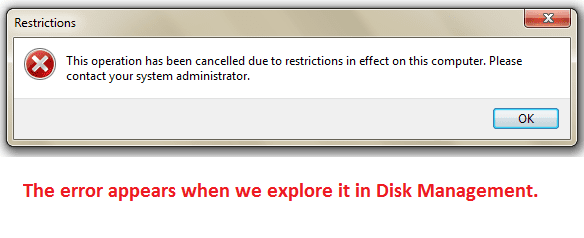
Do you receive an error message if you try to enable the USB drive?
Also do the following:
Please use
UsbFix:
Download >
UsbFix Download UsbFix - Free - Website Official
Save to the Desktop.
Right-click the downloaded USBFix file and select: Run as Administrator
When a window requesting the connection of removable drives appears, please connect the problem USB drive as requested!
Press:
Research
This option scans the connected drives, and reports its infected Files and Folders
When done, the program closes on its own, and a report appears.
(The report file is also found at C:\UsbFix.txt)
:ar: Please post the
UsbFix.txt (Research) report in your reply.
Once again, run
USBFix as Administrator, but, this time, press:
Listing
It creates a report of all the Folders and Files found at the root of every hard drive, partition, or removable drive connected.
:ar: Also post the
UsbFix.txt (Listing) report in your reply.
Note 1: If USBFix does not run in normal Windows, please run in Safe Mode:
-Restart your computer.
-When the computer starts, tap the F8 key on the keyboard repeatedly until presented with the Advanced Boot Options menu
-Using the arrow keys, select: Safe Mode
-Press the Enter key on your keyboard to boot into the selected mode.
Note 2: If your AntiVirus program detects USB as malware, either let the AV program allow USBFix to run, or, temporarily disable your AntiVirus program:
Info -
How To Temporarily Disable Your Anti-virus, Firewall And Anti-malware Programs - Security Mini-Guides
When done with USBFix, re-enable your AV!


 ( But he may not circumvent the company policy.)