Using old hard drive for external hard drive

ahsmithjr

New member
Local time
3:52 AM
Messages
6
I am trying to set up the hard drive from my old computer as an external hard drive to my new computer. I can see the old drive under disk management. It is marked as not initialize. When Initialized is clicked the message is "The device is not ready". How do I find out what is causing the drive to be not ready? I have the jumper pins on the old drive set as per Weratern Dtigial's instructions. The old computer's OS was win XP and the new compter's OS is Win 7. Any ideas on how I can get access to the data on this old drive?
 

My Computer My Computer

OS
windows 7 32 bit
Jumper should be set to master.
 

My Computer My Computer

OS
ME/XP/Vista/Win7
How are you attaching the old hard drive? Is it installed in an external enclosure? Is it USB or eSATA?
 

My Computer My Computer

Computer Manufacturer/Model Number
Self-Built in July 2009
OS
Windows 7 Ultimate x64
CPU
Intel Q9550 2.83Ghz OC'd to 3.40Ghz
Motherboard
Gigabyte GA-EP45-UD3R rev. 1.1, F12 BIOS
Memory
8GB G.Skill PI DDR2-800, 4-4-4-12 timings
Graphics Card(s)
EVGA 1280MB Nvidia GeForce GTX570
Sound Card
Realtek ALC899A 8 channel onboard audio
Monitor(s) Displays
23" Acer x233H
Screen Resolution
1920x1080
Hard Drives
Intel X25-M 80GB Gen 2 SSD
Western Digital 1TB Caviar Black, 32MB cache. WD1001FALS
PSU
Corsair 620HX modular
Case
Antec P182
Cooling
stock
Keyboard
ABS M1 Mechanical
Mouse
Logitech G9 Laser Mouse
Internet Speed
15/2 cable modem
Other Info
Windows and Linux enthusiast. Logitech G35 Headset.
How do you have the PATA jumpers set?
 

My Computer My Computer

Computer Manufacturer/Model Number
Homebuilt
OS
Windows 7 x64
CPU
i7-2600K
Motherboard
Asus P8Z77-v Pro
Memory
8 G
Graphics Card(s)
GTX 480
Sound Card
Onboard
Monitor(s) Displays
LG W2753V
Screen Resolution
1920x1080
Hard Drives
Crucial M4 128 G SSD
1) The old drive is in an external enclosure with a USB connenction.
2) Will try the master pin setting ( WD has said to use the single setting?).
3) Explain PATA junper set??
 

My Computer My Computer

OS
windows 7 32 bit
1) the old drive is in an external enclosure with a usb connenction.
2) will try the master pin setting ( wd has said to use the single setting?).
3) explain pata junper set??

pata = ide.
 

My Computer My Computer

OS
ME/XP/Vista/Win7
Additional data that may of some use:
The internal hard drive of the new computer the file system is NTFS. The external hard drive , from the old computer, has a file system of FAT32.Could this be the problem? Can windows 7 work with a FAT 32 file system?
 

My Computer My Computer

OS
windows 7 32 bit
Below is the recommended way to Move disks - the fat 32 filing system shouldnt be causing the problem:

This section describes the steps to take and considerations associated with moving disks to another computer. You might want to print this procedure or write down the steps before attempting to move disks from one computer to another.
Backup Operator or Administrator is the minimum membership required to perform these steps.
Verify volume health
Use Disk Management to make sure the status of the volumes on the disks is Healthy. If the status is not Healthy, you should repair the volumes before you move the disks.
To verify the volume status, check the Status column in the Volume List view or under the volume size and file system information in the Graphical view.
Uninstall the disks
Uninstall the disks you want to move using Device Manager.
To uninstall disks
Open Device Manager in Computer Management.
In the device list, double-click Disk drives.
Right-click the disks you want to uninstall, and then click Uninstall.
In the Confirm Device Removal dialog box, click OK.
Remove dynamic disks
If the disks you want to move are dynamic disks, in Disk Management, right-click the disks that you want to move, and then click Remove Disk.
After having removed dynamic disks or if you are moving basic disks, you can now physically disconnect them. If the disks are external, you can now unplug them from the computer. If they are internal, turn off the computer, and then physically remove the disks.
Install disks in the new computer
If the disks are external, plug them into the computer. If the disks are internal, make sure the computer is turned off and then physically install the disks in that computer.
Start the computer that contains the disks you moved and follow the instructions on the Found New Hardware dialog box.
Detect new disks
On the new computer, open Disk Management. Click Action and then click Rescan Disks. Right-click any disk marked Foreign, click Import Foreign Disks, and then follow the instructions on your screen.
Additional considerations
When moved to another computer, basic volumes receive the next available drive letter on that computer. Dynamic volumes retain the drive letter they had on the previous computer. If a dynamic volume did not have a drive letter on the previous computer, it does not receive a drive letter when moved to another computer. If the drive letter is already used on the computer where they are moved, the volume receives the next available drive letter. If an administrator has used the mountvol /n or the diskpart automount commands to prevent new volumes from being added to the system, volumes moved from another computer are prevented from being mounted and from receiving a drive letter. To use the volume, you must manually mount the volume and assign it a drive letter using Disk Management or the DiskPart and mountvol commands.

If you are moving spanned, striped, mirrored, or RAID-5 volumes, it is highly recommended that you move all disks containing the volume together. Otherwise, the volumes on the disks cannot be brought online and will not be accessible except to delete them.

You can move multiple disks from different computers to a computer by installing the disks, opening Disk Management, right-clicking any of the new disks, and then clicking Import Foreign Disks. When importing multiple disks from different computers, always import all of the disks from one computer at a time. For example, if you want to move disks from two computers, import disks from the first computer and then import disks from the second computer.

Disk Management describes the condition of the volumes on the disks before they are imported. Review this information carefully. If there are any problems, this will tell you what will happen to each volume on these disks once the disks have been imported.

If you move a GUID partition table disk containing the Windows operating system to an x86-based or x64-based computer, you can access the data, but you cannot boot from that operating system.


You can convert a fat32 system to NTFS for better performance:

To convert a hard disk or partition to NTFS format
Close any open programs running on the partition or logical drive to be converted.
Click the Start button , click All Programs, click Accessories, right-click Command Prompt, and then click Run as administrator. If you are prompted for an administrator password or confirmation, type the password or provide confirmation.
At the command prompt, type convert drive_letter: /fs:ntfs, where drive_letter is the letter of the drive you want to convert, and then press Enter. For example, convert E: /fs:ntfs would convert drive E to the NTFS format.
Type the name of the volume you want to convert, and then press Enter. You must use the existing name of the volume or the conversion will be canceled. You can view all available volumes in the Computer folder under Hard Disk Drives.
Click to open Computer.
If the partition you are converting contains system files—which would be the case if you are converting the hard disk that the operating system was installed on—you will need to restart your computer for the conversion to take place. If your disk is almost full, the conversion process might not succeed. If you receive an error, try deleting unnecessary files, or back up files to another location, to free up disk space.

 

My Computer My Computer

OS
XP, Vista, W7 64bit Home Premium
CPU
Intel Core Duo 6850 3.0 ghz @ 3.7 ghz
Motherboard
Asus P5E
Memory
4GB Corsair DDR 2 PC-6400
Graphics Card(s)
Ati 4870 1ghz
Sound Card
Supreme FX 11
Monitor(s) Displays
View Sonic VX1962wm
Screen Resolution
1680 X1050
Hard Drives
3 Seagate Sata Drives 160gb 250gb 500gb
PSU
Thermaltake 600 watt
Case
NZXT Alpha
Cooling
3X120cm Fans
Keyboard
Microsoft Digital Media Pro Keyboard
Mouse
Microsoft Wheel Mouse Optical
Internet Speed
1.5Mb to 8Mb/384k
Whest excallent instructions:
But the hard drive was not unstalled before its remova lfrom the old computer, and the old computer is gone, dismatled ,junked. Is there a work around to get past this point and have this hard drive be ready for thte new computer to initialize it. Also preserving the data on the old hard drive while doing this.
 

My Computer My Computer

OS
windows 7 32 bit
The old WD IDE HD should have jumper set to Master or single drive.

Boot your computer, then plug in USB ext enclosure of THe WD HD. See if win7 installs it & driver for it.

Go to Computer Management >>> then Disk Management >> see if you can see it.

If so right click & look for initialize disk, then you may have to asign it a drive letter.


" Doc "
 

Attachments

  • Disk_Management_oct_2009.JPG
    Disk_Management_oct_2009.JPG
    88.7 KB · Views: 64

My Computer My Computer

Computer type
PC/Desktop
Computer Manufacturer/Model Number
Built them myself, Science Experiments !
OS
Win7 Enterprise, Win7 x86 (Ult 7600), Win7 x64 Ult 7600, TechNet RTM on AMD x64 (2.8Ghz)
CPU
AMD fx8350 4ghz, AMD-32 2400mhz, AMD-64 3200mhz, AMDx64 2.8G
Motherboard
SIS 755, ECS-K8M890M-M (Ult 7600), GigaByte & others
Memory
2gb, 4gb on the Ult 7600, 4gb on Technet RTM, 32gb on FX8350
Graphics Card(s)
Draw my own Graphics, several nVidia cards
Sound Card
on motherboard
Monitor(s) Displays
19" flat scr, 28" I-Inc widescr,22" Emprex Widescr, 23" Acer
Screen Resolution
1280 x 1024, 1440 x 900, 1920 x 1080
Hard Drives
6 pata Ide HD's & 2 Sata HD's
added 80gb external on Ult 7600 computer,
numerous extra 1tb, 2TB, 3Tb SATA HD's
A collection of ext HD Docks w/ HDs
PSU
430w, 550w, 600w, 700, 800, etc
Case
All Generic Full Towers
Cooling
Open Air & a few fans, some w/ colored LEDs
Keyboard
Compaq & Dell recycled from GoodWill
Mouse
Made in China Optical Wired Mouse
Internet Speed
Fast Cable InterNet
Antivirus
AVG Free on 24 different Desktops, NO Problems!
Browser
IE 8 is preferred, but use FireFox sometimes
Other Info
Linksys Routers, switches, & Hubs
Too Many USB Flash Drives to count, Biggest is 64GB !
Eight computers in my home network.
Sixteen computers at my business network.
Linked via TeamViewer !
Lots of old used spare computer parts everywhere!
I would eliminate the enclosure, as being the problem by connecting it normally.
 

My Computer My Computer

OS
XP, Vista, W7 64bit Home Premium
CPU
Intel Core Duo 6850 3.0 ghz @ 3.7 ghz
Motherboard
Asus P5E
Memory
4GB Corsair DDR 2 PC-6400
Graphics Card(s)
Ati 4870 1ghz
Sound Card
Supreme FX 11
Monitor(s) Displays
View Sonic VX1962wm
Screen Resolution
1680 X1050
Hard Drives
3 Seagate Sata Drives 160gb 250gb 500gb
PSU
Thermaltake 600 watt
Case
NZXT Alpha
Cooling
3X120cm Fans
Keyboard
Microsoft Digital Media Pro Keyboard
Mouse
Microsoft Wheel Mouse Optical
Internet Speed
1.5Mb to 8Mb/384k
either way; in the enclosure or back in the system.

If you delete the current partition and then setup a new partitions that should make the drive visible to the OS again.
 

My Computer My Computer

Computer Manufacturer/Model Number
My Build
OS
win7 Ult 64
CPU
i7 3930K & 3960X
Motherboard
ASUS P9X79 Deluxe
Memory
16GB G-Skill 2133MHz
Graphics Card(s)
Sapphire HD 7970
Sound Card
On-board
Monitor(s) Displays
ASUS 27 inch
Screen Resolution
1920X1080
Hard Drives
Crucial M4 256GB, 1.5TB WD Black for Data/Images
PSU
Corsair AX1200
Case
NZXT 810
Cooling
Custom Loop, Swiftech HDBlock
Keyboard
Mionix
Mouse
Mionix
Internet Speed
Cable
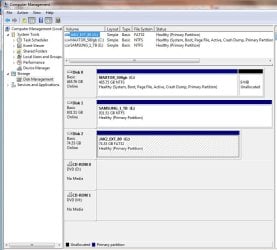
External hard drive.JPG This is the screen shot the hard drive in question is marked as disk 1 This drive has two partitions on it. In the old computer known as C: , and E: When this window is first opened the window for initializing the drive opens. When that window is click another winow opens stating "the device is not ready"
 

My Computer My Computer

OS
windows 7 32 bit
"When this window is first opened the window for initializing the drive opens. When that window is click another winow opens stating "the device is not ready"
Now try right clicking the red arrow and selecting initialize the disk - worth a try - I read a thread where it worked. I think it was right clicking, may of been just click, better try both ways.
 

My Computer My Computer

OS
XP, Vista, W7 64bit Home Premium
CPU
Intel Core Duo 6850 3.0 ghz @ 3.7 ghz
Motherboard
Asus P5E
Memory
4GB Corsair DDR 2 PC-6400
Graphics Card(s)
Ati 4870 1ghz
Sound Card
Supreme FX 11
Monitor(s) Displays
View Sonic VX1962wm
Screen Resolution
1680 X1050
Hard Drives
3 Seagate Sata Drives 160gb 250gb 500gb
PSU
Thermaltake 600 watt
Case
NZXT Alpha
Cooling
3X120cm Fans
Keyboard
Microsoft Digital Media Pro Keyboard
Mouse
Microsoft Wheel Mouse Optical
Internet Speed
1.5Mb to 8Mb/384k
Whest tried your idea no luck. Cliked the red "+" and in the popup menu "Initialize disk" was grayed out. With the Virtual disk manger window is displing " The devise is not ready" it just flashes when the red "+" is clicked either rt. or lelt.
 

My Computer My Computer

OS
windows 7 32 bit
Back
Top