Hey everyone,
This is my first post on these forums so I apologize if this thread is not in the right section.
Anyways, here's my issue, and I'm sure it's one that's been raised before.
I'm using Windows 7 on a widescreen laptop and it is much more economical (space-wise) for me to put my taskbar on the side of the screen, i.e. vertically. However, after launching a few applications my taskbar becomes filled, and the icons are moved onto the next "page", with tiny white arrows allowing me to move between pages.
I want my icons to display in 2 (or more) columns so that I don't have to move between pages so often. When the taskbar is in a horizontal position at the bottom of the screen, I am able to drag it upwards, and the icons will automatically form 2 rows if they exceed the first row.
I want the same option for a vertical taskbar; however, when I drag the vertical taskbar, all it does is make existing icons longer (such that the icons simply contain ridiculous amounts of white space).
Is there a way to fix this? A program, a hack, anything? I REALLY don't want to go back to the horizontal taskbar because it makes my screen look really long (horizontally) and narrow (vertically).
Thanks for your help.
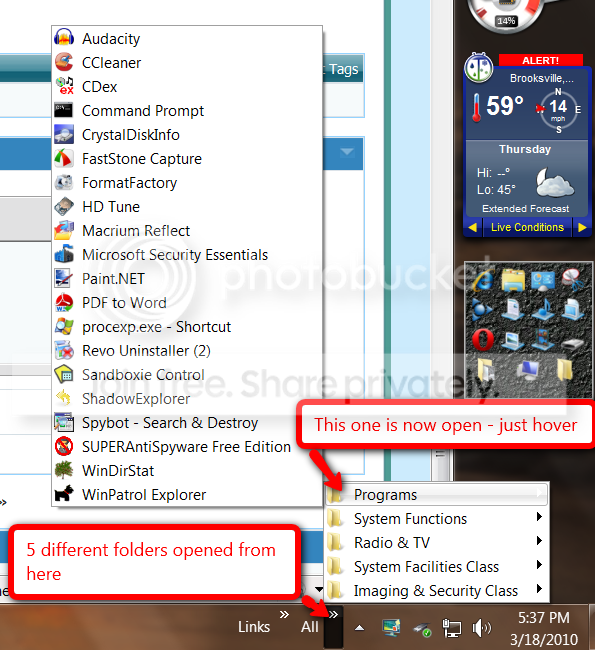
Note 1: I tried reinstating the quick-launch toolbar, something which I was never a big fan of, but it's an imperfect solution.
Note 2: Don't be afraid to suggest something unconventional. I've looked EVERYWHERE for a solution to this problem and have found NOTHING, so I'm willing to try anything (that doesn't require a high level of technical expertise) at this moment.
This is my first post on these forums so I apologize if this thread is not in the right section.
Anyways, here's my issue, and I'm sure it's one that's been raised before.
I'm using Windows 7 on a widescreen laptop and it is much more economical (space-wise) for me to put my taskbar on the side of the screen, i.e. vertically. However, after launching a few applications my taskbar becomes filled, and the icons are moved onto the next "page", with tiny white arrows allowing me to move between pages.
I want my icons to display in 2 (or more) columns so that I don't have to move between pages so often. When the taskbar is in a horizontal position at the bottom of the screen, I am able to drag it upwards, and the icons will automatically form 2 rows if they exceed the first row.
I want the same option for a vertical taskbar; however, when I drag the vertical taskbar, all it does is make existing icons longer (such that the icons simply contain ridiculous amounts of white space).
Is there a way to fix this? A program, a hack, anything? I REALLY don't want to go back to the horizontal taskbar because it makes my screen look really long (horizontally) and narrow (vertically).
Thanks for your help.
Note 1: I tried reinstating the quick-launch toolbar, something which I was never a big fan of, but it's an imperfect solution.
- The icons are either too large or too small. Would it kill Microsoft to add a "medium" icon size option?
- After I launch the applications, they still clutter up my taskbar, and I still have to scroll between the "pages".
Note 2: Don't be afraid to suggest something unconventional. I've looked EVERYWHERE for a solution to this problem and have found NOTHING, so I'm willing to try anything (that doesn't require a high level of technical expertise) at this moment.
My Computer
- OS
- Windows 7