Viewing folder thumbnails like in XP?

Codify

New member
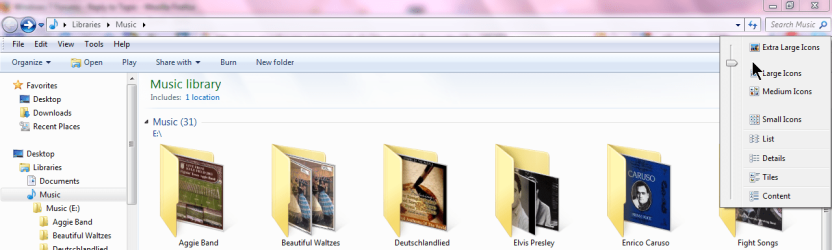
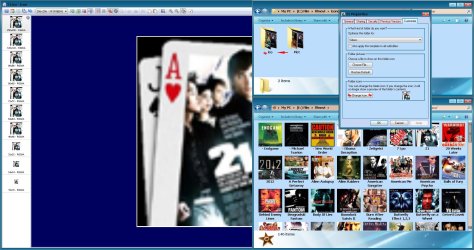
Hi, I liked the way folder thumbnails showed up in XP - full face, rather than an image coming out of a folder.

2mf0m6f.jpg


instead of

Capture-1.jpg


Is there any way to get this view back???
 

My Computer

Computer Manufacturer/Model Number
Self-built
OS
Win7 Pro; Linux Mint 7
CPU
E8500 @ 3.8GHz
Motherboard
Asus P5QL PRO
Memory
Corsair XMS2 2GB @800MHz
Graphics Card(s)
Nvidia 9800GT
Sound Card
onboard
Hard Drives
Western Digital Caviar 500GB x2
If you put your music in the "Music Library Folder" you can choose "Album" in the "Arrange by:". Then adjust the size of the thumbnail by using "CTRL + Mouse Wheel" or going to "More Options" and use the slider to resize the thumbnails. :)
 

My Computer

Computer Manufacturer/Model Number
HP Pavilion a4302f
OS
Win 7 Pro x64, VM Win XP, Win7 Pro Sandbox, Kubuntu 11
CPU
AMD Athlon(tm) II X4 640 @ 3.0 Gbz
Memory
12GB 1066MHz DDR3 SDRAM - 2x4GB, 2x2GB
Graphics Card(s)
ATI Radeon HD 4350 HD Graphics/Audio with 512MB
Sound Card
Realtek High Definition Audio
Monitor(s) Displays
1. Dell 23" SP2307, 2. Mitsublishi 40" HDTV, Hannspree 25"
Screen Resolution
1. 2048x1152, 2. 1920-1080, 3. 1920x1200
Hard Drives
Int: 1 120 Gig SSD i
1 - 2.5" 500 USB External HDD
1 -1 Tb USB External HDD
Case
Mid Tower
Cooling
Standard Fans - 5 fans (very quiet)
Keyboard
Microsoft Wireless 2000
Mouse
Microsoft Wireless Mouse 5000
Internet Speed
10 Mbit (realistically 500 Kbit - 1.2 Mbit)
Other Info
Speakers - Bose Desktop (Excellent Sound)
1 external CD|DVD\Blue-ray Recorders/Players (Sony)
OK, that looks good, but lots of my folders now have no icon. Guess the Album View only uses embedded artwork, not the folder.jpg. Time to do a batch re-tag...

Incidentally, is there any way to exclude a specific folder from a library? I don't want the Music library to include the iTunes folder, which includes lots of garbage. I can't move the iTunes folder out of the My Music folder.
 

My Computer

Computer Manufacturer/Model Number
Self-built
OS
Win7 Pro; Linux Mint 7
CPU
E8500 @ 3.8GHz
Motherboard
Asus P5QL PRO
Memory
Corsair XMS2 2GB @800MHz
Graphics Card(s)
Nvidia 9800GT
Sound Card
onboard
Hard Drives
Western Digital Caviar 500GB x2
OK, that looks good, but lots of my folders now have no icon. Guess the Album View only uses embedded artwork, not the folder.jpg. Time to do a batch re-tag...

Incidentally, is there any way to exclude a specific folder from a library? I don't want the Music library to include the iTunes folder, which includes lots of garbage. I can't move the iTunes folder out of the My Music folder.

Right clicking on the specific library should allow you to choose "Properties" and then add or exclude folders from there.
 

My Computer

Computer Manufacturer/Model Number
HP HDX18t
OS
Windows 7 HP 64
CPU
Intel Q9100
Memory
4GB DDR3
Graphics Card(s)
nVidia 9600m GT
Screen Resolution
1920x1080
If you put your music in the "Music Library Folder" you can choose "Album" in the "Arrange by:". Then adjust the size of the thumbnail by using "CTRL + Mouse Wheel" or going to "More Options" and use the slider to resize the thumbnails. :)


Is there a registry hack that can apply the "Music Library Folder - Album" style thumbnail preview to any folder instead of having to add the folders to the music library? I would like to do this for picture folders as well that I have in multiple folders on a few different drives. I don't want to add them to the library, just change the folder icons to be more like XP.

[EDIT] I tried adding the folder to the music library anyway to see how it worked and when I changed to album view only 1 folder out of over 400 had an icon! Not really the fix I am looking for. Maybe there is a way to tweak where Windows retrieved the thumbnail from in album view.
 

My Computer

Computer Manufacturer/Model Number
Custom - RaidMAX Smilodon case
OS
Windows 7 Ulimate Edition 32 Bit
CPU
Intel Quad Core Q6600 2.4GHz Overclocked @ 2.6GHz
Motherboard
eVGA nForce 750i
Memory
(2)x2GB OCZ Reaper DDR2 8500 1066MHz
Graphics Card(s)
eVGA SuperClocked Nvidia GeForce 8800GT OverClocked Editio
Sound Card
On-Board
Monitor(s) Displays
22" Vizio LCD TV
Hard Drives
(2)x Seagate Barracudas - 500GB SATA
PSU
Antec Earthwatts 500Watt
Case
RaidMAX Smilodon case
Cooling
Standard Fans and Sytrin Hard Drive Cooler
Ok, I managed to get around the problem finding out a nice (but still not perfect) solution. It' still a work in progress and is not a one-click solution.

Nonetheless, it's perfect if you have 100s of directories containing music or video and you like to see related covers for each and every one in the good-old XP style (which I really prefer to the modern Seven style).

---------------------------------------------------------

Disclaimer:

Beware! I make use of a quick and dirty batch script in which I didn't write any kind of error checking; that means the script is not error proof.
I tried to be as much clean as possible and nothing inside the script is going to override or delete any file other the temporary ones it creates itself. Anyway, beware, I'm not going to be held responsible for any lost file, be carefull.

---------------------------------------------------------

The trick is to make use of Windows Seven's capabilities in using desktop.ini files to specify which icon to use as a directory thumbnail.

I created a little batch script that recursively does the following on each subdirectory inside the one it runs in:
- makes ImageMagick convert the folder.jpg file into a folder.ico file;
- creates a desktop.ini file;
- makes the directory read-only.


Step 1
I used ImageMagick for converting the folder.jpg to folder.ico because ... well, it does it right :-) You can change the batch script and use any other image converter you like.

Step 2
Once I got a folder.ico inside the directory I had to create a desktop.ini file containing the following:
Code:
[.ShellClassInfo]
IconResource=folder.ico,0
That tells Windows Seven to use the file folder.ico as a folder thumbnail.

Step 3
Last entry is needed for Seven, because if the folder is not read-only, Seven does not use the desktop.ini file ... strange enough, that's the way it works.

I first tested the above method on a single directory, and I was pretty happy, finally I had the very same XP style back inside Seven.

Then I proceded writing a script that does that recursevely on a bunch of directories, each containg other subdirectories, some of them having a folder.jpg and some other without. The script will convert existing folder.jpg to folder.ico and set a corresponding desktop.ini but will do nothing to the directories not having any folder.jpg inside, they will remain clean as before.
In order to make my life easier I wrote down the above desktop.ini file and stored is aside for future use. The script will not generate the desktop.ini by itself, it will simply copy it inside all the subdirs recursively.


The Batch Script
Code:
xcopy desktop.ini %1\ /h
for /r /d %%x in (*) do (
    pushd "%%x"

    convert folder.jpg -resize 256x256 %1\folder_256.png
    convert %1\folder_256.png -gravity center -background none -extent 256x256 %1\folder_256x256_alpha.png
    convert %1\folder_256x256_alpha.png -resize 128x128 %1\folder_128x128_alpha.png
    convert %1\folder_256x256_alpha.png -resize 96x96 %1\folder_96x96_alpha.png
    convert %1\folder_256x256_alpha.png -resize 64x64 %1\folder_64x64_alpha.png
    convert %1\folder_256x256_alpha.png -resize 32x32 %1\folder_32x32_alpha.png
    convert %1\folder_256x256_alpha.png -resize 24x24 %1\folder_24x24_alpha.png
    convert %1\folder_256x256_alpha.png -resize 16x16 %1\folder_16x16_alpha.png

    convert %1\folder_256x256_alpha.png %1\folder_128x128_alpha.png %1\folder_96x96_alpha.png %1\folder_64x64_alpha.png %1\folder_32x32_alpha.png %1\folder_16x16_alpha.png folder.ico

    del %1\folder_256.png
    del %1\folder_256x256_alpha.png
    del %1\folder_128x128_alpha.png
    del %1\folder_96x96_alpha.png
    del %1\folder_64x64_alpha.png
    del %1\folder_32x32_alpha.png
    del %1\folder_24x24_alpha.png
    del %1\folder_16x16_alpha.png

    if exist folder.ico xcopy %1\desktop.ini . /h

    popd

    if exist "%%x"\folder.ico attrib +r "%%x" 
)
del /as %1\desktop.ini
Syntax:
The batch script should be run on the command line. Open a Prompt Window for that.
create_icons.bat temp_dir
"temp_dir" must be a temporary directory where to store desktop.ini file and the ImageMagick working files. Those files will be deleted at the end of the process. There is no error check

Example
create_icons.bat c:\temp
Note that I wrote c:\temp (without the ending slash) and not c:\temp\ !!!

Usage
Simply put, let's say you have a dir called mp3s:
- create a desktop.ini file with notepad with the above content inside. Store it inside the mp3s main folder (only once, the other copies will be made by the script) and change it's attributes to ahs (Archive, Hidden, System);
- create a create_thumbnails.bat batch file with notepad, fill it with the above content) and save it in the mp3s main folder (once, there only);
- open a command prompt window, change to the mp3s main directory and run: create_thumbnails.bat temp_dir (where temp_dir is a temporary directory, that you have to specify, where your temporary files will be stored, read the syntax paragraph).

At the end of the process, you will have a desktop.ini and a folder.ico file inside each subdir that previously had a folder.jpg inside.
folder.jpg files will not be touched, they will still be there, ready to be read by Windows XP again :-) Just in case you have a removable drive that's gonna be used on a WInXP system too.

Limits
- It does not create the XP style 4 icon folder thumbnails for folders containg other folders. Sorry, I still haven't got a solution to that :-(
- Did I already said this script does not have any kind of error handling at all?!!!

Pay attention
- There is no error checking at all inside the script.
- It creates and deletes temporary files while working. Make shure to check where it creates them and that they not overwrite usefull already existing files.
- If you run two instances of the same batch script at once, they will interfere with each other, cross deleting their temporary files and making a mess!!!

 

My Computer

OS
Windows 7 Ultimate x64
Mmmm ... I think I will revert back to bash for the scripting side, the dos command line is making me very sad!!!
 

My Computer

OS
Windows 7 Ultimate x64
I slightly modified my script and made use of background image to make it closer to the old XP style and make clear it's a folder btw and not some generic file.

Now it looks that way:
example.jpg
 

My Computer

OS
Windows 7 Ultimate x64
Am I missing something here?

Navigate to your music folder, then
following snips show the steps.
Select to change display.png

Adjust slider.png
 

My Computer

Computer Manufacturer/Model Number
Toshiba Satellite S875D-S7239 laptop
OS
MS Windows 7 Ultimate SP1 64-bit
CPU
AMD A10-4600M
Motherboard
AMD Pumori (Socket FT1)
Memory
6.00 GB Dual-Channel DDR3 @ 798MHz (11-11-12-28)
Graphics Card(s)
AMD Radeon HD 7660G
Sound Card
High Definition Audio Device
Monitor(s) Displays
Generic PnP Monitor (1600x900@60Hz)
Screen Resolution
1600x900@60Hz
Hard Drives
SSD 119GB Corsair CSSD-V128GB2 ATA Device
Keyboard
Standard PS/2 Keyboard
Mouse
HP Wireless Optical Mobile Mouse Model FHA-3410
Internet Speed
What the local pub, local coffee shop offers.
Other Info
Optical Drive:MATSHITA BD-CMB UJ160B ATA Device


Also have an Asus ha1002xp netbook with Win 7 Ultimate installed.
Yes, we don't like the skewed folder icon style. We prefer the old WinXP style were folder content was previewed in a plain rectangular shape.

I appreciate the fact that MS abandoned the old thumbs.db concept; I agree with people telling having a hard disk cluttered with unwanted files (those pesky thumbs.db) is no good. Still I'm ok if that's been used on a few custom folders; I mean, there are circumstances when I like those thumbs.db around. Customizing folder preview with simple folder.jpg files is nice, easy, linear, I liked that in WinXP (at least for those peculiar directories I store something like movies or music inside).

I miss it in Windows Seven. Seven abandoned the thumbs.db and now caches directories' thumbnails in a sort of cache, avoiding cluttering the filesystem with unwanted files (which is good), but it does that with those irritating (to me at least) skewed folders that distort everything :-( I really prefer the old XP Style.
 

My Computer

OS
Windows 7 Ultimate x64
I changed my folder thumbnails back to the XP style and explained how in this post:
http://www.sevenforums.com/general-...ic-thumbnail-preview-xp-style.html#post836803

I have just the photo showing as the thumbnail, but my post in that thread is followed by another that shows how to have the photo overlay the folder icon, if you would prefer that instead.

Karlsnooks, what you posted just makes the folder icon larger with the album art (or whatever photo) still turned sideways and not very visible. The XP style allows you to view the art straight on and without an open folder taking most of the space.
 

My Computer

Computer type
Laptop
Computer Manufacturer/Model Number
Toshiba Satellite U845W-S410
OS
Windows 7 Home Premium 64 bit
CPU
Intel ® Core™ i5-3317U Processor
Memory
6GB DDR3 1600MHz
Graphics Card(s)
Mobile Intel ® HD Graphics with 64MB-1696MB dynamically allo
Monitor(s) Displays
All-in-one -- Generic PnP Monitor
Screen Resolution
14.4” diagonal widescreen TruBrite ® TFT display at 1792 x 7
Hard Drives
500GB (5400 RPM, Serial ATA) with dedicated 32GB mSATA SSD disk
cache
Keyboard
Logitech
Mouse
Logitech
I changed my folder thumbnails back to the XP style and explained how in this post:
http://www.sevenforums.com/general-...ic-thumbnail-preview-xp-style.html#post836803

I have read your post, it was kinda an inspiration to me.

During the process I did want to automate it all, since I had to customize 100s of directories; that's why I ended up using ImageMagick for converting folder.kpg to folder.ico, it's so easy to manage image files with ImageImagick from the command line, and can be easily integrated in any stupid batch script :-) Doing that by hand, converting all of those folder.jpg one by one, would have been overkill!
 

My Computer

OS
Windows 7 Ultimate x64
I changed my folder thumbnails back to the XP style and explained how in this post:
http://www.sevenforums.com/general-...ic-thumbnail-preview-xp-style.html#post836803

I have read your post, it was kinda an inspiration to me.

During the process I did want to automate it all, since I had to customize 100s of directories; that's why I ended up using ImageMagick for converting folder.kpg to folder.ico, it's so easy to manage image files with ImageImagick from the command line, and can be easily integrated in any stupid batch script :-) Doing that by hand, converting all of those folder.jpg one by one, would have been overkill!

Yeah, it was a crazy amount of work... although I was glad when it was finished because it's so much nicer to me.

I think most people could just access the folder where their album art is stored and save all of the work involved in creating the icons. Unfortunately for me, even though I was showing hidden files and could see the location in a search, I was unable to access the images.

I'm really glad you found a much easier way to set up your thumbnails. I hope MS eventually gives us back the option to have the images as thumbnails without the open folder.
 

My Computer

Computer type
Laptop
Computer Manufacturer/Model Number
Toshiba Satellite U845W-S410
OS
Windows 7 Home Premium 64 bit
CPU
Intel ® Core™ i5-3317U Processor
Memory
6GB DDR3 1600MHz
Graphics Card(s)
Mobile Intel ® HD Graphics with 64MB-1696MB dynamically allo
Monitor(s) Displays
All-in-one -- Generic PnP Monitor
Screen Resolution
14.4” diagonal widescreen TruBrite ® TFT display at 1792 x 7
Hard Drives
500GB (5400 RPM, Serial ATA) with dedicated 32GB mSATA SSD disk
cache
Keyboard
Logitech
Mouse
Logitech
I'm really glad you found a much easier way to set up your thumbnails. I hope MS eventually gives us back the option to have the images as thumbnails without the open folder.

I'm still working on that; I'd like to get a dumb-foolproof-supereasy-pipeline to get the job done.

At the time, I'm evaluating if MS Batch scripting is enough (I guess not); ImageMagick seems to be the perfect image conversion tool; the way I'm making use of desktop.ini leaves me with a couple of doubts; I'm working on a way to get the 4-items-content-folder XP look for directories storing more then one folder (with relative folder.jpg files inside); I'd like to make the containing folder look closer to the MS Seven look (but not the slanted version, I'll stay with the squared frontal view); and finally I'd like to have a context sensitive menu iten inside every MS Explorer window linked to my script so that I can launch the script whenever I like and apply my changes on the fly without even opening the command prompt window.

And then there's that hideous bug (to me is a bug!) with the icon cache that requires explorer to be killed and restarted for making it aware of those icon changes. That's something I really hate!!!

There's a lot to do, I'll take my time ... it's such a fun anyway :-)
 

My Computer

OS
Windows 7 Ultimate x64

My Computer

Computer type
Laptop
Computer Manufacturer/Model Number
Toshiba Satellite U845W-S410
OS
Windows 7 Home Premium 64 bit
CPU
Intel ® Core™ i5-3317U Processor
Memory
6GB DDR3 1600MHz
Graphics Card(s)
Mobile Intel ® HD Graphics with 64MB-1696MB dynamically allo
Monitor(s) Displays
All-in-one -- Generic PnP Monitor
Screen Resolution
14.4” diagonal widescreen TruBrite ® TFT display at 1792 x 7
Hard Drives
500GB (5400 RPM, Serial ATA) with dedicated 32GB mSATA SSD disk
cache
Keyboard
Logitech
Mouse
Logitech
I see ... but I'm comfortable with graphics, so I'll do my own folder art by myself :-)
 

My Computer

OS
Windows 7 Ultimate x64
Here's mine
Needed to convert all jpg's to icons
then change all icons of folders
but it work's & is better than Xp after that (default win7 sucks)
 

Attachments

  • Thumba-iCo.jpg
    Thumba-iCo.jpg
    375.1 KB · Views: 440

My Computer

Computer type
PC/Desktop
Computer Manufacturer/Model Number
696
OS
7 Ultimate x64 sp1
CPU
Intel i5-4690K
Motherboard
GA Z97X Gaming 5
Memory
16Gb HyperX fury
Graphics Card(s)
R9-270x 2Gb
Sound Card
On Board
Monitor(s) Displays
2443NW
Screen Resolution
1920x1200
Hard Drives
WD5000 -
WD5001 -
WD1002
PSU
Cft-650-14cs
Case
Very Big Case
Cooling
stock
Keyboard
G11
Mouse
Logitech
Internet Speed
Adsl
Browser
FF
Other Info
RWD
I see, this is how it looked when I first only converted JPGs to ICOs but then I realized I kinda liked the way XP puts the thumbnails on a background folder image so that it's clear it's a folder and not some generic image file (I like explicit consistency when dealing with UI).

I strongly recommend people not to convert huge amounts of files one by one with some GUI-Friendly software, it's a huge waste of time. I found out spending a few ours scripting some simple batch file to do the job hands-free is an enormous time saver. I had literally 100s of folders to customize, it would have taken days!!! After finding out how to use ImageMagick to convert JPGs to ICOs and how to drive it with a Batch script, I was a happy man :-)
Now I have two distinct script, one that customizes a single folder and another one that mass-customizes a whole folder with every (every!!!) subfolders inside. So now, converting a 1000 XP style folder.jpg previews to Seven style desktop.ini previews takes less than 2 mins and all I have to do is launch the script and let it go through the subdirectories all alone, I just stay and watch it running :-)

I'm pretty shure you all have all those records/videos stored in a single folder and want them to be converted without the hassle to it one by one ... give it a try.
 

My Computer

OS
Windows 7 Ultimate x64
I finally moved to Bash Scripting which is far more flexible than Batch, I'm feeling more confortable with it anyway.

So now, with the help of ImageMagick and a CygWin Bash script, I can have stuff like this:
attachment.php


As you can see, there are folders that contain even more folders, hence the four smaller thumbnails preview (just like XP did). All again with a single script that does the job all by itself. Everyhting has been done thanks to that desktop.ini technique ... I just automated it :-)

Only thing that still annoys me is the way Windows Seven updates its icon cache, which is frustrating :-( I really wish there had been something like the old "Refresh Preview" menu item of Windows XP.
There's something like that in Seven ... but it's really useless. After changing a folder.ico (the one I refer to in desktop.ini) content (maybe I change the image or a small detail inside), the Update menu item doesn't reflect any changes at all. Sometimes I have to completely restart Windows to make it reflect those changes, and at times not even this method helps :-(
This is a Bug!!!! Call it the way you like, to me that's a Bug :-(
 

Attachments

  • icone sul desktop xp2.jpg
    icone sul desktop xp2.jpg
    83.6 KB · Views: 2,557

My Computer

OS
Windows 7 Ultimate x64
Hi robitatu!

Can you please share this Bash Scripting and a short guide of how to do this XP look in windows 7?

Thank you in advance!
 

My Computer

OS
Windows 7 Home Premium 32bit.
Back
Top