Virtual Machine Log on

paulhm

New member
Local time
12:40 AM
Messages
2
Can anyone please help.

I know this has been done to death but the problem I am having is that up to a few weeks ago I could log onto the XP mode without a password. now its asking for one.

Can anyone give me a step by step joe blog method of either bypassing this or setting up the system to solve this.

Looking at past posts I have tried deleting credentials in the manager, disabling the integration features, setting the close setting to shut down.

I have tried my main computer log in name which has no password assigned, new log in details with a new password with the 'remember my details' checked

There are no log on credentials saved in the settings box but when trying to open the XP mode it quotes the last attempted log in details.

I have tried no password plus having tried new details it then allows me to get passed this log on but once in XP mode it tells me to log on again as the original details are not recognised. The final straw is this XPSUser even though I can not find any details on the computer of this account.

Having tried most things in piece form, a step by step method must be out there!!!!!!

Thanks
 

My Computer

Computer Manufacturer/Model Number
Dell laptop
OS
Windows 7 64bit Professional
CPU
i7
Hello paulhm Welcome to the Seven Forums!

First off and note this option may not work on the XP Mode as it would on a normal XP Windows install to a physical hard drive you can try going for an automatic "FixIt" download directly from MS at How to turn on automatic logon in Windows XP

There are two downloads found there with the first above the second being the turnon automatic logon registry mod tool. The second is for turning off and requiring the password prompt be answered.

The old method most familiar requires a manual edit of the system registry simply to add a new string value in at the right location which will then bypass the user account/password prompting automatically. First you open up the registry editor and proceed to "HKEY_LOCAL_MACHINE\SOFTWARE\Microsoft\Windows NT\CurrentVersion\Winlogon" and then double click on the DefaultUserName, type your account user name and click ok.

Then you find the DefaultPassword item and double click on that too. If that is not found then you would need to create it. From there you go upto the Edit option on the menu bar and click on the "New" option and point to "string value". Type DefaultPassword and press enter folllowing that.

(Or if you were in a normal install without any password assigned which isn't the case with the XP Mode where one is required you would folow the same steps but type in "AutoAdminLogon" and once that was creeated go back to Edit with the new entry highlighted and click the Modify option to add 1 to enable it.)

The full MS article for this can be seen at How to turn on automatic logon in Windows
 

My Computers

System One System Two

  • Computer type
    PC/Desktop
    Computer Manufacturer/Model Number
    Custom builds = 2
    OS
    W7 Ultimate x64/W10 Pro x64/W11 Pro Triple Boot - Main PC W7 Remote PC Micro ATX W7 Pro x64/W11 Pro
    CPU
    AMD Phenom II X4 975 Deneb 3.6ghz - 965 2nd remote pc
    Motherboard
    Gigabyte GA-790XTA-UD4-Gigabyte GA-880GM-D2H remote pc
    Memory
    Kingston Hyper X DDR3 1600 1.5v 16gb - Hyper X Fury 8gb 2nd
    Graphics Card(s)
    MSI HD Radeon 5750 1gb - MSI HD Radeon 6450 on mini tower
    Sound Card
    Creative Labs X-Fi Xtreme Audio P - Realtek onooard 2nd case
    Monitor(s) Displays
    ASUS VW199T-P 19" HP 2082a Main-HP 2082a 20" remote pc
    Screen Resolution
    Asus 1440x900 - HP 1600x900
    Hard Drives
    WD Black 1TB HD per OS W7, W10, and pending W11 presently on 500gb OS Drive - Pending Triple 1TB HDs for Spanned Storage/backup volume
    Single 2TB external USB enclosure, single 1TB System 7 Host/Boot drive, Pending 8TB external HD for system image b
    PSU
    Corsair 750TX - primary / Corsair CX600 - second
    Case
    Antec 900-2 - SSD compatible / NZXT Vulcan mini tower
    Cooling
    Zalman CNPS9900A
    Keyboard
    AZIO L70 Backlit Letters Gaming - ONN Cordless/USB
    Mouse
    MSI DS200 Programmable, Logitech Cordless
    Internet Speed
    30mbps upgrade - primary hard wired - mini tower usb WiFi
    Antivirus
    GFI VIPRE Internet Security 2014 on W7 2016 beta on W10,
    Browser
    Cyberfox, WaterFox 64bit FF variants, FireFox x64, Pale Moon
    Other Info
    Accomdata fan cooled usb 2.0 PIDE/Sata II, III external enclosure.
    Sambient usb/eSata PATA/Sata II, III external enclosure.
  • Computer type
    PC/Desktop
    System Manufacturer/Model Number
    CUSTOM ASSEMBLY
    OS
    W7 Pro x64/W11 Pro
    CPU
    AMD Deneb 3.6ghz - 965
    Motherboard
    Gigabyte GA-880GM-D2H remote pc
    Memory
    Kingston Hyper X Fury 8gb
    Graphics Card(s)
    MSI HD Radeon 6450 DVI Output
    Sound Card
    Realtek onooard Creative or Other separate PENDING
    Monitor(s) Displays
    VIZIO 32" LCD TV Separate LCD Pending
    Screen Resolution
    1600x1080
    Hard Drives
    WD 500GB OS Host/Boot WD Green 1TB Storage/Backup
    PSU
    Corsair 600W - THERMALTAKE 600W spare case
    Case
    NZXT Vulcan mini tower
    Cooling
    Twin 120mm Top Fans - 240mm Side Cover
    Keyboard
    ONN Cordless/USB Logitech Cordless
    Mouse
    ONN USB/Cordless - Logitech Cordless
    Internet Speed
    DSL 5G
    Browser
    MS Edge, FireFox, WaterFox x64, FireFox Nightly
    Other Info
    OS Testing-Remote Access to Main TeamViewer
Log in to XP Mode using built-in administrator profile. To do this, you need to first be sure that integration is disabled, and that XP Mode is really shut down instead of being hibernated as is the default close mode. This is because when integration is enabled you can not login to XP Mode or any other Virtual PC virtual machine using a username without password, and the built-in administrator account does by default have no password set. Instructions on how to set up a password for XP Mode built-in administrator account can be found in this post (method 2): http://www.sevenforums.com/virtuali...ograms-administrator-xp-mode.html#post1345410

To check that XP Mode is really shut down, close XP Mode and then check the folder %userprofile%\AppData\Local\Microsoft\Windows Virtual PC\Virtual Machines. If it is hibernated you will find the hibernation file Windows XP Mode.vsv (Virtual Machine Saved state file). Delete this file, so next time when XP Mode is launched it does not find hibernation information and is therefore forced to boot normally.

Now log in with username Administrator without password. Go to Control Panel > Users and add password to every account. You can also create new user accounts but remember to create password for every account. Due to restrictions in Remote Desktop Protocol you can not use XP Mode or any other VPC vm without password, as already mentioned.

Shut down XP Mode, re-enable integration features and you are ready to go.

Kari

P.S. You might want to read this post, too, although it's not directly answering your questions.
 

My Computer

Computer type
Laptop
Computer Manufacturer/Model Number
HP ENVY 17-1150eg
OS
Windows 10 Pro x64 EN-GB
CPU
1.6 GHz Intel Core i7-720QM Processor
Memory
6 GB
Graphics Card(s)
ATI Mobility Radeon HD 5850 Graphics
Sound Card
Beats sound system with integrated subwoofer
Monitor(s) Displays
17" laptop display, 22" LED and 32" Full HD TV through HDMI
Screen Resolution
1600*900 (1), 1920*1080 (2&3)
Hard Drives
Internal: 2 x 500 GB SATA Hard Disk Drive 7200 rpm
External: 2TB for backups, 3TB USB3 network drive for media
Cooling
As Envy runs a bit warm, I have it on a Cooler Master pad
Keyboard
Logitech diNovo Media Desktop Laser (bluetooth)
Mouse
Logitech Performance Mouse MX
Internet Speed
50/10 Mbps VDSL
Antivirus
Windows Defender 4.3.9431.0
Browser
Maxthon 3.5.2., IE11
You'll also find that if you make any changes in the XP Mode itself while in it you will be prompted for the password you assigned when setting it up or when you have added another user account. Even with other OSs on other vm programs a prompt for the default password assigned for a specific vm will often be the case.

Here I never save the power or other state and always see the XP Mode load right upto the desktop. One tip for running into the logon prompting would be answering no when asked if you wish to save the present state when going to shutdown and no longer have to worry about seeing the Windows XP Mode.svs file created.
 

My Computers

System One System Two

  • Computer type
    PC/Desktop
    Computer Manufacturer/Model Number
    Custom builds = 2
    OS
    W7 Ultimate x64/W10 Pro x64/W11 Pro Triple Boot - Main PC W7 Remote PC Micro ATX W7 Pro x64/W11 Pro
    CPU
    AMD Phenom II X4 975 Deneb 3.6ghz - 965 2nd remote pc
    Motherboard
    Gigabyte GA-790XTA-UD4-Gigabyte GA-880GM-D2H remote pc
    Memory
    Kingston Hyper X DDR3 1600 1.5v 16gb - Hyper X Fury 8gb 2nd
    Graphics Card(s)
    MSI HD Radeon 5750 1gb - MSI HD Radeon 6450 on mini tower
    Sound Card
    Creative Labs X-Fi Xtreme Audio P - Realtek onooard 2nd case
    Monitor(s) Displays
    ASUS VW199T-P 19" HP 2082a Main-HP 2082a 20" remote pc
    Screen Resolution
    Asus 1440x900 - HP 1600x900
    Hard Drives
    WD Black 1TB HD per OS W7, W10, and pending W11 presently on 500gb OS Drive - Pending Triple 1TB HDs for Spanned Storage/backup volume
    Single 2TB external USB enclosure, single 1TB System 7 Host/Boot drive, Pending 8TB external HD for system image b
    PSU
    Corsair 750TX - primary / Corsair CX600 - second
    Case
    Antec 900-2 - SSD compatible / NZXT Vulcan mini tower
    Cooling
    Zalman CNPS9900A
    Keyboard
    AZIO L70 Backlit Letters Gaming - ONN Cordless/USB
    Mouse
    MSI DS200 Programmable, Logitech Cordless
    Internet Speed
    30mbps upgrade - primary hard wired - mini tower usb WiFi
    Antivirus
    GFI VIPRE Internet Security 2014 on W7 2016 beta on W10,
    Browser
    Cyberfox, WaterFox 64bit FF variants, FireFox x64, Pale Moon
    Other Info
    Accomdata fan cooled usb 2.0 PIDE/Sata II, III external enclosure.
    Sambient usb/eSata PATA/Sata II, III external enclosure.
  • Computer type
    PC/Desktop
    System Manufacturer/Model Number
    CUSTOM ASSEMBLY
    OS
    W7 Pro x64/W11 Pro
    CPU
    AMD Deneb 3.6ghz - 965
    Motherboard
    Gigabyte GA-880GM-D2H remote pc
    Memory
    Kingston Hyper X Fury 8gb
    Graphics Card(s)
    MSI HD Radeon 6450 DVI Output
    Sound Card
    Realtek onooard Creative or Other separate PENDING
    Monitor(s) Displays
    VIZIO 32" LCD TV Separate LCD Pending
    Screen Resolution
    1600x1080
    Hard Drives
    WD 500GB OS Host/Boot WD Green 1TB Storage/Backup
    PSU
    Corsair 600W - THERMALTAKE 600W spare case
    Case
    NZXT Vulcan mini tower
    Cooling
    Twin 120mm Top Fans - 240mm Side Cover
    Keyboard
    ONN Cordless/USB Logitech Cordless
    Mouse
    ONN USB/Cordless - Logitech Cordless
    Internet Speed
    DSL 5G
    Browser
    MS Edge, FireFox, WaterFox x64, FireFox Nightly
    Other Info
    OS Testing-Remote Access to Main TeamViewer
Hi Night Hawk & Kari

Many thanks for the assistance

Night Hawk

Unfortunatly I can not find the two lines (User or password) at the location stated in the registery, to change the details.

Kari

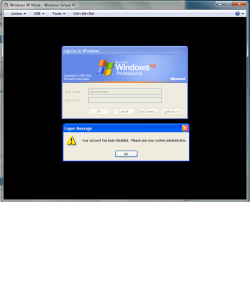
I followed your instructions but when inputting the administrator details I get a message stating the administrator account has been disabled

Admin.png

Is there any way around this

Best regards
 

My Computer

Computer Manufacturer/Model Number
Dell laptop
OS
Windows 7 64bit Professional
CPU
i7
OK.

When you installed XP Mode it most definitely asked you to set up a password for default userprofile XPMUser. XP Mode installation does not let you to continue without setting up a password, nor does it let you to use any other initial username than XPMUser, so the fact remains that an XP Mode virtual machine always has a user XPMUser with the password user set up when launching XP Mode first time.

157421d1306851853-windows-xp-mode-install-setup-xp-2.jpg


Checking your original post once more I noticed you are talking about user XPSUser. If that's not a typo then you are using wrong username. Default XP Mode username, created when XP Mode is launched first time is XPMUser.

So: try to remember what password you set initially up when you installed XP Mode, then log in using username XPMUser and the password.

Kari
 
Last edited:

My Computer

Computer type
Laptop
Computer Manufacturer/Model Number
HP ENVY 17-1150eg
OS
Windows 10 Pro x64 EN-GB
CPU
1.6 GHz Intel Core i7-720QM Processor
Memory
6 GB
Graphics Card(s)
ATI Mobility Radeon HD 5850 Graphics
Sound Card
Beats sound system with integrated subwoofer
Monitor(s) Displays
17" laptop display, 22" LED and 32" Full HD TV through HDMI
Screen Resolution
1600*900 (1), 1920*1080 (2&3)
Hard Drives
Internal: 2 x 500 GB SATA Hard Disk Drive 7200 rpm
External: 2TB for backups, 3TB USB3 network drive for media
Cooling
As Envy runs a bit warm, I have it on a Cooler Master pad
Keyboard
Logitech diNovo Media Desktop Laser (bluetooth)
Mouse
Logitech Performance Mouse MX
Internet Speed
50/10 Mbps VDSL
Antivirus
Windows Defender 4.3.9431.0
Browser
Maxthon 3.5.2., IE11
The registry value I mentioned before doesn't have anything to do with the user or password used. It sets the mode to automatic when the XP Mode first starts and loads right to the desktop. As will you will note from the screen here the AutoAdminLogon value in the registry is highlighted.

fa16o.jpg


The XP Mode still requires that reg entry be present there but the value is set to 0. The logon here to grab this screen was automatic pointing to what Kari has been explaining about the power state also playing a role. One reference that may help you follow what Kari is explaining as far as the prompting for the XPMUser password can be seen at: Prompt for XPMUser password - Windows 7
 
Last edited:

My Computers

System One System Two

  • Computer type
    PC/Desktop
    Computer Manufacturer/Model Number
    Custom builds = 2
    OS
    W7 Ultimate x64/W10 Pro x64/W11 Pro Triple Boot - Main PC W7 Remote PC Micro ATX W7 Pro x64/W11 Pro
    CPU
    AMD Phenom II X4 975 Deneb 3.6ghz - 965 2nd remote pc
    Motherboard
    Gigabyte GA-790XTA-UD4-Gigabyte GA-880GM-D2H remote pc
    Memory
    Kingston Hyper X DDR3 1600 1.5v 16gb - Hyper X Fury 8gb 2nd
    Graphics Card(s)
    MSI HD Radeon 5750 1gb - MSI HD Radeon 6450 on mini tower
    Sound Card
    Creative Labs X-Fi Xtreme Audio P - Realtek onooard 2nd case
    Monitor(s) Displays
    ASUS VW199T-P 19" HP 2082a Main-HP 2082a 20" remote pc
    Screen Resolution
    Asus 1440x900 - HP 1600x900
    Hard Drives
    WD Black 1TB HD per OS W7, W10, and pending W11 presently on 500gb OS Drive - Pending Triple 1TB HDs for Spanned Storage/backup volume
    Single 2TB external USB enclosure, single 1TB System 7 Host/Boot drive, Pending 8TB external HD for system image b
    PSU
    Corsair 750TX - primary / Corsair CX600 - second
    Case
    Antec 900-2 - SSD compatible / NZXT Vulcan mini tower
    Cooling
    Zalman CNPS9900A
    Keyboard
    AZIO L70 Backlit Letters Gaming - ONN Cordless/USB
    Mouse
    MSI DS200 Programmable, Logitech Cordless
    Internet Speed
    30mbps upgrade - primary hard wired - mini tower usb WiFi
    Antivirus
    GFI VIPRE Internet Security 2014 on W7 2016 beta on W10,
    Browser
    Cyberfox, WaterFox 64bit FF variants, FireFox x64, Pale Moon
    Other Info
    Accomdata fan cooled usb 2.0 PIDE/Sata II, III external enclosure.
    Sambient usb/eSata PATA/Sata II, III external enclosure.
  • Computer type
    PC/Desktop
    System Manufacturer/Model Number
    CUSTOM ASSEMBLY
    OS
    W7 Pro x64/W11 Pro
    CPU
    AMD Deneb 3.6ghz - 965
    Motherboard
    Gigabyte GA-880GM-D2H remote pc
    Memory
    Kingston Hyper X Fury 8gb
    Graphics Card(s)
    MSI HD Radeon 6450 DVI Output
    Sound Card
    Realtek onooard Creative or Other separate PENDING
    Monitor(s) Displays
    VIZIO 32" LCD TV Separate LCD Pending
    Screen Resolution
    1600x1080
    Hard Drives
    WD 500GB OS Host/Boot WD Green 1TB Storage/Backup
    PSU
    Corsair 600W - THERMALTAKE 600W spare case
    Case
    NZXT Vulcan mini tower
    Cooling
    Twin 120mm Top Fans - 240mm Side Cover
    Keyboard
    ONN Cordless/USB Logitech Cordless
    Mouse
    ONN USB/Cordless - Logitech Cordless
    Internet Speed
    DSL 5G
    Browser
    MS Edge, FireFox, WaterFox x64, FireFox Nightly
    Other Info
    OS Testing-Remote Access to Main TeamViewer
Hi there
simpler method Logon to XP first as normal then :

1. At a command prompt, type "control userpasswords2" and press Enter to open the User Accounts
application. (type this in the RUN menu not in a "Dos Box").

2. On the Users tab, clear the Users Must Enter A User Name And Password To Use This Computer check box and then
click OK.
3. In the Automatically Log On dialog box that appears, type the user name and password for the account you want to be
logged on each time you start your computer.

To REMOVE a password

Control Panel/Administrative Tools/Local Security Settings/Minimum Password Length/Reduce it to 0 (No password required). Control Panel/User Account/Your Account/Remove Password.


BTW this also works for W7 if you want to bypass the login screen too.

Cheers
jimbo​
 

My Computer

Computer type
PC/Desktop
Computer Manufacturer/Model Number
Custom built, several laptops HP/ASUS
OS
Linux CENTOS 7 / various Windows OS'es and servers
CPU
Intel i7 Intel i5
Memory
8GB, 16GB
Graphics Card(s)
On Motherboard
Sound Card
Realtek HD audio
Monitor(s) Displays
Apple Cinema display, Samsung LCD
Screen Resolution
1920 X 1080
Hard Drives
4 X 1TB SATA
Mouse
Toshiba wireless laser
Internet Speed
> 20MB up
That is for a normal Windows installation not the XP Mode. You can't run the XP Mode at all without an assigned password. Any change of settings made in the XP Mode itself while running will often a password prompt appear for entering the default password. This is a security protocol for the VM. You wouldn't want to be trying to remove the password provided for the default user account

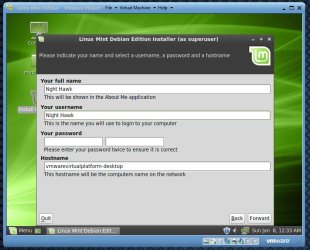
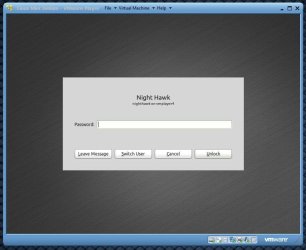
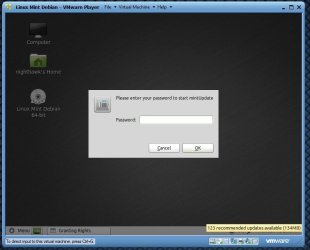
In fact you will often see password prompts appear on other VM programs as well as other OSs run on them. (See image attached below)

The XP Mode is a different ball game there over any typical XP or other version's install to a physical drive with the original MS intention of this allowing businesses to upgrade to 7 and still run their older XP desktop apps. For this MS included an additional layer of security where a password is a requirement.

If you look back at my last post at the screen there that's how that section of the registry should look by default in the XP Mode unchanged. You'll note the AutoAdminLogon entry is seen at "0" meaning it is disabled. The XP Mode's admin account likely sees that it stays that way!

The XP Mode still loaded directly to the desktop here however mostly since I always shut it down with saving the present state at the time. Looking back a few times I did and had to logon with the password not see it load the desktop right from the start. I never had to disable the Integrated Components afterwards to see the XP Mode auto load however from having saved any state. But deletion of the svs file as Kari instucted should insure results as far as seeing it logon automatically again.

Another update here to show that the XP Mode is rather unique as far as VMs are concerned. Just finished customing installing a Linux Distro on another program to see the password prompts just to logon as well as go for the updates.
 

Attachments

  • VM Player 40 Password Requirement.jpg
    VM Player 40 Password Requirement.jpg
    72.1 KB · Views: 7
  • Password Required on VM for OS Logon.jpg
    Password Required on VM for OS Logon.jpg
    55.1 KB · Views: 5
  • Password Required on VM for OS Updates.jpg
    Password Required on VM for OS Updates.jpg
    50.8 KB · Views: 2
Last edited:

My Computers

System One System Two

  • Computer type
    PC/Desktop
    Computer Manufacturer/Model Number
    Custom builds = 2
    OS
    W7 Ultimate x64/W10 Pro x64/W11 Pro Triple Boot - Main PC W7 Remote PC Micro ATX W7 Pro x64/W11 Pro
    CPU
    AMD Phenom II X4 975 Deneb 3.6ghz - 965 2nd remote pc
    Motherboard
    Gigabyte GA-790XTA-UD4-Gigabyte GA-880GM-D2H remote pc
    Memory
    Kingston Hyper X DDR3 1600 1.5v 16gb - Hyper X Fury 8gb 2nd
    Graphics Card(s)
    MSI HD Radeon 5750 1gb - MSI HD Radeon 6450 on mini tower
    Sound Card
    Creative Labs X-Fi Xtreme Audio P - Realtek onooard 2nd case
    Monitor(s) Displays
    ASUS VW199T-P 19" HP 2082a Main-HP 2082a 20" remote pc
    Screen Resolution
    Asus 1440x900 - HP 1600x900
    Hard Drives
    WD Black 1TB HD per OS W7, W10, and pending W11 presently on 500gb OS Drive - Pending Triple 1TB HDs for Spanned Storage/backup volume
    Single 2TB external USB enclosure, single 1TB System 7 Host/Boot drive, Pending 8TB external HD for system image b
    PSU
    Corsair 750TX - primary / Corsair CX600 - second
    Case
    Antec 900-2 - SSD compatible / NZXT Vulcan mini tower
    Cooling
    Zalman CNPS9900A
    Keyboard
    AZIO L70 Backlit Letters Gaming - ONN Cordless/USB
    Mouse
    MSI DS200 Programmable, Logitech Cordless
    Internet Speed
    30mbps upgrade - primary hard wired - mini tower usb WiFi
    Antivirus
    GFI VIPRE Internet Security 2014 on W7 2016 beta on W10,
    Browser
    Cyberfox, WaterFox 64bit FF variants, FireFox x64, Pale Moon
    Other Info
    Accomdata fan cooled usb 2.0 PIDE/Sata II, III external enclosure.
    Sambient usb/eSata PATA/Sata II, III external enclosure.
  • Computer type
    PC/Desktop
    System Manufacturer/Model Number
    CUSTOM ASSEMBLY
    OS
    W7 Pro x64/W11 Pro
    CPU
    AMD Deneb 3.6ghz - 965
    Motherboard
    Gigabyte GA-880GM-D2H remote pc
    Memory
    Kingston Hyper X Fury 8gb
    Graphics Card(s)
    MSI HD Radeon 6450 DVI Output
    Sound Card
    Realtek onooard Creative or Other separate PENDING
    Monitor(s) Displays
    VIZIO 32" LCD TV Separate LCD Pending
    Screen Resolution
    1600x1080
    Hard Drives
    WD 500GB OS Host/Boot WD Green 1TB Storage/Backup
    PSU
    Corsair 600W - THERMALTAKE 600W spare case
    Case
    NZXT Vulcan mini tower
    Cooling
    Twin 120mm Top Fans - 240mm Side Cover
    Keyboard
    ONN Cordless/USB Logitech Cordless
    Mouse
    ONN USB/Cordless - Logitech Cordless
    Internet Speed
    DSL 5G
    Browser
    MS Edge, FireFox, WaterFox x64, FireFox Nightly
    Other Info
    OS Testing-Remote Access to Main TeamViewer
Back
Top