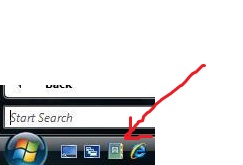
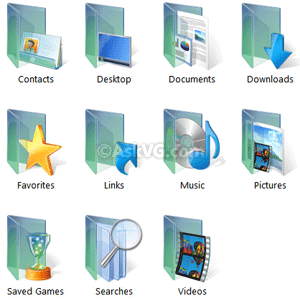
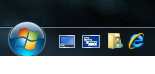
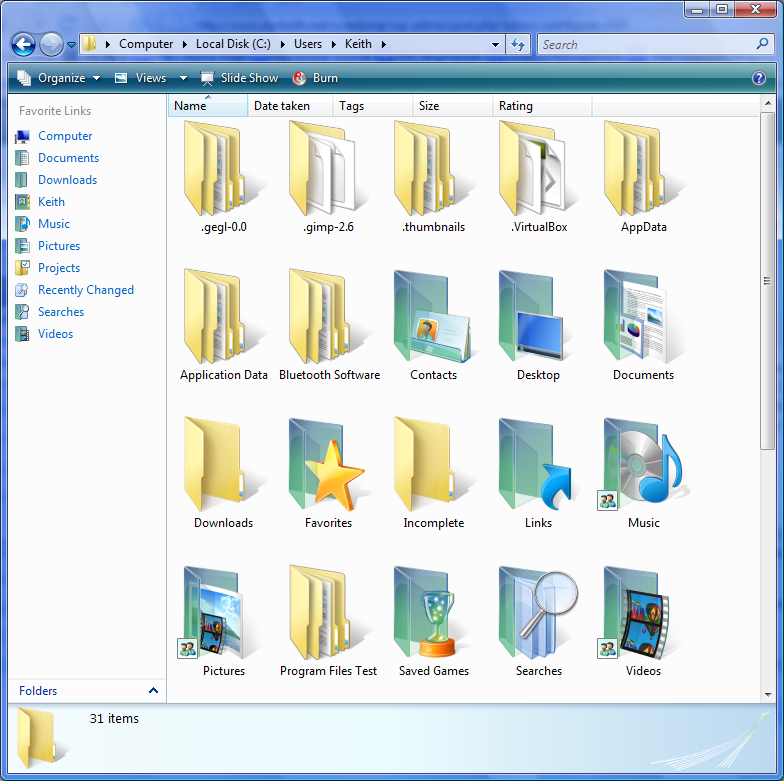
Thanks for the reply/help. It is to access to primary user folder in Vista (the main folder that contains the "Downloads", "Videos", "Music", etc folders).
(It is the top left folder/icon above - "Primary User Folder").
And inside that folder it contains folders such as:
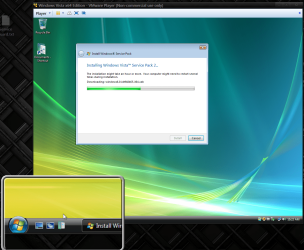
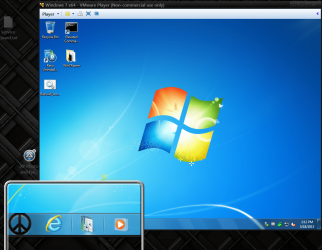
Thanks for the info. Those folders you posted look slightly different to the one I posted in post 1. Or are you asking if they look the same as each other, if so then yes they do and you can make icons small on the Win 7 taskbar (as I have below) and then you can compare them directly. The folder pinned in post 1 is the primary user folder. In Vista I just dragged the primary user folder to the taskbar and it looked like that. When I do the same in Windows 7 Pro x64 it is just a default yellow folder:
I can of course change the folder icon in Windows 7 but the Primary User Folder from Vista (as posted in post 1) isn't there.
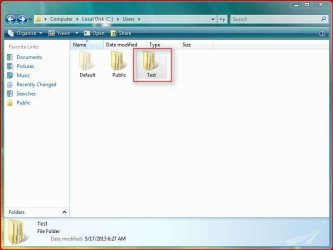
I tried to drag the user(test is the user folder) folder from C/Windows/User in Vista to the taskbar and it wouldn't, and if I make a shortcut and drag it to the taskbar it's a yellow user folder explain how you do it.
Jerry
My Computer
Computer type
Laptop
Computer Manufacturer/Model Number
Sager NP9170
OS
Win 7 Pro x64 / Win 10 Pro
CPU
Intel(R) Core(TM) i7-3630QM CPU @ 2.40GHz
Motherboard
CLEVO P170EM
Memory
12 GB
Graphics Card(s)
(1) Intel(R) HD Graphics 4000 (2) NVIDIA GeForce GTX 675M
Sound Card
(1) Realtek High Definition Audio (2) Intel(R) Display Aud
Monitor(s) Displays
17.3
Screen Resolution
1920x1080
Hard Drives
(1) Samsung 860 EVO 500GB(OS) (1) Samsung 860 EVO 500GB(Data)
Keyboard
Backlite
Antivirus
MSE, Malwarebytes Pro
Browser
Firefox
Other Info
DESKTOP: Custom-built.
OS: Win 10 Pro x64.
CASE: Rosewill R5.
CPU: Intel I5 4670K CPU @ 3.40GHz.
CPU COOLER: Cool Master Hyper 212 EVO.
MOTHERBOARD: Asus Z87-A.
MEMORY: Kingston HyperX 2x4 GB.
GPU: Nvidia Geforce 650 TI.
PSU: Corsair TX750.
DRIVES: (1) Samsung 840 120 GB SSD (2) Western Digital blue 500 GB 7200 RPM.
I didn't do anything, my primary user folder icon looked like that when I installed Vista. I tried taking the folder to my Win 7 pc and it goes to default yellow so obviously the folder icon doesn't transfer over that easily.
Those screenshots really helped I was able to get that exact icon on to the taskbar in Vista.
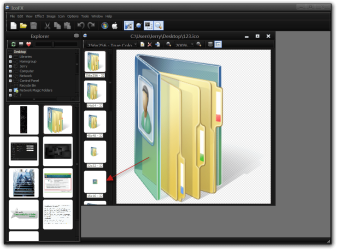
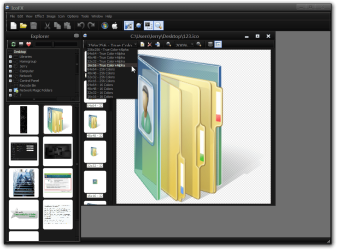
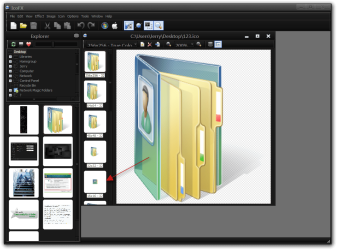
In Vista's imageres.dll it is icon #123 and it is using the 16 x 16 pixel image from the 13 layer icon as you can see from my screenshots.
Now I will try to get that same affect on Windows 7 and let you know.
Jerry
My Computer
Computer type
Laptop
Computer Manufacturer/Model Number
Sager NP9170
OS
Win 7 Pro x64 / Win 10 Pro
CPU
Intel(R) Core(TM) i7-3630QM CPU @ 2.40GHz
Motherboard
CLEVO P170EM
Memory
12 GB
Graphics Card(s)
(1) Intel(R) HD Graphics 4000 (2) NVIDIA GeForce GTX 675M
Sound Card
(1) Realtek High Definition Audio (2) Intel(R) Display Aud
Monitor(s) Displays
17.3
Screen Resolution
1920x1080
Hard Drives
(1) Samsung 860 EVO 500GB(OS) (1) Samsung 860 EVO 500GB(Data)
Keyboard
Backlite
Antivirus
MSE, Malwarebytes Pro
Browser
Firefox
Other Info
DESKTOP: Custom-built.
OS: Win 10 Pro x64.
CASE: Rosewill R5.
CPU: Intel I5 4670K CPU @ 3.40GHz.
CPU COOLER: Cool Master Hyper 212 EVO.
MOTHERBOARD: Asus Z87-A.
MEMORY: Kingston HyperX 2x4 GB.
GPU: Nvidia Geforce 650 TI.
PSU: Corsair TX750.
DRIVES: (1) Samsung 840 120 GB SSD (2) Western Digital blue 500 GB 7200 RPM.
What I am saying is if a larger image could be found approximately 256 x 256 pixels a new icon could be made and it would probably work, I tried making a new icon using that 16 x 16 pixel image(putting it on at 256 x 256 pixel background) but it was too small and didn't show up and if you enlarge that 16 x 16 pixel image to make it 256 x 256 pixels it distorts the image and doesn't look right.
Look at the image I have an arrow pointing to that image needs to be larger so a decent icon could be made.
Jerry
My Computer
Computer type
Laptop
Computer Manufacturer/Model Number
Sager NP9170
OS
Win 7 Pro x64 / Win 10 Pro
CPU
Intel(R) Core(TM) i7-3630QM CPU @ 2.40GHz
Motherboard
CLEVO P170EM
Memory
12 GB
Graphics Card(s)
(1) Intel(R) HD Graphics 4000 (2) NVIDIA GeForce GTX 675M
Sound Card
(1) Realtek High Definition Audio (2) Intel(R) Display Aud
Monitor(s) Displays
17.3
Screen Resolution
1920x1080
Hard Drives
(1) Samsung 860 EVO 500GB(OS) (1) Samsung 860 EVO 500GB(Data)
Keyboard
Backlite
Antivirus
MSE, Malwarebytes Pro
Browser
Firefox
Other Info
DESKTOP: Custom-built.
OS: Win 10 Pro x64.
CASE: Rosewill R5.
CPU: Intel I5 4670K CPU @ 3.40GHz.
CPU COOLER: Cool Master Hyper 212 EVO.
MOTHERBOARD: Asus Z87-A.
MEMORY: Kingston HyperX 2x4 GB.
GPU: Nvidia Geforce 650 TI.
PSU: Corsair TX750.
DRIVES: (1) Samsung 840 120 GB SSD (2) Western Digital blue 500 GB 7200 RPM.
Hi Jerry. I don't have it pinned to the taskbar, but instead I have the quick launch bar enabled (Guided Help: Enable the Quick Launch bar in Windows 7). Also, can this be used and if so how (sorry never done this before):