Visual Effects Settings - Change

How to Change the Visual Effects Settings in Windows 7


   Information
This will show you how to change the visual effect settings you want to use for the appearance and performance of Windows 7 on your computer.
   Note
If you apply any changes in the Control Panel -> Ease of Access Center, your visual effects settings will automatically get reset back to default.

You will notice that not all visual effects options are available in the Windows 7 Starter and Home Basic editions since they do not include the Aero feature.
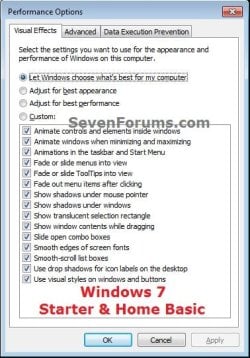
Starter_Basic.jpg
   Tip
The visual effect settings below are the most common ones to turn off (uncheck) to help improve performance.

  • Animate windows when minimizing and maximizing
  • Animations in the taskbar and Start Menu
  • Enable transparent glass
  • Fade or slide menus into view
  • Fade or slide ToolTips into view
  • Fade out menu items after clicking
  • Show shadows under windows
  • Slide open combo boxes


OPTION ONE

To Change Visual Effects Settings in System Properties


1. Do either step 2, 3, or 4 below depending on how you would like to open Visual Effects.
NOTE: Standard users will only be able to use step 4.

2. Open the Start Menu.
A) Right click on the Computer button and click on Properties.

B) Go to step 3A.
OR

3. Open the Control Panel (icons vew), and click on the System icon.
A) Click on the Advanced System settings link in the left blue pane, then close this window afterwards. (see screenshot below)
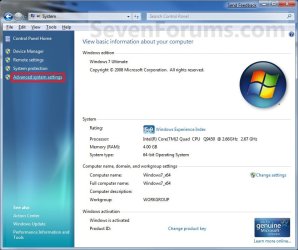
System.jpg
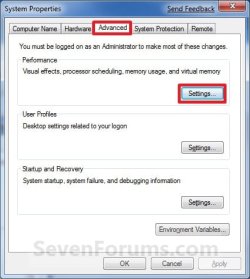
B) Under the Advanced tab and Performance section, click on the Settings button. (see screenshot below)
System_Properties.jpg
C) Go to step 5.
OR

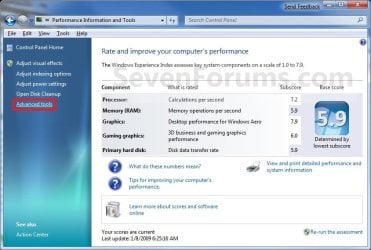
4. Open the Control Panel (icons vew), and click on the Performance Information and Tools icon.
A) Click on the Advanced tools link in the left blue pane. (see screenshot below)
Performance-Info.jpg
B) Click on the Adjust the appearance and performance of Windows link, then close this window afterwards. (see screenshot below)
Advanced_Tools.jpg
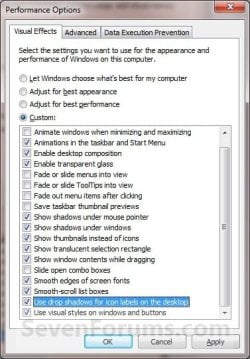
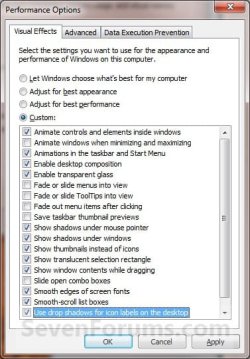
5. You will now see the Visual Effects settings to select. Do step 6, 7, 8, or 9 below for what you would like to do. (see screenshot below)

   Note
You will notice that not all visual effects options are available in the Windows 7 Starter and Home Basic editions since they do not include the Aero feature.

  • Let Windows choose what's best for my computer - Windows will select the settings that it determines will run fine based on your system specs.
  • Adjust for best appearance - This will select all settings.
  • Adjust for best performance - This will unselect all settings.
  • Custom - This will allow you to select and unselect the settings you would like to. This will also be selected by default if you manually select or unselect settings.
Visual_Effects-1.jpgVisual_Effects-2.jpg
6. For Custom to Manually Select or Unselect Visual Effects
A) Select (dot) the Custom option. (see screenshots above)

B) Check the settings you want, uncheck the settings you do not want, and go to step 10 below.

7. For Best Appearance
A) Select (dot) the Adjust for best appearance option, and go to step 10 below. (see screenshots below step 5)
NOTE: This will select all of the visual effect settings.

8. For Best Performance
A) Select (dot) the Adjust for best performance option, and go to step 10 below. (see screenshots below step 5)
NOTE: This will unselect all of the visual effect settings.

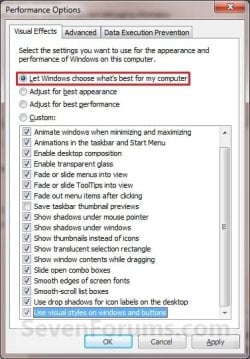
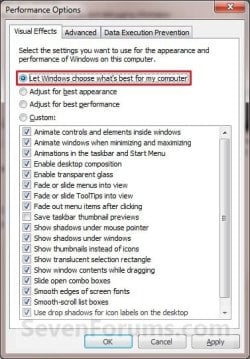
9. To Let Windows 7 Choose the Visual Effects
A) Select (dot) the Let Windows choose what's best for my computer option, and go to step 10 below. (see screenshots below)
NOTE: These screenshots are the usual items selected by Windows 7, but this will be based on what Windows 7 thinks will run best on your computer.
Windows1.jpgWindows2.jpg
10. Click on Apply and OK. (See screenshots above or below step 4)
NOTE: If you did step 2 or 3, then you will also need to click on OK in the screenshot below step 3B.


OPTION TWO

To Change Visual Effects Settings Manually in Registry Editor


   Note
If you like, you can click on a link below for these Visual Effects to see how to quickly change them in the Registry Editor instead.

You will notice that the visual effects below with a * are not available in the Windows 7 Starter and Windows 7 Home Basic editions since they do not include the Aero feature.


1. Open the Start Menu, then type regedit in the search box, and press Enter.

2. If prompted by UAC, then click on Yes.

3. In regedit, navigate to the location below. (see screenshot below)
HKEY_CURRENT_USER\Software\Microsoft\Windows\CurrentVersion\Explorer\VisualEffects


Visual_Effects_REG-A.jpg
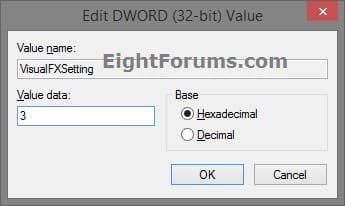
4. In the right pane of VisualEffects, double click on the VisualFXSetting DWORD to modify it. (see screenshot above)

5. Type in the value number below for the setting you want below, and click/tap on OK. (see screenshot below)
Visual_Effects_REG-B.jpg


A) Type 0 (zero) for Let Windows choose what's best for my computer option, and go to step 8 below.

B) Type 1 for Adjust for best appearance option, and go to step 8 below.

C) Type 2 for Adjust for best Performance option, and go to step 8 below.

D) Type 3 for Custom option, and go to step 6 below.
6. Using the binary sets below, change the letters in them to turn on (1) or off (0) for each corresponding visual effect.
   Note
The visual effects below will require more work to change them in the Registry Editor.

We will have to use the 3 sets of binary values below for the letter(s) of the Visual Effects below that you want to turn on or off, then convert each binary set to hex for the first 3 hex entries in the registry. This will be explained in detail on how to do this in the steps below.

Binary sets (3)
1001ABC0 00D1EF10 00000GH1

0=off and 1=on


Visual Effects and their assigned letters
(A) Smooth-scroll list boxes
(B) Slide open combo boxes
(C) Fade or slide menus into view
(D) Show shadows under mouse pointer
(E) Fade or slide ToolTips into view
(F) Fade out menu items after clicking
(G) Show shadows under windows
(H) Use Visual styles on windows and buttons


For example, to turn them all off, I would change all letters in the binary sets to 0 (number zero) like below.
10010000 00010010 00000001
For example, to turn only the H visual effect on, I would change the letters in the binary sets like below.
10010000 00010010 00000011
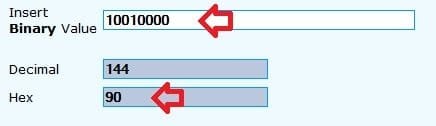
7. Use a binary to hex converter to convert each separate binary set one by one to hex.
NOTE: Make note of these hex values when converted from the adjusted binary sets. They are what you will be using in regedit at step 9 below.
Binary-to-Hex.jpg
NOTE: Press enter after entering the binary value to convert it.

For example, from the example above to turn them all off, I would convert the 3 separate binary sets one by one to hex like below.
Binary
10010000 00010010 00000001

converted to

Hex
90 12 1
For example, from the example above to turn only the H visual effect on, I would convert the 3 separate binary sets one by one to hex like below.
Binary
10010000 00010010 00000011

converted to

Hex
90 12 3
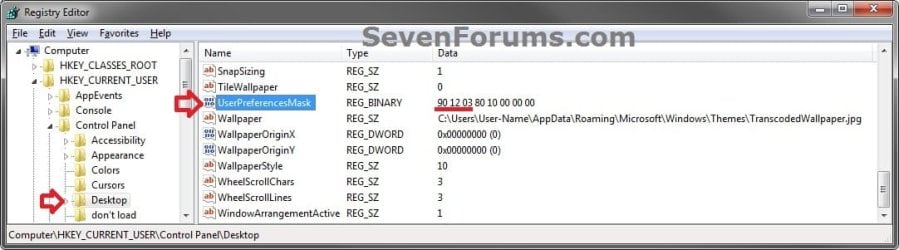
8. In regedit, navigate to the location below. (see screenshot below)
HKEY_CURRENT_USER\Control Panel\Desktop
REG-1.jpg
9. In the right pane of Desktop, double click on UserPreferencesMask to modify it, and do step 10, 11, 12, or 13 below depending on what you set in step 5 above. (see screenshot above)

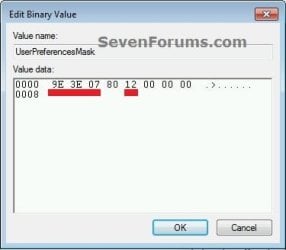
10. If you typed 0 at step 5 for the Let Windows choose what's best for my computer option, then change the values to be the same as the ones in red below, click on OK, and go to step 14 below. (see screenshot below)
9E 3E 07 80 12 00 00 00
0_and_1.jpg
11. If you typed 1 at step 5 for the Adjust for best appearance option, then change the values to be the same as the ones in red below, click on OK, and go to step 14 below. (see screenshot below step 10)
9E 3E 07 80 12 00 00 00
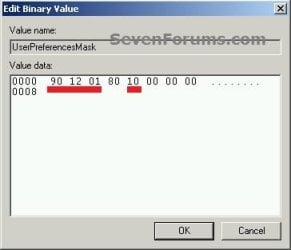
12. If you typed 2 at step 5 for the Adjust for best performance option, then change the values to be the same as the ones in red below, click on OK, and go to step 14 below. (see screenshot below)
90 12 01 80 10 00 00 00
2.jpg
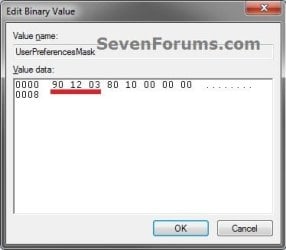
13. If you typed 3 at step 5 for the Custom option, then change the first 3 values (ex: 90 12 03) underlined in red below with the hex values you got from step 7, click on OK, and go to step 14 below. (see screenshot below)
REG-2.jpg
14. Close regedit.

15. Log off and log on, or restart the computer to apply the changes.
That's it,
Shawn


Last edited:
Hi guys, i'm trying to make an registry file to optimize apperance, but not working, what i wrong? see code below:

Code:
Windows Registry Editor Version 5.00

[HKEY_USERS\.DEFAULT\Software\Microsoft\Windows\CurrentVersion\Explorer\VisualEffects]
"VisualFXSetting"=dword:00000003
;0 = Let Windows choose what's best for my computer
;1 = Adjust for best appearance
;2 = Adjust for best performance
;3 = Custom


[HKCU\Software\Microsoft\Windows\CurrentVersion\ThemeManager]
"ThemeActive"="1"
;Use visual styles on windows and buttons (0=off 1=on)

;Here the keys you can set to 00000000 (off) or to 00000001 (on)

[HKEY_CURRENT_USER\Software\Microsoft\Windows\CurrentVersion\Explorer\VisualEffects\AnimateMinMax]
"DefaultApplied"=dword:00000001

[HKEY_CURRENT_USER\Software\Microsoft\Windows\CurrentVersion\Explorer\VisualEffects\ComboBoxAnimation]
"DefaultApplied"=dword:00000001

[HKEY_CURRENT_USER\Software\Microsoft\Windows\CurrentVersion\Explorer\VisualEffects\ControlAnimations]
"DefaultApplied"=dword:00000001

[HKEY_CURRENT_USER\Software\Microsoft\Windows\CurrentVersion\Explorer\VisualEffects\CursorShadow]
"DefaultApplied"=dword:00000001

[HKEY_CURRENT_USER\Software\Microsoft\Windows\CurrentVersion\Explorer\VisualEffects\DragFullWindows]
"DefaultApplied"=dword:00000001

[HKEY_CURRENT_USER\Software\Microsoft\Windows\CurrentVersion\Explorer\VisualEffects\DropShadow]
"DefaultApplied"=dword:00000001

[HKEY_CURRENT_USER\Software\Microsoft\Windows\CurrentVersion\Explorer\VisualEffects\DWMAeroPeekEnabled]
"DefaultApplied"=dword:00000001

[HKEY_CURRENT_USER\Software\Microsoft\Windows\CurrentVersion\Explorer\VisualEffects\DWMEnabled]
"DefaultApplied"=dword:00000001

[HKEY_CURRENT_USER\Software\Microsoft\Windows\CurrentVersion\Explorer\VisualEffects\DWMSaveThumbnailEnabled]
"DefaultApplied"=dword:00000001
    
[HKEY_CURRENT_USER\Software\Microsoft\Windows\CurrentVersion\Explorer\VisualEffects\ListBoxSmoothScrolling]
"DefaultApplied"=dword:00000000

[HKEY_CURRENT_USER\Software\Microsoft\Windows\CurrentVersion\Explorer\VisualEffects\ListviewAlphaSelect]
"DefaultApplied"=dword:00000001

[HKEY_CURRENT_USER\Software\Microsoft\Windows\CurrentVersion\Explorer\VisualEffects\ListviewShadow]
"DefaultApplied"=dword:00000001

[HKEY_CURRENT_USER\Software\Microsoft\Windows\CurrentVersion\Explorer\VisualEffects\MenuAnimation]
"DefaultApplied"=dword:00000000

[HKEY_CURRENT_USER\Software\Microsoft\Windows\CurrentVersion\Explorer\VisualEffects\SelectionFade]
"DefaultApplied"=dword:00000000

[HKEY_CURRENT_USER\Software\Microsoft\Windows\CurrentVersion\Explorer\VisualEffects\TaskbarAnimations]
"DefaultApplied"=dword:00000001

;[HKEY_CURRENT_USER\Software\Microsoft\Windows\CurrentVersion\Explorer\VisualEffects\Themes]

[HKEY_CURRENT_USER\Software\Microsoft\Windows\CurrentVersion\Explorer\VisualEffects\ThumbnailsOrIcon]
"DefaultApplied"=dword:00000001

[HKEY_CURRENT_USER\Software\Microsoft\Windows\CurrentVersion\Explorer\VisualEffects\TooltipAnimation]
"DefaultApplied"=dword:00000000

[HKEY_CURRENT_USER\Software\Microsoft\Windows\CurrentVersion\Explorer\VisualEffects\TransparentGlass]
"DefaultApplied"=dword:00000001
 

My Computer

Computer type
PC/Desktop
OS
Windows 7 Pro 64 bits
CPU
i7 4790
Motherboard
Asus Z87 Deluxe
Memory
2x8gb Corsair Vengeance
Graphics Card(s)
EVGA GTX 770 2gb
Hard Drives
1 x SSD Corsair 128gb
1 x HD Seagate 1TB
PSU
Corsair RM750
Case
CoolerMaster HAF XM
Internet Speed
4mb
Hello Valtersc, and welcome to Seven Forums.

Are you logging out and in to apply afterwards?
 

My Computer

Computer type
PC/Desktop
Computer Manufacturer/Model Number
Self built custom
OS
64-bit Windows 11 Pro for Workstations
CPU
Intel i7-8700K OC'd to 5 GHz
Motherboard
ASUS ROG Maximus XI Formula Z390
Memory
64 GB (4x16GB) G.SKILL TridentZ RGB DDR4 3600 MHz
Graphics Card(s)
ASUS ROG-STRIX-GTX1080TI-O11G-GAMING
Sound Card
Integrated
Monitor(s) Displays
2 x Samsung Odyssey G7 27"
Screen Resolution
2560x1440
Hard Drives
1TB Samsung 990 PRO M.2,
4TB Samsung 990 PRO PRO M.2,
TerraMaster F8 SSD Plus NAS
PSU
Seasonic Prime Titanium 850W
Case
Thermaltake Core P3
Cooling
Corsair Hydro H115i
Keyboard
Logitech wireless K800
Mouse
Logitech MX Master 4
Internet Speed
2 Gb/s Download and 100 Mb/s Upload
Antivirus
Malwarebyte Anti-Malware Premium
Browser
Google Chrome
Other Info
Logitech Z625 speaker system,
Logitech BRIO 4K Pro webcam,
HP Color LaserJet Pro MFP M477fdn,
APC SMART-UPS RT 1000 XL - SURT1000XLI,
Galaxy S23 Plus phone
Hello Valtersc, and welcome to Seven Forums.


Are you logging out and in to apply afterwards?

Thanks!

Yes, i running and testing in an Virtual Machine on VMWare, may have something to do? the above syntax is correct?
 

My Computer

Computer type
PC/Desktop
OS
Windows 7 Pro 64 bits
CPU
i7 4790
Motherboard
Asus Z87 Deluxe
Memory
2x8gb Corsair Vengeance
Graphics Card(s)
EVGA GTX 770 2gb
Hard Drives
1 x SSD Corsair 128gb
1 x HD Seagate 1TB
PSU
Corsair RM750
Case
CoolerMaster HAF XM
Internet Speed
4mb
Those aren't the same registry settings that's in Option Two of the tutorial.
 

My Computer

Computer type
PC/Desktop
Computer Manufacturer/Model Number
Self built custom
OS
64-bit Windows 11 Pro for Workstations
CPU
Intel i7-8700K OC'd to 5 GHz
Motherboard
ASUS ROG Maximus XI Formula Z390
Memory
64 GB (4x16GB) G.SKILL TridentZ RGB DDR4 3600 MHz
Graphics Card(s)
ASUS ROG-STRIX-GTX1080TI-O11G-GAMING
Sound Card
Integrated
Monitor(s) Displays
2 x Samsung Odyssey G7 27"
Screen Resolution
2560x1440
Hard Drives
1TB Samsung 990 PRO M.2,
4TB Samsung 990 PRO PRO M.2,
TerraMaster F8 SSD Plus NAS
PSU
Seasonic Prime Titanium 850W
Case
Thermaltake Core P3
Cooling
Corsair Hydro H115i
Keyboard
Logitech wireless K800
Mouse
Logitech MX Master 4
Internet Speed
2 Gb/s Download and 100 Mb/s Upload
Antivirus
Malwarebyte Anti-Malware Premium
Browser
Google Chrome
Other Info
Logitech Z625 speaker system,
Logitech BRIO 4K Pro webcam,
HP Color LaserJet Pro MFP M477fdn,
APC SMART-UPS RT 1000 XL - SURT1000XLI,
Galaxy S23 Plus phone
Those aren't the same registry settings that's in Option Two of the tutorial.

Now I gotta thank you!, I had followed a guide from another site and I was in doubt, I tried following the steps outlined here and it worked perfectly!.

Thank you!
 

My Computer

Computer type
PC/Desktop
OS
Windows 7 Pro 64 bits
CPU
i7 4790
Motherboard
Asus Z87 Deluxe
Memory
2x8gb Corsair Vengeance
Graphics Card(s)
EVGA GTX 770 2gb
Hard Drives
1 x SSD Corsair 128gb
1 x HD Seagate 1TB
PSU
Corsair RM750
Case
CoolerMaster HAF XM
Internet Speed
4mb
Perfect. :party:
 

My Computer

Computer type
PC/Desktop
Computer Manufacturer/Model Number
Self built custom
OS
64-bit Windows 11 Pro for Workstations
CPU
Intel i7-8700K OC'd to 5 GHz
Motherboard
ASUS ROG Maximus XI Formula Z390
Memory
64 GB (4x16GB) G.SKILL TridentZ RGB DDR4 3600 MHz
Graphics Card(s)
ASUS ROG-STRIX-GTX1080TI-O11G-GAMING
Sound Card
Integrated
Monitor(s) Displays
2 x Samsung Odyssey G7 27"
Screen Resolution
2560x1440
Hard Drives
1TB Samsung 990 PRO M.2,
4TB Samsung 990 PRO PRO M.2,
TerraMaster F8 SSD Plus NAS
PSU
Seasonic Prime Titanium 850W
Case
Thermaltake Core P3
Cooling
Corsair Hydro H115i
Keyboard
Logitech wireless K800
Mouse
Logitech MX Master 4
Internet Speed
2 Gb/s Download and 100 Mb/s Upload
Antivirus
Malwarebyte Anti-Malware Premium
Browser
Google Chrome
Other Info
Logitech Z625 speaker system,
Logitech BRIO 4K Pro webcam,
HP Color LaserJet Pro MFP M477fdn,
APC SMART-UPS RT 1000 XL - SURT1000XLI,
Galaxy S23 Plus phone
I had a problem with the performance option.

Windows only allowed few option to be activated. I didn't have shadow under my mouse, no shadow under the windows, no fade menu and no fade tooltip ... When i choose "let windows choose what's the best", nothing changed. And when i changed to Custom, the shadow, etc... are unchecked without doing anything. Even if i checked all, log off and log on, the boxes are unchecked again.

I followed your instruction about regedit. I changed manually the UserPreferencesMask in HKEY_CURRENT_USER\Control Panel\Desktop. I had something little different (Instead of having 9E 3E 07 80 12 00 00 00 or 90 12 01 80 10 00 00 00 for exemple.). I had : 0E 2E 07 00 12 00 00 00. I changed those numbers for 9E 3E 07 00 12 00 00 00 but nothing worked (You wrote to change only the 3 first numbers ^.^). You can see that I had 00 instead of 80 for the fourth number.

So, i changed the fourth number to 80, and everything goes fine (So now, i have : 9E 3E 07 80 12 00 00 00). I don't know why the fourth number was 00 instead of 80 but the problem came from that. I write this to help people if they have the same problem.

Thanks for your tutorial, very helpful :)
 

My Computer

Computer type
PC/Desktop
Computer Manufacturer/Model Number
Alienware
OS
Windows 7 Home Premium 64bit
CPU
i7 2600
Memory
8Go
Graphics Card(s)
GTX 580
Hard Drives
1To Raid0
Antivirus
Bitdefender 2015 Total Security
Browser
Firefox
Thank you Deythan for posting back with your results, and welcome to Seven Forums. :)
 

My Computer

Computer type
PC/Desktop
Computer Manufacturer/Model Number
Self built custom
OS
64-bit Windows 11 Pro for Workstations
CPU
Intel i7-8700K OC'd to 5 GHz
Motherboard
ASUS ROG Maximus XI Formula Z390
Memory
64 GB (4x16GB) G.SKILL TridentZ RGB DDR4 3600 MHz
Graphics Card(s)
ASUS ROG-STRIX-GTX1080TI-O11G-GAMING
Sound Card
Integrated
Monitor(s) Displays
2 x Samsung Odyssey G7 27"
Screen Resolution
2560x1440
Hard Drives
1TB Samsung 990 PRO M.2,
4TB Samsung 990 PRO PRO M.2,
TerraMaster F8 SSD Plus NAS
PSU
Seasonic Prime Titanium 850W
Case
Thermaltake Core P3
Cooling
Corsair Hydro H115i
Keyboard
Logitech wireless K800
Mouse
Logitech MX Master 4
Internet Speed
2 Gb/s Download and 100 Mb/s Upload
Antivirus
Malwarebyte Anti-Malware Premium
Browser
Google Chrome
Other Info
Logitech Z625 speaker system,
Logitech BRIO 4K Pro webcam,
HP Color LaserJet Pro MFP M477fdn,
APC SMART-UPS RT 1000 XL - SURT1000XLI,
Galaxy S23 Plus phone
Quick question, what does "If you apply any changes in the Control Panel -> Ease of Access Center, your visual effects settings will automatically get reset back to default" mean? I'm following the guide to optimize windows 7 and it states to turn off visual effects AND enable option in ease of access to turn off animations when necessary. Does this mean that if I manually disable the visual settings and enable this option that the manual visual settings will go back to default? I think that I've checked my settings after turning off unnecessary animations in EOA, but they didn't reset back to default. :confused:
 

My Computer

Computer type
PC/Desktop
Computer Manufacturer/Model Number
Custom Build
OS
Microsoft Windows 7 64-bit Service Pack 1
CPU
Intel Core i7-4790K Devil's Canyon Quad-Core 4.0 GHz
Motherboard
GIGABYTE GA-Z97X-SLI LGA 1150
Memory
16.00 GB
Graphics Card(s)
NVIDIA GeForce GTX 950
Monitor(s) Displays
AOC 2050W
Screen Resolution
1920 x 1080
Hard Drives
ST1000DL002-9TT153 ATA Device
Seagate 2TB FireCuda Gaming SSHD (Solid State Hybrid Drive) - 7200 RPM SATA 6Gb/s 64MB Cache 3.5-Inch Hard Drive
Samsung 850 EVO - 250GB - 2.5-Inch SATA III Internal SSD
PSU
CORSAIR CX-M Series CX750M 750W ATX12V & EPS12V Semi-modular
Case
Lian Li PC-7H
Browser
Firefox
Hello TON, :)

Basically, if you make any changes to the Ease of Access Center settings in the Control Panel, it'll also automatically reset your Visual Effects settings back to default.
 

My Computer

Computer type
PC/Desktop
Computer Manufacturer/Model Number
Self built custom
OS
64-bit Windows 11 Pro for Workstations
CPU
Intel i7-8700K OC'd to 5 GHz
Motherboard
ASUS ROG Maximus XI Formula Z390
Memory
64 GB (4x16GB) G.SKILL TridentZ RGB DDR4 3600 MHz
Graphics Card(s)
ASUS ROG-STRIX-GTX1080TI-O11G-GAMING
Sound Card
Integrated
Monitor(s) Displays
2 x Samsung Odyssey G7 27"
Screen Resolution
2560x1440
Hard Drives
1TB Samsung 990 PRO M.2,
4TB Samsung 990 PRO PRO M.2,
TerraMaster F8 SSD Plus NAS
PSU
Seasonic Prime Titanium 850W
Case
Thermaltake Core P3
Cooling
Corsair Hydro H115i
Keyboard
Logitech wireless K800
Mouse
Logitech MX Master 4
Internet Speed
2 Gb/s Download and 100 Mb/s Upload
Antivirus
Malwarebyte Anti-Malware Premium
Browser
Google Chrome
Other Info
Logitech Z625 speaker system,
Logitech BRIO 4K Pro webcam,
HP Color LaserJet Pro MFP M477fdn,
APC SMART-UPS RT 1000 XL - SURT1000XLI,
Galaxy S23 Plus phone
Back
Top