Visual Effects Settings - Change

How to Change the Visual Effects Settings in Windows 7


   Information
This will show you how to change the visual effect settings you want to use for the appearance and performance of Windows 7 on your computer.
   Note
If you apply any changes in the Control Panel -> Ease of Access Center, your visual effects settings will automatically get reset back to default.

You will notice that not all visual effects options are available in the Windows 7 Starter and Home Basic editions since they do not include the Aero feature.
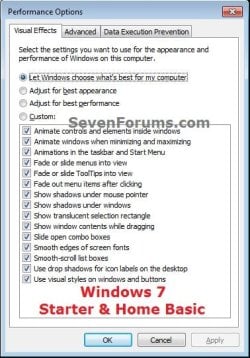
Starter_Basic.jpg
   Tip
The visual effect settings below are the most common ones to turn off (uncheck) to help improve performance.

  • Animate windows when minimizing and maximizing
  • Animations in the taskbar and Start Menu
  • Enable transparent glass
  • Fade or slide menus into view
  • Fade or slide ToolTips into view
  • Fade out menu items after clicking
  • Show shadows under windows
  • Slide open combo boxes


OPTION ONE

To Change Visual Effects Settings in System Properties


1. Do either step 2, 3, or 4 below depending on how you would like to open Visual Effects.
NOTE: Standard users will only be able to use step 4.

2. Open the Start Menu.
A) Right click on the Computer button and click on Properties.

B) Go to step 3A.
OR

3. Open the Control Panel (icons vew), and click on the System icon.
A) Click on the Advanced System settings link in the left blue pane, then close this window afterwards. (see screenshot below)
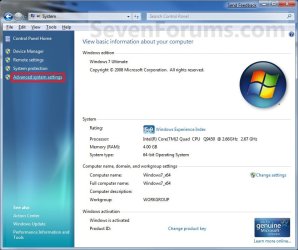
System.jpg
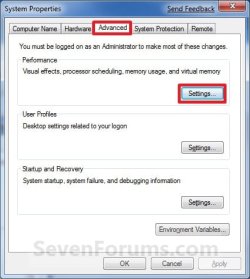
B) Under the Advanced tab and Performance section, click on the Settings button. (see screenshot below)
System_Properties.jpg
C) Go to step 5.
OR

4. Open the Control Panel (icons vew), and click on the Performance Information and Tools icon.
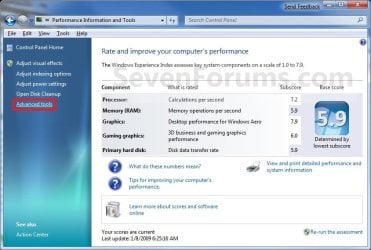
A) Click on the Advanced tools link in the left blue pane. (see screenshot below)
Performance-Info.jpg
B) Click on the Adjust the appearance and performance of Windows link, then close this window afterwards. (see screenshot below)
Advanced_Tools.jpg
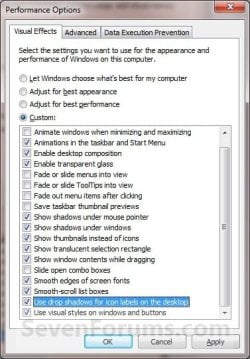
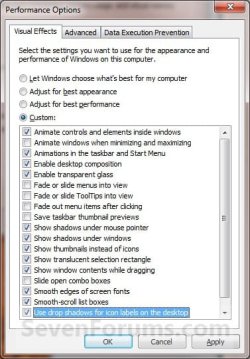
5. You will now see the Visual Effects settings to select. Do step 6, 7, 8, or 9 below for what you would like to do. (see screenshot below)

   Note
You will notice that not all visual effects options are available in the Windows 7 Starter and Home Basic editions since they do not include the Aero feature.

  • Let Windows choose what's best for my computer - Windows will select the settings that it determines will run fine based on your system specs.
  • Adjust for best appearance - This will select all settings.
  • Adjust for best performance - This will unselect all settings.
  • Custom - This will allow you to select and unselect the settings you would like to. This will also be selected by default if you manually select or unselect settings.
Visual_Effects-1.jpgVisual_Effects-2.jpg
6. For Custom to Manually Select or Unselect Visual Effects
A) Select (dot) the Custom option. (see screenshots above)

B) Check the settings you want, uncheck the settings you do not want, and go to step 10 below.

7. For Best Appearance
A) Select (dot) the Adjust for best appearance option, and go to step 10 below. (see screenshots below step 5)
NOTE: This will select all of the visual effect settings.

8. For Best Performance
A) Select (dot) the Adjust for best performance option, and go to step 10 below. (see screenshots below step 5)
NOTE: This will unselect all of the visual effect settings.

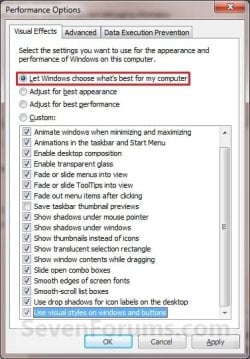
9. To Let Windows 7 Choose the Visual Effects
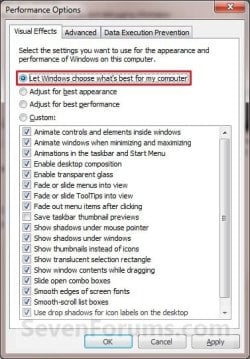
A) Select (dot) the Let Windows choose what's best for my computer option, and go to step 10 below. (see screenshots below)
NOTE: These screenshots are the usual items selected by Windows 7, but this will be based on what Windows 7 thinks will run best on your computer.
Windows1.jpgWindows2.jpg
10. Click on Apply and OK. (See screenshots above or below step 4)
NOTE: If you did step 2 or 3, then you will also need to click on OK in the screenshot below step 3B.


OPTION TWO

To Change Visual Effects Settings Manually in Registry Editor


   Note
If you like, you can click on a link below for these Visual Effects to see how to quickly change them in the Registry Editor instead.

You will notice that the visual effects below with a * are not available in the Windows 7 Starter and Windows 7 Home Basic editions since they do not include the Aero feature.


1. Open the Start Menu, then type regedit in the search box, and press Enter.

2. If prompted by UAC, then click on Yes.

3. In regedit, navigate to the location below. (see screenshot below)
HKEY_CURRENT_USER\Software\Microsoft\Windows\CurrentVersion\Explorer\VisualEffects


Visual_Effects_REG-A.jpg
4. In the right pane of VisualEffects, double click on the VisualFXSetting DWORD to modify it. (see screenshot above)

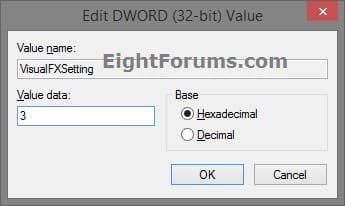
5. Type in the value number below for the setting you want below, and click/tap on OK. (see screenshot below)
Visual_Effects_REG-B.jpg


A) Type 0 (zero) for Let Windows choose what's best for my computer option, and go to step 8 below.

B) Type 1 for Adjust for best appearance option, and go to step 8 below.

C) Type 2 for Adjust for best Performance option, and go to step 8 below.

D) Type 3 for Custom option, and go to step 6 below.
6. Using the binary sets below, change the letters in them to turn on (1) or off (0) for each corresponding visual effect.
   Note
The visual effects below will require more work to change them in the Registry Editor.

We will have to use the 3 sets of binary values below for the letter(s) of the Visual Effects below that you want to turn on or off, then convert each binary set to hex for the first 3 hex entries in the registry. This will be explained in detail on how to do this in the steps below.

Binary sets (3)
1001ABC0 00D1EF10 00000GH1

0=off and 1=on


Visual Effects and their assigned letters
(A) Smooth-scroll list boxes
(B) Slide open combo boxes
(C) Fade or slide menus into view
(D) Show shadows under mouse pointer
(E) Fade or slide ToolTips into view
(F) Fade out menu items after clicking
(G) Show shadows under windows
(H) Use Visual styles on windows and buttons


For example, to turn them all off, I would change all letters in the binary sets to 0 (number zero) like below.
10010000 00010010 00000001
For example, to turn only the H visual effect on, I would change the letters in the binary sets like below.
10010000 00010010 00000011
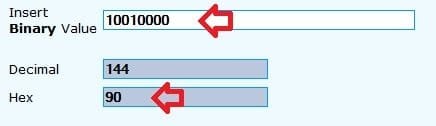
7. Use a binary to hex converter to convert each separate binary set one by one to hex.
NOTE: Make note of these hex values when converted from the adjusted binary sets. They are what you will be using in regedit at step 9 below.
Binary-to-Hex.jpg
NOTE: Press enter after entering the binary value to convert it.

For example, from the example above to turn them all off, I would convert the 3 separate binary sets one by one to hex like below.
Binary
10010000 00010010 00000001

converted to

Hex
90 12 1
For example, from the example above to turn only the H visual effect on, I would convert the 3 separate binary sets one by one to hex like below.
Binary
10010000 00010010 00000011

converted to

Hex
90 12 3
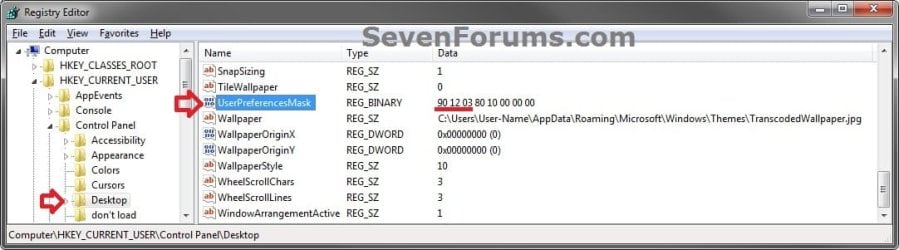
8. In regedit, navigate to the location below. (see screenshot below)
HKEY_CURRENT_USER\Control Panel\Desktop
REG-1.jpg
9. In the right pane of Desktop, double click on UserPreferencesMask to modify it, and do step 10, 11, 12, or 13 below depending on what you set in step 5 above. (see screenshot above)

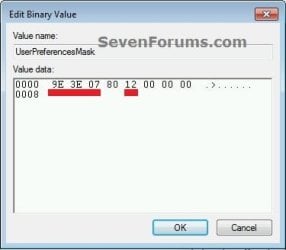
10. If you typed 0 at step 5 for the Let Windows choose what's best for my computer option, then change the values to be the same as the ones in red below, click on OK, and go to step 14 below. (see screenshot below)
9E 3E 07 80 12 00 00 00
0_and_1.jpg
11. If you typed 1 at step 5 for the Adjust for best appearance option, then change the values to be the same as the ones in red below, click on OK, and go to step 14 below. (see screenshot below step 10)
9E 3E 07 80 12 00 00 00
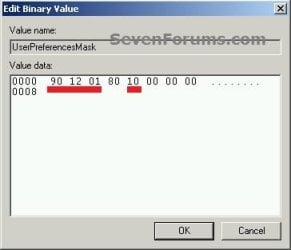
12. If you typed 2 at step 5 for the Adjust for best performance option, then change the values to be the same as the ones in red below, click on OK, and go to step 14 below. (see screenshot below)
90 12 01 80 10 00 00 00
2.jpg
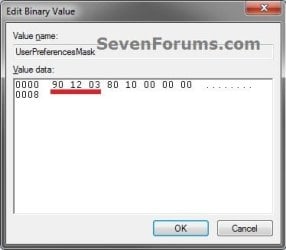
13. If you typed 3 at step 5 for the Custom option, then change the first 3 values (ex: 90 12 03) underlined in red below with the hex values you got from step 7, click on OK, and go to step 14 below. (see screenshot below)
REG-2.jpg
14. Close regedit.

15. Log off and log on, or restart the computer to apply the changes.
That's it,
Shawn


Last edited:
These are different pop-ups than those. :(
 

My Computer

Computer type
PC/Desktop
Computer Manufacturer/Model Number
Self built custom
OS
64-bit Windows 11 Pro for Workstations
CPU
Intel i7-8700K OC'd to 5 GHz
Motherboard
ASUS ROG Maximus XI Formula Z390
Memory
64 GB (4x16GB) G.SKILL TridentZ RGB DDR4 3600 MHz
Graphics Card(s)
ASUS ROG-STRIX-GTX1080TI-O11G-GAMING
Sound Card
Integrated
Monitor(s) Displays
2 x Samsung Odyssey G7 27"
Screen Resolution
2560x1440
Hard Drives
1TB Samsung 990 PRO M.2,
4TB Samsung 990 PRO PRO M.2,
TerraMaster F8 SSD Plus NAS
PSU
Seasonic Prime Titanium 850W
Case
Thermaltake Core P3
Cooling
Corsair Hydro H115i
Keyboard
Logitech wireless K800
Mouse
Logitech MX Master 4
Internet Speed
2 Gb/s Download and 100 Mb/s Upload
Antivirus
Malwarebyte Anti-Malware Premium
Browser
Google Chrome
Other Info
Logitech Z625 speaker system,
Logitech BRIO 4K Pro webcam,
HP Color LaserJet Pro MFP M477fdn,
APC SMART-UPS RT 1000 XL - SURT1000XLI,
Galaxy S23 Plus phone
I sigh.

thanks for your time
 

My Computer

Computer Manufacturer/Model Number
Dell Vostro 220
OS
Windows 7 Pro 64-bit
CPU
Intel Pentium III Xeon, 2600 MHz (7.5 x
Motherboard
Intel Eaglelake
Memory
3036 MB
Graphics Card(s)
Intel
Sound Card
Realtek High Definition Audio
Monitor(s) Displays
ASUS VH1920 (April 2011)
Screen Resolution
1366 x 768(recommended)
Hard Drives
WDC WD3200AAKS-75L9A0 (298 GB, IDE)
Case
Dell desktop
Cooling
unknown
Keyboard
Microsoft
Mouse
Logitech rollerball
Other Info
Classic Theme
You're welcome. Sorry that there hasn't been a way to stop those yet.
 

My Computer

Computer type
PC/Desktop
Computer Manufacturer/Model Number
Self built custom
OS
64-bit Windows 11 Pro for Workstations
CPU
Intel i7-8700K OC'd to 5 GHz
Motherboard
ASUS ROG Maximus XI Formula Z390
Memory
64 GB (4x16GB) G.SKILL TridentZ RGB DDR4 3600 MHz
Graphics Card(s)
ASUS ROG-STRIX-GTX1080TI-O11G-GAMING
Sound Card
Integrated
Monitor(s) Displays
2 x Samsung Odyssey G7 27"
Screen Resolution
2560x1440
Hard Drives
1TB Samsung 990 PRO M.2,
4TB Samsung 990 PRO PRO M.2,
TerraMaster F8 SSD Plus NAS
PSU
Seasonic Prime Titanium 850W
Case
Thermaltake Core P3
Cooling
Corsair Hydro H115i
Keyboard
Logitech wireless K800
Mouse
Logitech MX Master 4
Internet Speed
2 Gb/s Download and 100 Mb/s Upload
Antivirus
Malwarebyte Anti-Malware Premium
Browser
Google Chrome
Other Info
Logitech Z625 speaker system,
Logitech BRIO 4K Pro webcam,
HP Color LaserJet Pro MFP M477fdn,
APC SMART-UPS RT 1000 XL - SURT1000XLI,
Galaxy S23 Plus phone
Windows 7 Effects

Thanks for digging this out. CPU usage is not my main problem. Those effects actually make me nauseous.

I really don't understand why each new MS version makes the normal things harder and more hidden.
 

My Computer

OS
Windows 7 64bit
You're most welcome BJD, and welcome to Seven Forums. :)

It's a balancing act with trying to keep the settings organized into separate sections for what the settings do or change. It doesn't always make it easier to use a setting when it's one that's not always changed very often.
 

My Computer

Computer type
PC/Desktop
Computer Manufacturer/Model Number
Self built custom
OS
64-bit Windows 11 Pro for Workstations
CPU
Intel i7-8700K OC'd to 5 GHz
Motherboard
ASUS ROG Maximus XI Formula Z390
Memory
64 GB (4x16GB) G.SKILL TridentZ RGB DDR4 3600 MHz
Graphics Card(s)
ASUS ROG-STRIX-GTX1080TI-O11G-GAMING
Sound Card
Integrated
Monitor(s) Displays
2 x Samsung Odyssey G7 27"
Screen Resolution
2560x1440
Hard Drives
1TB Samsung 990 PRO M.2,
4TB Samsung 990 PRO PRO M.2,
TerraMaster F8 SSD Plus NAS
PSU
Seasonic Prime Titanium 850W
Case
Thermaltake Core P3
Cooling
Corsair Hydro H115i
Keyboard
Logitech wireless K800
Mouse
Logitech MX Master 4
Internet Speed
2 Gb/s Download and 100 Mb/s Upload
Antivirus
Malwarebyte Anti-Malware Premium
Browser
Google Chrome
Other Info
Logitech Z625 speaker system,
Logitech BRIO 4K Pro webcam,
HP Color LaserJet Pro MFP M477fdn,
APC SMART-UPS RT 1000 XL - SURT1000XLI,
Galaxy S23 Plus phone
managing animated hover notes

Bootsmom,

As you seem to be aware of the other tutorial and seemingly still have needs, I forget where, but I found another tutorial that should fix you up (apologies for potential string twists and/or redundancies)...

How to change display time for various 'tooltips' (aka 'pop-up note' boxes) as seen when hovering an icon, folder or file -

To 'delay' or 'hasten' how soon a tooltip appears...

Right-click 'my computer', select XP's advanced tab or Win7's "advanced system settings" link.

In the 'performance' area, click 'settings', then the resulting pane defaults to the 'visual effects' tab, if 'animations in the taskbar and Start Menu' is ticked, you may not see much or any difference using the following tweak, until you will un-tick that option.

Note for novices and/or safety, either set a new system restore point and/or make a complete registry backup, then use

http://www.sevenforums.com/tutorials/1884-mouse-hover-time-change.html

Type in a number between 0 to 4000 (400 is default). The number represents milliseconds in your hover note's delay/response time. An entry of 0 affords no delay before tooltip opens) for how many milliseconds, click on OK, close regedit and log off and log on, or restart the computer to apply the changes.


ALSO -
http://www.sevenforums.com/tutorials/11836-pop-up-descriptions-enable-disable.html

In folder options (in any open folder, click tools, folder options, then in the 'view' tab, deselect (near bottom of the list) 'show pop-up description for folder and desktop items'.
Ref right-click 'my computer', select advanced tab, in the 'performance' area, click 'settings', then the resulting pane defaults to the 'visual effects' tab.

ALSO -
http://www.sevenforums.com/tutorials/1908-visual-effects-settings-change.html

For thumbnail 'fade away' time (if annoyingly slow) -
Unchecking the Animations in the taskbar and Start Menu Visual Effects option should help the taskbar thumbnails close faster.
 
Last edited by a moderator:

My Computer

Computer Manufacturer/Model Number
HP DV4-1030ee
OS
Windows 7 Pro
CPU
[email protected], 2 Core Logical Processors
Motherboard
Compal 30F8 99.74
Memory
Total Physical Memory 2.00 GB
Graphics Card(s)
NVIDIA GeForce9200M GS
Sound Card
NVIDIA HDMI Audio with IDT High Definition Audio CODEC
Monitor(s) Displays
Generic PnP Monitor (14.0"vis)
Screen Resolution
1200 X 800 recommended, but set to 1074 X 768
Hard Drives
FUJITSU MHY2160BH 160.04 GB drive 0
PSU
High Performance
Case
Stock
Cooling
Stock
Keyboard
Stock
Mouse
Logitech M-UV96
Internet Speed
down 2.89 Mb/s & up 0.73 Mb/s
Other Info
Acer Aspire One, XPH SP3, x86, 'Windows NT', 2.0 Ghz CPU, 2 Gb RAM, Mobile Intel 945 Express Chipset Family graphics
'card', RealtekHD Audio Driver v5.10.0.5628 audio 'card', and USB 2.0.
Thank you for your reply, wguru

I had done the: my computer / advanced system settings / performance / settings / visual effects change previously. fyi, 'animations in the taskbar and Start Menu' is ticked, which is, unfortunately, where it will remain, as when I unticked it...it REALLY messed up my desktop (I'm using the Classic theme).

I always set a new system restore point and do a complete registry backup before touching anything on the system.

Because of the Classic theme, I did not follow the instructions at: http://www.sevenforums.com/tutorials/1884-mouse-hover-time-change.html (for the abovementioned reason)

I did do http://www.sevenforums.com/tutorials/11836-pop-up-descriptions-enable-disable.html, but it didn't remove the ones that drive me batty.

again, I thank you for your help ... guess I will just have to live with them (because of the Classic theme)... I don't like any other theme, and blue is my alltime LEAST fave colour.

thanks again,
Bootsmom
 

My Computer

Computer Manufacturer/Model Number
Dell Vostro 220
OS
Windows 7 Pro 64-bit
CPU
Intel Pentium III Xeon, 2600 MHz (7.5 x
Motherboard
Intel Eaglelake
Memory
3036 MB
Graphics Card(s)
Intel
Sound Card
Realtek High Definition Audio
Monitor(s) Displays
ASUS VH1920 (April 2011)
Screen Resolution
1366 x 768(recommended)
Hard Drives
WDC WD3200AAKS-75L9A0 (298 GB, IDE)
Case
Dell desktop
Cooling
unknown
Keyboard
Microsoft
Mouse
Logitech rollerball
Other Info
Classic Theme
Last edited by a moderator:

My Computer

Computer Manufacturer/Model Number
HP DV4-1030ee
OS
Windows 7 Pro
CPU
[email protected], 2 Core Logical Processors
Motherboard
Compal 30F8 99.74
Memory
Total Physical Memory 2.00 GB
Graphics Card(s)
NVIDIA GeForce9200M GS
Sound Card
NVIDIA HDMI Audio with IDT High Definition Audio CODEC
Monitor(s) Displays
Generic PnP Monitor (14.0"vis)
Screen Resolution
1200 X 800 recommended, but set to 1074 X 768
Hard Drives
FUJITSU MHY2160BH 160.04 GB drive 0
PSU
High Performance
Case
Stock
Cooling
Stock
Keyboard
Stock
Mouse
Logitech M-UV96
Internet Speed
down 2.89 Mb/s & up 0.73 Mb/s
Other Info
Acer Aspire One, XPH SP3, x86, 'Windows NT', 2.0 Ghz CPU, 2 Gb RAM, Mobile Intel 945 Express Chipset Family graphics
'card', RealtekHD Audio Driver v5.10.0.5628 audio 'card', and USB 2.0.
Tutorial updated with OPTION TWO for how to also manually change the Visual Effects in Registry Editor.
 

My Computer

Computer type
PC/Desktop
Computer Manufacturer/Model Number
Self built custom
OS
64-bit Windows 11 Pro for Workstations
CPU
Intel i7-8700K OC'd to 5 GHz
Motherboard
ASUS ROG Maximus XI Formula Z390
Memory
64 GB (4x16GB) G.SKILL TridentZ RGB DDR4 3600 MHz
Graphics Card(s)
ASUS ROG-STRIX-GTX1080TI-O11G-GAMING
Sound Card
Integrated
Monitor(s) Displays
2 x Samsung Odyssey G7 27"
Screen Resolution
2560x1440
Hard Drives
1TB Samsung 990 PRO M.2,
4TB Samsung 990 PRO PRO M.2,
TerraMaster F8 SSD Plus NAS
PSU
Seasonic Prime Titanium 850W
Case
Thermaltake Core P3
Cooling
Corsair Hydro H115i
Keyboard
Logitech wireless K800
Mouse
Logitech MX Master 4
Internet Speed
2 Gb/s Download and 100 Mb/s Upload
Antivirus
Malwarebyte Anti-Malware Premium
Browser
Google Chrome
Other Info
Logitech Z625 speaker system,
Logitech BRIO 4K Pro webcam,
HP Color LaserJet Pro MFP M477fdn,
APC SMART-UPS RT 1000 XL - SURT1000XLI,
Galaxy S23 Plus phone
I don't suppose for those pesky notifications, you'd consider the 'start > properties > task bar > customize' and then changing the one's that are pests, to 'hide icon and notifications'

did that when I first got the system a year ago, but thanks for the thought wguru.
 

My Computer

Computer Manufacturer/Model Number
Dell Vostro 220
OS
Windows 7 Pro 64-bit
CPU
Intel Pentium III Xeon, 2600 MHz (7.5 x
Motherboard
Intel Eaglelake
Memory
3036 MB
Graphics Card(s)
Intel
Sound Card
Realtek High Definition Audio
Monitor(s) Displays
ASUS VH1920 (April 2011)
Screen Resolution
1366 x 768(recommended)
Hard Drives
WDC WD3200AAKS-75L9A0 (298 GB, IDE)
Case
Dell desktop
Cooling
unknown
Keyboard
Microsoft
Mouse
Logitech rollerball
Other Info
Classic Theme
Hi Brink,

Do you have one reg file that would just disable everything in that window?

I downloaded the individual registry files and combined them but after running the reg entry, the options are still checked in - any idea why?

Thanks!!
 

My Computer

OS
Win 7 Pro (64 and 32bit)
CPU
Core i5 750 @ 3.88
Motherboard
Gigabyte GA-P55-UD3R
Memory
8GB DDR3 (4x 2GB)
Graphics Card(s)
EVGA GTX295
Monitor(s) Displays
2x Acer H233H
Screen Resolution
3840x1080
Hard Drives
Kingston SSD-Now 128GB
WD Caviar Black 1TB
WD Caviar Green 1.5TB
WD Caviar Green 2TB
PSU
Antec Quattro 850W
Case
CM Cosmos S
Hello Omber, and welcome to Seven Forums.

Did you restart the computer afterwards?
 

My Computer

Computer type
PC/Desktop
Computer Manufacturer/Model Number
Self built custom
OS
64-bit Windows 11 Pro for Workstations
CPU
Intel i7-8700K OC'd to 5 GHz
Motherboard
ASUS ROG Maximus XI Formula Z390
Memory
64 GB (4x16GB) G.SKILL TridentZ RGB DDR4 3600 MHz
Graphics Card(s)
ASUS ROG-STRIX-GTX1080TI-O11G-GAMING
Sound Card
Integrated
Monitor(s) Displays
2 x Samsung Odyssey G7 27"
Screen Resolution
2560x1440
Hard Drives
1TB Samsung 990 PRO M.2,
4TB Samsung 990 PRO PRO M.2,
TerraMaster F8 SSD Plus NAS
PSU
Seasonic Prime Titanium 850W
Case
Thermaltake Core P3
Cooling
Corsair Hydro H115i
Keyboard
Logitech wireless K800
Mouse
Logitech MX Master 4
Internet Speed
2 Gb/s Download and 100 Mb/s Upload
Antivirus
Malwarebyte Anti-Malware Premium
Browser
Google Chrome
Other Info
Logitech Z625 speaker system,
Logitech BRIO 4K Pro webcam,
HP Color LaserJet Pro MFP M477fdn,
APC SMART-UPS RT 1000 XL - SURT1000XLI,
Galaxy S23 Plus phone

My Computer

OS
Win 7 Pro (64 and 32bit)
CPU
Core i5 750 @ 3.88
Motherboard
Gigabyte GA-P55-UD3R
Memory
8GB DDR3 (4x 2GB)
Graphics Card(s)
EVGA GTX295
Monitor(s) Displays
2x Acer H233H
Screen Resolution
3840x1080
Hard Drives
Kingston SSD-Now 128GB
WD Caviar Black 1TB
WD Caviar Green 1.5TB
WD Caviar Green 2TB
PSU
Antec Quattro 850W
Case
CM Cosmos S
It seems to be a quirk with the checkmarks remaining checked in Visual Effects, but the changes are actually still made.
 

My Computer

Computer type
PC/Desktop
Computer Manufacturer/Model Number
Self built custom
OS
64-bit Windows 11 Pro for Workstations
CPU
Intel i7-8700K OC'd to 5 GHz
Motherboard
ASUS ROG Maximus XI Formula Z390
Memory
64 GB (4x16GB) G.SKILL TridentZ RGB DDR4 3600 MHz
Graphics Card(s)
ASUS ROG-STRIX-GTX1080TI-O11G-GAMING
Sound Card
Integrated
Monitor(s) Displays
2 x Samsung Odyssey G7 27"
Screen Resolution
2560x1440
Hard Drives
1TB Samsung 990 PRO M.2,
4TB Samsung 990 PRO PRO M.2,
TerraMaster F8 SSD Plus NAS
PSU
Seasonic Prime Titanium 850W
Case
Thermaltake Core P3
Cooling
Corsair Hydro H115i
Keyboard
Logitech wireless K800
Mouse
Logitech MX Master 4
Internet Speed
2 Gb/s Download and 100 Mb/s Upload
Antivirus
Malwarebyte Anti-Malware Premium
Browser
Google Chrome
Other Info
Logitech Z625 speaker system,
Logitech BRIO 4K Pro webcam,
HP Color LaserJet Pro MFP M477fdn,
APC SMART-UPS RT 1000 XL - SURT1000XLI,
Galaxy S23 Plus phone
It seems to be a quirk with the checkmarks remaining checked in Visual Effects, but the changes are actually still made.
Hey dude, thanks a lot not only for this great tutorial, but also for your last remark that changes in the registry wont be shown in the "Visual Effects Settings-Dialogue"!
 

My Computer

OS
Win7|8 x64|x86 Starter|Home|Prof.|Ent.; WinSrv2k3/2k8... ^.^
Hello Windowasher, and welcome to Seven Forums.

Sometimes they do, and sometimes not. That's why I like to use the GUI to make the changes instead.
 

My Computer

Computer type
PC/Desktop
Computer Manufacturer/Model Number
Self built custom
OS
64-bit Windows 11 Pro for Workstations
CPU
Intel i7-8700K OC'd to 5 GHz
Motherboard
ASUS ROG Maximus XI Formula Z390
Memory
64 GB (4x16GB) G.SKILL TridentZ RGB DDR4 3600 MHz
Graphics Card(s)
ASUS ROG-STRIX-GTX1080TI-O11G-GAMING
Sound Card
Integrated
Monitor(s) Displays
2 x Samsung Odyssey G7 27"
Screen Resolution
2560x1440
Hard Drives
1TB Samsung 990 PRO M.2,
4TB Samsung 990 PRO PRO M.2,
TerraMaster F8 SSD Plus NAS
PSU
Seasonic Prime Titanium 850W
Case
Thermaltake Core P3
Cooling
Corsair Hydro H115i
Keyboard
Logitech wireless K800
Mouse
Logitech MX Master 4
Internet Speed
2 Gb/s Download and 100 Mb/s Upload
Antivirus
Malwarebyte Anti-Malware Premium
Browser
Google Chrome
Other Info
Logitech Z625 speaker system,
Logitech BRIO 4K Pro webcam,
HP Color LaserJet Pro MFP M477fdn,
APC SMART-UPS RT 1000 XL - SURT1000XLI,
Galaxy S23 Plus phone
Yey but in my special case i'd like to involve the changes in a sysprep-operation atuomatically.
I solved this issue by a <SynchronousCommand>-order in the answer file so that a batch-file starts at the end of the sysprep-process.
And this batch-file itself starts a reg-file in silent mode which makes the changes in the registry. ^^

So mutch work for such a little change - but thats the only way it works automatically i think :-/
 

My Computer

OS
Win7|8 x64|x86 Starter|Home|Prof.|Ent.; WinSrv2k3/2k8... ^.^
Very useful information for the novice people like me.
 

My Computer

OS
Windows Vista/Windows 7
Sometimes they do, and sometimes not. That's why I like to use the GUI to make the changes instead.
Actually, I've also tested this on Windows 8.1 x64 Pro, and I also stumbled into the fact the registry adjustments didn't became visible in the GUI checkboxes.

The reason in this case, was because I needed to change the following additional key:

[HKEY_CURRENT_USER\Software\Microsoft\Windows\CurrentVersion\Explorer\VisualEffects]
"VisualFXSetting"=dword:00000003

Where as stated elsewhere:
"VisualFXSetting"=dword:00000000 = Let Windows choose what's best for my computer
"VisualFXSetting"=dword:00000001 = Adjust for best appearance

"VisualFXSetting"=dword:00000002 = Adjust for best performance
"VisualFXSetting"=dword:00000003 = Custom


In short, if you want to make custom adjustments to the Performance Options with the use of registry settings, make sure you change the VisualFXSetting as well to let Windows know you're using custom settings.

@Bink could you please also make this tutorial available in on the EightForums?
This guide is very handy, and pretty much identical for Windows 8 users.

Grtz,

BM
 

My Computer

Computer type
PC/Desktop
OS
Windows 8 Pro x64
Thank you BM, and welcome to Seven Forums.

I've updated OPTION TWO in this tutorial for this with all options. I'll get it added to the one at EightForums sometime today. :)

UPDATE:
Done at EightForums now.

Visual Effects - Adjust in Windows 8
 
Last edited:

My Computer

Computer type
PC/Desktop
Computer Manufacturer/Model Number
Self built custom
OS
64-bit Windows 11 Pro for Workstations
CPU
Intel i7-8700K OC'd to 5 GHz
Motherboard
ASUS ROG Maximus XI Formula Z390
Memory
64 GB (4x16GB) G.SKILL TridentZ RGB DDR4 3600 MHz
Graphics Card(s)
ASUS ROG-STRIX-GTX1080TI-O11G-GAMING
Sound Card
Integrated
Monitor(s) Displays
2 x Samsung Odyssey G7 27"
Screen Resolution
2560x1440
Hard Drives
1TB Samsung 990 PRO M.2,
4TB Samsung 990 PRO PRO M.2,
TerraMaster F8 SSD Plus NAS
PSU
Seasonic Prime Titanium 850W
Case
Thermaltake Core P3
Cooling
Corsair Hydro H115i
Keyboard
Logitech wireless K800
Mouse
Logitech MX Master 4
Internet Speed
2 Gb/s Download and 100 Mb/s Upload
Antivirus
Malwarebyte Anti-Malware Premium
Browser
Google Chrome
Other Info
Logitech Z625 speaker system,
Logitech BRIO 4K Pro webcam,
HP Color LaserJet Pro MFP M477fdn,
APC SMART-UPS RT 1000 XL - SURT1000XLI,
Galaxy S23 Plus phone
Back
Top