Visualization for Windows Media Player 12

I have tried two of the recommended visualizations in this thread, but they don't appear in the Media player list. Whassup? I've got 64 bit Seven, but I see you guys do too, so why isn't it showing in the list?

Perhaps you have to go into WMP (Windows Media Player) optiions then into the plug-ins tab and enable it.
 

My Computer

Computer Manufacturer/Model Number
Customised
OS
Windows 7 64Bit Ultimate Edition SP1
CPU
AMD Phenom II X5 955 @ 3200 Mhz
Motherboard
Asus M5A99X EVO
Memory
G.Skill 12GB DDR3 1333MHz
Graphics Card(s)
Palit GeForce GTX 550 Ti OC Sonic 1GB
Sound Card
Onboard
Monitor(s) Displays
LG 32" HDTV
Screen Resolution
1920x1080 @ 60Hz
Hard Drives
Internal 250GB SATA 3.0 Western Digital WDC WD25 00AAKX-001CA0

Internal 500GB SATA 2.0 Seagate ST350041 3AS

Internal 500GB SATA 2.0 Western Digital WDC WD50 00AAKS-00WWP

External 1TB USB 2.0 Western Digital

External 2TB USB 2.0 Buffalo
PSU
Colors-IT 750w BLACK 12CM Silent
Case
Xigamatek CPC-T45UB-U01 Asgard Chassis
Cooling
4 120mm Fans In Total
Keyboard
ADVENT Illuminated Keyboard
Mouse
Genius
Internet Speed
30MB
Other Info
CPU Cooler - Cooler Master Hyper 212 Plus Cooler
Hi, I have made some adjustments to my taste ...


1. select the Offscreen Buffer size 1024 x 768

2. untick the blur effect

3. navigate to HKEY_CURRENT_USER Software Miha Software Analyzed Visualization

4. There you'll find the following color related values


  • ColorBackground - Represents the color of the background (will ony be used if the Blur effect is disabled)
  • ColorTop - Represents the color of the top left bar
  • ColorTopEnd - Represents the color of the top right bar
  • ColorBottom - Represents the color of the bottom left bar
  • ColorBottomEnd - Represents the color of the bottom right bar
  • ColorPeak - Represents the color of the peaks
Color values are in standard hex format. Groups of two digits from left to right represent the folowing 8-bit values: Alpha, Red, Green, Blue.


Default values (blue)

Color background = ff000000
ColorBottom = ff193366
ColorBottomEnd = ff334cb2
ColorPeak = ff667fe5
ColorTop = ff334cb2
ColorTopEnd = ff4c66e5
Resolution = 3

5. First I changed ColorPeak to 000000, that removes the peak delay completely.

6. Then I changed ColorTop, ColorTopEnd, ColorBottom, ColorBottomEnd to ffFF4500

The outcome can be seen on the picture below ...


The bars do respond nicely and immediate to the sound, without any delay.
One thing I'm not happy with is, that the very right hand side doesn't seem to show any movements.

I think that the very right hand side doesn't seem to show any movements because the music format doesn't have 12Khz to 16khz response. Some music songs ripped on mp3 192Kbps or better can show you 16Khz frecuency and you will see last right bars moving up.
 

My Computer

Computer type
PC/Desktop
OS
Windows 8

My Computer

OS
Windos 7 x64
CPU
i5 3570K
Motherboard
Intel DH77DF
Memory
2 x 8GB G.Skill
Graphics Card(s)
HD4000
Sound Card
on board
Monitor(s) Displays
LG IPS236 x 2
Screen Resolution
1920 x 1200
Hard Drives
Samsung 840 Pro 256GB
PSU
BeQuiet 480 E9 CM Modular
Case
Lian Li PC-Q25 Silver
Cooling
Titan
Keyboard
Dell
Mouse
Microsoft Basic Optical Mouse
Internet Speed
6 MB
Other Info
Don't talk if you can't improve the silence.
Where are the visualizations

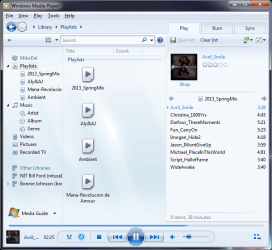
Using Win7 64 and Media player 12, it took me waaay too long to figure out how to get the visualization to execute. You can only launch visualizer from the Now Playing screen.

If you are on the screen that shows playlists in the middle and and the Play/Burn/Sync tabs in the upper right (attached) you have to use Ctrl + 3 to get to the Now Playing screen. Or, you right-click on the window space above the Search field, and choose "View>Show Menu" which will display File/View/Play/Tools/Help. From there use the View menu to get to Now Playing. From there it's easy, just right click and choose Visualizations. You can choose to show or hide the playlist as well.

Thanks to a Yahoo post I read on Google to get me started.
 

Attachments

  • MediaPlayer12.png
    MediaPlayer12.png
    180 KB · Views: 10

My Computer

Computer Manufacturer/Model Number
Custom
OS
Win7Pro 64bit
CPU
Intel Core 2 Duo E8400, OC'd to 3GHz
Motherboard
Gigabyte GA-EP45T-UD3P
Memory
2G x2 CORSAIR DDR3
Graphics Card(s)
SAPPHIRE 100248L HD3850 512M RT
Monitor(s) Displays
Hannspree
Screen Resolution
1920X1200
Hard Drives
Seagate Barracuda, 465G X2, RAID 0
PSU
PCP - WRCLS61EPS RT
Case
XCLIO Windtunnel ATX full tower, black, 1.0mm SECC
Keyboard
Logitech illuminated
Mouse
Logitech mouseman wheel
Internet Speed
broadband
Hi, I have made some adjustments to my taste ...


1. select the Offscreen Buffer size 1024 x 768


2. untick the blur effect

3. navigate to
HKEY_CURRENT_USER Software Miha Software Analyzed Visualization

4. There you'll find the following color related values


  • ColorBackground - Represents the color of the background (will ony be used if the Blur effect is disabled)
  • ColorTop - Represents the color of the top left bar
  • ColorTopEnd - Represents the color of the top right bar
  • ColorBottom - Represents the color of the bottom left bar
  • ColorBottomEnd - Represents the color of the bottom right bar
  • ColorPeak - Represents the color of the peaks
Color values are in standard hex format. Groups of two digits from left to right represent the folowing 8-bit values: Alpha, Red, Green, Blue.


Default values (blue)

Color background = ff000000

ColorBottom = ff193366
ColorBottomEnd = ff334cb2
ColorPeak = ff667fe5
ColorTop = ff334cb2
ColorTopEnd = ff4c66e5
Resolution = 3

5. First I changed ColorPeak to 000000, that removes the peak delay completely.

6. Then I changed ColorTop, ColorTopEnd, ColorBottom, ColorBottomEnd to ffFF4500

The outcome can be seen on the picture below ...


The bars do respond nicely and immediate to the sound, without any delay.
One thing I'm not happy with is, that the very right hand side doesn't seem to show any movements.


How Does One Change Those Settings?
 

My Computer

Computer type
PC/Desktop
Computer Manufacturer/Model Number
hp
OS
windows Vista 64
Browser
Crome
I also want more customization for my visualizations, but I want to customize the "Scope" visualization.

I would want a different color if not possible to do a constantly changing color, as well as smoothing the line to look more like what is represented in this video:

Oscilloscope From an Old Television - YouTube
 

My Computer

Computer type
Laptop
OS
Windows 7 Basic
CPU
Intel Core i7-2670 CPU @ 2.20 GHz w/ 4 Cores and 8 Threads
Memory
4 GB
Graphics Card(s)
Intel Core Integrated Graphics
Antivirus
Norton Antivirus by Symantec
Browser
Google Chrome
Back
Top