Solved .VMCX files not associated

Morality124

New member
Local time
7:54 PM
Messages
10
I have a strange problem. I am unable to open my Virtual Machine (.VMCX) files from the Virtual Machines folder. I can change the VM settings, and can view other details, but I can't actually open them. I can still open XP mode from the start menu shortcut.

Is there someway to fix this short of reinstalling VirtualPC? :S
 

My Computer

OS
Windows 7 P
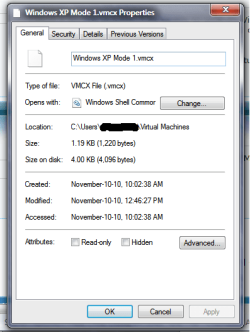
Could you please provide a screenshot showing XP Mode.vmcx file's properties, general tab (right click the file, choose properties).

Kari
 

My Computer

Computer type
Laptop
Computer Manufacturer/Model Number
HP ENVY 17-1150eg
OS
Windows 10 Pro x64 EN-GB
CPU
1.6 GHz Intel Core i7-720QM Processor
Memory
6 GB
Graphics Card(s)
ATI Mobility Radeon HD 5850 Graphics
Sound Card
Beats sound system with integrated subwoofer
Monitor(s) Displays
17" laptop display, 22" LED and 32" Full HD TV through HDMI
Screen Resolution
1600*900 (1), 1920*1080 (2&3)
Hard Drives
Internal: 2 x 500 GB SATA Hard Disk Drive 7200 rpm
External: 2TB for backups, 3TB USB3 network drive for media
Cooling
As Envy runs a bit warm, I have it on a Cooler Master pad
Keyboard
Logitech diNovo Media Desktop Laser (bluetooth)
Mouse
Logitech Performance Mouse MX
Internet Speed
50/10 Mbps VDSL
Antivirus
Windows Defender 4.3.9431.0
Browser
Maxthon 3.5.2., IE11
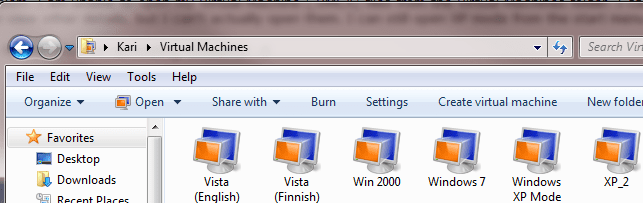
Here we are:
 

Attachments

  • vmfolder.png
    vmfolder.png
    16.6 KB · Views: 19

My Computer

OS
Windows 7 P
OK, I think the issue is solved.

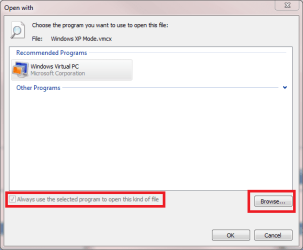
Click that Change button, after Open with: Windows Shell Common. This windows opens:

pic1.png

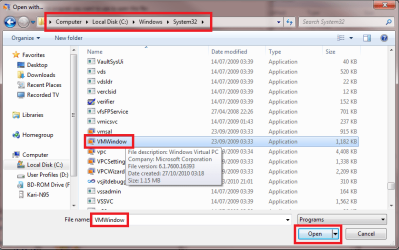
Click Browse, choose VMWindow.exe file from C:\Windows\System32, and click Open:

Pic2.png

http://www.sevenforums.com/tutorials/12196-open-change-default-program.html

You are now back in the window in the first image above. Make sure you have chosen "Always use the selected program to open this kind of file".

Click OK to close the window, click OK to close Properties window. It should now work.

Kari
 
Last edited by a moderator:

My Computer

Computer type
Laptop
Computer Manufacturer/Model Number
HP ENVY 17-1150eg
OS
Windows 10 Pro x64 EN-GB
CPU
1.6 GHz Intel Core i7-720QM Processor
Memory
6 GB
Graphics Card(s)
ATI Mobility Radeon HD 5850 Graphics
Sound Card
Beats sound system with integrated subwoofer
Monitor(s) Displays
17" laptop display, 22" LED and 32" Full HD TV through HDMI
Screen Resolution
1600*900 (1), 1920*1080 (2&3)
Hard Drives
Internal: 2 x 500 GB SATA Hard Disk Drive 7200 rpm
External: 2TB for backups, 3TB USB3 network drive for media
Cooling
As Envy runs a bit warm, I have it on a Cooler Master pad
Keyboard
Logitech diNovo Media Desktop Laser (bluetooth)
Mouse
Logitech Performance Mouse MX
Internet Speed
50/10 Mbps VDSL
Antivirus
Windows Defender 4.3.9431.0
Browser
Maxthon 3.5.2., IE11
That fixed it, thanks.

Just to clean it up a little, what would be the correct description, icon, and anything else related to this filetype?
 

My Computer

OS
Windows 7 P
You are welcome.

The vmcx file type is Virtual Machine Shell Information, official description is Virtual Machine description and registration settings. It's a script (text) file that can be edited in Notepad. When you run the script, the shortcut asks Windows to execute VMwindow.exe (Virtual PC) from %SystemRoot%\system32\ (systemroot by default is C:\Windows\).

VMwindows.exe reads then the vmcx script to open correct vhd and check everything needed to run a virtual machine. This phase is very similar than a BIOS POST (Power-On-Self-Test) on physical computers.

More about editing vmcx file in this tutorial: http://www.sevenforums.com/tutorials/21904-virtual-xp-machine-copy.html?ltr=V

Default icon:

vmcx_icon.PNG

Kari
 

My Computer

Computer type
Laptop
Computer Manufacturer/Model Number
HP ENVY 17-1150eg
OS
Windows 10 Pro x64 EN-GB
CPU
1.6 GHz Intel Core i7-720QM Processor
Memory
6 GB
Graphics Card(s)
ATI Mobility Radeon HD 5850 Graphics
Sound Card
Beats sound system with integrated subwoofer
Monitor(s) Displays
17" laptop display, 22" LED and 32" Full HD TV through HDMI
Screen Resolution
1600*900 (1), 1920*1080 (2&3)
Hard Drives
Internal: 2 x 500 GB SATA Hard Disk Drive 7200 rpm
External: 2TB for backups, 3TB USB3 network drive for media
Cooling
As Envy runs a bit warm, I have it on a Cooler Master pad
Keyboard
Logitech diNovo Media Desktop Laser (bluetooth)
Mouse
Logitech Performance Mouse MX
Internet Speed
50/10 Mbps VDSL
Antivirus
Windows Defender 4.3.9431.0
Browser
Maxthon 3.5.2., IE11
Back
Top