VMware Workstation

matthewbonner13

New member
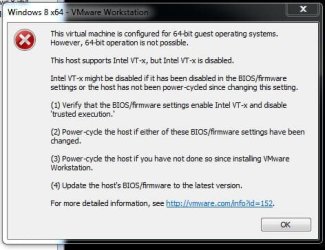
I want to install windows 8 64-bit in VMware Workstation but it wont work.


HELP ME!:(
 

Attachments

  • Capture.JPG
    Capture.JPG
    49.6 KB · Views: 16

My Computer

OS
Windows 7 Ultimate x64
CPU
Intel Core i3-3220
Motherboard
Asus P8B75-V
Memory
Kingston Blu 4GB (2x2GB) DDR3 1600MHz Dual Channel Kit
Graphics Card(s)
Gigabyte GeForce GTX 550Ti OC 1024MB GDDR5 PCI-Express
Monitor(s) Displays
BenQ GL2250 21.5" Widescreen LED Monitor - Black
Hard Drives
WD 1TB Caviar Black Performance Hard Drive 7200rpm 64MB Cache
Crucial RealSSD M4 128GB 2.5" SATA 6Gb/s Solid State Hard Drive
PSU
Cooler Master GX 650W '80 Plus Bronze' Power Supply
Case
Antec One Gaming Case - Black
Cooling
N/A
Hi matthewbooner13

Make sure your VT-z is enabled in the BIOS or UEFI . Check your motherboard manual on how to enable VT .

What version of VMware are you using ? I believe to install Windows 8 you would need version 9 of VMware . Might want to try the option of I will install the OS at a later time . Then in the settings page point to the .iso file or disc drive if you're installing from a DVD .

Take a look at this link http://kb.vmware.com/selfservice/mi...nguage=en_US&cmd=displayKC&externalId=2033640

Try this :
To install Windows 8 in a virtual machine using the custom install method:

Note: Custom install is for users who want more control during the creation of a virtual machine and installation of a guest operating system inside the virtual machine.
Click Create a New Virtual Machine. Alternatively, navigate to File > New > Virtual Machine.
Select Custom (Advanced) and click Next.
Ensure that the hardware compatibility is set to Workstation 9.0.
Click Next.
Select I will install the operating system later.
Ensure that Operating System is set to Microsoft Windows and Version is set to Windows 8 or Windows 8 x64, depending on whether it is 32bit or 64bit disc image.
Enter the virtual machine name.
Select the location where you want to store the virtual machine. You can choose to retain the default location displayed.
Click Next.
Specify the number of Processors and Cores you want to allocate to the virtual machine.
Click Next.
Specify the amount of memory (RAM) you want to allocate to the virtual machine.
Click Next.
Select the network type. For more information, see Understanding networking types in hosted products (1006480).
Click Next.
Select the I/O controller. It is recommended to use the default option.
Click Next.
Select Create a new Disk and click Next.
Select a disk type. It is recommended to use the default option.
Click Next.
Specify the Disk Capacity and click Next. For more information, see Specifying Disk Capacity for a Virtual Machine.
Specify a name for the virtual disk file and click Next.
Click Finish to save the virtual machine.

The virtual machine is now created and added to the Workstation inventory.

Click VM > Settings for the virtual machine.
Select a source for installing the guest operating system. You can use one of these options:
If you have burned the ISO on a DVD, select Use Physical Drive. Ensure that the windows 8 installer disk in the physical CD/DVD drive.
If you have downloaded the ISO from the Microsoft Download Center, select Use ISO image file, click Browse, and select the ISO file for installation.

Click OK to save and close the settings window.
Power on the virtual machine .

 
Last edited:

My Computer

Computer Manufacturer/Model Number
Custom Built
OS
Windows 7 Ultimate 32-Bit & Windows 7 Ultimate 64-Bit
CPU
Intel Core i7 CPU 950 @ 3.07GHz
Motherboard
ASUS P6T DELUXE V2
Memory
OCZ 6GB (3 x 2GB) 240-Pin DDR3 SDRAM DDR3 1600 OCZ3X1600R2
Graphics Card(s)
ATI Radeon HD 5700 Series
Sound Card
OnBoard
Hard Drives
WD6400AACS-00M3B0 (640GB SATA )
PSU
CORSAIR 850w
Case
NZXT LEXA
Cooling
Intel Stock Heatsink Fan
Keyboard
Microsoft Wireless Laser Keyboard 7000
Mouse
Microsoft Wireless Laser Mouse 7000
I have VMware Workstation 9 and how do you get in to the bios on it?
 

My Computer

OS
Windows 7 Ultimate x64
CPU
Intel Core i3-3220
Motherboard
Asus P8B75-V
Memory
Kingston Blu 4GB (2x2GB) DDR3 1600MHz Dual Channel Kit
Graphics Card(s)
Gigabyte GeForce GTX 550Ti OC 1024MB GDDR5 PCI-Express
Monitor(s) Displays
BenQ GL2250 21.5" Widescreen LED Monitor - Black
Hard Drives
WD 1TB Caviar Black Performance Hard Drive 7200rpm 64MB Cache
Crucial RealSSD M4 128GB 2.5" SATA 6Gb/s Solid State Hard Drive
PSU
Cooler Master GX 650W '80 Plus Bronze' Power Supply
Case
Antec One Gaming Case - Black
Cooling
N/A
BIOS I was referring to is the one in your motherboard . I believe its F2 to get to the Asus motherboard . Make sure virtualization is enabled in there . Setup a new workstation inside VMware but don't put in the location of the iso file . Choose " Select I will install the operating system later. "

You might not need to enable virtualization in the BIOS. I have an Asus motherboard and did not enable it in the BIOS .

Try this link http://www.eightforums.com/tutorials/2899-vmware-player-install-windows-8-a.html
 
Last edited:

My Computer

Computer Manufacturer/Model Number
Custom Built
OS
Windows 7 Ultimate 32-Bit & Windows 7 Ultimate 64-Bit
CPU
Intel Core i7 CPU 950 @ 3.07GHz
Motherboard
ASUS P6T DELUXE V2
Memory
OCZ 6GB (3 x 2GB) 240-Pin DDR3 SDRAM DDR3 1600 OCZ3X1600R2
Graphics Card(s)
ATI Radeon HD 5700 Series
Sound Card
OnBoard
Hard Drives
WD6400AACS-00M3B0 (640GB SATA )
PSU
CORSAIR 850w
Case
NZXT LEXA
Cooling
Intel Stock Heatsink Fan
Keyboard
Microsoft Wireless Laser Keyboard 7000
Mouse
Microsoft Wireless Laser Mouse 7000
So you mean I have to go in to my motherboard bios not the workstations bios?
 

My Computer

OS
Windows 7 Ultimate x64
CPU
Intel Core i3-3220
Motherboard
Asus P8B75-V
Memory
Kingston Blu 4GB (2x2GB) DDR3 1600MHz Dual Channel Kit
Graphics Card(s)
Gigabyte GeForce GTX 550Ti OC 1024MB GDDR5 PCI-Express
Monitor(s) Displays
BenQ GL2250 21.5" Widescreen LED Monitor - Black
Hard Drives
WD 1TB Caviar Black Performance Hard Drive 7200rpm 64MB Cache
Crucial RealSSD M4 128GB 2.5" SATA 6Gb/s Solid State Hard Drive
PSU
Cooler Master GX 650W '80 Plus Bronze' Power Supply
Case
Antec One Gaming Case - Black
Cooling
N/A
Try the steps I mentioned first. If that doesn't work then try to go inside the BIOS(UEFI in your case) inside your motherboard and see if the virtualization is enabled. I believe the virtualization enabling is for the Virtual-PC software to run XP-MODE but I may be wrong.
 

My Computer

Computer Manufacturer/Model Number
Custom Built
OS
Windows 7 Ultimate 32-Bit & Windows 7 Ultimate 64-Bit
CPU
Intel Core i7 CPU 950 @ 3.07GHz
Motherboard
ASUS P6T DELUXE V2
Memory
OCZ 6GB (3 x 2GB) 240-Pin DDR3 SDRAM DDR3 1600 OCZ3X1600R2
Graphics Card(s)
ATI Radeon HD 5700 Series
Sound Card
OnBoard
Hard Drives
WD6400AACS-00M3B0 (640GB SATA )
PSU
CORSAIR 850w
Case
NZXT LEXA
Cooling
Intel Stock Heatsink Fan
Keyboard
Microsoft Wireless Laser Keyboard 7000
Mouse
Microsoft Wireless Laser Mouse 7000
Back
Top