Volume (partition) status

kimouette

New member
Local time
11:42 PM
Messages
40
Hi everyone,

I just changed my main partition's size by following the tutorials I found on this forum.
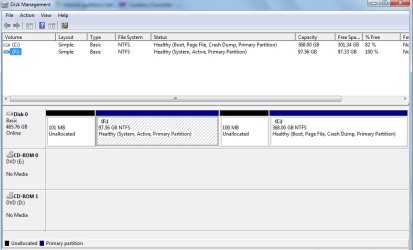
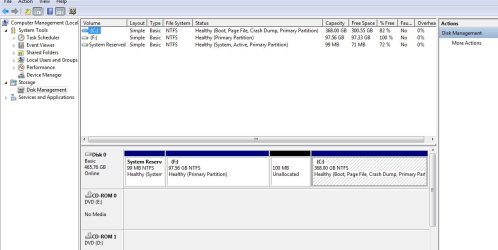
I have a question though... See printscreen ....
printscreen.jpg
Is it normal that the "A" drive which is currently empty with NOTHING on it, not even Windows 7 installed, shows up like "System, Active, Primary Partition"??

Is there anything I should change about that volume in order to keep everything clean?... Knowing that in couple of days I might use the "A" partition to stock all my audio samples for BFD2 (my audio app).

Thanks!
 

My Computer

Computer Manufacturer/Model Number
Lenovo 3000 N200 (0769)
OS
Windows 7 Ultimate 32-bit SP1
CPU
Intel(R) Pentium(R) Dual CPU T2370 @ 1.73GHz
Motherboard
Lenovo IEL10
Memory
4096 MBytes (2X2 Gb)
Graphics Card(s)
Generic PnP Monitor on Mobile Intel 965 Express Chipset Fami
Sound Card
High Definition Audio Device
Monitor(s) Displays
Generic PnP Monitor on Mobile Intel 965 Express Chipset Fami
Screen Resolution
1280x800 pixels
Hard Drives
Internal : Western Digital Mobile/WD Scorpio®, 7200 RPM with 16 MB cache, Capacity : 488GB
Edit

Hello.


As you want to store data on the A: it would be best to use the 101MB unallocated space at the very beginning (the far left) of the Hard Disk Drive to store the Windows 7 System boot files, they are currently on the A: and that may cause real issues when you start storing data on that partition.

Start by using Windows disk management to create a Primary partition of that unallocated space do not give it a drive letter and name/label it System Reserved, then mark the new SysResv partition as Active and do the 3 separate startup repairs to (re)create the System boot files to that partition.

Have a look through this tutorial linked below for some additional information and be sure to post back with any further questions you may have and to keep us informed.
Edit: After you get the System Reserved created and the boot files created/stored to that partition, you can extend the A: partition into the unallocated space to the right of the A: partition.


.
 
Last edited:

My Computer

Computer Manufacturer/Model Number
* BFK Customs *
OS
W 7 64-bit Ultimate
CPU
Intel Q9550 Yorkfield
Motherboard
ASUS P5Q Pro
Memory
8GB Dominator 8500C5D
Graphics Card(s)
ATI : XFX 5870
Sound Card
Realtek HD Audio 7-1
Monitor(s) Displays
1x 47" LCD HDMI & 3x 26" LCD HDMI
Screen Resolution
1920x1080P & 1920x1200
Hard Drives
1x 80GB Intel X25-M G2 SSD : 1x 500GB & 1x 640GB WD Caviar Black(s)
PSU
Corsair 620HX
Case
Cooler Master RC-690
Cooling
Tuniq Tower 120, 2x 140mm and 3x 120mm case fans
Keyboard
Microsoft 500
Mouse
Razer Diamondback 3G
Internet Speed
14 Mb/s
Other Info
1x Koutech 3Gb/s SATA HDD Hot Swap Rack
& reletter A: partition to D:


+1 The A: and B: drive letters are reserved for Floppy Disk Drives.


Thanks Ray!
 

My Computer

Computer Manufacturer/Model Number
* BFK Customs *
OS
W 7 64-bit Ultimate
CPU
Intel Q9550 Yorkfield
Motherboard
ASUS P5Q Pro
Memory
8GB Dominator 8500C5D
Graphics Card(s)
ATI : XFX 5870
Sound Card
Realtek HD Audio 7-1
Monitor(s) Displays
1x 47" LCD HDMI & 3x 26" LCD HDMI
Screen Resolution
1920x1080P & 1920x1200
Hard Drives
1x 80GB Intel X25-M G2 SSD : 1x 500GB & 1x 640GB WD Caviar Black(s)
PSU
Corsair 620HX
Case
Cooler Master RC-690
Cooling
Tuniq Tower 120, 2x 140mm and 3x 120mm case fans
Keyboard
Microsoft 500
Mouse
Razer Diamondback 3G
Internet Speed
14 Mb/s
Other Info
1x Koutech 3Gb/s SATA HDD Hot Swap Rack
Hello kimouette,

I wouldnt partition my hard disk that way at all. How did you manage to get the letter "A" assigned to that partition? Normally "A" is reserved for the all but extinct floppy disk. Secondly, the windows partition (C: ) should be at the beginning of the disk or just after the system reserved partition if you have one. That ensures windows and program files are placed on the fastest part of the disk and loadup times are that much faster. Thirdly what is that unallocated space between A: and C: ?

If I were you, I'd back up any user data on that disk, then delete all volumes/partitions in the "Format drive" options offered by the win7 install disk so that one large unallocated space is created, then format and install windows. Agree to have a system reserved partition created. Once windows is installed, you can use a 3rd party tool to carve out a data partition from the windows partition and restore your backed up files to that.
 

My Computer

Computer Manufacturer/Model Number
Too many to describe...
OS
Windows 7 x64 pro/ Windows 7 x86 Pro/ XP SP3 x86
Bill has a good point.

Or, if you haven't stored any data to the A: partition yet? You could use the information in this tutorial to Move/Resize the left side of the C: partition all the way to the left, to the beginning of the HDD and then create partition(s) to the right of C: for storage; you would have to delete A: first so everything to the left of C: would be unallocated space.

Be sure to make C: "System Active" first or Windows will not boot, start at Step One of this.
   Note

As good and reliable a program as Partition Wizard is, I would not trust the installed version for the operation you need, use the boot CD as suggested and be sure to post back with any further questions you may have and to keep us informed.

First download the Partition Wizard Bootable Disk (PWBD) ISO file to the desktop, be sure to get the PWBD and not the installed version; scroll down to see the download link for the Bootable CD ISO file at this link below.
Then use ImgBurn to burn the ISO to a CD, at no greater than 4x speed with a verify; it was designed for use and works best from a CD rather than a DVD; then boot the created CD to make the changes, it doesn't take any input from the user to setup, just relax and let it load.
 

My Computer

Computer Manufacturer/Model Number
* BFK Customs *
OS
W 7 64-bit Ultimate
CPU
Intel Q9550 Yorkfield
Motherboard
ASUS P5Q Pro
Memory
8GB Dominator 8500C5D
Graphics Card(s)
ATI : XFX 5870
Sound Card
Realtek HD Audio 7-1
Monitor(s) Displays
1x 47" LCD HDMI & 3x 26" LCD HDMI
Screen Resolution
1920x1080P & 1920x1200
Hard Drives
1x 80GB Intel X25-M G2 SSD : 1x 500GB & 1x 640GB WD Caviar Black(s)
PSU
Corsair 620HX
Case
Cooler Master RC-690
Cooling
Tuniq Tower 120, 2x 140mm and 3x 120mm case fans
Keyboard
Microsoft 500
Mouse
Razer Diamondback 3G
Internet Speed
14 Mb/s
Other Info
1x Koutech 3Gb/s SATA HDD Hot Swap Rack
& reletter A: partition to D:
I tried to do that but D was not in the option list. So I chose F instead... i guess that should still solve the problem :confused:

I wouldnt partition my hard disk that way at all. How did you manage to get the letter "A" assigned to that partition?
There's another thread about my previous problem with reformating my HDD. Let's just say that my previous HDD was infected with some sort of virus and when I bought my new HDD I tried to do an image recovery from ANOTHER hdd but it failed. I ended up with the 3 initial partitions I had (and wanted to restore) but the first partition was the one infected so I manually reformated it and no longer needed 3 partitions. SO now I have the big partition, C, which has everything on it, and the other one didn't even have a letter assigned so I manually changed to A... I know now, it was stupid of me, so I changed it to F.
Secondly, the windows partition (C: ) should be at the beginning of the disk or just after the system reserved partition if you have one. That ensures windows and program files are placed on the fastest part of the disk and loadup times are that much faster.
Ok how exactly should I do that?
Thirdly what is that unallocated space between A: and C: ?
Thats a good question! I guess that's what happens when you start with a 3 partitions.

If I were you, I'd back up any user data on that disk, then delete all volumes/partitions in the "Format drive" options offered by the win7 install disk so that one large unallocated space is created, then format and install windows.
At this point, that is not an option. I spent way too many hours with reconfigurating my hdd. I want it to run properly and want to do everything right, but reformating and starting all over again.. I cant!!!

And now from the 2 other suggestions you guys have made, I dont know which one i should be following!!! Keep in mind that I dont want to reformat any of my partition and just want my C and F drive to run normaly (while C has all my apps and personal data on, and F WILL SOON have my audio data on), which one should I follow ?

This one ?
if you haven't stored any data to the A: partition yet? You could use the information in this tutorial to Move/Resize the left side of the C: partition all the way to the left, to the beginning of the HDD and then create partition(s) to the right of C: for storage; you would have to delete A: first so everything to the left of C: would be unallocated space.

Be sure to make C: "System Active" first or Windows will not boot, start at Step One of this.Partition : Recover Space Used by an Older OS
Or this one?
As you want to store data on the A: it would be best to use the 101MB unallocated space at the very beginning (the far left) of the Hard Disk Drive to store the Windows 7 System boot files, they are currently on the A: and that may cause real issues when you start storing data on that partition.

Start by using Windows disk management to create a Primary partition of that unallocated space do not give it a drive letter and name/label it System Reserved, then mark the new SysResv partition as Active and do the 3 separate startup repairs to (re)create the System boot files to that partition.

Have a look through this tutorial linked below for some additional information and be sure to post back with any further questions you may have and to keep us informed.Edit: After you get the System Reserved created and the boot files created/stored to that partition, you can extend the A: partition into the unallocated space to the right of the A: partition.
And this is what it looks like right now :
printscreen.jpg
 

My Computer

Computer Manufacturer/Model Number
Lenovo 3000 N200 (0769)
OS
Windows 7 Ultimate 32-bit SP1
CPU
Intel(R) Pentium(R) Dual CPU T2370 @ 1.73GHz
Motherboard
Lenovo IEL10
Memory
4096 MBytes (2X2 Gb)
Graphics Card(s)
Generic PnP Monitor on Mobile Intel 965 Express Chipset Fami
Sound Card
High Definition Audio Device
Monitor(s) Displays
Generic PnP Monitor on Mobile Intel 965 Express Chipset Fami
Screen Resolution
1280x800 pixels
Hard Drives
Internal : Western Digital Mobile/WD Scorpio®, 7200 RPM with 16 MB cache, Capacity : 488GB
Hello.


As you want to store data on the A: it would be best to use the 101MB unallocated space at the very beginning (the far left) of the Hard Disk Drive to store the Windows 7 System boot files, they are currently on the A: and that may cause real issues when you start storing data on that partition.

Start by using Windows disk management to create a Primary partition of that unallocated space do not give it a drive letter and name/label it System Reserved, then mark the new SysResv partition as Active and do the 3 separate startup repairs to (re)create the System boot files to that partition.

Have a look through this tutorial linked below for some additional information and be sure to post back with any further questions you may have and to keep us informed.
Edit: After you get the System Reserved created and the boot files created/stored to that partition, you can extend the A: partition into the unallocated space to the right of the A: partition.


.

Hello again, the easiest and most advantageous would be this method.
 

My Computer

Computer Manufacturer/Model Number
* BFK Customs *
OS
W 7 64-bit Ultimate
CPU
Intel Q9550 Yorkfield
Motherboard
ASUS P5Q Pro
Memory
8GB Dominator 8500C5D
Graphics Card(s)
ATI : XFX 5870
Sound Card
Realtek HD Audio 7-1
Monitor(s) Displays
1x 47" LCD HDMI & 3x 26" LCD HDMI
Screen Resolution
1920x1080P & 1920x1200
Hard Drives
1x 80GB Intel X25-M G2 SSD : 1x 500GB & 1x 640GB WD Caviar Black(s)
PSU
Corsair 620HX
Case
Cooler Master RC-690
Cooling
Tuniq Tower 120, 2x 140mm and 3x 120mm case fans
Keyboard
Microsoft 500
Mouse
Razer Diamondback 3G
Internet Speed
14 Mb/s
Other Info
1x Koutech 3Gb/s SATA HDD Hot Swap Rack
Is F empty as reported in Disk mgmt screenshot?

If so, I would follow the steps given to create a System Reserved partition from the first Unallocated space.

Then after the Startup Repairs start Win7 and the new Sys Reserved partition is labeled System Active, I use free Partition Wizard bootable CD to delete F and Resize C to the left into all of that space so that it is next to the new System Reserved partition.

Note that you can also use PW CD to Create NTFS Primary and mark Active the 101mb System Reserved partition.

And this is what it looks like right now :
 
Ok so I followed Barefootkid's suggestion and followed the tutorial Startup Repair - Run 3 Separate Times.

Something weird happened though...
After doing this:
Start by using Windows disk management to create a Primary partition of that unallocated space do not give it a drive letter and name/label it System Reserved, then mark the new SysResv partition as Active
It looked like this:
before-3-startuprepar.jpg
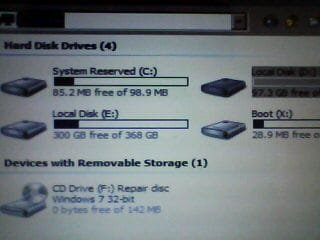
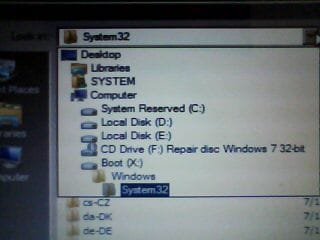
Then I ran the windows system repair disc and after chosing my keyboard language, I found out that my operating system was found on Local Disc E ??I thought "E" was the Cd drive? Then I checked what the rest looked like (see pictures)
DSC00050.jpgDSC00049.jpg
As you can see "System Reserved" showed up as C, while my local disk (the one that has my entire data on) is E, my other local disk (empty partition) is D and my cd drive is F.... :confused:

I was (and still am) confused about all these changes of letters, but I kept on following the tutorial and ran the startup repair 3 times.

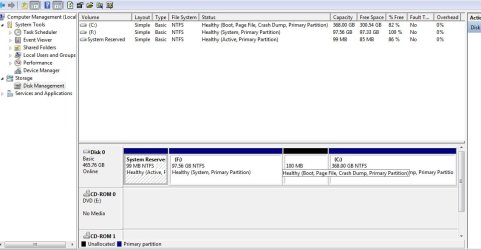
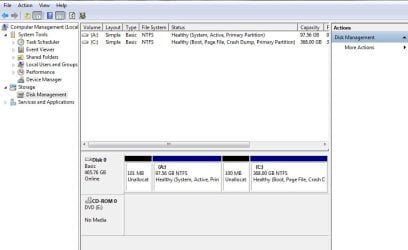
In conclusion, this is what it looks like right now :
after-3-recovery.jpg

Is it ok??
I mean, is there something I must do before I go on and extend the F partition into the unallocated space to the right of the F: partition????

Gregrocker suggested "to delete F and Resize C to the left into all of that space so that it is next to the new System Reserved partition."
Is that a MUST ?? Or is the order in which the partitions are shown, not necessarily important?
I'm not gonna erase F since I'll use it to store audio data, but it's true though that F will remain next to the Sysreserv partition while the main partition will be on the extreme right (not next to the sysreserv).. does any of this matter?
 

My Computer

Computer Manufacturer/Model Number
Lenovo 3000 N200 (0769)
OS
Windows 7 Ultimate 32-bit SP1
CPU
Intel(R) Pentium(R) Dual CPU T2370 @ 1.73GHz
Motherboard
Lenovo IEL10
Memory
4096 MBytes (2X2 Gb)
Graphics Card(s)
Generic PnP Monitor on Mobile Intel 965 Express Chipset Fami
Sound Card
High Definition Audio Device
Monitor(s) Displays
Generic PnP Monitor on Mobile Intel 965 Express Chipset Fami
Screen Resolution
1280x800 pixels
Hard Drives
Internal : Western Digital Mobile/WD Scorpio®, 7200 RPM with 16 MB cache, Capacity : 488GB
It's better to have the OS partition in the lower (left hand) address of the HD closer to where the disk reader parks, for slightly faster reads.

This is why I suggested that after creating your System Reserved partition you delete F, Resize C to the left into that space. You could then resize the right side of C to make room for a new data partition.

This advice was based on the partition appearing empty in the screenshot. If you intend to use it for something else then it could just as easily be a new partition created from the right side of C.

To do these operations, boot Partition Wizard bootable CD,
rightclick on F to Delete, click OK. Rightclick on C to Resize, drag left grey border all the way to left, drag right grey border to the left by enough to make your desired data partition, click OK. Rightclick in space for new partition, select Create new NTFS Primary, choose next letter, type a label, OK. Apply all steps.
 
Hello again.


Good to see you're getting it sorted, well done and thanks for the update; you can leave the partitions as they are and just extend F: into the unallocated space, that would be the simplest way and no harm will come from that at all.
 

My Computer

Computer Manufacturer/Model Number
* BFK Customs *
OS
W 7 64-bit Ultimate
CPU
Intel Q9550 Yorkfield
Motherboard
ASUS P5Q Pro
Memory
8GB Dominator 8500C5D
Graphics Card(s)
ATI : XFX 5870
Sound Card
Realtek HD Audio 7-1
Monitor(s) Displays
1x 47" LCD HDMI & 3x 26" LCD HDMI
Screen Resolution
1920x1080P & 1920x1200
Hard Drives
1x 80GB Intel X25-M G2 SSD : 1x 500GB & 1x 640GB WD Caviar Black(s)
PSU
Corsair 620HX
Case
Cooler Master RC-690
Cooling
Tuniq Tower 120, 2x 140mm and 3x 120mm case fans
Keyboard
Microsoft 500
Mouse
Razer Diamondback 3G
Internet Speed
14 Mb/s
Other Info
1x Koutech 3Gb/s SATA HDD Hot Swap Rack
If it helps with reading speed then it's worth trying.

BareFoot and Greg, thanks for your help and all the good advices!!

Kim
:geek:
 

My Computer

Computer Manufacturer/Model Number
Lenovo 3000 N200 (0769)
OS
Windows 7 Ultimate 32-bit SP1
CPU
Intel(R) Pentium(R) Dual CPU T2370 @ 1.73GHz
Motherboard
Lenovo IEL10
Memory
4096 MBytes (2X2 Gb)
Graphics Card(s)
Generic PnP Monitor on Mobile Intel 965 Express Chipset Fami
Sound Card
High Definition Audio Device
Monitor(s) Displays
Generic PnP Monitor on Mobile Intel 965 Express Chipset Fami
Screen Resolution
1280x800 pixels
Hard Drives
Internal : Western Digital Mobile/WD Scorpio®, 7200 RPM with 16 MB cache, Capacity : 488GB
Hello Kim, glad we could help.
 

My Computer

Computer Manufacturer/Model Number
* BFK Customs *
OS
W 7 64-bit Ultimate
CPU
Intel Q9550 Yorkfield
Motherboard
ASUS P5Q Pro
Memory
8GB Dominator 8500C5D
Graphics Card(s)
ATI : XFX 5870
Sound Card
Realtek HD Audio 7-1
Monitor(s) Displays
1x 47" LCD HDMI & 3x 26" LCD HDMI
Screen Resolution
1920x1080P & 1920x1200
Hard Drives
1x 80GB Intel X25-M G2 SSD : 1x 500GB & 1x 640GB WD Caviar Black(s)
PSU
Corsair 620HX
Case
Cooler Master RC-690
Cooling
Tuniq Tower 120, 2x 140mm and 3x 120mm case fans
Keyboard
Microsoft 500
Mouse
Razer Diamondback 3G
Internet Speed
14 Mb/s
Other Info
1x Koutech 3Gb/s SATA HDD Hot Swap Rack
Back
Top