WD's Data Lifeguard Diagnostics: Too many bad sectors detected

sueling

New member
Local time
11:38 PM
Messages
19
Western Digital - My Passport Essential SE 1 TB USB 3.0 (WDBACX0010​BBK-01)
* The external hard drive was purchased in 2011.
* It was working fine before. I stopped using it for.. 2 months? Recently, I started using it again.. only to experience this problem.
* I've tested the external hard drive on my home laptop and office desktop PC. Experienced the same problems, as listed below:

(0) WD's Data Lifeguard Diagnostics: "Too many bad sectors detected" message, as seen in attachment
(1) Devices & Printers - "My Passport 0740" is detected
(2) My Computer - Sometimes it shows G: drive, sometimes not at all
(3) Partition Wizard - "Bad drive" message
(4) Disk Management -
* If you plug in the external hard drive, and then start Disk Management... only "Connecting to Virtual Service" message.
*If you start Disk Management, and then plug in the external hard drive, "Disk 1 Unknown 931.48 GB Not Initialized; 931.48 GB Unallocated"
(5) Internet: The internet won't work with the external hard drive plugged in
(6) Other programmes: Sometimes programmes will hang with the external hard drive plugged in

Could someone please help with this problem? I have a lot of important data stored inside.
Thank you!
 

Attachments
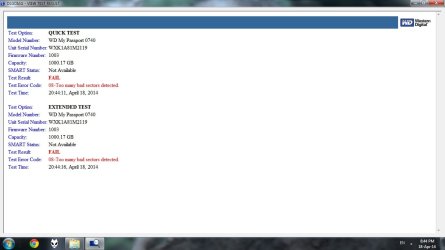
  • Test Results - Quick & Extended Test.jpg
    Test Results - Quick & Extended Test.jpg
    55.7 KB · Views: 6

My Computer My Computer

At a glance

Windows 10 Home 64-bit
OS
Windows 10 Home 64-bit
Your drive is galloping towards its end and there is nothing much you can do to stop it - that's my guess that I hope is not true/does not come true. :)

Stop using the drive further and get into data recovery mode. With the drive constantly creating more and more bad sectors some or most of your data may already be corrupt. Nonetheless try to recover whatever you can.

Use PhotoRec for data recovery. It can recover data even if the file system is corrupt.

http://www.sevenforums.com/software/193467-guide-using-photorec-recovery-software.html

Keep another external drive connected to copy whatever you can recover before running PhotoRec.

As far as copying the found files see my post here http://www.sevenforums.com/hardware...suddenly-became-unllocated-3.html#post2395385 ( Though I had mentioned it for TestDisk the same procedure applies to PhotoRec too)

Good luck.

( Long blackout. I am typing in the dark with the inverter supply to the comp. Shutting down comp now to put lights on.)
 

My Computer My Computer

At a glance

Windows 7 Home Premium 32 bit
OS
Windows 7 Home Premium 32 bit
Sueling, I'm sure you are aware that Data Lifeguard is Western Digitals diagnostic tool. If it says the drive is/has failed, I would get my files off as soon as possible. For most any program to recover files, the drive has to be recognized. You can try http://www.sevenforums.com/tutorials/93347-copy-paste-windows-recovery-console.html . If that will not work, sometimes Linux reads drives a little different than Windows so you could try http://www.sevenforums.com/tutorials/287439-emergency-kit-save-your-files-dead-os.html.

Failing that, you may try Recuva. It is probably the best recovery program I am aware of. I hope some of this helps.
 

My Computers My Computers

  • At a glance

    Windows 11 ProRyzen 9 5900X32GB G Skill DDR4-3600EVGA RTX 3080 FTW 3 Ultra
    Computer type
    PC/Desktop
    Computer Manufacturer/Model Number
    ALWAYS UNDER CONSTRUCTION
    OS
    Windows 11 Pro
    CPU
    Ryzen 9 5900X
    Motherboard
    Asus X570 Crosshair Viii Hero
    Memory
    32GB G Skill DDR4-3600
    Graphics Card(s)
    EVGA RTX 3080 FTW 3 Ultra
    Sound Card
    On Board/Sennheiser PC37X Headset
    Monitor(s) Displays
    3 X Asus 27"
    Screen Resolution
    2560x1440
    Hard Drives
    2 X 1 TB NVME drives
    PSU
    EVGA 850
    Case
    Phanteks Eclipse P400A
    Cooling
    EVGA 280 AIO
    Keyboard
    Logitech G510s/ Logitech G13
    Mouse
    Logitech G502
    Internet Speed
    24/1
    Antivirus
    ESET/MBAM Pro/SAS Pro
    Browser
    Chrome/ Firefox/ Edge
  • At a glance

    Windows 11 ProIntel Ultra 9 288V32 GB LPDDR5X 8533
    Computer type
    Laptop
    System Manufacturer/Model Number
    Dell 16 Plus
    OS
    Windows 11 Pro
    CPU
    Intel Ultra 9 288V
    Memory
    32 GB LPDDR5X 8533
    Monitor(s) Displays
    16" Mini-LED HDR600 Touch 90 Hz
    Screen Resolution
    2560X1600
    Hard Drives
    1 TB NVME
Thank you for your replies. I'll give jumanji & essenbe's suggestions a try tomorrow.
 

My Computer My Computer

At a glance

Windows 10 Home 64-bit
OS
Windows 10 Home 64-bit
I just bought a new external hard drive, to copy over the files.

I'm going to try TestDisk first.

Do I need to format it before using? It's a Samsung M3 Portable 1 TB USB 3.0.

I have yet to install the bundled software. I don't plan on using Samsung Drive Manager, and will keep it on a CD-R. Is this a good idea?
 

My Computer My Computer

At a glance

Windows 10 Home 64-bit
OS
Windows 10 Home 64-bit
1. You need not format your new drive. It would have already been formatted. Just copy a small file to it and check everything is Ok.

2. You need not waste one CD-R to copy any crap/scrap that came with the new drive. Just copy all that into a folder on your internal drive just in case you need it later. After copying delete all folders/ files on the new drive including any test writes you did.( Do a Shift+Del to send those into a black hole)

3. Suggest that you try Recuva first as suggested by essenbe - though I don't pin any hopes on it.

4. Try PhotoRec in TestDisk instead of TestDisk itself. PhotoRec is much safer. Again I do not pin much hopes on it given the condition of your hard drive as stated by you. But yet we are compelled to try our luck hoping to scrape atleast something out of it.

Good luck.
 

My Computer My Computer

At a glance

Windows 7 Home Premium 32 bit
OS
Windows 7 Home Premium 32 bit
Aside from the good suggestions already given, I also would not install anything from the drive's CD. Those external drive program can often cause more trouble than being useful.
 

My Computer My Computer

At a glance

Windows 7 Ultimate X64 SP1Intel i5-2550K, Differing ~4.4-4.8GHz No buil...16GB G.Skill Sniper 1866MHz @ 2133MHz 2x8GBASUS GTX650TIB-DC2OC-2GD5, (650TI Boost)
Computer type
PC/Desktop
Computer Manufacturer/Model Number
Home Built Desktop By DataTech
OS
Windows 7 Ultimate X64 SP1
CPU
Intel i5-2550K, Differing ~4.4-4.8GHz No built in GPU
Motherboard
ASUS P8Z68-V PRO/GEN3
Memory
16GB G.Skill Sniper 1866MHz @ 2133MHz 2x8GB
Graphics Card(s)
ASUS GTX650TIB-DC2OC-2GD5, (650TI Boost)
Sound Card
Onboard Realtek 5-1
Monitor(s) Displays
Samsung P2570HD
Screen Resolution
1920x1080
Hard Drives
Samsung 840 Pro 256GB SSD for OS, 500GB Seagate Constellation (Enterprise drive) for Data
PSU
Corsair HX650W
Case
Inwin Dragon Rider
Cooling
Hyper 212 EVO w/two Noctua fans, push-pull, @1300 RPM
Keyboard
E-Z Eyes, bright yellow keys with large characters
Mouse
steelseries SENSEI Laser Pro Gaming
Internet Speed
48-51Mbs Mbs down, 11 Mbs up Xfinity Cable
Antivirus
Norton Internet Security 2013
Browser
IE 10, Opera, Pale Moon if needed
Other Info
4 case fans, LG BluRay-RE, ASUS DVD-RW, Mr. Fusion power supply, 1.21 gigawatts.
I followed your advice, and Shift + Delete the bundled software from Samsung.

My Computer: Western Digital doesn't show up here.
Recuva: Western Digital appears as Drive H; failed to scan due to "Warning: Unable to open drive".
 

Attachments

  • recuva_popup.jpg
    recuva_popup.jpg
    59.3 KB · Views: 3

My Computer My Computer

At a glance

Windows 10 Home 64-bit
OS
Windows 10 Home 64-bit
Ok. Try PhotoRec as suggested in post #2.

If it could recognise the drive there is a fair chance of some recovery. ( I take this cue since Recuva did find the drive but could not open.)
 

My Computer My Computer

At a glance

Windows 7 Home Premium 32 bit
OS
Windows 7 Home Premium 32 bit
Um, from what I understand, the first step is to reformat the external hard drive and then run PhotoRec. You don't need to clone the external hard drive first?
 

My Computer My Computer

At a glance

Windows 10 Home 64-bit
OS
Windows 10 Home 64-bit
Hi, you need not reformat to try PhotoRec. You can try recovery on your HDD as it is.

Edit: It can be used to recover files even on an accidentally formatted drive. In the Guide I did it to prove that. That does not mean you have to necessarily reformat before trying it.:)
 
Last edited:

My Computer My Computer

At a glance

Windows 7 Home Premium 32 bit
OS
Windows 7 Home Premium 32 bit
Oh, I understand now.

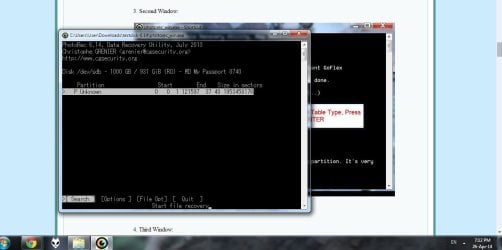
Note: Western Digital (Drive G) was only detected after it was plugged out from the USB Port. Once the name appeared in PhotoRec, I quickly plugged it in again. I also plugged in Samsung (Drive H), where a folder named "Recovery" was created.

Followed your instructions..

Photorec skipped "Recovery (3) Second Window" & jumped to "Recovery (4) Third Window" (Refer to attachment)

I'm not sure what file types are in the ext. hdd, so I used the default setting: "All file types selected".

Followed your instructions...

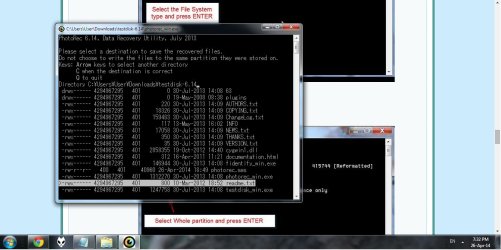
Photorec skipped the "Recovery (10) Ninth Window" & jumped to "Recovery (11): Tenth Window".

I couldn't find H: drive, instead it shows the directory where photorec-win is installed: Directory C:/Users/User/Download/testdisk 6.14 (Refer to attachment)

My question is: How to change the directory to Drive H? If you can't change it, then where should I click from the list in Directory C:/Users/User/Download/testdisk 6.14?
 

Attachments

  • photorec_1.jpg
    photorec_1.jpg
    57.9 KB · Views: 3
  • photorec_2.jpg
    photorec_2.jpg
    104.5 KB · Views: 3

My Computer My Computer

At a glance

Windows 10 Home 64-bit
OS
Windows 10 Home 64-bit
I have to go through my own guide and refresh myself ;) for I do not rather could not retain anything in my memory that has served for 67 years. :) . So give me sometime and I shall comeback tomorrow hopefully refreshed.

In the meanwhile, I shall only make two comments from my memory..

1. You should connect both your problem drive from which you want to recover data and the destination drive to which you want to copy before running PhotoRec. PhotoRec should then show you three drives which you should be able to recognise by their capacity. 1. Your system drive 2. The problem drive and 3. the destination drive. And you should select the problem drive from which you want to recover and proceed as stated in my guide.

Note: If at this stage PhotoRec does not show the problem drive then you are out of luck.( Not totally. It may be Windows that comes in the way and we may have to run PhotoRec from DOS. Let us see as we proceed.) So run PhotoRec and post a screenshot with all the drives or whatever drives that are shown. We shall proceed from there. So be prepared for an online interactive workout tomorrow beginning 1000hrs IST - may be your time then will be 1230 past noon.

2. If and once the files are shown: How to get on to the destination drive? Please give a reading to my post here http://www.sevenforums.com/hardware...suddenly-became-unllocated-3.html#post2395385 The same copying procedure applies to PhotoRec.

You can play with PhotoRec any number of times and in whatsoever way you like to try and grasp its working. There is absolutely no way you can mess up anything. So go ahead and experiment without fear or favour.
CAUTION: The same does not apply to TestDisk. So do not try TestDisk. Wrong clicks in TestDisk can make matters worse.
 
Last edited:

My Computer My Computer

At a glance

Windows 7 Home Premium 32 bit
OS
Windows 7 Home Premium 32 bit
Evening, jumanji.
Sorry for the late reply. I usually turn on the PC at around 8 pm, and just read your reply.
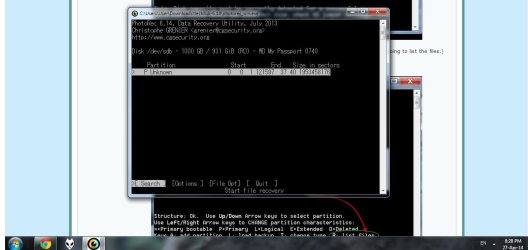
Here's a screen shot, as requested:

Maybe we should use Team Viewer?
 

Attachments

  • 01.jpg
    01.jpg
    90.7 KB · Views: 4
  • 02.jpg
    02.jpg
    66.9 KB · Views: 3

My Computer My Computer

At a glance

Windows 10 Home 64-bit
OS
Windows 10 Home 64-bit
No, I do not use Team viewer. Conservative. :)

OK your screenshots look good.

Now I shall switch on to my Guide.

Go as per the third Window in that Guide. That is move on to File Opt using the arrows and then Enter.

Fourth Window: Select all and whatever file types you want.

Proceed upto Seventh Window Search [Enter]

Eighth Window Other[Enter]

Ninth Window Whole [Enter]

In the tenth Window you have to select the destination. OK when you come here you have to reach your destination drive by using up/down Left/right arrow keys. Just play around and find where each key takes you. Sooner you will find out how to reach your destination.

Once you reach and highlight your destination press C to copy . The instructions in the Windows should guide you what next to do.

If you get stuck up anywhere post the screenshot at that point.
 

My Computer My Computer

At a glance

Windows 7 Home Premium 32 bit
OS
Windows 7 Home Premium 32 bit
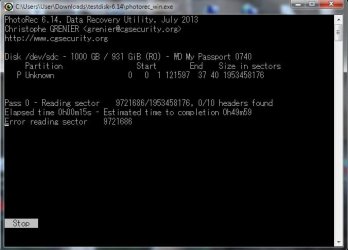
The screenshot shows the last step.
At the end of the process, it shows 0 files recovered?
 

Attachments

  • 06.jpg
    06.jpg
    31.2 KB · Views: 38

My Computer My Computer

At a glance

Windows 10 Home 64-bit
OS
Windows 10 Home 64-bit
Take it easy. I would think the drive is simply unreadable.

If WD Datalifeguard Diagnostics cannot repair the bad sectors and pass the extended run test, only RMA is the solution.

I doubt whether even professional data recovery will be successful.

You may yet try whether a Live Linux can see and read the drive - just to satisfy yourself that you have done all that you can.

Emergency Kit - save your files from a dead OS by whs - Mint Mate

Peppermint3 - Create Live CD/DVD/USB To Use For Emergency Backup by Golden - Peppermint

Lucid Puppy way to recover files from a non-bootable computer by one jumanji - Lucid Puppy

( In your case it will be your problem drive recovery.)
 

My Computer My Computer

At a glance

Windows 7 Home Premium 32 bit
OS
Windows 7 Home Premium 32 bit
jumanji, I've never tried it, but I've been told that Partition Wizard has a file recovery. This is your area of expertise,not mine, but I was wondering if you could image the drive, then mount the image and recover anything. Maybe using the bootable free Macrium.
 

My Computers My Computers

  • At a glance

    Windows 11 ProRyzen 9 5900X32GB G Skill DDR4-3600EVGA RTX 3080 FTW 3 Ultra
    Computer type
    PC/Desktop
    Computer Manufacturer/Model Number
    ALWAYS UNDER CONSTRUCTION
    OS
    Windows 11 Pro
    CPU
    Ryzen 9 5900X
    Motherboard
    Asus X570 Crosshair Viii Hero
    Memory
    32GB G Skill DDR4-3600
    Graphics Card(s)
    EVGA RTX 3080 FTW 3 Ultra
    Sound Card
    On Board/Sennheiser PC37X Headset
    Monitor(s) Displays
    3 X Asus 27"
    Screen Resolution
    2560x1440
    Hard Drives
    2 X 1 TB NVME drives
    PSU
    EVGA 850
    Case
    Phanteks Eclipse P400A
    Cooling
    EVGA 280 AIO
    Keyboard
    Logitech G510s/ Logitech G13
    Mouse
    Logitech G502
    Internet Speed
    24/1
    Antivirus
    ESET/MBAM Pro/SAS Pro
    Browser
    Chrome/ Firefox/ Edge
  • At a glance

    Windows 11 ProIntel Ultra 9 288V32 GB LPDDR5X 8533
    Computer type
    Laptop
    System Manufacturer/Model Number
    Dell 16 Plus
    OS
    Windows 11 Pro
    CPU
    Intel Ultra 9 288V
    Memory
    32 GB LPDDR5X 8533
    Monitor(s) Displays
    16" Mini-LED HDR600 Touch 90 Hz
    Screen Resolution
    2560X1600
    Hard Drives
    1 TB NVME
Partition Wizard can only deal with two types of problems that occur in the first sector of any HDD viz., a corrupted MBR code ( Rebuild MBR) and corrupted partition table ( scans , finds the partition start sector and rewrites the partition table to the first sector and presto the drive becomes accessible.). If the hard disk is full of bad sectors, Partition Wizard will show the drive as Bad Disk. From what I have learnt from the innumerable cases that came here, if PW shows an HDD as a bad disk that is the end of the disk.

The OP just to experiment can run Minitools Partition Wizard. I am sure it will show the WD HDD as a Bad Disk.

As far as cloning the drive on the first sign of any problem and trying data recovery on the cloned disk, I do not have any personal experience or indulgence and hence not qualified to advise that procedure. And I have not come across any case here or elsewhere where people had cloned and successfully recovered. So I couldn't learn about it also. :D

Now knowing fully well that PhotoRec can recover data even from an accidentally formatted drive ( which I had personally experimented) the OP can try to format his WD HDD with the HP USB Disk Storage Format Tool ( to be run as administrator) and then try data recovery. HP USB Disk Storage Format Tool Free Download

If the HP Tool does not recognise the drive or having recognised the drive fails to format the drive then again we come to a dead end.
 

My Computer My Computer

At a glance

Windows 7 Home Premium 32 bit
OS
Windows 7 Home Premium 32 bit
Peppermint: doesn't detect the drive
HP USB Disk Storage Format: Unable to format the drive because it's write-protected.
Device Manager: Asks to initialise the drive.

Since it was write-protected, I tried:

DISKPART > list disk
DISKPART > select disk 1
DISKPART > attributes disk clear readonly

Diskpart failed to clear disk attributes.

&

HKEY_LOCAL_MACHINE\SYSTEM\CurrentControlSet\Control.
Created a new key, StorageDevicePolicies
Created a new dword WriteProtect
Set the value to 0

This method also didn't work.

Unrelated question:

My laptop was pre-installed with Starter or Home Basic (can't remember which one).
When I upgraded the laptop, the OS is "64-bit" and had two folders, Program Files x86 and Program Files.
Years later, when I checked the installation disk (came with the upgrade), it is "32-bit".
???
 
Last edited:

My Computer My Computer

At a glance

Windows 10 Home 64-bit
OS
Windows 10 Home 64-bit
Back
Top