Web browser too small

bori02082010

New member
Local time
2:20 AM
Messages
2
I just brought a laptop with an installed windows 7 home premium 64 bit. When I was browsing the internet using Internet explorer (the newest version i think, come preinstalled in my laptop) and mozilla firefox 4, the size of the web browser is too small. It only use 2/3 of the middle of the screen. So for example, when I open this forum, the box edge from "Welcome" to the other box edge "Search" only occupy 2/3 of my middle of my laptop screen. I'm thinking this is caused by windows 7 because both IE and Firefox has the same problem. Any solution to make the screen full size. I've tried zooming in in Firefox, but I need to do it on every website. E.g. I zoom google.com, then when I open another site the browser will go back to small size, and I will need to zoom it again. Any solution besides zoom in? I've also tried tinkering with the font size of mozilla but doesn't really work b/c some website will have very large font while other regular font.

My laptop is 15'6 w/ 1920 x 1080 resolution
 
Last edited:

My Computer

OS
windows 7 home premium 64 bit
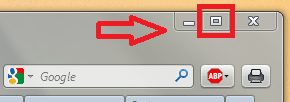
Does the maximise option on top right corner not work?
.
 

Attachments

  • maximise.PNG
    maximise.PNG
    6.9 KB · Views: 2,406

My Computer

Computer type
PC/Desktop
Computer Manufacturer/Model Number
Packard Bell
OS
Windows 7 Home Premium 64bit
CPU
Intel(R) Core(TM) i3-2120 CPU @ 3.30GHz
Motherboard
Packard Bell IPISB-AG
Memory
3.00 GB
Graphics Card(s)
(1) Intel(R) HD Graphics (2) VNC Mirror Driver
Sound Card
Realtek High Definition Audio
Monitor(s) Displays
AIO LCD
Screen Resolution
1920 x 1080
Hard Drives
WDC WD10EADX-22TDHB0 ATA Device
Fixed hard disk media
4 partitions
931.51 GB
Keyboard
Wireless
Mouse
Wireless
Antivirus
Microsoft Security Essentials
Browser
IE; Firefox
Other Info
Also:
Samsung N220 Plus Netbook - Windows 7 Home
HP laptop
iPad 5
Here is a pic of it:
(Note: I want to make the the web browser occupy full screen, so the font size is not too small)
 

My Computer

OS
windows 7 home premium 64 bit
When you use IE9, move the pointer arrow to the edge of the window and stretch it towards the edge of the screen, repeat for all sides and IE9 will remember your settings when you open it next time.
 

My Computer

Computer Manufacturer/Model Number
Acer Aspire 5750
OS
Windows 7 Home Premium 64bit
CPU
Intel Core i3-2310M
Motherboard
Acer OEM
Memory
8GB
Graphics Card(s)
Intel HD3000
Screen Resolution
1366x768
Hard Drives
320GB Toshiba
There are several things you can try. Some work just for the browser, and others work for all windows:

1. How To Open A Program In Minimized, Maximized or Normal Window

2. In IE, Close IE. Right click IE shortcut, select Properties. In Shortcut tab, select Run: Maximized, click Apply, click OK. Now your IE should always open maximized to full screen.

3. Open a webpage with links on it. Drag the corners until the page is maximized. (Don't use the maximize in upper right corner).
Choose a link on that webpage you opened, and right-click that link, and choose: Open in a new window.
Drag the corners on that 2nd window until the page is maximized. (Don't use the Maximize Icon in upper-right corner).
Close the 1st window using the X in upper-right corner. Now close the 2nd window.
If that doesn't work, repeat the above, but when closing both windows, hold Ctrl and Shift keys while clicking the X.

4. Maximize your window size by dragging each of the 4 edges of the window all the way out to the edges of the screen. Then hold down the Alt key and press the "X" close button. Next time you open that link it should open in the maximized size, the way it was when you closed it!

5. Maximize your window size by dragging each of the 4 edges of the window all the way out to the edges of the screen. Then, while holding the Ctrl + Shift keys, close it by clicking File, Close. You might have to do it a few times to make it learn. If this doesn't work, try again, but this time, still holding the Ctrl + Shift keys, close they maximized window using the X icon.

6. Open Windows Explorer and Maximize it using the “1” icon.
Hold down the Shift key and click on the X to close the window.
The system should remember to maximize the window it next you open it.


My Computer

Computer Manufacturer/Model Number
HP Pavillion dv5t (generation 1)
OS
Vista 64 bit and 32 bit (SP2)
CPU
Intel(R) Core(TM)2 Duo Processor T9400 (2.53 GHz
Memory
4GB DDR2 System Memory (2 Dimm)
Graphics Card(s)
512 MB NVIDIA GeForce 9600M GT
Monitor(s) Displays
15.4" diagonal WSXGA+ High-Definition HP BrightView Widescre
Screen Resolution
1680 x 1050
Hard Drives
320GB 5400RPM SATA Hard Drive with HP ProtectSmart Hard Drive Protection
Keyboard
Built-in HP
Mouse
Built in - Synaptics TouchPad V6.5 on PS/2 Port
Internet Speed
Max
Other Info
~ Intel Next-Gen Wireless-N Mini-card w/Bluetooth ~ Blu-Ray ROM DVD+/-R/RW ~ Integ. HDTV Hybrid Tuner ~ 12 Cell Battery ~ MS Office (Home Premium) 2007 ~
Back
Top