Weird issue post format

TurboGFF

New member
Local time
4:06 PM
Messages
44
So I formatted my PC after three years and reinstalled Win7 64x Ultimate and because my C: drive is limited in space (only 30GB) I opted to move the "My Documents" folder to my larger drive using the 'right click -> properties -> location' option and set it to D:

Now, when I look inside my C:\users\<user> folder, I see all the proper things, however "My Documents" is no longer there (I thought it would leave a shortcut or something) and something else... I now see an icon of my D: drive. In fact, it is my D: drive. I can open it, I can view its properties.. I cant delete the icon, I can't do anything that would make it go away. However, if I create a shortcut to my user folder and open that, the D: drive isn't there. Which is fine and dandy, but more often then not, I go into my user folder from the start menu; which isn't a shortcut and therefor shows the D: drive.


wait, I think I know what happened..

if I right click on D in my computer, it acts like a folder.. and I can change its location.. if I set it to default, it goes to C:\users\My Documents

So now I'm afraid to set it back to default.. in case it moves my entire D drive.. which I cant let happen.

('My Documents' is now on the D: drive where it's supposed to be.)

If you need a picture of what I am trying to explain, just ask :)

Thanks
 
Last edited:

My Computer

OS
Windows 7 Ultimate 64bit
CPU
Intel Core i7 2600K @ 3.40GHz
Motherboard
ASUS P8Z68-V Pro Z68 LGA1155
Memory
G.SKILL Ripjaws X F3 1600 16GB
Graphics Card(s)
ATI Radeon HD5870
Screen Resolution
1680x1050
Hard Drives
Intel 510 Series 120GB Solid State Drive
Western Digital Caviar Black 1TB SATA3 6GB/S
PSU
Corsair Professional HX750W 750W
Case
Cooler Master Haf 932
Cooling
Noctua NH-D14
Keyboard
Logitech G15
Mouse
Logitech G5
Internet Speed
30MBps Down, 2MBps Up
Did you move the User folder to another partition using this method exactly? http://www.sevenforums.com/tutorials/18629-user-folders-change-default-location.html

Another method is to rightclick any folder and include it in your Documents library, then learn to get Documents via libraries where you have linked all related folders. This allows multiple folders, partitions, HD's, Users and network locations to be part of that library.
 
So I formatted my PC after three years and reinstalled Win7 64x Ultimate and because my C: drive is limited in space (only 30GB) I opted to move the "My Documents" folder to my larger drive using the 'right click -> properties -> location' option and set it to D:

Now, when I look inside my C:\users\<user> folder, I see all the proper things, however "My Documents" is no longer there (I thought it would leave a shortcut or something) and something else... I now see an icon of my D: drive. In fact, it is my D: drive. I can open it, I can view its properties.. I cant delete the icon, I can't do anything that would make it go away. However, if I create a shortcut to my user folder and open that, the D: drive isn't there. Which is fine and dandy, but more often then not, I go into my user folder from the start menu; which isn't a shortcut and therefor shows the D: drive.


wait, I think I know what happened..

if I right click on D in my computer, it acts like a folder.. and I can change its location.. if I set it to default, it goes to C:\users\My Documents

So now I'm afraid to set it back to default.. in case it moves my entire D drive.. which I cant let happen.

('My Documents' is now on the D: drive where it's supposed to be.)

If you need a picture of what I am trying to explain, just ask :)

Thanks

I have no idea whether or not this will work (and could make things worse, because it involves editing the registry, and I've never personally tried this), but it's worth a go:
  1. Press <WINDOWS_KEY>+<R> to open the Run dialog
  2. Type "cmd" (withut quotes) and press <ENTER>. The command prompt should open into your C:.
  3. Type "CD\" (without quotes) and press <ENTER>
  4. Type "MD Documents" (without quotes) and press <ENTER>
  5. Type "CD Documents" (without quotes) and press <ENTER>
  6. Type "COPY D:\Desktop.ini" (without quotes) and press <ENTER>
  7. Type "exit" (without quotes) and press <ENTER> to close the command prompt
  8. Press <WINDOWS_KEY>+<R> to open the Run dialog
  9. Type "regedit" (without quotes) and press <ENTER> to open the registry editor
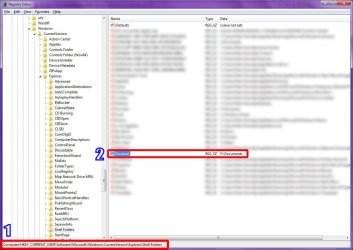
  10. Navigate to the "HKEY_CURRENT_USER\Software\Microsoft\Windows\CurrentVersion\Explorer\Shell Folders" key (See item 1 in screenshot)
  11. Double-click Personal and modify it's value to to "C:\Documents" (without quotes). Click "OK" (See item 2 in screenshot)
  12. Close the Registry Editor
  13. Reboot Windows
  14. Check to see if your "Documents" folder is correctly pointing to C:\Documents". If it is, then you can proceed further:
  15. Create a new folder in your D:, and name it "Documents"
  16. Change the location of your user "Documents" to D:\Documents
  17. Manually cut-and-paste relevant files and folder to D:\Documents
fix_documents.jpg

And please, next time you change user folder locations, make sure you select a folder, and not a drive, ok?
 

My Computer

Computer type
PC/Desktop
Computer Manufacturer/Model Number
Virtual Machine
OS
Windows 7 Professional 32-bit SP1
CPU
AMD A4/A6
Motherboard
Intel Corporation 440BX Desktop Reference Platform
Memory
3.00GB EDO
Graphics Card(s)
VMware SVGA 3D
Sound Card
High Definition Audio Device
Monitor(s) Displays
Generic Non-PnP Monitor on VMware SVGA 3D
Screen Resolution
1440x900
Hard Drives
1 x 60GB VMware Virtual SATA Hard Drive ATA Device
Antivirus
Kaspersky Total Security
Yeah that's what happened. Instead of pointing the location to D:\My Documents, I just pointed it to D: I fixed the issue
 

My Computer

OS
Windows 7 Ultimate 64bit
CPU
Intel Core i7 2600K @ 3.40GHz
Motherboard
ASUS P8Z68-V Pro Z68 LGA1155
Memory
G.SKILL Ripjaws X F3 1600 16GB
Graphics Card(s)
ATI Radeon HD5870
Screen Resolution
1680x1050
Hard Drives
Intel 510 Series 120GB Solid State Drive
Western Digital Caviar Black 1TB SATA3 6GB/S
PSU
Corsair Professional HX750W 750W
Case
Cooler Master Haf 932
Cooling
Noctua NH-D14
Keyboard
Logitech G15
Mouse
Logitech G5
Internet Speed
30MBps Down, 2MBps Up
Yeah that's what happened. Instead of pointing the location to D:\My Documents, I just pointed it to D: I fixed the issue

Did my instructions work? I was in all honesty worried that I might not have been clear enough on how to do so...

Either way, I'm glad the problem was sorted out.
 

My Computer

Computer type
PC/Desktop
Computer Manufacturer/Model Number
Virtual Machine
OS
Windows 7 Professional 32-bit SP1
CPU
AMD A4/A6
Motherboard
Intel Corporation 440BX Desktop Reference Platform
Memory
3.00GB EDO
Graphics Card(s)
VMware SVGA 3D
Sound Card
High Definition Audio Device
Monitor(s) Displays
Generic Non-PnP Monitor on VMware SVGA 3D
Screen Resolution
1440x900
Hard Drives
1 x 60GB VMware Virtual SATA Hard Drive ATA Device
Antivirus
Kaspersky Total Security
This is a classic mistake. Never move the location to a partition or drive, always move to a predefined folder. The folder can have any name because the system is going to change it anyhow when you do the move. But it must be a folder.
 

My Computer

Computer Manufacturer/Model Number
HP, Dell, Gateway, Toshiba - 4 laptops and 2 desktops
OS
Vista, Windows7, Mint Mate, Zorin, Windows 8
CPU
from 1.6GHz Duo to i7
Monitor(s) Displays
2x HP w2207
Hard Drives
5x HDD, 7x SSD, 12x Externals
Keyboard
with trackball - no mices
Mouse
Trackball mice
Internet Speed
DSL 6000
Back
Top