Weird reference/link created after drag/move into My Library

malcolml

New member
Local time
10:50 PM
Messages
4
While moving photos around within folders accessed via My Library, windows 7 seems to be creating linked duplicate copies of the photos: the original file that should have been moved is left behind but mysteriously links to the new location. Deleting one deletes both. Refreshing the folder view with F5 doesn't make a difference.

This is not what I expected and is very weird, and seems like a bug to me because as a result of it I've deleted some photos I didn't want to delete. Has anyone else experienced this and able to explain it?

I have my "Pictures" library set up with two source folders, each with several layers of sub-folders. I'm arranging a large set of holiday photos into sub-folders by dragging photos from the source folder into a sub-folder. However, even after hitting F5 (refresh), the source folder still appears to contain the photos I moved. The sub-folder also appears to contain a copy (note: when dragging windows' tooltip said "move", not "copy"). Right-clicking and hitting "Open file location" on each of the two duplicate copies takes me to the same physical disk location: that of the sub-folder I mentioned.

So instead of moving, windows has turned the original into a reference of some sort (a "junction" maybe?). It appears as an ordinary file, not a shortcut.

When doing all the same things directly to the hard drive, instead of doing via My Library, everything works as you'd expect, and I don't see the magic-reference files that appear as a duplicate in My Library.


This appears to be something peculiar to Libraries in Win 7, but I can't replicate the problem with test files, only with this large set of photos. Does anyone understand this behaviour?


I'm very familiar with windows, but new to Win 7, so I know the difference between move and copy etc.
Specs: Windows 7 Professional, 64-bit, 2GB ram, plenty of free space on HDD.
 

My Computer My Computer

Computer Manufacturer/Model Number
Toshiba Satellite
OS
Windows7 Professional 64-Bit
CPU
Intel Core2 Duo P7450
Memory
2gb
Hi Malcolm, welcome to the Seven Forums.

Please do not take this wrong but could it be that you have slightly misunderstood what Windows 7 libraries are?

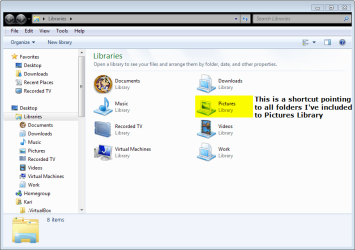
A library (as in Windows 7) is nothing but a link, shortcut to your documents, image, video and so on folders. For library system to work as it is planned, Windows shows all files included in libraries in two places: in the library as a shortcut, and in the real, physical location.

An example. Here are my Libraries. Shortcut to Pictures does not point to Users\Kari\My Pictures, instead it's just a shortcut which I can set up to include as many locations I want to:

Library_1.png

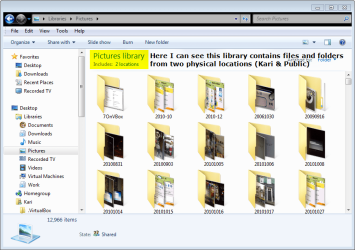
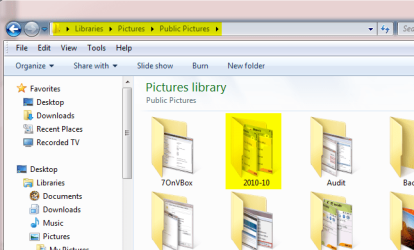
When I open Pictures library, I can see it includes two locations, in my case Kari\Pictures and Public\Pictures:

Libraries_2.png

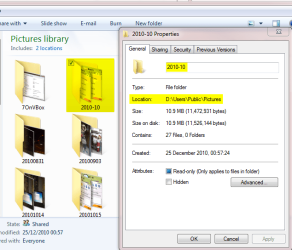
Let's take the folder 2010-10. As you can see, it's physical location is D:\Kari\Users\Pictures:

Libraries_3.png

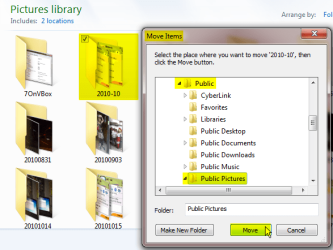
Now I move it from Kari\Pictures to Users\Pictures:

Libraries_4.png

The physical location is changed but, because this library contains both Kari\Pictures and Public\Pictures, it is still shown in the library, even in the exactly same place as before moving:

Libraries_5.png

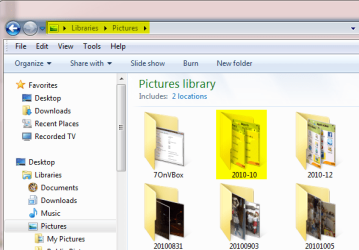
Inside a library, I can choose if I want to see the full library, or a specific location included in library. Check the address bar in these two snips to see what I mean:

Libraries_6.png

Libraries_7.png.png

In other words, you can not save anything in to a library. A library contains no folders, no files. It is just a shortcut pointing to locations you have chosen to include in that library. A file seen in a library and in a physical folder is not twice on your harddisk, the one in library is just a shortcut to one in a folder.

Kari
 
Last edited:

My Computer My Computer

Computer type
Laptop
Computer Manufacturer/Model Number
HP ENVY 17-1150eg
OS
Windows 10 Pro x64 EN-GB
CPU
1.6 GHz Intel Core i7-720QM Processor
Memory
6 GB
Graphics Card(s)
ATI Mobility Radeon HD 5850 Graphics
Sound Card
Beats sound system with integrated subwoofer
Monitor(s) Displays
17" laptop display, 22" LED and 32" Full HD TV through HDMI
Screen Resolution
1600*900 (1), 1920*1080 (2&3)
Hard Drives
Internal: 2 x 500 GB SATA Hard Disk Drive 7200 rpm
External: 2TB for backups, 3TB USB3 network drive for media
Cooling
As Envy runs a bit warm, I have it on a Cooler Master pad
Keyboard
Logitech diNovo Media Desktop Laser (bluetooth)
Mouse
Logitech Performance Mouse MX
Internet Speed
50/10 Mbps VDSL
Antivirus
Windows Defender 4.3.9431.0
Browser
Maxthon 3.5.2., IE11
I have to confess in the beginning of my windows seven use i managed to delete my ebook folder and as it was large it didn't go to the recycle bin and i had to use easus recovery to get them back , i know now about the libraries but it is an easy mistake to make .
 

My Computer My Computer

Computer Manufacturer/Model Number
Hewlett packard/p6512uk
OS
Microsoft Windows 7 Home Premium 64-bit 7600
CPU
IIx4 amd athelon 635 processor
Motherboard
FOXCONN 2AA9
Memory
2x2gb
Graphics Card(s)
ati radeon HD 5450
Sound Card
(1) Realtek High Definition Audio (2) AMD High Definition
Monitor(s) Displays
samsung lcd tv 32"
Screen Resolution
1360x 768
Hard Drives
(1) WDC WD10 01FAES-60Z2A0 SATA Disk Device (2) Maxtor OneTouch USB Device (3) ST310003 33AS USB Device (4) WD My Book 1111 USB Device
PSU
?
Cooling
air!
Keyboard
wireless hp
Mouse
wireless Hp,optical
Internet Speed
1.10mb/s
Antivirus
MSE
Browser
Firefox
Thanks for your reply, but I think I do understand Libraries as far as you're describing - in particular that Libraries are just a "view" across one or many physical locations.

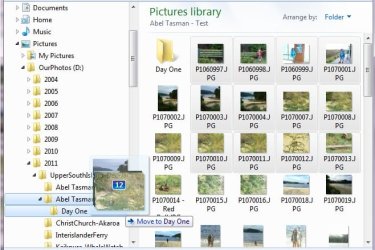
This shows the sort of thing I was doing. I'm accessing files via the Library and moving from one folder (in this case "Abel Tasman - Test" into a subfolder "Day One").
Move.jpg

After doing this I'd expect the following:
- HDD via "D:\Shared\...\Abel Tasman - Test\Day One" now contains the files I moved
- HDD via "D:\Shared\...\Abel Tasman - Test" no longer contains the files I moved
- "Library\..\Abel Tasman - Test\Day One" view of HDD shows the moved files
- "Library\..\Abel Tasman - Test" view of HDD does not show the moved files

Instead I got the following:
- On HDD, viewed via "D:\..." directly, the files were correctly moved (no longer in "Abel Tasman - Test", now in "Day One")
- Viewed via "Library\...", the files were present in both "Abel Tasman - Test" and "Day One". Clicking "Open file location" sent me to "D:\Shared\...\Abel Tasman - Tes\Day One" in all cases. In other words, the Library view was showing a duplicate view of the files as if they were in both folders on the HDD, but both were pointing to the one physical location ("Day One").

I had one even weirder example too. I had copied files into a folder on the desktop first. Then I copied that folder (drag'n'drop style) into one of my photos folders via the Library again, very similar to what I'm describing above with the Abel Tasman photos. Then I deleted the folder from the desktop. Now, you'd expect by this time that the photos on the HDD in the "D:\Shared\..." would be completely independent. But after I deleted the folder from the desktop, I discovered that the files had been deleted from "D:\Shared\..." as well.


One theory: windows Library isn't actually copying/moving files onto the HDD when I do this drag'n'drop, but is instead adding the source folder as a "library location". This is what clicking into Properties looked like when I encountered this problem when right-clicking the "Pictures" library:
Properties.jpg

There's no mention of any of the sub-folders, let alone individual files, just the two root folders I'd added a while back.

Second, when accessing the D drive directly, the files had always been moved/copied correctly, and in the case of moving no longer remained in the original location.


I'm now unable to replicate the problem further - I just created images above to show what I'd done a couple of days ago. But I still hope I can find some explanation to this so I can avoid data loss later. Until then, I'm very afraid to access my photos via the Library interface - which is a shame because I happen to like the idea.
 

My Computer My Computer

Computer Manufacturer/Model Number
Toshiba Satellite
OS
Windows7 Professional 64-Bit
CPU
Intel Core2 Duo P7450
Memory
2gb
Another thought I'd had was that D:\Nithya is the default library location, but I'm doing all this under D:\Shared. But I can't really think how that could be a problem.
 

My Computer My Computer

Computer Manufacturer/Model Number
Toshiba Satellite
OS
Windows7 Professional 64-Bit
CPU
Intel Core2 Duo P7450
Memory
2gb
Why don't you use Move to Folder instead. I never experienced your problem, but dragging stuff around is really no precise science.

Use the Check Boxes that you can enable in Folder options > View. Then you can make your selection in the original folder and move a whole bunch at once. This is probably a lot faster than your approach.

I know that does not answer your original question. But rather than trying to fix something that does not work, I always prefer an alternate approach - especiall if it is more efficient.
 

My Computer My Computer

Computer Manufacturer/Model Number
HP, Dell, Gateway, Toshiba - 4 laptops and 2 desktops
OS
Vista, Windows7, Mint Mate, Zorin, Windows 8
CPU
from 1.6GHz Duo to i7
Monitor(s) Displays
2x HP w2207
Hard Drives
5x HDD, 7x SSD, 12x Externals
Keyboard
with trackball - no mices
Mouse
Trackball mice
Internet Speed
DSL 6000
This is one reason I do not recommend using Libraries, I think they create a bigger mess and more confusion than they try to solve.

Just create a proper folder structure (recommended on a secondary hard drive) and you won't have this type of problem.
 

My Computer My Computer

Computer Manufacturer/Model Number
Self Built
OS
Win 7 Ultimate 32bit
CPU
C2D E6600 2.4Ghz
Motherboard
Intel D965WH
Memory
4G Kingston KHX5400D2
Graphics Card(s)
EVGA GTX 570 HD SC (012-P3-1573-KR)
Sound Card
On-Board
Monitor(s) Displays
Samsung 226BW
Screen Resolution
1680 x 1050
Hard Drives
2 x 250 Seagate Barracuda
2 x 500 Seagate Barracuda (Raid1)
PSU
Corsair TX750W
Case
In-Win C589
Cooling
Stock Intel Cooling
This is one reason I do not recommend using Libraries, I think they create a bigger mess and more confusion than they try to solve.

Just create a proper folder structure (recommended on a secondary hard drive) and you won't have this type of problem.
I guess you can mess up any good function. I could not live without libraries any more. But you have to take the time to understand it.
 

My Computer My Computer

Computer Manufacturer/Model Number
HP, Dell, Gateway, Toshiba - 4 laptops and 2 desktops
OS
Vista, Windows7, Mint Mate, Zorin, Windows 8
CPU
from 1.6GHz Duo to i7
Monitor(s) Displays
2x HP w2207
Hard Drives
5x HDD, 7x SSD, 12x Externals
Keyboard
with trackball - no mices
Mouse
Trackball mice
Internet Speed
DSL 6000
This is one reason I do not recommend using Libraries, I think they create a bigger mess and more confusion than they try to solve.

Just create a proper folder structure (recommended on a secondary hard drive) and you won't have this type of problem.
I guess you can mess up any good function. I could not live without libraries any more. But you have to take the time to understand it.
+1.

With tens of thousands of photos, music and videos on my network drives, I could no longer even think not to use libraries. So incredible practical and easy to use and stay organized.
 

My Computer My Computer

Computer type
Laptop
Computer Manufacturer/Model Number
HP ENVY 17-1150eg
OS
Windows 10 Pro x64 EN-GB
CPU
1.6 GHz Intel Core i7-720QM Processor
Memory
6 GB
Graphics Card(s)
ATI Mobility Radeon HD 5850 Graphics
Sound Card
Beats sound system with integrated subwoofer
Monitor(s) Displays
17" laptop display, 22" LED and 32" Full HD TV through HDMI
Screen Resolution
1600*900 (1), 1920*1080 (2&3)
Hard Drives
Internal: 2 x 500 GB SATA Hard Disk Drive 7200 rpm
External: 2TB for backups, 3TB USB3 network drive for media
Cooling
As Envy runs a bit warm, I have it on a Cooler Master pad
Keyboard
Logitech diNovo Media Desktop Laser (bluetooth)
Mouse
Logitech Performance Mouse MX
Internet Speed
50/10 Mbps VDSL
Antivirus
Windows Defender 4.3.9431.0
Browser
Maxthon 3.5.2., IE11
Try right clicking and dragging, then select "move here" from the menu that appears when you release the mouse.
 

My Computer My Computer

Computer Manufacturer/Model Number
Custom Build
OS
Windows 7 Pro/32 Academic. Build 7600
CPU
Intel 2.3 Duo core
Motherboard
EliteGroup G31T-M
Memory
4 GB DDR
Graphics Card(s)
Nvidia GeForce 9500 GT
Sound Card
Built in
Monitor(s) Displays
Viewsonic 15" 4:3
Screen Resolution
1280 x 1024
Hard Drives
WD Caviar Black 750 GB
WD 250 GB External
PSU
Antec 450w
Keyboard
Standard windows
Mouse
Logitech USB
Internet Speed
Bellsouth DSL 6.0
Thank you to everyone who have replied so far, however I seem not to have been able to get something clear: I fully understand the differences between move/copy, dragging, left-click dragging, right-click dragging and choosing "move here" or using shift/ctrl/alt combinations etc. to get all the various move versus copy versus shortcut behaviour.

I'm asking about something a little more advanced here: I want to know about the intended behaviour of the Windows Library itself when moving files around using it. Should changes made using the Windows Library be reflected on the HDD as you would normally expect if making those changes directly, or is it expected that some sort of reference is created like I've tried my best to explain? Or, is this a bug?
 

My Computer My Computer

Computer Manufacturer/Model Number
Toshiba Satellite
OS
Windows7 Professional 64-Bit
CPU
Intel Core2 Duo P7450
Memory
2gb
I am not able to reproduce behavior like you describe.

I just played a bit with my Pictures library. When I copy files inside a library from a folder to another, and then check the physical locations, the copy is to found in both original location and location(s) where I just copied it. When I move a file, it's only to be found in the new location where I moved it.

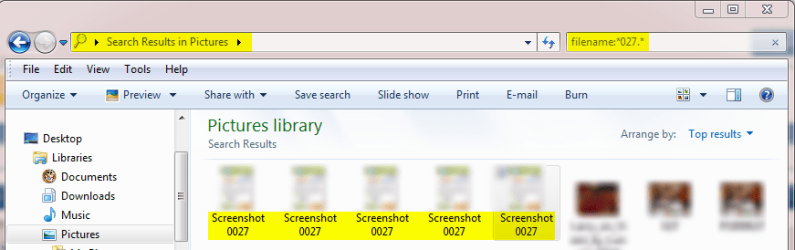
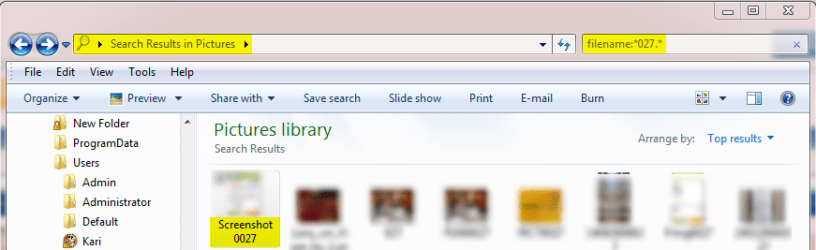
Here, I played with an image with a name Screenshot0027.jpg. I opened Pictures library, then copied the file to four other folders, making two copies with right click copy & paste, and two copies with right button drag > Copy here. Then I searched Pictures library, and all five locations were found (original and four copies):

Libraries_1.png

Using explorer, not libraries, I also checked all five physical locations and the file was in all five locations.

Now I deleted the four copies I had just made, and using right button drag > Move here I moved the image to another folder in Pictures library. The image is still to be seen in library, but properties tell it's now in a physically new location, exactly where it should be. Searching the library also reveals that only one copy of this image is to be found:

Library_2.png

Just to be sure, even though I already new the answer, I double checked using this time context menu cut & paste function. Result is the same; image is still in the library but in a new physical location.

Kari
 

My Computer My Computer

Computer type
Laptop
Computer Manufacturer/Model Number
HP ENVY 17-1150eg
OS
Windows 10 Pro x64 EN-GB
CPU
1.6 GHz Intel Core i7-720QM Processor
Memory
6 GB
Graphics Card(s)
ATI Mobility Radeon HD 5850 Graphics
Sound Card
Beats sound system with integrated subwoofer
Monitor(s) Displays
17" laptop display, 22" LED and 32" Full HD TV through HDMI
Screen Resolution
1600*900 (1), 1920*1080 (2&3)
Hard Drives
Internal: 2 x 500 GB SATA Hard Disk Drive 7200 rpm
External: 2TB for backups, 3TB USB3 network drive for media
Cooling
As Envy runs a bit warm, I have it on a Cooler Master pad
Keyboard
Logitech diNovo Media Desktop Laser (bluetooth)
Mouse
Logitech Performance Mouse MX
Internet Speed
50/10 Mbps VDSL
Antivirus
Windows Defender 4.3.9431.0
Browser
Maxthon 3.5.2., IE11
I want to know about the intended behaviour of the Windows Library itself when moving files around using it. Should changes made using the Windows Library be reflected on the HDD as you would normally expect if making those changes directly, or is it expected that some sort of reference is created like I've tried my best to explain

As was explained before, the library is just a bunch of links to the folders (a container if you want). You do not move files around in the library - you move files in folders or between folders.

As a convenience, the system moves a file to the default folder if you move/copy it to the library. But that is not the proper way of operating.

I am sure that your problem will not occur if you operate folder to folder.
 

My Computer My Computer

Computer Manufacturer/Model Number
HP, Dell, Gateway, Toshiba - 4 laptops and 2 desktops
OS
Vista, Windows7, Mint Mate, Zorin, Windows 8
CPU
from 1.6GHz Duo to i7
Monitor(s) Displays
2x HP w2207
Hard Drives
5x HDD, 7x SSD, 12x Externals
Keyboard
with trackball - no mices
Mouse
Trackball mice
Internet Speed
DSL 6000
More possible to think of it as Smart Favorites?

I suppose after having really thought about it.
If you have a tendency to move files around a lot, having links to them in one location can help.

But I have seen it advertised more as a clutter reducer. Save your files anywhere and just access them through the library. My problem with that approach is....

People will not care where they are saving things and then when they really want to find them, they may not be able to. Or if they want to move stuff, things just might get lost due to the notion that everything is where it should be, when they really are not.

Maybe I just don't know libraries cause I don't use them, but that was my take on them.
 

My Computer My Computer

Computer Manufacturer/Model Number
Self Built
OS
Win 7 Ultimate 32bit
CPU
C2D E6600 2.4Ghz
Motherboard
Intel D965WH
Memory
4G Kingston KHX5400D2
Graphics Card(s)
EVGA GTX 570 HD SC (012-P3-1573-KR)
Sound Card
On-Board
Monitor(s) Displays
Samsung 226BW
Screen Resolution
1680 x 1050
Hard Drives
2 x 250 Seagate Barracuda
2 x 500 Seagate Barracuda (Raid1)
PSU
Corsair TX750W
Case
In-Win C589
Cooling
Stock Intel Cooling
Back
Top