
How to Register to Post
See Windows Seven Forums Homepage

Windows Seven Forums Registration Page -- Forum Rules
How to Use Tutorial Toolbar Options
How to Post a Reply to a Tutorial

Post Reply is located in the upper and bottom left corner of the tutorial page, and in the bottom right of the posted tutorial. You would click this to post a reply to the tutorial without a quote.

NOTE: These are located at the bottom right corner of each post in the tutorial. These are pretty much the same as in the main forum.
How to Create a New Tutorial

1. New Tutorial - This is located at the upper and bottom left corners of the Tutorial section, but not while you have a tutorial open. Click on the New Tutorial button to open a create a new tutorial window.
2. Options - To type in a Title and Byline for your tutorial. Type in a desciption of your tutorial in the synopsis section to have it display as a quick description for your tutorial listed in on the Tutorial Homepage. At the bottom select a Category Icon that you want the tutorial to be displayed and sorted under.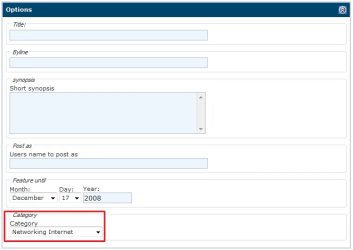
3. Post New Tutorial or Edit Post - This is just like posting in the Windows Seven Forums sections. Type in your tutorial here. You can use this link for BB codes to help allow you to add special formatting to your tutorial such as the yellow TIP, blue NOTE, and red WARNING boxes. When done, click on the Submit New Tutorial button at the bottom to post your new or edited tutorial.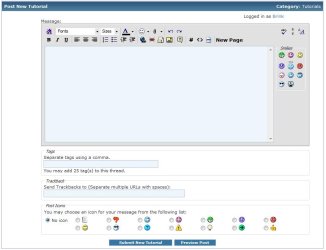
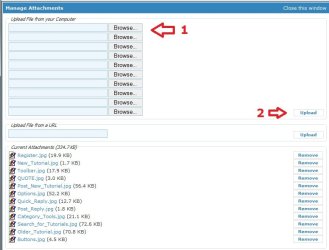
4. To Upload, Attach, and Remove Images - While editing the tutorial/post click on the paperclip icon on the toolbar (see screenshot above).A) Upload - If this is the first time you are uploading images, then it will take you directly to the Manage Attachments window below. If you are uploading additional images, then click on Manage Attachments after clicking on the paper click icon. You will now click on one of the Browse buttons (see screenshot below step 3), browse to where you have the image saved at on your computer and select it. Repeat this until you have added all of the images that you want to upload. When done, click on the Upload button and close the Manage Attachments window.
B) Attach - After uploading your image(s), move your cursor to where you want the image attached to in the tutorial/post. Click on the paperclip icon again (see screenshot below step 3), and select the image that you want to attach.
C) Remove - Click on the paperclip icon (see screenshot below step 3), then click on Manage Attachments. Under the bottom Current attachments section, click on the Remove button for the uploaded image that you want to remove.
Note
You do not need to be a registered member of Windows Seven Forums to view or download from the tutorials. You will only need to register to be able to reply to or post a tutorial. The registration is free and easy. No personal information is displayed to the public except for what you decide to post or reveal. We welcome any contructive tutorial comments or ideas. Please see the FAQ page for additional help and questions not covered here.
See Windows Seven Forums Homepage
Windows Seven Forums Registration Page -- Forum Rules
How to Use Tutorial Toolbar Options
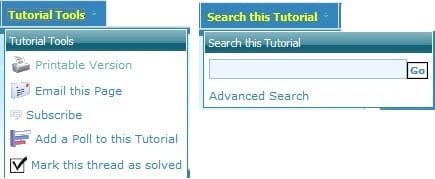
- Tutorial Tools - To select one of these options in a opened tutorial.
- Search this Tutorial - To search for a word or phrase in a opened tutorial.
Note
You can use the methods below to help search for a tutorial easier.
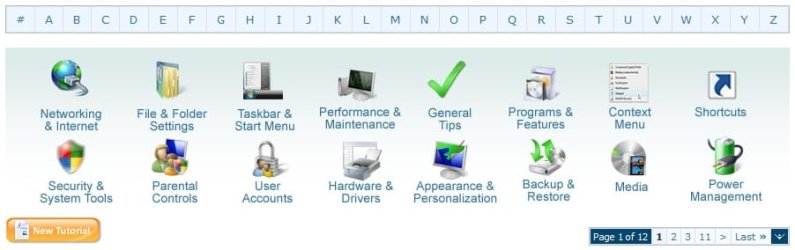
- Alphabet Toolbar - This is the top row of letters in the screenshot above. You can click on a letter to be taken to the page(s) of tutorials that titles start with that letter.
- Category Icons - These are the category icons in the middle of the screenshot above. You can click on a icon to be taken to the page(s) of tutorials for that category.
- Tutorial Index - This is a complete list of every tutorial in the tutorial section arranged in alphabetical order by subject with the title of the tutorial.
- Page Number Bar - This is the Page 1 of ## bar at the bottom right of the screenshot above. It is at the top and bottom right of each tutorial page. You can click on a page number or option to go to that page of all of the tutorials.
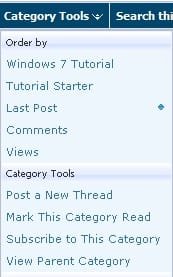
- Category Tools - You can use Category Tools (See screenshot below) at the top of the tutorial page on the toolbar to select how you want the tutorial pages to be sorted.
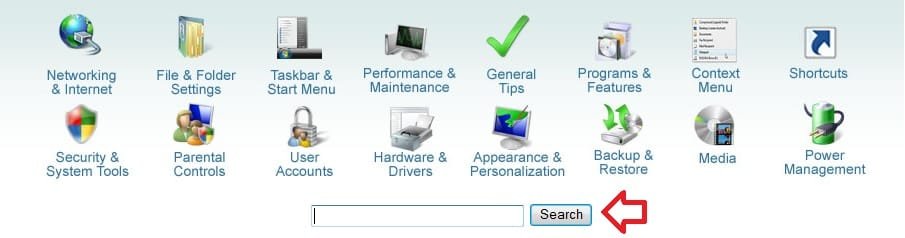
- Google Search - At the top of the tutorial homepage, you can type what you want to search for in the search box under the "Category Icons", then click on the Search button to see the search results of tutorials matching it from within Seven Forums. (See screenshot below)
How to Post a Reply to a Tutorial
Note
When you click on a listed tutorial from the Tutorial Homepage to open it, you will have these options to post a reply or question inside the tutorial about that specific tutorial.
Post Reply is located in the upper and bottom left corner of the tutorial page, and in the bottom right of the posted tutorial. You would click this to post a reply to the tutorial without a quote.
NOTE: These are located at the bottom right corner of each post in the tutorial. These are pretty much the same as in the main forum.
- QUOTE - Allows you to post a reply with a quote of that post.
- Multi - Allows you to post a reply with multiple quotes from posts that you select withing the tutorial. Use this by clicking on the Multi button in the post(s) you want to quote to turn the Multi button yellow as selected. When done click on the Quote button in the last post that you want quoted in your reply post.
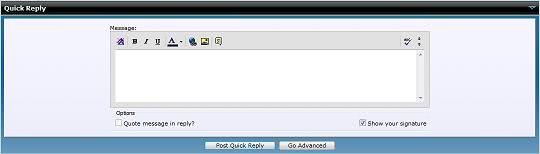
- Quick - This will take you to the Quick Reply box at the bottom of the tutorial page. It will allow you to make only a quick reply in the tutorial without quoting another post in the tutorial.
How to Create a New Tutorial
Note
Creating a tutorial is for posting a tip or trick about Windows 7 to share with others to help them. Please do not create a tutorial to ask a question about a problem. The Windows Seven Forums is used for separate questions instead. Please only post a reply or question about a tutorial inside that tutorial instead.
Warning
1. New Tutorial - This is located at the upper and bottom left corners of the Tutorial section, but not while you have a tutorial open. Click on the New Tutorial button to open a create a new tutorial window.
2. Options - To type in a Title and Byline for your tutorial. Type in a desciption of your tutorial in the synopsis section to have it display as a quick description for your tutorial listed in on the Tutorial Homepage. At the bottom select a Category Icon that you want the tutorial to be displayed and sorted under.
3. Post New Tutorial or Edit Post - This is just like posting in the Windows Seven Forums sections. Type in your tutorial here. You can use this link for BB codes to help allow you to add special formatting to your tutorial such as the yellow TIP, blue NOTE, and red WARNING boxes. When done, click on the Submit New Tutorial button at the bottom to post your new or edited tutorial.
4. To Upload, Attach, and Remove Images - While editing the tutorial/post click on the paperclip icon on the toolbar (see screenshot above).A) Upload - If this is the first time you are uploading images, then it will take you directly to the Manage Attachments window below. If you are uploading additional images, then click on Manage Attachments after clicking on the paper click icon. You will now click on one of the Browse buttons (see screenshot below step 3), browse to where you have the image saved at on your computer and select it. Repeat this until you have added all of the images that you want to upload. When done, click on the Upload button and close the Manage Attachments window.
B) Attach - After uploading your image(s), move your cursor to where you want the image attached to in the tutorial/post. Click on the paperclip icon again (see screenshot below step 3), and select the image that you want to attach.
C) Remove - Click on the paperclip icon (see screenshot below step 3), then click on Manage Attachments. Under the bottom Current attachments section, click on the Remove button for the uploaded image that you want to remove.
Attachments

Last edited:


 .
.