What happens if the default OS disappears

fdh

New member
Local time
11:44 PM
Messages
7
Hello,
I have installed Windows 7 Pro x64 on my Disque 0 (RAID)
I have installed Windows XP Home Edition x32 on my Disque 1
I have also installed Windows 7 Pro x64 on my Disque 1
I have applied all your tutorials with success, many thanks.
But my question is : What happends if the default OS disappears (in my case Window 7 RAID), because of Virus or hard disk problem ?
Will the PC start ? If yes, with which OS ?
Will the boot screen appears ?
Many thanks,
Fdh
 
Last edited:

My Computer My Computer

At a glance

Windows 7 Pro x64Intel Core 2 Quad Q9550Corsair Twin 2X 2x2048Mo PC6400c5c DDR800 tot...Asus EN8600GT Magic/HTDP
OS
Windows 7 Pro x64
CPU
Intel Core 2 Quad Q9550
Motherboard
Asus P5Q Pro
Memory
Corsair Twin 2X 2x2048Mo PC6400c5c DDR800 total 8 Go
Graphics Card(s)
Asus EN8600GT Magic/HTDP
Monitor(s) Displays
Dell 2048WFP
Screen Resolution
1920x1200
Hard Drives
• Réservé au système : 100 Mb
• Win 7 Pro 64 : 80 Gb disque 0 Raid 0
• Données : 390 Gb disque 0 Raid 0
• Images : 461 Gb disque 0 Raid 0

• Win XP Home Edition : 60 Gb disque 1 Western Digital 500 Gb
• Win 7 Pro 64 : 100 Gb disque 1 WD 500 Gb
Keyboard
MK300 Logitech
Mouse
Wireless Optical Mouse
Brink, your answer is (I don't find it in the Tread, why...?):

"If XP was finished installing when this happens at the restart point, then you might see if using the suggestion in the yellow TIP box under step 6 in METHOD TWO may be able to help with this."

It is only a projection of a possible situation, with XP and the second Win 7 operational, that means that if the Win 7 Raid (default) disppears, there is no more a default start system. Your answer seems to be a suggestion, not an affirmation...

That means if it is not OK, I have to reload again the three OS, it's a big work...! :mad:

Then I ask me, in the absence of certainty, if the better way is not to never start in the Windows Boot Manager with the default OS. It's an additional manipulation but it avoids this problem...! What do you think about ?

Thanks for your help,

Fernand
 

My Computer My Computer

At a glance

Windows 7 Pro x64Intel Core 2 Quad Q9550Corsair Twin 2X 2x2048Mo PC6400c5c DDR800 tot...Asus EN8600GT Magic/HTDP
OS
Windows 7 Pro x64
CPU
Intel Core 2 Quad Q9550
Motherboard
Asus P5Q Pro
Memory
Corsair Twin 2X 2x2048Mo PC6400c5c DDR800 total 8 Go
Graphics Card(s)
Asus EN8600GT Magic/HTDP
Monitor(s) Displays
Dell 2048WFP
Screen Resolution
1920x1200
Hard Drives
• Réservé au système : 100 Mb
• Win 7 Pro 64 : 80 Gb disque 0 Raid 0
• Données : 390 Gb disque 0 Raid 0
• Images : 461 Gb disque 0 Raid 0

• Win XP Home Edition : 60 Gb disque 1 Western Digital 500 Gb
• Win 7 Pro 64 : 100 Gb disque 1 WD 500 Gb
Keyboard
MK300 Logitech
Mouse
Wireless Optical Mouse
The smartest way to configure a multi-boot with separate HD's is to place each OS on its own HD, then boot via the BIOS boot order or BIOS Boot Menu. This keeps the OS's independent to come and go as you please or fail without taking down the entire system.

The answer to your hypothetical depends on which OS partition currently holds the System MBR and is set as first HD to boot in BIOS setup. If that OS fails then you'll need to attempt to repair it (we can help you here) and if successfully possibly need to add back the other OS's to multi-boot using EasyBCD 2.0.

If the System Active partition OS HD fails or Win7 becomes irreparable, you'll need to remove it, mark the other Win7 HD partition active, then run Startup Repair up to 3 separate times with reboots to write the System boot files to it until it starts:
http://www.sevenforums.com/tutorials/71432-partition-mark-active.html
http://www.sevenforums.com/tutorials/105541-startup-repair-run-3-separate-times.html

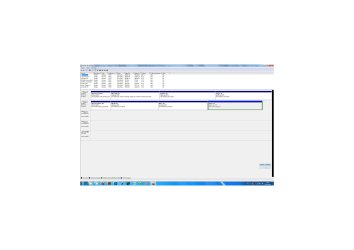
If you would like further advice or the exact steps to set up what you have to boot via the BIOS, then post back a screenshot of your full Disk Mgmt drive map and listings, using Snipping Tool in Start Menu.
 
Many thanks for your answer, Greg.

"If you would like further advice or the exact steps to set up what you have to boot via the BIOS, then post back a screenshot of your full Disk Mgmt drive map and listings, using Snipping Tool in Start Menu."

You will find in attachement a copy of my Disk Management, for more advices.

Have a nice day,

Fernand
 

Attachments

  • Disk Management.jpg
    Disk Management.jpg
    190.1 KB · Views: 12

My Computer My Computer

At a glance

Windows 7 Pro x64Intel Core 2 Quad Q9550Corsair Twin 2X 2x2048Mo PC6400c5c DDR800 tot...Asus EN8600GT Magic/HTDP
OS
Windows 7 Pro x64
CPU
Intel Core 2 Quad Q9550
Motherboard
Asus P5Q Pro
Memory
Corsair Twin 2X 2x2048Mo PC6400c5c DDR800 total 8 Go
Graphics Card(s)
Asus EN8600GT Magic/HTDP
Monitor(s) Displays
Dell 2048WFP
Screen Resolution
1920x1200
Hard Drives
• Réservé au système : 100 Mb
• Win 7 Pro 64 : 80 Gb disque 0 Raid 0
• Données : 390 Gb disque 0 Raid 0
• Images : 461 Gb disque 0 Raid 0

• Win XP Home Edition : 60 Gb disque 1 Western Digital 500 Gb
• Win 7 Pro 64 : 100 Gb disque 1 WD 500 Gb
Keyboard
MK300 Logitech
Mouse
Wireless Optical Mouse
After reflection, why not simply make a new installation of Win 7 Raid on disque 0 (< 30 '). Anyway, it has to be done...
In that case, I will find again the Windows Boot Manager with Win 7 Raid (disque 0) as default OS. Then, I can choose to restart with XP or with the second Win 7 that are on another hard disk (disque 1) during the period I need to install again all my programs that were on the disque 0 with Win 7 Raid...
Disk Management.jpg
 

My Computer My Computer

At a glance

Windows 7 Pro x64Intel Core 2 Quad Q9550Corsair Twin 2X 2x2048Mo PC6400c5c DDR800 tot...Asus EN8600GT Magic/HTDP
OS
Windows 7 Pro x64
CPU
Intel Core 2 Quad Q9550
Motherboard
Asus P5Q Pro
Memory
Corsair Twin 2X 2x2048Mo PC6400c5c DDR800 total 8 Go
Graphics Card(s)
Asus EN8600GT Magic/HTDP
Monitor(s) Displays
Dell 2048WFP
Screen Resolution
1920x1200
Hard Drives
• Réservé au système : 100 Mb
• Win 7 Pro 64 : 80 Gb disque 0 Raid 0
• Données : 390 Gb disque 0 Raid 0
• Images : 461 Gb disque 0 Raid 0

• Win XP Home Edition : 60 Gb disque 1 Western Digital 500 Gb
• Win 7 Pro 64 : 100 Gb disque 1 WD 500 Gb
Keyboard
MK300 Logitech
Mouse
Wireless Optical Mouse
Thanks for posting a screenshot which can be read without magnifier.

If DISK0 Win7 stops working you would repair it by running Startup Repair repeatedly. If that doesn't work then reinstall Win7 as you propose.

As you have a System Active SysRserved partition on DISK1, it may boot on its own via the BIOS. To test this, press the one-time BIOS Boot Menu key (F8,ESC,or DEL on Asus) as it boots up, choose DISK1 from the menu to see if it will boot on its own to the XP/7 Dual Boot menu.

If not, then the normal method to make the HD's boot independently is to unplug DISK0, set DISK1 as first to boot in BIOS setup, boot the Win7 DVD Repair console to run Startup Repair repeatedly until Win7 starts on its own: http://www.sevenforums.com/tutorials/105541-startup-repair-run-3-separate-times.html
Then install EasyBCD 2.0 to Win7 to add XP.

Next plug back in DISK0, set the preferred HD to boot first in BIOS setup, then boot the other HD using one-time BIOS Boot Menu key.

In your case the RAID may present a complication to unplugging DISK0 as the RAID setting may be lost, so I would only do this if you are confident in the RAID maintaining while unplugged to do the DISK1 Repair.

If DISK 1 will already boot on its own via BIOS one-time Boot Menu key, then you know it is indpendent. If XP is not offered on the Dual Boot Menu, you can add it from Win7 on Disk1 using EasyBCD 2.0, then remove it from Win7 on Disk0 if it shows the Dual Boot Menu when booting Disk0.
 
Back
Top