
Dear all,
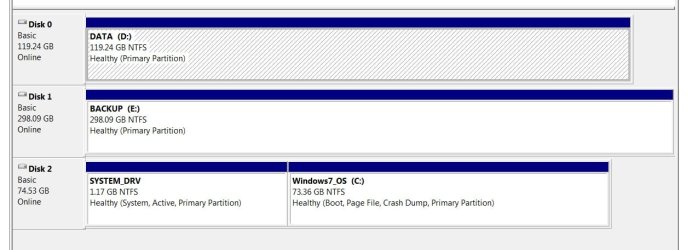
I am wondering if someone on the board can guide me with my scenario. I am planning on upgrading to a larger SSD in order to create a multi-boot setup with Win 7 64 bit Professional and Win 8 Release preview. The system is a Lenovo Thinkpad T420 and the current disk setup is as follows (see attached image from Disk Management console, the disk numbering is what it is because my boot device is an mSATA drive and it is always listed as Disk2):
Disk 0: DATA D:\ on a Crucial m4 128GB SSD
Disk 1: BACKUP E:\ on Hitachic 320 GB spindle used for backups/system images only
Disk 2: Split into two partitions 1) SYSTEM_DRV 1.17GB & 2) WINDOW7_OS of 73.36GB on an Intel 310 series 80GB mSATA drive.
Disk 2 has the OS and all programs and is the boot device.
Disk 0 has all my user profile folders including docs, music, images etc + the browser cache + Thunderbird Email stores
Disk 1: is used for precisely what its label states. I store nightly backups of the full system images created by Windows 7 Backup and restore on it.
Here is what I would like to do.
1) Leave Disk 2 w/current OS alone and not touch it
2) Replace Disk 0 (drive letter is D/Label is DATA/128GB) with a new 256GB SSD. The new disk would be partitioned into two equal parts. One half would be used for the data files on the current D: and
3) The second half would be used Windows 8 RP
4) Both OSes would point to the same data files on the new on DATA D.
What would be the best way to migrate data from the 128GB Crucial to the first partition of the 256 GB SSD? Can I do the following:
1) Run a full system backup
2) Partitition and format the 256 GB by connecting it via USB
3)Do a restore from the most recent backup of DATA D: to the relevant partition of the 256GB
4) Power off and swap out the 128 GB for the 256 GB SSD
5) Check everything is ok and if so, run Win 8 setup
Or should I be cloning DATA D to the a fresh partition on the 256 GB using a program such as Macrium, then doing the swap and then setting up multiboot with Win 8 RP?
Any help would be much appreciated.
I am wondering if someone on the board can guide me with my scenario. I am planning on upgrading to a larger SSD in order to create a multi-boot setup with Win 7 64 bit Professional and Win 8 Release preview. The system is a Lenovo Thinkpad T420 and the current disk setup is as follows (see attached image from Disk Management console, the disk numbering is what it is because my boot device is an mSATA drive and it is always listed as Disk2):
Disk 0: DATA D:\ on a Crucial m4 128GB SSD
Disk 1: BACKUP E:\ on Hitachic 320 GB spindle used for backups/system images only
Disk 2: Split into two partitions 1) SYSTEM_DRV 1.17GB & 2) WINDOW7_OS of 73.36GB on an Intel 310 series 80GB mSATA drive.
Disk 2 has the OS and all programs and is the boot device.
Disk 0 has all my user profile folders including docs, music, images etc + the browser cache + Thunderbird Email stores
Disk 1: is used for precisely what its label states. I store nightly backups of the full system images created by Windows 7 Backup and restore on it.
Here is what I would like to do.
1) Leave Disk 2 w/current OS alone and not touch it
2) Replace Disk 0 (drive letter is D/Label is DATA/128GB) with a new 256GB SSD. The new disk would be partitioned into two equal parts. One half would be used for the data files on the current D: and
3) The second half would be used Windows 8 RP
4) Both OSes would point to the same data files on the new on DATA D.
What would be the best way to migrate data from the 128GB Crucial to the first partition of the 256 GB SSD? Can I do the following:
1) Run a full system backup
2) Partitition and format the 256 GB by connecting it via USB
3)Do a restore from the most recent backup of DATA D: to the relevant partition of the 256GB
4) Power off and swap out the 128 GB for the 256 GB SSD
5) Check everything is ok and if so, run Win 8 setup
Or should I be cloning DATA D to the a fresh partition on the 256 GB using a program such as Macrium, then doing the swap and then setting up multiboot with Win 8 RP?
Any help would be much appreciated.
Attachments
My Computer
At a glance
Windo7 64 bit
- OS
- Windo7 64 bit


