When Backup Runs, Windows Reports Backup Target Disk Removed

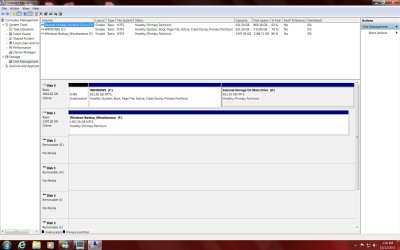
OK, I bit the bullet and deleated the System E partition and resized the Win7 partition. Computer is working great. It booted into windows without having to use the Rebuild MBR.
Now another question.
I see that there is still the 8mb of unallocated space. Can I get rid of that and resize Win7 to use that space?
PS: I did forget to tell you that my file backup and Image worked. Finally I have and Image to go back to. Will have to make another image backup so I don't lose the acomplishments so far.:D
 

Attachments

  • New Reconfig System.jpg
    New Reconfig System.jpg
    157.4 KB · Views: 5

My Computer My Computer

At a glance

Windows Professional 64 bit
OS
Windows Professional 64 bit
I see that there is still the 8mb of unallocated space. Can I get rid of that and resize Win7 to use that space?


Sure, if you want. You're on a roll. :geek:

PW runs disk check when resizing but I always run another from Win7 to cross-check, and with both repair boxes checked: Disk Check

Puran Defrag Free Edition incorporates this in it's outstanding Boot-time Scan which can also defrag system files, and optimize HD if you check that option on Addition Ops tab.
 
I tried to get the 8mb of unallocated space into Win7 partition. Went into Disk Management, I right-clicked Win7. I was expecting the drop down menu to give me an option to Extend Volume. The option was there, but it was greyed out and could not use it. Is a Windows partition limited to 1tb?
 

My Computer My Computer

At a glance

Windows Professional 64 bit
OS
Windows Professional 64 bit
Disk Mgmt cannot extend a partition to the left.

Use Partition Wizard CD, rightclick C to Resize, drag left grey border to the left making sure 00 Unallocated space remains, click OK, Apply.
 
PW will not do it either. I booted into PW picked on Win7, picked resize, got the window to change size, I slid the slider all the way to the left. The info in the window said it was going to unallocate 64mb of unallocated space. I told myself, that is not what you want. So I played with the left end of the slider until the info said unallocated space before=7.8mb, partitition size=953859.34mb, unallocated=0.00mb. Picked ok and the screen went back to the PW main screen, but the apply button was not available. I tried several times and it kept doing the same thing. I then exited PW and booted from local drive. The disk remains the same with the 7.8mb of unallocated space. Oh well, I am just going to let that be, it's only 7.8mb.
I have also decided to quit playing around with the Windows Backup and go back to using Acronis. I told you that I WAS able to do the 1st backup without any problems and it completed. When I tried to do a 2nd backup, after we reconfigured my HD, Win Backup fails just like it did before.
Thanks for giving me all the help. We have managed to get my HD and system working correctly.
 

My Computer My Computer

At a glance

Windows Professional 64 bit
OS
Windows Professional 64 bit
Has your paging file recreated on C now? Use the link I gave you earlier to access it to see.

Next check your logs to see if SysVolInfo is throwing up errors, to google them to resolution. It's crucial to these Win7 backup errors, and I'd want to know its runnning right anyway: troubleshooting steps

There was a glitch in an older version of PW that kept it from resizing to 0, but I haven't heard of it lately.

What I sometimes do if the slider is buggy is type in the number 0 to see if it will stick. If it doesn't then it's not that big of a deal, but I'm kind of a stickler for things getting done correctly, too.
 
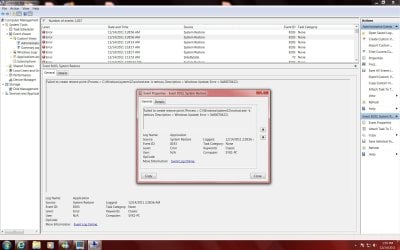
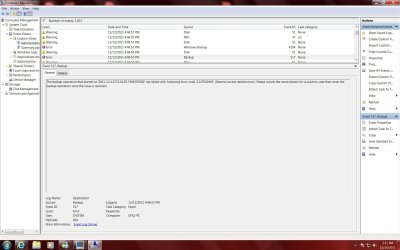
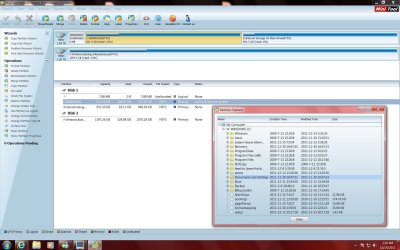
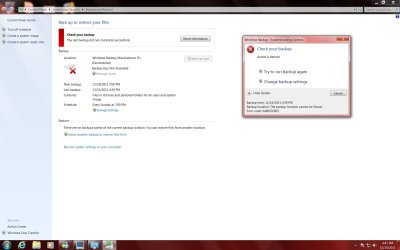
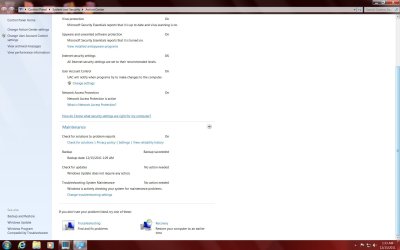
Not exactly sure where the SysVolInfo is, I don't see that anywhere. I have included some screen shots of the backup and restore errors, and screen showing pagesys in the Win7 partition. Yes the pagesys file is on the Win7 partition and seems to be working ok. I will attempt to use PW and physically key in the 0.
Later
Dave
 

Attachments

  • SystemRestoreErrors.jpg
    SystemRestoreErrors.jpg
    184.1 KB · Views: 0
  • SystemRestoreErrors2.jpg
    SystemRestoreErrors2.jpg
    191.6 KB · Views: 1
  • SystemBackupError1.jpg
    SystemBackupError1.jpg
    150.9 KB · Views: 0
  • ExplorCPartition.jpg
    ExplorCPartition.jpg
    230.6 KB · Views: 1

My Computer My Computer

At a glance

Windows Professional 64 bit
OS
Windows Professional 64 bit
If you don't see System Volume Information repeat errors in logs then it is not malfunctioning which can cause image failure.

I'm not sure what changed that could have caused imaging failure since it worked. Do you have an image or System Restore point from the time Imaging was working?
 
I believe so there is data on drive F now, which is where I made the 1st backup. The first backup was after we regenerated the MBR and pagesys files to be working in the Win7 partition. The backup failures started after we were able to delete the old System partition and then attempted to expand the Win7 partition into the 8mb unallocated space.
 

My Computer My Computer

At a glance

Windows Professional 64 bit
OS
Windows Professional 64 bit
No physically putting a 0 in the field, using PW, did the same thing. It allows me to enter the info, but when I say ok, the program will not give me an apply option. Below is a method that was given to me from www.ehow.com to do to get rid of the 8mb of unallocated space. It does not work either.
1
Click the "Start" and then "Run" buttons within the Windows desktop to produce a text box for entering run commands.
2
Type "compmgmt.msc /s" (without quotation marks) into the resulting text box. This will start the Windows computer management utility.
3
Click the "Disk Management" link in the left-most frame within the program window. This will start the virtual disk service that will allow you to view disk partitions and adjust them accordingly.
4
Right-click the drive whose partition you wish to extend over the unallocated space. This will produce a standard Windows context menu.
5
Left-click the "Extend Volume..." heading within the context menu. This will start the extend volume wizard.
6
Click the "Next" button on the Extend Volume wizard's welcome screen.
7
Select the disk whose partition you wish to extend from the left pane of the wizard and click the add button in the center of the wizard's program window.
8
Enter the amount of unallocated space you would like to add to the partition at the bottom of the program window. The maximum amount available on the disk to extend the partition by will be listed near the bottom portion of the window for reference.
9
Click the "Next" button to begin the extension process. This will only take a few moments, depending on the size of your hard drive.
10
Click the "Finish" button when prompted by the wizard to complete the recovery of your unallocated hard drive space. You may begin using it immediately; no reboot is required for this process.


Read more: How to Recover Unallocated Drive Space | eHow.com http://www.ehow.com/how_5136339_recover-unallocated-drive-space.html#ixzz1gOmt07kM

Like I said before, I could care less about regaining the 8mb of unallocated space. My main problem is why the backup fails.

 

My Computer My Computer

At a glance

Windows Professional 64 bit
OS
Windows Professional 64 bit
As stated before Disk Mgmt cannot extend a partition to it's left.

When you transferred the System boot files and paging file to Win7 partition it cut out the System partition which could no longer affect creating the image.

I would reset the System Volume information folder again in System Protection, since you have an image to fall back upon. You can save another image using Macrium if you need it: Macrium - Image your system .
 
Good grief! I wish I would have taken a screen shot of this for you. When I went to reset the System Volume information folder in System Protection, I found something most unusual. It showed that I had two drive C:s and two drive D:s. It showed that one set of C: and D: drives were (MISSING) and they were marked as ON for backup. There was another set of C: and D: drives marked as OFF. When I clicked on the missing drives there was and error that flashed up and then vanished. The available drives refreshed and the two missing drives went away. I clicked on the C: drive and changed it from off to on. I am currently trying another backup.
 

My Computer My Computer

At a glance

Windows Professional 64 bit
OS
Windows Professional 64 bit
Dang, I thought we might have discovered the problem! This backup attempt failed.
 

Attachments

  • DANG.jpg
    DANG.jpg
    107.7 KB · Views: 4

My Computer My Computer

At a glance

Windows Professional 64 bit
OS
Windows Professional 64 bit
Good grief! I wish I would have taken a screen shot of this for you. When I went to reset the System Volume information folder in System Protection, I found something most unusual. It showed that I had two drive C:s and two drive D:s. It showed that one set of C: and D: drives were (MISSING) and they were marked as ON for backup. There was another set of C: and D: drives marked as OFF. When I clicked on the missing drives there was and error that flashed up and then vanished. The available drives refreshed and the two missing drives went away. I clicked on the C: drive and changed it from off to on. I am currently trying another backup.

This is common enough after a repair. Highlight the missing C and turn it off, then turn on the Recovered C.

How is it set now? Only C should be turned on.

Try resetting the Page file once more.

Next try saving image to another HD or external.
 
The backup was completed and successful to the external drive.
 

Attachments

  • BackupSuccess.jpg
    BackupSuccess.jpg
    114.6 KB · Views: 2

My Computer My Computer

At a glance

Windows Professional 64 bit
OS
Windows Professional 64 bit
Good news.

Seems there is something blocking backup to your internal HD, correct?

I'd google the verbatim text of the error message you got to see how others might have solved the same issue.

What I do in such cases is move the data off and wipe it using Diskpart Clean Command.
 
It's hard to say, remember when you first started working on my problem I was also having problems with backing up to an external drive. I checked the internal drive and the only files on there are the attempted backup files. I did a checkdisk on it and then reformatted the internal drive before attempting the backups to it. I did a google search about Windows Backup failures. There is a multitude of users having the same problems as me with Windows Backup. LOL, one of which is Home - Microsoft Answers. Maybe someone from Microsoft will read some of these complaints and fix their backup program. In the meantime I will take your advice and use the http://www.sevenforums.com/software/43219-image-your-system-free-macrium.html for backups and cloning. You have been the best tech that I have had my pleasure of working with. You are a real bulldog when it comes to trying to fix and help a user. THANKS
 

My Computer My Computer

At a glance

Windows Professional 64 bit
OS
Windows Professional 64 bit
You're welcome and thanks for the kind words.

I never settle for a mere reformat if I want to make sure the HD has no possible conflicting code (in the boot sector) but wipe it with Diskpart Clean command which zeroes the boot sector. So it may have been one step shy of resolution.
 
Back
Top