When your clone won't boot...and all else fails

MRCS

New member
Member
Local time
2:24 AM
Messages
22
First off let me say that, while simple, this is very dangerous even for those at the expert level. I used XXClone for years but a functioning version is no longer available. I tried EaseUS that I've also used for years for other partition tasks, and tried AOMEI for the first time. I presumed I would have the same problem with the other cloning software such as Paragon, Acronis, Macrium, and Clonezilla.

The symptom was that Windows would get past the splash screen then get stuck on the welcome screen. I tried working with the BCD file and the disk signatures, but to no avail. After many hours (too many) of troubleshooting, I figured out that why XXClone works so well is that it rewrites the HKEY_LOCAL_MACHINE\SYSTEM\MountedDevices key. I believe this is what it is busy doing during the WinPE phase on the first boot to the clone.

I have no idea what other range of problems with booting this may help or what other software may have this as the main problem. There are many reasons for boot failure so, like I said, try this after all else fails. However, come to think of it, checking the above key could be good for troubleshooting. I am in the process of writing a batch file to automate this, like XXClone does, but I will not post it. If this is not your problem it probably would royally screw things up.

*** DO NOT ATTEMPT THIS, if you are not already very familiar with registry manipulation. You will be working with the cloned registry through the registry of the Windows installation you were cloning. You can find more detailed information elsewhere for that procedure; I am only providing a general outline.

1. Open regedit,
2. Go to the HKEY_LOCAL_MACHINE key,
3. From the File menu choose Load Hive,
4. Navigate to the SYSTEM hive on your cloned drive,
5. For Key Name, enter MountedDevices,
This is where it gets confusing, and particularly dangerous. You will end up having 3 instances of MountedDevices.
6. Inspect the values for your main drive and the clone. If they are ARE reversed from the values in the registry on your main drive, this is NOT your problem, so back out of all you've done (Unload Hive, etc.),
7. Reverse the value names for your main drive and cloned drive,
8. Update your BCD file.

This works whether you boot from the Reserved Partition on your main drive or you've cloned your Reserved Partition and boot from your internal backup drive.

If anybody tries this on GPT/UEFI, I would like to know how it works out, or if it's even a problem on that configuration.
 
Last edited:

My Computer My Computer

Computer type
PC/Desktop
OS
Windows 7 Home Premium 32bit
Perhaps it would help if you said what it was that you are trying to achieve. If it is simply to make a backup of your system then the most recommended way, by members of this Forum, is to use Macrium Reflect to create a system image not a clone!
 

My Computer My Computer

Computer type
PC/Desktop
OS
Microsoft Windows 7 Home Premium 64-bit 7601 Multiprocessor Free Service Pack 1
CPU
Intel(R) Core(TM) i7-3770 CPU @ 3.40GHz
Motherboard
ASUSTeK COMPUTER INC. P8H77-M
Memory
8.00 GB
Graphics Card(s)
Intel(R) HD Graphics 4000
Sound Card
On Board
Monitor(s) Displays
Dell 24"
Screen Resolution
1920 x 1080
Hard Drives
(1) INTEL SSDSC2CT180A3 ATA Device (2) ST500DM002-1BD142 ATA Device (3) WDC WD3200AAKS-75L9A0 ATA Device (4) Generic- Compact Flash USB Device (5) Generic- MS/MS-Pro USB Device (6) Generic- SD/MMC USB Device (7) Generic- SM/xD-Picture USB
PSU
500w Corsair
Case
Cooler Master
Cooling
3 Fans
Keyboard
Logitech MK300
Mouse
Logitech WOM
Internet Speed
75Mb
Antivirus
Norton 360
Browser
Firefox, Opera, IE
Perhaps it would help if you said what it was that you are trying to achieve. If it is simply to make a backup of your system then the most recommended way, by members of this Forum, is to use Macrium Reflect to create a system image not a clone!

I agree, but I didn't want to make the post too long.

From the questioning I've seen of people wanting to have a bootable copy of their main Windows installation, as you have rightfully questioned me, not many of us use an exact, current copy for testing software and other types of experimentation anymore, besides having a very quick way to get back up & running were a disaster to occur. I can try risky procedures and make a general mess of things that I wouldn't do on my main installation, knowing that when I'm done I can immediately copy over a fresh one. And, yes, I do know that there are other ways to go about this. Moreover, it's not that I don't have backup images and off-premises backups, it's just that I find this to be the simplest, easiest, and fastest way. At least that's when XXClone was still available. Most of the other people who were asking for this online were also questioned as to why they would even want to and, after some convincing, were given some much more complicated procedure which, btw, didn't work for me. I felt I had to leave something off my post so I chose that part because I believed that the people who needed it would recognize it themselves. Regardless, I'm glad you asked.
 

My Computer My Computer

Computer type
PC/Desktop
OS
Windows 7 Home Premium 32bit

My Computer My Computer

Computer type
PC/Desktop
OS
Microsoft Windows 7 Home Premium 64-bit 7601 Multiprocessor Free Service Pack 1
CPU
Intel(R) Core(TM) i7-3770 CPU @ 3.40GHz
Motherboard
ASUSTeK COMPUTER INC. P8H77-M
Memory
8.00 GB
Graphics Card(s)
Intel(R) HD Graphics 4000
Sound Card
On Board
Monitor(s) Displays
Dell 24"
Screen Resolution
1920 x 1080
Hard Drives
(1) INTEL SSDSC2CT180A3 ATA Device (2) ST500DM002-1BD142 ATA Device (3) WDC WD3200AAKS-75L9A0 ATA Device (4) Generic- Compact Flash USB Device (5) Generic- MS/MS-Pro USB Device (6) Generic- SD/MMC USB Device (7) Generic- SM/xD-Picture USB
PSU
500w Corsair
Case
Cooler Master
Cooling
3 Fans
Keyboard
Logitech MK300
Mouse
Logitech WOM
Internet Speed
75Mb
Antivirus
Norton 360
Browser
Firefox, Opera, IE
It downloads fine for me, but it won't run.
 

My Computers My Computers

System One System Two

  • Computer type
    PC/Desktop
    OS
    7 X64
    CPU
    i5 8400
    Motherboard
    gigabyte b365m ds3h
    Memory
    2x8gb 3200mhz
    Hard Drives
    various
    PSU
    pure power 11 400w cm
    Case
    Coolermaster
    Cooling
    cryorig m9i
  • Computer type
    PC/Desktop
    OS
    7x64
    CPU
    g5400
    Motherboard
    ga b365m ds3h
    Memory
    8gb ddr4 2400
    PSU
    xfx pro 450w
"The symptom was that Windows would get past the splash screen then get stuck on the welcome screen."

That's a phenomenon I documented on my webpage over a decade ago. That was for Win 2000 and XP, but Microsoft has used the same methodology for Vista/7/8 and even 10, at least on MBR systems. I have not explored UEFI/GPT systems.

The issue is the wrong partition signature gets embedded in the registry for the C: partition. When Windows boots it addresses itself various ways, sometimes by partition signature, GUID, or drive letter. Right about the time it gets to the Welcome screen, it's looking for "C:" and not finding it because the [MountedDevices] key has the wrong signature for the C: partition. The boot process stalls while Windows waits in vain for "C:" to appear.

This used to happen quite frequently with Windows-based cloning utilities because the clone would be embedded with keys telling it the *source* partition was C: and the clone itself was some other drive letter. Modern utilities are usually more alert to the problem and will manipulate the clone's [MountedDevices] keys as part of the cloning process.

MRCS's diagnosis and proposed solution is good, though I would change step 5 to use "ClonedDrive" or something else readily identifiable for the name of the remote hive's branch. That would leave only two things named [MountedDevices], and it should be easier to identify one from the other because one will be under the "ClonedDrive" branch.

I'll offer that perhaps a slightly easier technique might be, in place of steps 6-7, to simply delete the entries under the clone's [MountedDevices] key. That erases the clone's memory of drive letter assignments, so the next time the clone boots it will assign itself C: by default and rebuild new registry keys. Of course, this would only work if the cloned boot partition is supposed to be C:. If it's supposed to be some other drive letter (aside: an idiot move, IMHO), then you'll have to manually edit the key, as MRCS suggests.

Lastly, it's worth repeating MRCS's warning: DO NOT TINKER WITH THIS IF YOU DON'T KNOW WHAT YOU'RE DOING. You could bork your host system as well as your clone.


Dan
 

My Computer My Computer

Computer type
PC/Desktop
Computer Manufacturer/Model Number
Dell Optiplex 7050
OS
Windows 7/8.1/10 multiboot
CPU
Intel Core i7-7700
Motherboard
Dell, Intel Q270 chipset
Memory
48GB (2x16GB Crucial DDR4-3200 + 2x8GB Hynix DDR4-2400)
Graphics Card(s)
Intel HD630 + AMD Radeon R7 450 PCIe
Monitor(s) Displays
Asus VC279 (27")
Screen Resolution
1920x1080
Hard Drives
Toshiba M.2 NVMe (256GB),
Samsung 960 Evo (500GB),
WD Red Plus 80EFBX (8TB)
dg1261 -

Thank you for your informative and historical perspective. I've always used XXClone (circa 2000) so I wasn't aware this had been a long time issue.

"use "ClonedDrive" or something else"
Improvement welcomed and appreciated.

"Modern utilities are usually more alert to the problem..."
If there are, I would certainly like to know which ones. To EaseUS's credit, they do give you the option of maintaining the disk signature or leaving it as the default behavior. I'm still at a loss as to why this didn't work for me. Now that I think about it, having a backup copy of my Reserved Partition may have confused the daylights out of their software. Although, XXClone never seemed to have a problem with it.

"I'll offer that perhaps a slightly easier technique..."
I don't mean to get off on some discussion about general principles in engineering, but I have a different take on your definitely viable alternative technique. While I can't say we were exactly taught this back in the seventies, you certainly picked up on the notion that you should always choose the approach that will have the least possible impact - especially with all the interconnected devices these days and, possibly, software that may be dependent on the signatures. Personally, I wouldn't mess with the signatures themselves and just stick with switching the names of the values.

For my purposes, it's not just to have a bootable testbed, but to also have a quick & easy copy to restore. Having new signatures for the clone and then once more when restored adds complications. After all, things don't always go as planned.

You seem to have more familiarity with this than I do, but I wouldn't phrase it that the signature was wrong (or not reassigned as it should be). The cloning software did precisely what it was supposed to: first make an exact copy. Sometimes people do want no more than an exact copy. It's only afterward if you want a bootable copy the software would take additional steps. I don't know if other backup software has this option, but XXClone had a Make Bootable option. I never seemed to need this for some reason. Vaguely I do recall having instances when I would get a 'can't find HAL' error message and then I'd have to go in and make changes to the boot.ini
 

My Computer My Computer

Computer type
PC/Desktop
OS
Windows 7 Home Premium 32bit
"I'll offer that perhaps a slightly easier technique..."
I don't mean to get off on some discussion about general principles in engineering, but I have a different take ...
I have no quarrel with that. 90% of coming up with a solution is understanding the problem. Since you do understand what's going on, nobody can argue with whatever remedy you choose to take. That's perfectly sensible.


For my purposes, it's not just to have a bootable testbed, but to also have a quick & easy copy to restore. Having new signatures for the clone and then once more when restored adds complications.
I make images with the [MountedDevices] entries removed first. That way, when I restore that image Windows (on first boot) will rebuild the registry entries appropriate to the disk and partition onto which the image has been restored. I also "generalize" the BCDs so the image is completely self-sufficient, requiring no reliance on a Recovery or Reserved partition.

I have two testbed (aka, "sandbox") partitions on my multi-boot system, and this technique let's me restore images of any of my Windows OSes to either of the sandboxes whenever I want, and they boot straight away without any tweaking or repairs.


I wouldn't phrase it that the signature was wrong (or not reassigned as it should be). The cloning software did precisely what it was supposed to: first make an exact copy.
Well, it's "wrong" in the sense that it's not what it should be if you want the dang thing to boot. But I agree with your point that it's exactly what one should expect from a perfect clone.

I've always been uncomfortable with the lazy way people throw around the term "clone". A true clone is a byte-for-byte copy, with no bytes changed and every file even fragmented precisely as it was on the source. But few utilities today do that. In the early days that's what cloning utilities like PowerQuest's Drive Image (R.I.P.) did, but then the user had to understand what modifications to make manually to get it to boot.

Since true clones aren't always bootable, the more "intelligent" utilities take the liberty of making modifications so the ersatz clone will boot, figuring that's what the user ultimately wants anyway.
 

My Computer My Computer

Computer type
PC/Desktop
Computer Manufacturer/Model Number
Dell Optiplex 7050
OS
Windows 7/8.1/10 multiboot
CPU
Intel Core i7-7700
Motherboard
Dell, Intel Q270 chipset
Memory
48GB (2x16GB Crucial DDR4-3200 + 2x8GB Hynix DDR4-2400)
Graphics Card(s)
Intel HD630 + AMD Radeon R7 450 PCIe
Monitor(s) Displays
Asus VC279 (27")
Screen Resolution
1920x1080
Hard Drives
Toshiba M.2 NVMe (256GB),
Samsung 960 Evo (500GB),
WD Red Plus 80EFBX (8TB)
dg1261 -

Thanks for all the additional ideas...always open to learning new stuff. The only problem is, there is so much new stuff always coming along that you have to pick & choose. Right now I'm working on getting some old software to run on a new machine I built not too long ago with Win7 x64, GPT and UEFI, so I'm learning something about using DOSBox for Windows programs. (Good article here: How to Play 16 Bit Windows Games/Applications on a 64 Bit Computer ). Fortunately I have an old drive with a working copy of Win3.1 and the old software already installed so it looks like it's going to be a snap [famous last words].

Many of your solutions are very clever and I'm particularly intrigued by the generalized BCD. I hadn't had much interest in sandboxing or virtual machines until, that is, I wanted to get my Win7 x86 to boot from one of my new PCIe SSDs. I did get it to work, but the screen looks like crap. Haven't even got back to that project, yet.

Again, thanks for all the great info.
 

My Computer My Computer

Computer type
PC/Desktop
OS
Windows 7 Home Premium 32bit
dg1261,

What do you use to make and restore your images?
 

My Computers My Computers

System One System Two

  • Computer type
    PC/Desktop
    OS
    7 X64
    CPU
    i5 8400
    Motherboard
    gigabyte b365m ds3h
    Memory
    2x8gb 3200mhz
    Hard Drives
    various
    PSU
    pure power 11 400w cm
    Case
    Coolermaster
    Cooling
    cryorig m9i
  • Computer type
    PC/Desktop
    OS
    7x64
    CPU
    g5400
    Motherboard
    ga b365m ds3h
    Memory
    8gb ddr4 2400
    PSU
    xfx pro 450w
My utility of choice is Terabyte Image (which comes in various incarnations--Image for DOS, Image for Windows, and Image for Linux). Over the years I've also tested over a dozen competitors and found many others that also work well, such as Macrium Reflect (my favorite freebie), Ghost 11.5, Aomei BackUpper, Paragon Backup & Restore, and EasUs ToDo Backup.

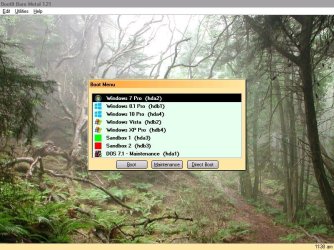
None are as well-rounded as the Terabyte bundle, though. I mentioned that I multi-boot (true multi-booting, not Microsoft's dim-witted, pseudo multi-boot), and the best boot manager on the market, bar none, is Terabyte BootIt Bare Metal (aka, "BIBM"). It comes bundled with not only the boot manager, but a first-rate partition manager and a first-rate imager in Terabyte Image, so the bundle is ideal for my purposes. Its partition manager comes with a built-in BCD editor which makes it a snap to generalize the BCD, and a quick button to disable Fast-Boot in the newer OSes, which is known to hamper multi-booting if left enabled.

My main system is a two-disk laptop with two data partitions and 8 OS partitions, multi-booting with BIBM. (When I'm consulting with a client I like to be able to use whichever OS he/she is using.) Two of the OS partitions are for sandboxes--temporary, "throw-away" environments to work in if I need to do something risky.

All OSes are imaged after having their [MountedDevices] key cleared, BCD generalized, and FastBoot disabled. Images are stored on one of the data partitions. Whenever I want, I can launch the Image utility from the boot manager, grab any image stored on the data partition, and restore it to one of the sandboxes. It boots with no further tweaks or repairs, so I can restore, do what I need to, then toss it away.

"Generalizing" the BCD basically just means configuring the BCD boot entry to say, "boot from whatever partition I'm on, no matter where I am." (Note: you may also have to transfer the system files to the OS partition if your installation currently boots through a Reserved or Recovery partition.)

In the BCD's OSLoader section you change "Device" (aka, "ApplicationDevice") to "[boot]" and "OSDevice" to "[boot]", rather than pointing to a specific partition. I'm not sure if you can make that change with Microsoft's BCDEdit tool, but I know you can from Virtual BCD Editor and probably from EasyBCD Editor as well. BIBM's partition manager also has an easy to use, built-in BCD editor, which is what I use.
 

Attachments

  • BIBM-menu-polipoli.jpg
    BIBM-menu-polipoli.jpg
    101.7 KB · Views: 1

My Computer My Computer

Computer type
PC/Desktop
Computer Manufacturer/Model Number
Dell Optiplex 7050
OS
Windows 7/8.1/10 multiboot
CPU
Intel Core i7-7700
Motherboard
Dell, Intel Q270 chipset
Memory
48GB (2x16GB Crucial DDR4-3200 + 2x8GB Hynix DDR4-2400)
Graphics Card(s)
Intel HD630 + AMD Radeon R7 450 PCIe
Monitor(s) Displays
Asus VC279 (27")
Screen Resolution
1920x1080
Hard Drives
Toshiba M.2 NVMe (256GB),
Samsung 960 Evo (500GB),
WD Red Plus 80EFBX (8TB)
My utility of choice is Terabyte Image
Thanks for the reponse. Well known utility.
 

My Computers My Computers

System One System Two

  • Computer type
    PC/Desktop
    OS
    7 X64
    CPU
    i5 8400
    Motherboard
    gigabyte b365m ds3h
    Memory
    2x8gb 3200mhz
    Hard Drives
    various
    PSU
    pure power 11 400w cm
    Case
    Coolermaster
    Cooling
    cryorig m9i
  • Computer type
    PC/Desktop
    OS
    7x64
    CPU
    g5400
    Motherboard
    ga b365m ds3h
    Memory
    8gb ddr4 2400
    PSU
    xfx pro 450w
Back
Top