Where does Windows 7 store desktop images?

The Henchman

New member
Local time
8:33 PM
Messages
1
Also how can I add more images to a desktop theme pack so they can rotate more pictures? I wish to have 100 images or more in a single theme.

Thanks!!!
 

My Computer

Computer Manufacturer/Model Number
HP
OS
windows 7
CPU
E6300
Motherboard
Buckeye
Memory
6 gig
Graphics Card(s)
512 mb graphics acceletor Nvidia
Sound Card
realtek
Monitor(s) Displays
samsung 19 lcd
Hard Drives
samsung 250gb plus 3 1 TB usbdrives
Windows\Web\Wallpaper

You could've used Windows search for this. :p
 

My Computer

Computer Manufacturer/Model Number
Too many to list.
OS
XP, Seven, 2008R2
CPU
AMD, Intel, VIA
Motherboard
Various
Memory
Corsair, Kingston, etc.
Graphics Card(s)
ATI, NVIDIA
Monitor(s) Displays
Samsung
Hard Drives
Maxtor, Western Digital
Keyboard
qwerty
Internet Speed
22 Mb/s @ home, 1 Gb/s @ server
Other Info
All of my systems still run fastest on XP 32-bit for the most part. Win7 is fun to play with, but I still prefer XP for raw speed, security, and functionality.
I am aware of C:\Windows\Web\Wallpaper, however when I right click an image or photo to preview in Windows Photo Viewer, then right click the photo, one option is to Set as desktop background or I right click a photo/image file in a folder, same option, Set as desktop background and or Preview.

Once I do this, where is that Photo saved to, to be used as the Desktop Background and is it saved as a BMP or JPG or other Format?

I have searched all bmp & jpg C:\Windows for all formats and do not find the image/photo of my current desktop background. So I Print Screen and open in PhotoImpact.

And I agree with XP 32-bit being faster than Windows 7 and even Vista. I am sorry I ever upgraded to Win7 or bought a Laptop with Vista installed. I have been using Windows since 3.0 and several of my other PC's still run XP Home or Pro...however as you would have it, Microsoft does not support 98, ME, than goodness, or XP SP2, only XP SP3 is my understanding.

The biggest annoyance for me with Vista or Win7 is (Not Responding)

Thank you, Doc
 

My Computer

Computer Manufacturer/Model Number
Acer Aspire AM3970-U5022
OS
Windows 7 Home Premium 64bit
CPU
Intel Core i3 2100 (3.10GHz)
Motherboard
Intel H67 Express DIMM 240 Pin
Memory
6GB DDR3
Graphics Card(s)
Intel HD Graphics 2000 Dynamic Video Memory Technology 5.0
Sound Card
I hear sound - High Definition Audio
Monitor(s) Displays
ViewSonic VX2000
Screen Resolution
1152x864
Hard Drives
1TB Serial ATA-300 - 5400 rpm
PSU
300-watt
Case
Full Tower
Cooling
Hopefully
Keyboard
Dell Quiet Key
Mouse
Logitech Track
Internet Speed
12Mbps - Cable
Other Info
Do not like Vista or Windows 7, too many glitches
Also how can I add more images to a desktop theme pack so they can rotate more pictures? I wish to have 100 images or more in a single theme.

Thanks!!!

I think you can add the pics you want to use to your My Pictures folder, then using Personalization click on Desktop Background, navigate to your Pictures Library and choose the pics you want. Then, click Save Changes.

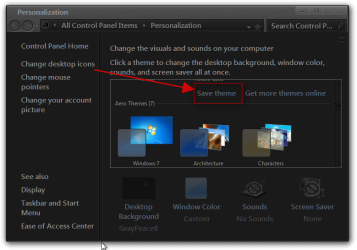
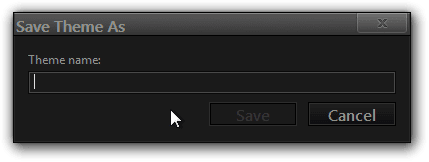
Back in the main Personalization window click on Save theme, name it, click Save and you're done.
 

My Computer

Computer Manufacturer/Model Number
Dell E520
OS
Windows 7 Enterprise x64 SP1, Ubuntu 11.04 x64
CPU
Core2Quad Q6700 - 2.66 GHz
Motherboard
Whatever the heck Dell put in there...
Memory
8 Gig Mushkin DDR2 800 MHz
Graphics Card(s)
EVGA NVIDIA 9800GT - 512MB DDR3
Monitor(s) Displays
2 x 19" ViewSonic LCD
Screen Resolution
2560x1024
Hard Drives
1 Intel X25-M 120G SSD, 1 300G VelociRaptor, 1 WD Caviar Black 1TB
PSU
PCPower & Cooling Silencer 500 Watt
Internet Speed
15/2 Roadrunner Cable
Other Info
NOD32 AV - Malwarebytes
The Microsoft themepacks you'll find in a different location: (they're slide shows anyways)
Example the now retired Halloween Theme Eerie Autumn you find under
"C:\Users\<Login>\AppData\Local\Microsoft\Windows\Themes\Eerie Aut\DesktopBackground\"
And it's perfectly OK to add your own walls or even replace them all. (I have some themes with over 100 walls ..I'm a junkie:D :D You might have to number the pics tho.
Edit :you can leave the names unchanged. In that case, Windows plays them in the normal alpha sort sequence.
I use that method because it gives me a slideshow with the pics I like plus I get to use all those different sound schemes.

Windows 7 themes - Microsoft Windows

-DG
 
Last edited:

My Computer

Computer Manufacturer/Model Number
HP m8000n
OS
Windows 7 Ultimate x86
CPU
DualCore AMD Athlon 64 X2, 2600 MHz 5200+
Motherboard
Asus M2N68-LA (Narra)
Memory
Samsung 2GB DDR2
Graphics Card(s)
Onboard NVIDIA GeForce 6150SE nForce 430
Sound Card
Onboard nVIDIA nForce 6100-430 (MCP61P)
Monitor(s) Displays
Westinghouse 19" LED
Screen Resolution
1280x1024
Hard Drives
SATA II Seagate Barracuda 500GB
USB II WD Elements 500GB
USB II WD My Book 1TB
USB II WD My Book 2TB
PSU
Stock (HP)
Case
Stock (HP)
Cooling
Stock
Keyboard
Logitech Classic KB 200
Mouse
Standard HP opticle USB mouse
Not all Desktop Background images are stored in

"C:\Users\<Login>\AppData\Local\Microsoft\Windows\Themes\MyDesktopBackgroundImage\MyDesktopBackgroundImage.theme"

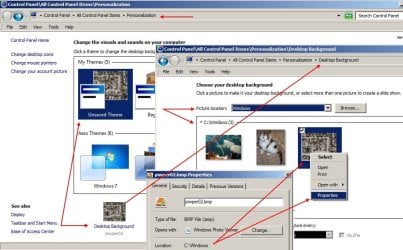
If you open an Image in a Photographic Editing Program, and Export as Wallpaper (centered or tiled) that image then takes the name as piwper01.bmp, piwper02.bmp, piwper03.bmp, etc.

And usually if you open Personalization, Desktop Background, there is a Thumbnail image of the Desktop and listed above are the images C:\Windows

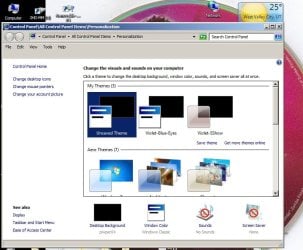
However, this is not always the case when you open Personalization and look at the bottom under Desktop Background, I do not see the thumbnail image, I do see the name piwper with xx number of the image and the image is black, however my desktop has an image visible.

And it may depend on the version of Windows 7, as I run Windows 7 Professional SP1 and Windows 7 Home Premium SP1. Windows 7 Pro, has a Desktop background, shows black thumbnail and file name as piwper04, however I cannot locate that file.

See attachment 1 and attachment 2 is Windows 7 Home, and the desktop background is shown as a thumbnail under is piwper02, and when you click to view Desktop Background you can see the Image, right click Properties and see the Path of this file as C:\Windows file name is piwper02.bmp and it is located C:\Windows

And if I search for piwper02.bmp on the Windows 7 Home, with Folder Options/View Show hidden files, folders, and drives, then search for piwper02.bmp Windows Search will find this file. However not with Windows 7 Pro, cannot find piwper04

Not to mention Windows Search sucks, is slow and should allow the User to search for Folders Only, as a preference, not every dang file & folder containing your search keyword in its path or name.

And Windows Search should have a drop down Option to select Search Categories as by Time Created, along with naturally the Date, and how many people know every file size.

And the Search window drops down and shows Add a search filter, however you cannot type/create a Filter, only select from "A Long Time ago" "Earlier this year" "Earlier this month" "Last week" "Earlier this week" or "Yesterday"

Just my 2 Cents....Doc
 

Attachments

  • Desktop-Windows7-Pro-Background-02.jpg
    Desktop-Windows7-Pro-Background-02.jpg
    77.3 KB · Views: 171
  • Desktop-Windows7-Home-Background-01.jpg
    Desktop-Windows7-Home-Background-01.jpg
    94.2 KB · Views: 329

My Computer

Computer Manufacturer/Model Number
Acer Aspire AM3970-U5022
OS
Windows 7 Home Premium 64bit
CPU
Intel Core i3 2100 (3.10GHz)
Motherboard
Intel H67 Express DIMM 240 Pin
Memory
6GB DDR3
Graphics Card(s)
Intel HD Graphics 2000 Dynamic Video Memory Technology 5.0
Sound Card
I hear sound - High Definition Audio
Monitor(s) Displays
ViewSonic VX2000
Screen Resolution
1152x864
Hard Drives
1TB Serial ATA-300 - 5400 rpm
PSU
300-watt
Case
Full Tower
Cooling
Hopefully
Keyboard
Dell Quiet Key
Mouse
Logitech Track
Internet Speed
12Mbps - Cable
Other Info
Do not like Vista or Windows 7, too many glitches
The current user's wallpaper can be found in:

C:\Users\your username\AppData\Roaming\Microsoft\Windows\Themes\TranscodedWallpaper.jpg
 

My Computer

Computer type
PC/Desktop
Computer Manufacturer/Model Number
Custom-built
OS
Windows 7 Professional SP1 32-bit
CPU
Intel Core 2 Duo E6600 2.4GHz
Motherboard
Asus PL5D2
Memory
4GB DDR2-667 (4x1GB in dual-channel config)
Graphics Card(s)
nVidia GeForce 9800 GT
Sound Card
Creative X-Fi XtremeMusic
Monitor(s) Displays
Acer P236H
Screen Resolution
1920x1200 (DVI)
Hard Drives
OCZ SSD Vertex Plus 60GB SATA (Firmware 3.55), 64MB cache
Hitachi HD321KJ SATA, 320GB, 7200rpm, 16MB cache
PSU
Antec TruePower 2.0
Case
Cooler Master Centurion
Cooling
Too many fans
Keyboard
Standard
Mouse
Microsoft wireless optical mouse
Internet Speed
AT&T U-verse (18mbit/sec)
Antivirus
Microsoft Security Essentials
Browser
Firefox
Other Info
Other devices:
Compaq CQ-60 laptop
Google Nexus 7 (2012) tablet
Nvidia SHIELD tablet (US/LTE)
Hardkernel ODROID-XU single-board computer (Samsung Exynos 5420)
The current user's wallpaper can be found in:

C:\Users\your username\AppData\Roaming\Microsoft\Windows\Themes\TranscodedWallpaper.jpg

Good answer. Also if it's a custom theme, the theme file can have a heading in it that points to a custom desktop image which is contained inside of the custom theme resources folder, as in

Code:
[Control Panel\Desktop]
Wallpaper=%SystemRoot%\Resources\Themes\Vista VS\img36.jpg
 

My Computer

Computer Manufacturer/Model Number
Averatec 6130HS-20
OS
Windows 7 Professional 32-bit (6.1, Build 7600)
CPU
Intel(R) Pentium(R) 4 3.00 GHz HT
Memory
2.0 GB
Graphics Card(s)
ATI Mobility Radeon 9600 64MB
Sound Card
Realtek AC'97 Audio
Screen Resolution
1280 x 800
Hard Drives
Seagate 96023A 60GB 7200RPM -
Seagate FreeAgentDesktop 250GB
Cooling
20 Inch Box Fan
Mouse
Targus PAWM10 Wireless Optical Laptop Mouse
The current user's wallpaper can be found in:

C:\Users\your username\AppData\Roaming\Microsoft\Windows\Themes\TranscodedWallpaper.jpg

THANKS! exactly the Info that I needed.
 

My Computer

OS
Windows7
answer not true for me -

at the location specified in the answer I am replying to, all I see is the standard windows logo image, NOT the image that is currently showing on the desktop.
I set it by clicking on a photo and selecting "set as background"

so where is it?
 

My Computer

Computer Manufacturer/Model Number
custom
OS
W7 Ult x64
CPU
i quad core
Motherboard
asus
Memory
12g
Sound Card
delta
at the location specified in the answer I am replying to, all I see is the standard windows logo image, NOT the image that is currently showing on the desktop.
I set it by clicking on a photo and selecting "set as background"

so where is it?
Welcome to the Seven Forums
After setting your image as the background did you Save the theme, if not that is why you do not see your image in C:\Users\your username\AppData\Roaming\Microsoft\Windows\Themes\TranscodedWallpaper.jpg if you save it it should be there.
Jerry
Personalization.pngSave Theme As.png
 

My Computer

Computer type
Laptop
Computer Manufacturer/Model Number
Sager NP9170
OS
Win 7 Pro x64 / Win 10 Pro
CPU
Intel(R) Core(TM) i7-3630QM CPU @ 2.40GHz
Motherboard
CLEVO P170EM
Memory
12 GB
Graphics Card(s)
(1) Intel(R) HD Graphics 4000 (2) NVIDIA GeForce GTX 675M
Sound Card
(1) Realtek High Definition Audio (2) Intel(R) Display Aud
Monitor(s) Displays
17.3
Screen Resolution
1920x1080
Hard Drives
(1) Samsung 860 EVO 500GB(OS) (1) Samsung 860 EVO 500GB(Data)
Keyboard
Backlite
Antivirus
MSE, Malwarebytes Pro
Browser
Firefox
Other Info
DESKTOP: Custom-built.
OS: Win 10 Pro x64.
CASE: Rosewill R5.
CPU: Intel I5 4670K CPU @ 3.40GHz.
CPU COOLER: Cool Master Hyper 212 EVO.
MOTHERBOARD: Asus Z87-A.
MEMORY: Kingston HyperX 2x4 GB.
GPU: Nvidia Geforce 650 TI.
PSU: Corsair TX750.
DRIVES: (1) Samsung 840 120 GB SSD (2) Western Digital blue 500 GB 7200 RPM.
Windows\Web\Wallpaper

You could've used Windows search for this. :p

I love how the first rule of the forums is:

1) Rudeness, insults, racial/hate slander, flaming, attacks, stalking, and trolling will not be tolerated.

but when I stumbled across this forum looking for an answer to a serious question, this troll was the first thing I saw.

I was having the same issue as the OP, and found that just because I rearranged/added/subtracted pics from a theme, did not a new theme make.

All that having been said, thanks to SledgeDG for providing a sincere answer to a sincere question.

And hey, uh, sup3rsprt? I know that belittling others behind your computer screen probably makes you feel elite and important, but the simple truth is Windows Search, along with Windows Help are some of the MOST unreliable forms of assistance in the universe. Much less so, and less consistently so, than Google, which is what I used to finally find SledgeDG's answer.

So you keep using Windows proprietary methods to find your answers, the rest of us will find methods that actually WORK.

And while I am aware that I probably just toasted my membership here by further breaking RULE 1, if I don't get to post here again, just know that I'm thankful for the few good answers I did get, even though I did register simply for the opportunity to let sup3rsprt how wrong he was.

At the end of the day, I really am a nice gal, even if I do let my bitch side show from time to time. ;)
 

My Computer

OS
Win 7 Home Premium 64
More details

Windows\Web\Wallpaper

You could've used Windows search for this. :p

Not exactly but indirectly. To be more precise, if you're looking to keep all your desktop wallpapers in one place and fully utilise the slideshow function, they should all be kept in:
C:\\Windows\Web\Wallpaper

When you install a theme, it sets the wallpapers in a different location and then you can't incorporate them into the slideshow as they're not in the same folder as the desktop backgrounds, i.e. the wallpaper folder. In order to keep the functionality of both, I simply located the Theme desktop backgrounds and copied them into C:\\Windows\Web\Wallpaper folder while leaving the originals in place. You can find the location of the related backgrounds to the themes by using the Personalization function in Control Panel, then click on the theme, then on Desktop Background (at the bottom of the window), then it should reveal all the wallpapers for that theme and the location. Then just go there and copy and paste them to the wallpaper folder.

Easy:cool:

The other thing is, as most people know this who've already located the theme backgrounds, we should be helping those who've got no idea how to find "Hidden Files and Folders". If you haven't made hidden files and folders visible, you probably won't be able to navigate to anything in the AppData\ folder because it's HIDDEN! To make it visible go to: Control Panel>Folder Options>Click the "view" tab>in Hidden files and folders, click the radio button *show hidden files, folders and drives>click apply/ok then go searching!
 
Last edited:

My Computer

OS
Windows 7 Home Premium 64bit
Back
Top