Solved Why does every app need admin rights?

bpaulson

New member
Local time
11:07 PM
Messages
3
Hi,

I upgraded this week from Win XP (via new install, formatted drive C) to Win 7 Home Premium, currently 6.1.7600 Build 7600. For years, I have followed a method of using the C: partition for the system, and D: and E: for my application data. C: and E: are two partitions on hard disk 1, a Samsung 500 GB SATA drive. D: is on hard disk 0, a WDC 1.5 TB SATA drive.

All my basic applications, Thunderbird, eWallet, Legacy Family Tree, Picture Window, Thumbs Plus et al, read and write to my data on the E: drive and were all running fine under Windows XP. Now under Windows 7, they either need administrator rights or XP compatibility in order to have write access to the files on E:

I have tried the following, with properties on Drive E:
- made myself the owner (my normal user account, which has admin rights)
- given full access to myself and authenticated users, in addition to System & Admins
- when that didn't help, added Everyone and gave them full access to the E: Drive (and all sub folders and files; I am the only person using this computer)

Then I right-clicked on Start, Documents, Properties and added the E: drive to the library.

But in spite of all this, when I run any of the above-named applications, they have no write access to the files on Drive E. Eg. eWallet tells me it only has read access to my wallet file, Legacy Family Tree thinks the data is on a read-only CD ROM, Thunderbird spins forever trying to access my e-mail "local folders" on E:, etc. If these apps are running in the context of my user account (from where I start them), shouldn't they have the same rights which my account has? But only if I give an application Administrator rights or tell it to use XP compatibility will it work properly and have full write access to my data files on the E: drive.

As I'd like to avoid this if possible (this can't be the way it's supposed to work), could someone please tell me how to set this up properly?

Thanks very much, Bob
 

My Computer

Computer Manufacturer/Model Number
Dell Dimension 9150
OS
Windows 7 Home Premium 32bit
CPU
Pentium 4, 3 GHz
Memory
2 GB
Graphics Card(s)
Radeon X600 series
Monitor(s) Displays
Samsung SyncMaster 943, Samsung Syncmaster 171s
Screen Resolution
1280 x 1024
Hard Drives
Samsung HD501LJ 500 GB
WDC WD15EARS-00Z5B1 1.5 TB
Internet Speed
DSL
Welcome to the Microsoft Nanny state. It's called UAC(User Account Control), and it is a right PITA for a single-user home PC. If it's any consolation , it felt even worse in Vista.

What you can do.

Make sure you are an administrator with a strong password protected account. If you don't want to have to log on all the time, go here:

start button and type netplwiz and enter (alternatively - run, control userpasswords2) to bring up user accounts dialog box

uncheck the box: users must enter a user name and password...

On the advanced tab, make sure the ctrl alt delete etc box is clear.

OK and you will be asked to confirm your password 2x.

you will also want to check the screensaver password and resume after standby password check in the advanced power settings options is behaving as you wish.

In Control panel, user accounts, change user control settings, set the slider to 'never notify', or whatever you are most comfortable with.

You may also want to create an elevated privileges command prompt shortcut. On the desktop, right-click, new, shortcut, type cmd.exe, ok. Right click the icon and under the shortcut tab select advanced and check the 'run as administrator' box, ok. you may want to change the font, layout and color options to remind you that you have superior permissions in this command window. then copy this to the start menu.

make shortcuts for your legacy applications to run as administrator in the same way, and any that need compatibility for XP, too.

Then there are the folder options, but they are generally the same as in XP to customize.

With hindsight, you may regret having bought an upgrade - a full installation with a dual boot to XP may have been a more liveable solution.
 

My Computer

Computer Manufacturer/Model Number
Acer 7520, Packard Bell dot se, Acer travelmate 2423
OS
Win 7 Ult + Starter, XP Pro +Home, 2kAS, Linux Mint 8, SuperOS
CPU
AMD 64 Athlon X2 , Intel Atom N450, Intel Celeron M 1.50 Ghz
Motherboard
Acer Fuquene
Memory
2.5GB ; 1GB; 2GB
Graphics Card(s)
Nvidia GeForce7000m; Intel; Intel
Sound Card
Realtek AC57
Monitor(s) Displays
17" ;10.1"; 19"
Screen Resolution
1440x900;1024x600;1440x900;
Hard Drives
WD 80, WD 320;
PSU
19v
Case
Laptop
Cooling
Air
Internet Speed
9.7Mb/s down 0.99Mb/s up
Other Info
ISP VIRGINMEDIA 10M cable broadband - D-Link DIR615 wireless router, 3Com OfficeConnect ASDL router used as wireless extender switch
Well, something is not set up right. I have a similar setup - I keep the OS and installed programs on C:\ drive, while my own data (i.e. documents, photos, presentations, etc.) on various other hard drives. Out of the applications you listed I only use Thunderbird, but I have lots of other applications, including older programs running in compatibility mode, and I have never had your problem. I don't run applications with elevated rights ("run as administrator") either.

Now, without looking at your system it's hard to say what exactly is going wrong there, but let's just go with what you said: you gave full access to your E:\ drive to "Everyone" and your Thunderbird still can't write to E:\ drive. That does not sound right and UAC has nothign to do with it in my opinion. There are two possible problems - either you gave Everyone access to E:\ drive "root" only, i.e. you did not check the "replace permissions on child objects ..." box when changing permissions, or Thunderbird is not configured to write to E:\ drive directly.

The former is very easy to check take some folder in E:\ drive and check permissions. If you propagate your permissions settings (by checking that box) then all folders within E:\ and all their subfolders would be fully accessible to Everyone. In this case no program should have trouble writing there.

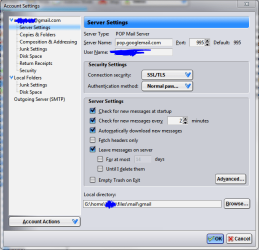
The latter might happen if you add your folders from E:\ drive to some Library, but configure Thunderbird to write to the Library. Then permissions of the Library will be important. Just check your account settings in Thunderbird (see the attached snip). Do you see the path to your local files explicitly showing some folder in your E:\ drive (in my case it's G:\, but the letter in unimportant).
 

Attachments

  • Capture.PNG
    Capture.PNG
    29.9 KB · Views: 76

My Computer

Computer Manufacturer/Model Number
Dell Inspiron 530
OS
Windows 7 Ultimate (x64)
CPU
Q6600
Memory
8 GB
Graphics Card(s)
ATI Radeon HD 2600 XT
Monitor(s) Displays
Samsung Syncmaster P2450
Screen Resolution
1920x1080
Hard Drives
Samsung HD103UJ
Samsung HD501LJ
Internet Speed
25 Mb/s
Welcome to the Microsoft Nanny state. It's called UAC(User Account Control), and it is a right PITA for a single-user home PC. If it's any consolation , it felt even worse in Vista.

...

With hindsight, you may regret having bought an upgrade - a full installation with a dual boot to XP may have been a more liveable solution.

Thanks for the tips. I could still restore my XP backup but I think Win 7 is running ok now - surprisingly well, considering it's an antique 6-year-old computer.
 

My Computer

Computer Manufacturer/Model Number
Dell Dimension 9150
OS
Windows 7 Home Premium 32bit
CPU
Pentium 4, 3 GHz
Memory
2 GB
Graphics Card(s)
Radeon X600 series
Monitor(s) Displays
Samsung SyncMaster 943, Samsung Syncmaster 171s
Screen Resolution
1280 x 1024
Hard Drives
Samsung HD501LJ 500 GB
WDC WD15EARS-00Z5B1 1.5 TB
Internet Speed
DSL
There are two possible problems - either you gave Everyone access to E:\ drive "root" only, i.e. you did not check the "replace permissions on child objects ..." box when changing permissions, or Thunderbird is not configured to write to E:\ drive directly.

The former is very easy to check take some folder in E:\ drive and check permissions. If you propagate your permissions settings (by checking that box) then all folders within E:\ and all their subfolders would be fully accessible to Everyone. In this case no program should have trouble writing there.

The latter might happen if you add your folders from E:\ drive to some Library, but configure Thunderbird to write to the Library. Then permissions of the Library will be important. Just check your account settings in Thunderbird (see the attached snip). Do you see the path to your local files explicitly showing some folder in your E:\ drive (in my case it's G:\, but the letter in unimportant).

Many thanks for this, problem solved. I did tell it to propagate, but for some reason it only did it partially. Most folders on the E: drive had the correct permissions, but a few individual files, including TB's Inbox, had some weird user defined (like "SD132-KL37...") and no full access permissions on the normal user account. I set the permissions again, this time with Dropbox not running in case that caused some conflict, and now everything's ok and TB etc. all run fine without Admin rights.
 

My Computer

Computer Manufacturer/Model Number
Dell Dimension 9150
OS
Windows 7 Home Premium 32bit
CPU
Pentium 4, 3 GHz
Memory
2 GB
Graphics Card(s)
Radeon X600 series
Monitor(s) Displays
Samsung SyncMaster 943, Samsung Syncmaster 171s
Screen Resolution
1280 x 1024
Hard Drives
Samsung HD501LJ 500 GB
WDC WD15EARS-00Z5B1 1.5 TB
Internet Speed
DSL
Back
Top