
Wi-Fi connection keeps disconnecting

xTe

New member
Local time
11:15 PM
Messages
3
Hi, Ive been having this problem for 2 days now.

I would connect to my Wi-Fi and use the internet normally.

But after 1-3 minutes, the connection would disconnect
nDeKG5N.jpg


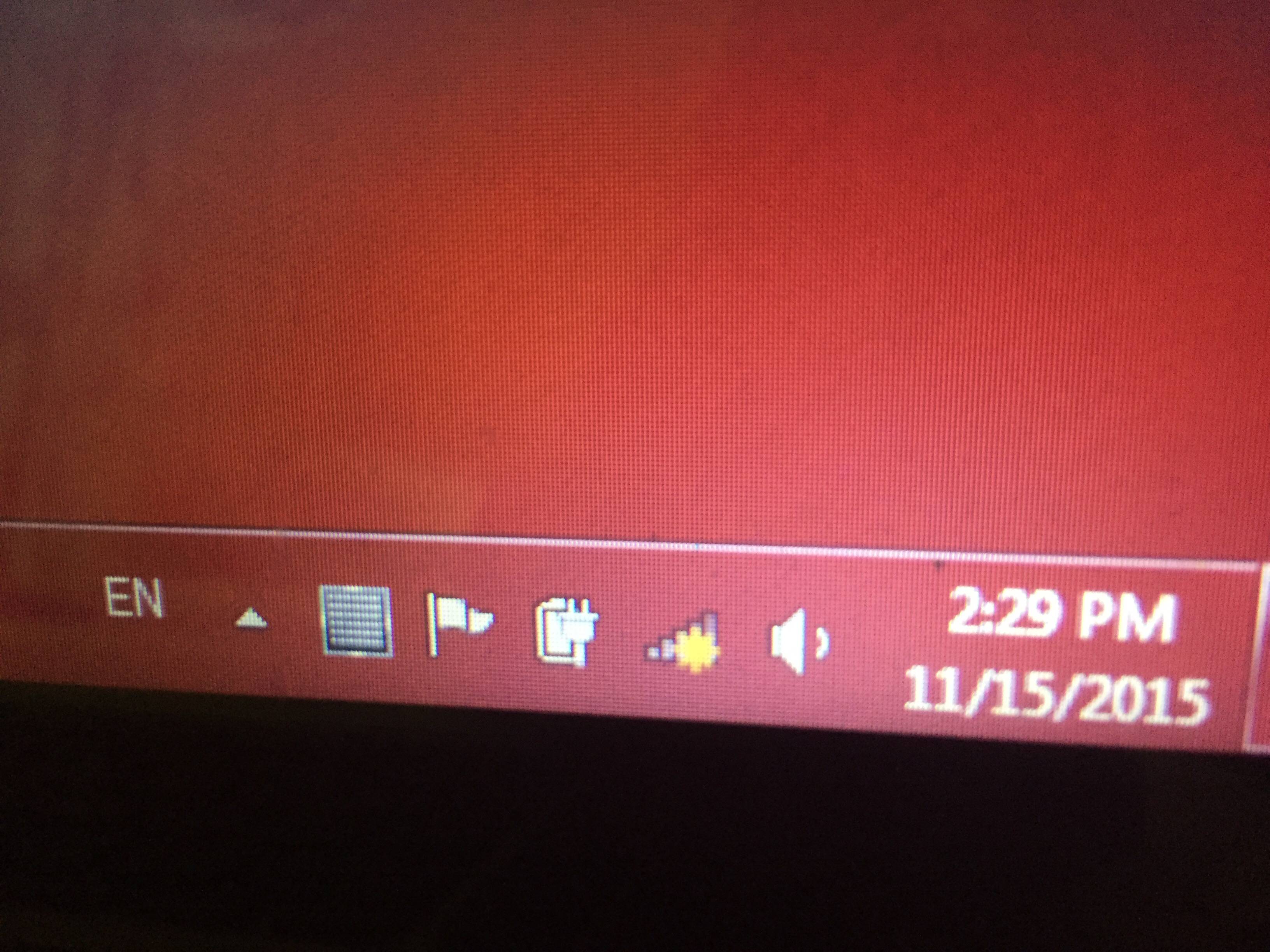
Whenever I try to reconnect, it tells me that "Windows was unable to connect to (Network SSID)"

My network adapter is called: " Intel(R) Dual Band Wireless-AC 3160 "

My driver version is 18.21.0.2
 

My Computer My Computer

Computer type
Laptop
Computer Manufacturer/Model Number
HP
OS
Windows 7 Professional x64
Memory
16 GB
Graphics Card(s)
Intel HD graphics 4400 ( integrated ) Nvidia Geforce GTX 850
Antivirus
N/A
Browser
Chrome
Do you have the same issue when you are hard wired? Meaning, connect your modem directly into the computer, and see if you have a stable connection? If the drops continue, you may wish to call your ISP (after making sure all your connections are secure).

Does the issue only happen when you are wireless? You may wish to check the firmware on your router and/or reset it to factory defaults. How to do this is fairly easy, but, varies from router to router. Netgear is a good easy example, and there are a lot of negear's out there so, we may get lucky and that's what you have!

in your address bar (where it currently says http://www.sevenforums.com/etc etc type 192.168.1.1 then hit enter
a box should pop up asking for a username and password. Unless you've changed it, on netgear that should be admin/password

you will then be in your router's web interface. With a netgear, typically the first thing it will do is prompt you if a firmware update is available. If it it, please, allow it to update!

Once the update is finished, go to your wireless options (use the navigation on the left of the page) and change your channel from "auto" to 6 or 9. You may be getting interference from other wireless devices, and channels 6 and 9 tend to be less prone to that.

If all this does not work, under administration you'll see a factory reset option, reset your router to factory settings. Once you do so, you'll be back to your default username and password (SSID and passphrase). Look for a sticker on the bottom of your router for that info. If you are now stable, then, reset your username and password to what you want them to be.
 

My Computer My Computer

Computer type
PC/Desktop
Computer Manufacturer/Model Number
HP Pavillion Elite HPE-590t
OS
Win7 Home Premium x64
CPU
Intel Core i7 Extreme 990X @ 3.47GHz x6
Motherboard
PEGATRON CORPORATION 2A86
Memory
16GB DDR3
Graphics Card(s)
NVidia GeForce GTX460
Monitor(s) Displays
Samsung SyncMaster 2443ewx
Screen Resolution
1920x1200
Hard Drives
160 GB SSD @ 2 TB 7200 Internal
750 GB HP, 2 TB WD, 2 TB Samsung External & 3 TB G-Tech firewire external
Do you have the same issue when you are hard wired? Meaning, connect your modem directly into the computer, and see if you have a stable connection? If the drops continue, you may wish to call your ISP (after making sure all your connections are secure).

Does the issue only happen when you are wireless? You may wish to check the firmware on your router and/or reset it to factory defaults. How to do this is fairly easy, but, varies from router to router. Netgear is a good easy example, and there are a lot of negear's out there so, we may get lucky and that's what you have!

in your address bar (where it currently says http://www.sevenforums.com/etc etc type 192.168.1.1 then hit enter
a box should pop up asking for a username and password. Unless you've changed it, on netgear that should be admin/password

you will then be in your router's web interface. With a netgear, typically the first thing it will do is prompt you if a firmware update is available. If it it, please, allow it to update!

Once the update is finished, go to your wireless options (use the navigation on the left of the page) and change your channel from "auto" to 6 or 9. You may be getting interference from other wireless devices, and channels 6 and 9 tend to be less prone to that.

If all this does not work, under administration you'll see a factory reset option, reset your router to factory settings. Once you do so, you'll be back to your default username and password (SSID and passphrase). Look for a sticker on the bottom of your router for that info. If you are now stable, then, reset your username and password to what you want them to be.

The Wi-Fi connection only disconncts from my laptop. Whats the point of contacting my ISP?
 

My Computer My Computer

Computer type
Laptop
Computer Manufacturer/Model Number
HP
OS
Windows 7 Professional x64
Memory
16 GB
Graphics Card(s)
Intel HD graphics 4400 ( integrated ) Nvidia Geforce GTX 850
Antivirus
N/A
Browser
Chrome
If all other devices seem to be staying connected, then none, it's an issue with that laptop, not the router or ISP. You did not give enough details in your initial post to narrow it down to that specific machine, hence the more generic reply.

Try this: Hit the windows key and R key, this will bring up a run command

In the run command type devmgmt.msc then hit ok

this will bring up your device manager.

Under Network Adapters, you'll find your wifi adapter

Right click on your wifi adapter and select properties

Go to the Driver tab

Click Uninstall. DO NOT check the box to delete the driver software

Close everything out, then restart your computer. Your computer should reinstall the wifi driver automatically, with a fresh, clean copy.

Let us know if that resolves the issue.
 

My Computer My Computer

Computer type
PC/Desktop
Computer Manufacturer/Model Number
HP Pavillion Elite HPE-590t
OS
Win7 Home Premium x64
CPU
Intel Core i7 Extreme 990X @ 3.47GHz x6
Motherboard
PEGATRON CORPORATION 2A86
Memory
16GB DDR3
Graphics Card(s)
NVidia GeForce GTX460
Monitor(s) Displays
Samsung SyncMaster 2443ewx
Screen Resolution
1920x1200
Hard Drives
160 GB SSD @ 2 TB 7200 Internal
750 GB HP, 2 TB WD, 2 TB Samsung External & 3 TB G-Tech firewire external
If all other devices seem to be staying connected, then none, it's an issue with that laptop, not the router or ISP. You did not give enough details in your initial post to narrow it down to that specific machine, hence the more generic reply.

Try this: Hit the windows key and R key, this will bring up a run command

In the run command type devmgmt.msc then hit ok

this will bring up your device manager.

Under Network Adapters, you'll find your wifi adapter

Right click on your wifi adapter and select properties

Go to the Driver tab

Click Uninstall. DO NOT check the box to delete the driver software

Close everything out, then restart your computer. Your computer should reinstall the wifi driver automatically, with a fresh, clean copy.

Let us know if that resolves the issue.

Didn't work. Any other solutions ?
 

My Computer My Computer

Computer type
Laptop
Computer Manufacturer/Model Number
HP
OS
Windows 7 Professional x64
Memory
16 GB
Graphics Card(s)
Intel HD graphics 4400 ( integrated ) Nvidia Geforce GTX 850
Antivirus
N/A
Browser
Chrome
Try a fresh driver install, best to get it from the manufacturer site:

Support for the Intel® Dual Band Wireless-AC 3160

If that does not work, your nic card itself may be going bad, or is not seated properly in the laptop (or, I'm just out of other ideas!)
 

My Computer My Computer

Computer type
PC/Desktop
Computer Manufacturer/Model Number
HP Pavillion Elite HPE-590t
OS
Win7 Home Premium x64
CPU
Intel Core i7 Extreme 990X @ 3.47GHz x6
Motherboard
PEGATRON CORPORATION 2A86
Memory
16GB DDR3
Graphics Card(s)
NVidia GeForce GTX460
Monitor(s) Displays
Samsung SyncMaster 2443ewx
Screen Resolution
1920x1200
Hard Drives
160 GB SSD @ 2 TB 7200 Internal
750 GB HP, 2 TB WD, 2 TB Samsung External & 3 TB G-Tech firewire external
Back
Top