Win 7 doesn't install properly on "Win 8 machine"

kkennybates

New member
Member
Local time
11:53 PM
Messages
31
Hi,

some background:

I tried to install a new HDD in a Windows 8 compatible laptop, I got an error message saying that the disk was not recognized. I took the laptop to a computer repair shop and they installed the HDD and Windows 7-everything worked fine. I asked if I could do the installation myself if I wanted to install another HDD and they said yes it was just a case of resetting the BIOS.

I have just got another (new) HDD that I want to install with Windows 7 into the laptop,I got another error message saying that the disk was not recognized, so I installed the new HDD in another computer and installed Windows7,it worked fine. I then put it in the problem laptop and Windows 7 booted. The installation was not working correctly on this machine though. It would not connect to the internet so I reinstalled Windows 7 and again there were problems: it wouldn't connect to the internet and in Device Manager there were yellow exclamation marks next to about 5 drivers, also video playback was of a very poor quality.

Is there anything I can do to remedy this situation or do I have to take the computer to the repair shop and have the technician install the HDD and Windows 7 ?

Please advise,

TIA,

regards,

Ken.
 

My Computer

Computer Manufacturer/Model Number
toshiba
OS
windows 7 home premium 64 bit sp1
CPU
?
Motherboard
?
Memory
?
Graphics Card(s)
?
Sound Card
?
Monitor(s) Displays
?
Hard Drives
280 gb
PSU
?
Case
?
Cooling
?
Is this Toshiba NoteBook with Windows 8 Pre-installed?

If yes,
1) Downgrade to Windows 7.
Downgrade Windows 8 to Windows 7
Warning you must have the uEFI/BIOS firmware setting in Step Three set.


2) If Using a USB Pendrive on a PC with a uEFI BIOS.
USB Pendrive need to be formated to FAT32 as in
UEFI Bootable USB Flash Drive - Create in Windows
Take note of Step 11 for Windows 7.
Also you will need to use a USB 2.0 port, as there are no USB 3.0 drivers in Windows 7.
 

My Computer

OS
ME/XP/Vista/Win7
First thing is to disable Secure Boot in BIOS on a Win8 machine. This will let you install anything else.

Next you'll need to follow the special steps in UEFI (Unified Extensible Firmware Interface) - Install Windows 7 with to install to a UEFI BIOS. Understand better watching this video UEFI BIOS vs. Legacy BIOS - YouTube. The option remains to Bypass UEFI to Install WIn7 as a last resort.

If you've already got a working install, then get online to do all rounds of Important and Optional Windows Updates, after enabling Automatically deliver drivers via Windows Update (Step 3). To get online install the wireless driver from the Support Downloads webpage for your PC model. You might also be able to Browse to the driver from Device Manager>Wireless Device>Update Driver to the Win8 Windows\System32 file if it uses the same driver.

A workaround to get online is plug in by ethernet cable which has a 70% chance of having the driver already in the Win7 Driver Store (only 50% with wireless drivers) after enabling Automatically deliver drivers via Windows Update (Step 3). Then run all Updates which should deliver the Wireless driver.

Only import drivers still missing in Device manager after all rounds of Important and Optional Updates are done, with reboots. Keep going back to Check for Updates until they are exhausted.
 
thanks for reply

Hi,

it's Toshiba C870-1JV. I'm trying to install Windows 7 onto a brand new HDD that's never had Windows 8 installed on it.

Please advise,

Ken.
 

My Computer

Computer Manufacturer/Model Number
toshiba
OS
windows 7 home premium 64 bit sp1
CPU
?
Motherboard
?
Memory
?
Graphics Card(s)
?
Sound Card
?
Monitor(s) Displays
?
Hard Drives
280 gb
PSU
?
Case
?
Cooling
?
Are you installing this in a dual Boot, with Win8 on another HD?

If so I would disable or remove the Win8 HD while you are installing Win7, set Win7 HD as first to boot. Then trigger the Win7 installer to boot using F12 BIOS Boot Menu key.

Next, are you installing in UEFI mode as you should if you still want Win8 to boot afterwards?

This time once it's installed follow the procedure I gave you above to get your drivers via running all rounds of Important and Optional Updates to completion. You can set up your desktop while they are running. After requested reboots, go right back to Check for more Updates.
 
Hi,

I'm not installing in a dual boot with Win8 on another HD.

I don't want Win8 to boot afterwards.

I found a video on Youtube on how to disable Secure Boot. Unfortunately it requires the work to be done within Win8 and my HD with Win8 installed has stopped working! On the video it says that the changes can be made from the BIOS- I tried to access the BIOS and it looked way different to what I'm used to and I can't see anything that looks like "legacy support disable"and "Secure Boot disable" So I'm going to get my Win8 HD fixed and then work through all of the outlined steps within Win8, that will probably be in about a weeks time.

Thanks,

Ken.
 

My Computer

Computer Manufacturer/Model Number
toshiba
OS
windows 7 home premium 64 bit sp1
CPU
?
Motherboard
?
Memory
?
Graphics Card(s)
?
Sound Card
?
Monitor(s) Displays
?
Hard Drives
280 gb
PSU
?
Case
?
Cooling
?
From Toshiba Support site.

How to enable CSM for a Toshiba.(Satellite Pro C870, Satellite Pro L830, Satellite Pro C850, Satellite Pro R950, Portege R930, Portege Z930)

Toshiba said:
To downgrade from a installed Windows 8 OS to a Windows 7 OS, using a Windows 7 recovery media, follow these steps:

1) Boot unit and press F2 to get into BIOS

2) Go to "Security" tab and disable "Safe Boot"

3) Go to "Advanced" tab, select "System Configuration" then change boot mode from "UEFI" to "CSM"

4) Press F10 to save changes and exit.

5) Boot unit from recovery media (Press F12 on bootup to boot from USB or DVD media)
 

My Computer

OS
ME/XP/Vista/Win7
theog,

under "security" tab there is no "safe boot "option- there is no "safe boot" on any of the tabs!

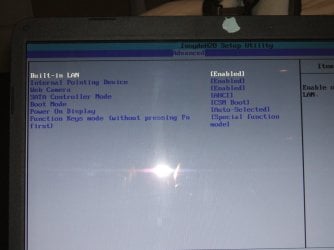
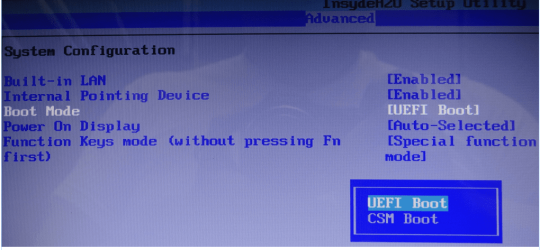
on the "advanced" tab >"system configuration", boot mode is already set to CSM boot.

thanks for the help,

please advise,

Ken.
 

My Computer

Computer Manufacturer/Model Number
toshiba
OS
windows 7 home premium 64 bit sp1
CPU
?
Motherboard
?
Memory
?
Graphics Card(s)
?
Sound Card
?
Monitor(s) Displays
?
Hard Drives
280 gb
PSU
?
Case
?
Cooling
?
Please post back a camera snap of your BIOS setup Boot tab. Screenshots and Files - Upload and Post in Seven Forums - Windows 7 Forums

The setting to disable is normally called Secure Boot, but it may have another setting name on your model.

What are the other choices for CSM boot? What other settings are nearby? Let us see a pic of that too.

As a Win8 PC should be new enough I would also query my Tech Support which is included free for the first year. You may still be able to get free Recovery disks to have on hand.
 
FWIW:

Windows 7 fresh installs will usually (closer to always actually) require some 3rd party driver installs before it's really done.

Another reason I am impressed with Linux distros, there were none needed when I installed it on 3 different systems, except for some really old sound card, but still got that working by digging up a driver for the actual chipset in the card.

8, I would hope has a better driver pool?!?

I hope to learn a lot more about BIOS settings, too much mystery there still, my guess is the limited space for the bios code preventing good explanations, THERE.
 

My Computer

Computer type
PC/Desktop
Computer Manufacturer/Model Number
Self Built Custom
OS
Windows 7 Ultimate Retail Box (64-bit installed) + Service Pack 1
CPU
AMD FX-8350 CPU v1.15 (or 1.0F) BIOS was required!
Motherboard
MSI 890FXA-GD70
Memory
8G CAS-7 G-Skill DDR3 @1333 (2 fours) [mobo nonOC max rec'd]
Graphics Card(s)
Radeon HD 7950 [3 gigs of GDDR5] MSI Twin Frozr model
Sound Card
Realtek High Definition Audio (onboard mobo, ALC-889 chip)
Monitor(s) Displays
2 WS LED Monitors: One LG One Viewsonic
Screen Resolution
1920 by 1080
Hard Drives
SSD for OS: Samsung 840 Pro
SSD for VM and utilities: Adata SX900
7200 RPM SATA HDs for the rest: Hitachi and Seagate
PSU
Corsair TX850 - 850W max, in service since August 2010.
Case
Thermaltake Armor A90
Cooling
Thermaltake Spin Q CPU Cooler, in service since August 2010
Keyboard
Logitech G11
Mouse
Logitech M310 Wireless
Internet Speed
100 Megabit broadband supposedly upgraded from 50 (Cable)
Antivirus
Bitdefender Internet Security 2014 suite
Browser
Pale Moon 64-bit main, also IceDragon, Opera, and Maxthon.
Other Info
CompTIA A+ certified (220-800 series) in July 2013.
Hi,

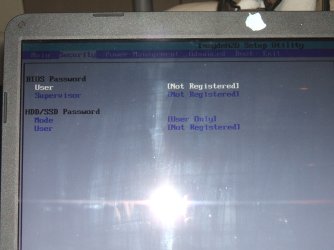
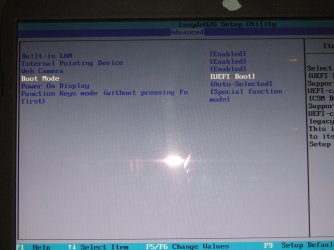
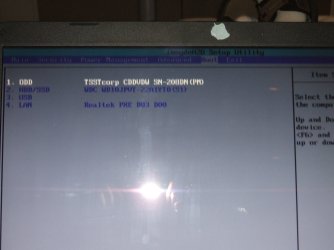
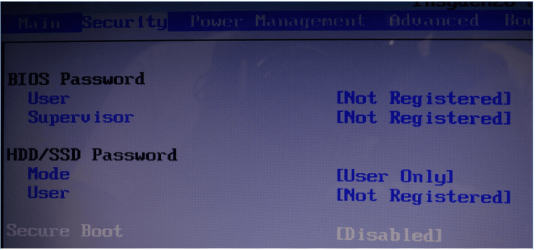
here are some screen shots of the (I think relevant) parts of the BIOS, please advise if you want shots of different parts of BIOS.

Thanks,

Ken.
 

Attachments

  • DSCF1634.JPG
    DSCF1634.JPG
    437.8 KB · Views: 6
  • DSCF1635.JPG
    DSCF1635.JPG
    376.6 KB · Views: 4
  • DSCF1636.JPG
    DSCF1636.JPG
    440.9 KB · Views: 5
  • DSCF1637.JPG
    DSCF1637.JPG
    285.4 KB · Views: 5

My Computer

Computer Manufacturer/Model Number
toshiba
OS
windows 7 home premium 64 bit sp1
CPU
?
Motherboard
?
Memory
?
Graphics Card(s)
?
Sound Card
?
Monitor(s) Displays
?
Hard Drives
280 gb
PSU
?
Case
?
Cooling
?
I don't see the Secure Boot choice on Security tab that's supposed to be there from Necessary changes in the UEFI Firmware (BIOS) for a successful downgrade from Windows 8 to Windows 7:
Enter the UEFI firmware (formerly known as BIOS) by long-press the F2 button and turn on the notebook. Go to the "Security" tab and change the value of the "Secure Boot" option to "Disabled"

TSB2C03F80002R01190001061029451.JPG
TSB2C03F80002R01190001061029452.JPG
Check again.

I also wonder why the UEFI boot choices don't appear in Boot Priority list which would be necessary to install in UEFI (Unified Extensible Firmware Interface) - Install Windows 7 with - Windows 7 Forums.

When you insert in the USB installer or DVD, do these show up as UEFI choices?

Are you setting the Boot Mode to CSM or UEFI currently? I would try both. The Secure Boot choice may only show up on Security tab if you have UEFI boot selected, so check that too.

Then try UEFI install in both UEFI and CSM modes, and if these fail set to CSM and try to Bypass UEFI to Install WIn7 which has worked in every case so far that UEFI problems become insurmountable.
 
Thanks Ray:

Any theories on why Secure Boot may be missing from his Security tab?

Shouldn't some UEFI listings be there in Boot order?

Should he try both UEFI and CSM in those two settings which offer them, to see if Secure Boot shows up, whether DVD or Flash stick show up as UEFI boot options, or if he can install in Legacy bypassing UEFI?
 
gregrocker said:
Any theories on why Secure Boot may be missing from his Security tab?

Steps to Install Windows 7 on a Windows 8 Unit
On Satellite Pro C870, Satellite Pro L830, Satellite Pro C850, Satellite Pro R950, Portege R930, Portege Z930
it is called SAFE BOOT.

Toshiba said:
How to enable CSM for a Toshiba.(Satellite Pro C870, Satellite Pro L830, Satellite Pro C850, Satellite Pro R950, Portege R930, Portege Z930)

Toshiba said:
To downgrade from a installed Windows 8 OS to a Windows 7 OS, using a Windows 7 recovery media, follow these steps:

1) Boot unit and press F2 to get into BIOS

2) Go to "Security" tab and disable "Safe Boot"

3) Go to "Advanced" tab, select "System Configuration" then change boot mode from "UEFI" to "CSM"

4) Press F10 to save changes and exit.

5) Boot unit from recovery media (Press F12 on bootup to boot from USB or DVD media)

Necessary changes in the UEFI Firmware (BIOS) for a successful downgrade from Windows 8 to Windows 7
But in the above it is called SECURE BOOT.

Toshiba said:
If you want to install Windows 7 instead of Windows 8 you have to perform some changes in the UEFI firmware first.

1.Enter the UEFI firmware (formerly known as BIOS) by long-press the F2 button and turn on the notebook.
Go to the "Security" tab and change the value of the "Secure Boot" option to "Disabled"

2.Go to "Advanced" tab -> "System Configuration" -> and change the "Boot Mode" option from "UEFI Boot" to "CSM Boot"


3.Save and close the UEFI settings by pressing the F10 key.

If this steps are done, Windows 7 can be installed on the Notebook without any problems.

gregrocker said:
Shouldn't some UEFI listings be there in Boot order?

I would YES.

But the OP's screen shots are for UEFI & CSM.

gregrocker said:
Should he try both UEFI and CSM in those two settings which offer them, to see if Secure Boot shows up, whether DVD or Flash stick show up as UEFI boot options, or if he can install in Legacy bypassing UEFI?

YES.
 

My Computer

OS
ME/XP/Vista/Win7
OK,

thanks for all the help I will try what I can understand and then go for what Gregoker said about if it gets insurmountable!

cheers,

bye for now,

Ken.
 

My Computer

Computer Manufacturer/Model Number
toshiba
OS
windows 7 home premium 64 bit sp1
CPU
?
Motherboard
?
Memory
?
Graphics Card(s)
?
Sound Card
?
Monitor(s) Displays
?
Hard Drives
280 gb
PSU
?
Case
?
Cooling
?
resolved-well sort of!

Hi,

problem solved apart from the fact I cannot get on-line.The problem with video playback has been fixed,

FYI let me tell you how I managed to install Win7 "working"

As suggested I changed Boot mode from CSM to UEFI, this made "Secure Boot "disabled show up on the security tab. I tried to install from Win7 installation DVD and it started fine (although different from previous installs) when it got to "starting Windows" with the 4 colours moving around it froze! I tried this quite a few times and could not get past this point.

As suggested I tried Bypassing UEFI to Install Win7 ,I followed the instructions exactly and the install seemed to have the same problems as the previous bad installs, when I tried video playback however it worked perfectly, this brought to mind what Faladu posted-Windows 7 fresh installs will usually (closer to always actually) require some 3rd party driver installs before it's really done.

It got me thinking that drivers were missing that I needed to connect to the internet.

It will be a while before i can afford an Ethernet cable(just paid of a massive credit card bill!) ,then I'm sure I will be able to go online and get any missing drivers.


I posted this problem to Windows 8 forum where theog kindly replied, can theog explain over there how my problem was solved before I mark it as solved?

many thanks to everyone for the help!

Kindest regards,

Ken.
 

My Computer

Computer Manufacturer/Model Number
toshiba
OS
windows 7 home premium 64 bit sp1
CPU
?
Motherboard
?
Memory
?
Graphics Card(s)
?
Sound Card
?
Monitor(s) Displays
?
Hard Drives
280 gb
PSU
?
Case
?
Cooling
?
EightForums thread:
How to reset BIOS for new HDD

Some OEM manufacturers are locking end-users out of the options in UEFI/ BIOS firmware on consumer PC’s, to install other OS's in UEFI mode, so you can only install Legacy mode, on business PC’s there not.


Windows Hardware Certification Requirements for Client and Server Systems


Microsoft said:
Mandatory. On non-ARM systems, the platform MUST implement the ability for a physically present user to select between two Secure Boot modes in firmware setup: "Custom" and "Standard". Custom Mode allows for more flexibility as specified in the following:

It shall be possible for a physically present user to use the Custom Mode firmware setup option to modify the contents of the Secure Boot signature databases and the PK. This may be implemented by simply providing the option to clear all Secure Boot databases (PK, KEK, db, dbx), which puts the system into setup mode.

If the user ends up deleting the PK then, upon exiting the Custom Mode firmware setup, the system is operating in Setup Mode with SecureBoot turned off.

The firmware setup shall indicate if Secure Boot is turned on, and if it is operated in Standard or Custom Mode. The firmware setup must provide an option to return from Custom to Standard Mode which restores the factory defaults. On an ARM system, it is forbidden to enable Custom Mode. Only Standard Mode may be enabled.


Technical Note: UEFI BIOS vs. Legacy BIOS, Advantech(EN) - YouTube
 

My Computer

OS
ME/XP/Vista/Win7
As stated in Post #3 download the wireless driver from the Toshiba Support Downloads webpage for your exact model, install it to get online in the bottom right System Tray where it will display your Networks.

If not rightclick on the Connection Icon to run the Troubleshooter and report back.
 
Back
Top