Win 7 lost after Dualboot with XP

HerrrTank

New member
Local time
8:28 AM
Messages
4
Hi guys,

First, I know this is the 10000th topic about this subject, and I looked through almost every single one of them, but still can't find a solution for my problem.

Problem is this:

After working on Win 7 for some time, I installed XP on a new partition. After the install I followed Brink's steps in his tutorial, but it still boots only XP.

Here's a screenshot from easybcd, see attach files, windows 7 is linked to C:\ and XP to J:\ which is correct. I have no idea what BCDID or Bootloader path means, so dont know if that is oke.

Hope you guys can help me with this one, because I don't want to loose my Win 7

Thanks in advance

HerrrTank
 

Attachments

  • naamloos.JPG
    naamloos.JPG
    43.2 KB · Views: 128

My Computer My Computer

OS
Windows 7 and Windows XP
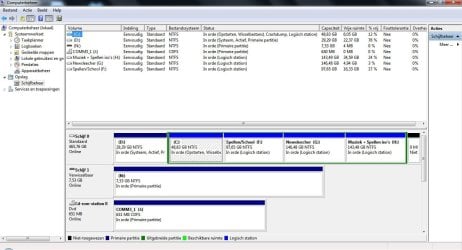
Please post back a screenshot of your full Disk management drive map with listings: http://www.sevenforums.com/tutorials/9733-how-post-screenshot-seven-forums.html

Do you have a Win7 DVD or Repair CD? Sometimes it is necessary to mark Win7 active, then run Startup Repair 3 times from the booted DVD/CD to start Win7, install Easy in 7 to add XP, accept offered boot files, let autocomplete, Save, restart.
http://www.sevenforums.com/tutorials/71432-partition-mark-active.html
System Repair Disc - Create - Windows 7 Forums.URL
Startup Repair - Windows 7 Forums.URL
 
ah it's working after the 3rd time, only tried it once first..but thanks!

and about easybcd in 7, do i also need to install the XP loader to MBR?

again, thank you!
 

My Computer My Computer

OS
Windows 7 and Windows XP
Install EasyBCD version 2.0 or greater, Add XP on Add OS tab, accept offered boot files, let autocomplete, Save, Restart to Dual Boot menu.
 
i did that, and it gives a dualboot screen after reboot, but when choosing XP, there is an error, about a file/map : \NST\easyldr1, so can't start XP. Says i should use a repair cd, but then it would start all over again right?
 

My Computer My Computer

OS
Windows 7 and Windows XP
Did you accept the offered boot files when you added XP with Easy? If not remove XP in Edit Boot Menu, then Add it again, accepting boot files, let autocomplete, Save.

Please post back the screenshot requested earlier, using Snipping Tool in Win7 start menu.
 
hmm, there is no message about accepting boot files. I just create a new one and then it pops up in the view settings.

here's the screenshot
 

Attachments

  • Knipsel.JPG
    Knipsel.JPG
    120.3 KB · Views: 181

My Computer My Computer

OS
Windows 7 and Windows XP
This is why I asked first thing for a Disk Mgmt. screenshot.

The complication is that C: Win7 is installed on an Extended Logical partition which cannot be marked Active to accept the System MBR. It will either need to be converted from Logical to Primary using free Partition Wizard bootable CD, or XP will need to be started to install EasyBCD to it to add Win7 to Dual Boot.

To convert C to Primary move the data off the other extended partitions F-H then delete each to allow you to rightclick C>Modify>Convert to Primary using booted PW CD. You can later create new extended Logical partitions in the unallocated space to copy your data back into. http://www.sevenforums.com/tutorials/93322-partition-wizard-use-bootable-cd.html

Next mark the C:Win7 partition active and run Startup Repair up to 3 separate times until it becomes System drivve: http://www.sevenforums.com/tutorials/71432-partition-mark-active.html
http://www.sevenforums.com/tutorials/681-startup-repair.html?ltr=S
Remove XP on EasyBCD 2.0 Edit Boot Menu tab and then Add it back, accepting XP boot files which will now be needed to update the Win7 MBR.

Another method would be to start up XP, install EasyBCD 2.0 (after first installing Net Framework 2.0) then add Win7. This is what I would have advised you to do if you had posted the requested screenshot. Now in order to start XP you will need to run a Repair Install from booted XP CD: Repair Windows XP - How to Perform a Repair Installation of Windows XP - Part 1 of 2
 
Last edited:
Back
Top