WIN7 Resource Monitor

BobFam

New member
Local time
9:45 AM
Messages
26
I cannot open the Resource Monitor on my WIN7 64 bit system. I have never used it in the past so I don't know if it ever worked.

I have read one article that says it has to be enabled by a lot of playing around with the Registry. Is there any simple way to get it to work. [SIZE=+1]My resmon.exe is in the SysWow64 folder and is Version 6.1.7600.16385 dated 7/13/09 and 101kb.

I have tried to run it from the Task Manager and also by trying it with Administrator rights directly on the .exe. The window opens and the menu shows up but the hour glass just keeps showing and nothing happens.

If I can't get it working is there any external program I can install that will do the same thing?

Thanks, regards, Bob.
[/SIZE]
 

My Computer My Computer

At a glance

WIN7 64 bit Home Premium
Computer type
PC/Desktop
Computer Manufacturer/Model Number
Custom Build
OS
WIN7 64 bit Home Premium

My Computer My Computer

At a glance

Win7 Pro-64 Biti7-2600-3.4GHz8 GIG DDR3onboard
Computer Manufacturer/Model Number
Put together
OS
Win7 Pro-64 Bit
CPU
i7-2600-3.4GHz
Motherboard
ASRock Z68M
Memory
8 GIG DDR3
Graphics Card(s)
onboard
Sound Card
onboard
Hard Drives
Seagate 1TB 7200RPM
PSU
680 W
Case
black
Cooling
stock fans
Keyboard
Microsoft
Mouse
Microsoft optical
Hi. OK. Thanks. It sounds really complicated. I think I'll try the verifyonly.

Regards, Bob.
 

My Computer My Computer

At a glance

WIN7 64 bit Home Premium
Computer type
PC/Desktop
Computer Manufacturer/Model Number
Custom Build
OS
WIN7 64 bit Home Premium
It's not complicated. Just run sfc /scannow in an elevated cmd - go to Start > All programs > Acessories > right click on Command Prompt > Run as Admin..
 

My Computer My Computer

At a glance

Vista, Windows7, Mint Mate, Zorin, Windows 8from 1.6GHz Duo to i7
Computer Manufacturer/Model Number
HP, Dell, Gateway, Toshiba - 4 laptops and 2 desktops
OS
Vista, Windows7, Mint Mate, Zorin, Windows 8
CPU
from 1.6GHz Duo to i7
Monitor(s) Displays
2x HP w2207
Hard Drives
5x HDD, 7x SSD, 12x Externals
Keyboard
with trackball - no mices
Mouse
Trackball mice
Internet Speed
DSL 6000
Hi. Thanks for the info. It says it will change anything I have changed from default so I don't want to run it. I tried the Verifyonly and it gave me a strange screen that I don't understand. I did not run it. I'll try it again ASAP and make a screenshot so you can tell me what to do. I don't want to mess up my computer. All works well except the Resource Monitor. I saw on another site that the Resource Monitor had to be enabled. It went through a whole list of how to enable it. It mentioned several Registry entries that I don't have. Does it have to be enabled?
Thanks, Bob.
 

My Computer My Computer

At a glance

WIN7 64 bit Home Premium
Computer type
PC/Desktop
Computer Manufacturer/Model Number
Custom Build
OS
WIN7 64 bit Home Premium

My Computer My Computer

At a glance

W7 Pro SP1 64biti78GBIntel HD Graphics
Computer type
Laptop
Computer Manufacturer/Model Number
Employer provided Dell Latitude
OS
W7 Pro SP1 64bit
CPU
i7
Memory
8GB
Graphics Card(s)
Intel HD Graphics
Hard Drives
crappy SSD
Antivirus
Employer mandated Symantec Endpoint Protection
Browser
Pale Moon 64bit, IE11 64bit & Chrome 64bit
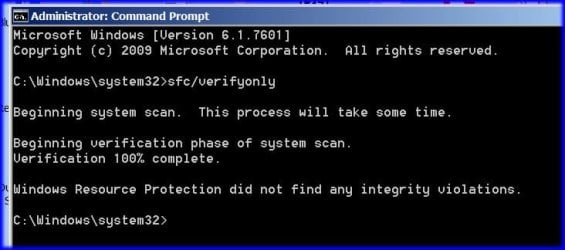
Hi again. I finally got the sfc/verifyonly to work. Here's a screenshot. It says all is OK. Now what do I have to do to get the Resource Monitor working? Thanks for all your help. Regards, Bob.
 

Attachments

  • sfc.jpg
    sfc.jpg
    31.1 KB · Views: 2

My Computer My Computer

At a glance

WIN7 64 bit Home Premium
Computer type
PC/Desktop
Computer Manufacturer/Model Number
Custom Build
OS
WIN7 64 bit Home Premium
I know that you said that you attempted to launch the Resource Monitor from Task Manager, but please try that again like this:

Start Task Manager.
Select the tab named Processes.
Click on the button named "Show processes from all users".
Wait for Task Manager to close and open again.
Select the tab named Performance.
Click on the button named Resource Monitor...

Once Resource Monitor opens, let us know what you see...
...maybe via another screenshot.
 

My Computer My Computer

At a glance

W7 Pro SP1 64biti78GBIntel HD Graphics
Computer type
Laptop
Computer Manufacturer/Model Number
Employer provided Dell Latitude
OS
W7 Pro SP1 64bit
CPU
i7
Memory
8GB
Graphics Card(s)
Intel HD Graphics
Hard Drives
crappy SSD
Antivirus
Employer mandated Symantec Endpoint Protection
Browser
Pale Moon 64bit, IE11 64bit & Chrome 64bit
You are good - as far as SFC is concerned. But this story about enabling the Resource Monitor is a fake. I have never heard of such a thing. I assume you tried this in the Run box: %windir%\system32\perfmon.exe /res
 

My Computer My Computer

At a glance

Vista, Windows7, Mint Mate, Zorin, Windows 8from 1.6GHz Duo to i7
Computer Manufacturer/Model Number
HP, Dell, Gateway, Toshiba - 4 laptops and 2 desktops
OS
Vista, Windows7, Mint Mate, Zorin, Windows 8
CPU
from 1.6GHz Duo to i7
Monitor(s) Displays
2x HP w2207
Hard Drives
5x HDD, 7x SSD, 12x Externals
Keyboard
with trackball - no mices
Mouse
Trackball mice
Internet Speed
DSL 6000
Hi. Thanks. Yes I have tried that. No matter how I run resmon.exe, even as Administrator, it does not work. I have tried it through Task Manager. running resmon.exe at the command prompt, running it directly from Windows, and your method with no success. I am running WIN7 64 bit. I have the resmon.exe in both my System32 and SysWow64 folders. They both are Version 6.1.7600.16385, 101kb. I have tried runnig both as Admin and get the same results-No Resmon. Bob.
 

My Computer My Computer

At a glance

WIN7 64 bit Home Premium
Computer type
PC/Desktop
Computer Manufacturer/Model Number
Custom Build
OS
WIN7 64 bit Home Premium
I know that you said that you attempted to launch the Resource Monitor from Task Manager, but please try that again like this:

Start Task Manager.
Select the tab named Processes.
Click on the button named "Show processes from all users".
Wait for Task Manager to close and open again.
Select the tab named Performance.
Click on the button named Resource Monitor...

Once Resource Monitor opens, let us know what you see...
...maybe via another screenshot.

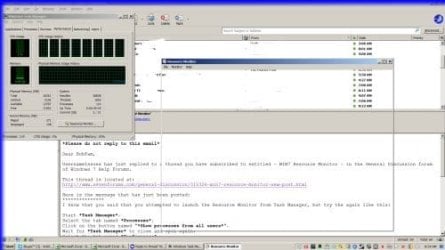
Thanks. I did as you suggested. When I clicked on "Show processes from all users" I get the list of all processes running. The TM did not close. I had to close it. Here is a screenshot of what I get. This is typical for any way I launch resmon.exe. It just sits there with the hourglass running and nothing happens. Regards, Bob.
 

Attachments

  • rm.jpg
    rm.jpg
    20 KB · Views: 31

My Computer My Computer

At a glance

WIN7 64 bit Home Premium
Computer type
PC/Desktop
Computer Manufacturer/Model Number
Custom Build
OS
WIN7 64 bit Home Premium
Hmm, that's really strange and not normal. I wonder what's holding it up.

Usually the AV programs or the firewall are the culprits. Have you tried to disable those for a test.
 

My Computer My Computer

At a glance

Vista, Windows7, Mint Mate, Zorin, Windows 8from 1.6GHz Duo to i7
Computer Manufacturer/Model Number
HP, Dell, Gateway, Toshiba - 4 laptops and 2 desktops
OS
Vista, Windows7, Mint Mate, Zorin, Windows 8
CPU
from 1.6GHz Duo to i7
Monitor(s) Displays
2x HP w2207
Hard Drives
5x HDD, 7x SSD, 12x Externals
Keyboard
with trackball - no mices
Mouse
Trackball mice
Internet Speed
DSL 6000
Hmm, that's really strange and not normal. I wonder what's holding it up.

Usually the AV programs or the firewall are the culprits. Have you tried to disable those for a test.
Hi. Thanks. Yes I have tried that before and just tried it again. Regards, Bob.
 

My Computer My Computer

At a glance

WIN7 64 bit Home Premium
Computer type
PC/Desktop
Computer Manufacturer/Model Number
Custom Build
OS
WIN7 64 bit Home Premium
Ah yes, the see thru window - I've seen it many times.
Just never in an app that is a part of the OS.

BTW, if you move the window around using the title bar, you may find that the see thru image is a snapshot that you can move around.

What antivirus app are you using?

I would uninstall it for a test. Disabling it does not remove the low level file filters (or so I'm told).
 

My Computer My Computer

At a glance

W7 Pro SP1 64biti78GBIntel HD Graphics
Computer type
Laptop
Computer Manufacturer/Model Number
Employer provided Dell Latitude
OS
W7 Pro SP1 64bit
CPU
i7
Memory
8GB
Graphics Card(s)
Intel HD Graphics
Hard Drives
crappy SSD
Antivirus
Employer mandated Symantec Endpoint Protection
Browser
Pale Moon 64bit, IE11 64bit & Chrome 64bit
Ah yes, the see thru window - I've seen it many times.
Just never in an app that is a part of the OS.

BTW, if you move the window around using the title bar, you may find that the see thru image is a snapshot that you can move around.

What antivirus app are you using?

I would uninstall it for a test. Disabling it does not remove the low level file filters (or so I'm told).

You are right. It is like a snapshot of the window. I can move it around and the items in the window move with it. I have tried uninstalling Avast with no luck. I am stumped! Regards, Bob.
 

My Computer My Computer

At a glance

WIN7 64 bit Home Premium
Computer type
PC/Desktop
Computer Manufacturer/Model Number
Custom Build
OS
WIN7 64 bit Home Premium
edit: You can forget about the folder named Sysnative. I have no clue where I got that. Even more puzzling is the fact that I usually copy/paste info like that, so I don't know where I could have copied that path from.

The file that should be running for Resource Monitor is:
"C:\Windows\System32\perfmon.exe"


original post: ============================

Please download Process Explorer.
There is nothing to install.
Just open the ZIP file and copy the files to some temp place.

Right click on the app and select Run as admin from the context menu.
Once the app window opens...
...locate the menu bar: click on View, Select Columns...

Once the Select Columns settings window opens...
Select the tab named Process Image
Add a check by Command Line and Integrity Level
Close that settings window.

On the menu bar, click on View again
Then Update Speed
Set that to 0.5 seconds

On the menu bar, click on Options
Then on Difference Highlight Duration...
Set that to 9 seconds.

Open Resource Monitor any way that you wish.
Process Explorer should be running at the High integrity level
...and the Command Line should be similar to this:
"C:\Windows\Sysnative\perfmon.exe" /res
 
Last edited:

My Computer My Computer

At a glance

W7 Pro SP1 64biti78GBIntel HD Graphics
Computer type
Laptop
Computer Manufacturer/Model Number
Employer provided Dell Latitude
OS
W7 Pro SP1 64bit
CPU
i7
Memory
8GB
Graphics Card(s)
Intel HD Graphics
Hard Drives
crappy SSD
Antivirus
Employer mandated Symantec Endpoint Protection
Browser
Pale Moon 64bit, IE11 64bit & Chrome 64bit

My Computer My Computer

At a glance

Vista, Windows7, Mint Mate, Zorin, Windows 8from 1.6GHz Duo to i7
Computer Manufacturer/Model Number
HP, Dell, Gateway, Toshiba - 4 laptops and 2 desktops
OS
Vista, Windows7, Mint Mate, Zorin, Windows 8
CPU
from 1.6GHz Duo to i7
Monitor(s) Displays
2x HP w2207
Hard Drives
5x HDD, 7x SSD, 12x Externals
Keyboard
with trackball - no mices
Mouse
Trackball mice
Internet Speed
DSL 6000
Please download Process Explorer.
There is nothing to install.
Just open the ZIP file and copy the files to some temp place.

Right click on the app and select Run as admin from the context menu.
Once the app window opens...
...locate the menu bar: click on View, Select Columns...

Once the Select Columns settings window opens...
Select the tab named Process Image
Add a check by Command Line and Integrity Level
Close that settings window.

On the menu bar, click on View again
Then Update Speed
Set that to 0.5 seconds

On the menu bar, click on Options
Then on Difference Highlight Duration...
Set that to 9 seconds.

Open Resource Monitor any way that you wish.
Process Explorer should be running at the High integrity level
...and the Command Line should be similar to this:
"C:\Windows\Sysnative\perfmon.exe" /res

I did exactly as you stated up to after setting tbe 9 seconds. I left it running and ran resmon.exe as Admin. It did not open. (Only the same blank window with the hourglass). Am I supposed to get some info from all the info from Process Explorer. I lost you on the second sentence of your last paragraph. Sorry for all the questions as I am not familiar with all your final paragraph terminology and instructions. Regards, Bob.
 

My Computer My Computer

At a glance

WIN7 64 bit Home Premium
Computer type
PC/Desktop
Computer Manufacturer/Model Number
Custom Build
OS
WIN7 64 bit Home Premium
edit: You can forget about the folder named Sysnative. I have no clue where I got that. Even more puzzling is the fact that I usually copy/paste info like that, so I don't know where I could have copied that path from.

The file that should be running for Resource Monitor is:
"C:\Windows\System32\perfmon.exe"


original post: ============================
No apologies needed - I was in a rush.

While this is true:
Process Explorer should be running at the High integrity level

I should have written:
Resource Monitor should be running at the High integrity level

Is that what you see?


In the column named Command Line, you should see this:
"C:\Windows\Sysnative\perfmon.exe" /res
The last part will not be in red - but that is the part that I want to see if you see.

Also, is perfmon.exe starting from this folder:
C:\Windows\Sysnative\
 
Last edited:

My Computer My Computer

At a glance

W7 Pro SP1 64biti78GBIntel HD Graphics
Computer type
Laptop
Computer Manufacturer/Model Number
Employer provided Dell Latitude
OS
W7 Pro SP1 64bit
CPU
i7
Memory
8GB
Graphics Card(s)
Intel HD Graphics
Hard Drives
crappy SSD
Antivirus
Employer mandated Symantec Endpoint Protection
Browser
Pale Moon 64bit, IE11 64bit & Chrome 64bit
Hi. After I set the 9 seconds am I supposed to make a folder named Sysnative in Windows and put the Process Explorer files into it. I don't have a folder with that name in Windows now. Then I am supposed to run it from the Command Prompt with C:\Windows\Sysnative\perfmon.exe /res.

Is there any chance we could chat by PM and Skype?

Best regards, Bob.
 

My Computer My Computer

At a glance

WIN7 64 bit Home Premium
Computer type
PC/Desktop
Computer Manufacturer/Model Number
Custom Build
OS
WIN7 64 bit Home Premium
Back
Top