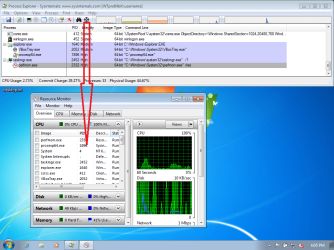
While this is true:
Process Explorer should be running at the High integrity level
I should have written:
Resource Monitor should be running at the High integrity level
Is that what you see?
In the column named Command Line, you should see this:
"C:\Windows\Sysnative\perfmon.exe" /res
The last part will not be in red - but that is the part that I want to see if you see.
Also, is perfmon.exe starting from this folder:
C:\Windows\Sysnative\
Hi. After I set the 9 seconds am I supposed to make a folder named Sysnative in Windows and put the Process Explorer files into it. I don't have a folder with that name in Windows now. Then I am supposed to run it from the Command Prompt with C:\Windows\Sysnative\perfmon.exe /res.
Is there any chance we could chat by PM and Skype?
My apologies Bob, I seem to have missed your request to chat via PM or Skype. Have you solved the issue?
You can forget about the folder named Sysnative. I have no clue where I got that. Even more puzzling is the fact that I usually copy/paste info like that, so I don't know where I could have copied that path from.
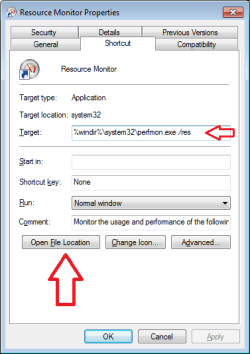
The file that should be running for Resource Monitor is:
"C:\Windows\System32\perfmon.exe"
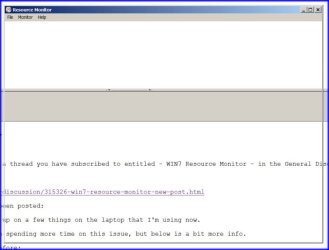
Hi. Thanks. I have tried that and all the other suggestions in this thread. All I get is a snapshot of a window that you can see through. It captures whatever is behind the Resource Monitor.The window says Resource Monitor. See the jpg attached. What is it supposed to look like? Regards, Bob.
I have learned a lot from this thread - so I thank you for hanging in there and for being willing to spend a bit more time on this. I have learned that I don't understand when resmon should run and when perfmon should run. I also learned that I made some poor choices in the direction that I took this thread. I should apologize to BrightBlessings. BrightBlessings was the first member to respond to your issue, I should have let BrightBlessings drive the direction of the thread.
That said, I'll continue in the same direction and attempt to clean up some things.
If you start Resource Monitor using the button within Task Manager (Processes tab):
1) Do you see a process named resmon.exe in task manager?
2) Or do you see a process named perfmon.exe in task manager?
3) Or are both missing from the list of processes that are running?
Resource Monitor should look like this:
You might want to watch this in the full screen mode and at 720p.
When I asked you to use Process Explorer...
...the only thing that I wanted you to check was:
What was the command line that started perfmon.exe?
In post #8, I said (in part):
"Wait for Task Manager to close and open again."
In post #11, you replied (in part):
"The TM did not close."
Hopefully, TM closed and reopened so fast that your Windows Theme might not have shown you the transition. If Task Manager really did not close/reopen, then we have another issue. Process Explorer can show you one Task Manager closing (highlighted in red) and another Task Manager opening (highlighted in green). If you are not seeing that, then maybe you are not using User Access Control (UAC).
You mentioned in post #18 that you did not understand some terms that I used. I think that my use of the term "high integrity level" was/is part of the confusion. In post #1, you mention: "I have tried to run it from the Task Manager and also by trying it with Administrator rights directly on the .exe." For simplicity's sake, we will say that running with admin rights is the same thing as running at the high integrity level.
The problem is, there are many levels that an app can run at. If you have UAC turned on, then Task Manager starts at the medium integrity level. When you tell Task Manager to show you processes from all users, you restart Task Manager with the new one running with admin rights (high integrity level).
Perfmon.exe should run at the high integrity level. In order for Process Explorer* to show you the command line that was used to start perfmon.exe, Process Explorer must also be running at the high integrity level. If Process Explorer is running at the medium integrity level, then it is not allowed to know certain things about the processes that are running at other integrity levels.
*Task Manager (TM) can also be setup to show the command line used to start perfmon.exe. TM must also be running at the high integrity level to show that perfmon.exe command line info. I probably should have stuck with using TM instead of bring Process Explorer and integrity levels into the mix, but I thought that we would eventually use the Properties > Threads tab.
All of this integrity level stuff is extremely important to the way that Windows provides security. Some people are annoyed by the UAC, so they turn it off. Some of those people don't have a clue about the security layers that they turned off.
If I start Resource Monitor using the button within Task Manager (Processes tab):
1) I do not see a process named resmon.exe in task manager?
2) I do not see a process named perfmon.exe in task manager?
3) Both are missing from the list of processes that are running?
When I open Resmon by any means I get the picture in my previous post. All I get is a window that says Resource Monitor with File, Monitor and Help headers.
UPDATE: Thanks to all who answered my query. I did a Google search and found a user who had the same problem. He said he right clicked on the Desktop and set the Display to 100% and the problem was solved. I tried it and had 125% set. I reset to 100% and the Resource Monitor works as it is supposed to. I reset to 125% as my old eyes have trouble at 100% with 1920x1080. Regards, Bob.
Thanks for your answers and the excellent screenshot.
If I start Resource Monitor using the button within Task Manager (Processes tab):
1) I do not see a process named resmon.exe in task manager?
2) I do not see a process named perfmon.exe in task manager?
3) Both are missing from the list of processes that are running?
If Resource Monitor was running at the time that you took this screenshot, then something is different about your computer. I can only guess that something installed on your computer has replaced the Resource Monitor app that comes with Windows 7. The native Resource Monitor works when the desktop is set to 125% - unless there is a problem with the video drivers.
We can leave things just as they are or we can use Process Explorer to let us know what application is showing you a window with the title of Resource Monitor.
In the video below, I have selected/highlighted the top most process shown in Process Explorer's list of processes. When I drag the little scope symbol from Process Monitor and drop it onto the Resource Monitor window, Process Explorer moves the selection/highlight to the process entry that is responsible for the Window. (Sometimes this can be hard to see, so I do it a couple of times and I also do it for the Task Manager window and the Task Bar.)
It does not matter where you "drop" the little scope icon - as long as you drop it inside the window that you are curious about. The video does not show the little scope icon moving as you drag it. That is because of the way that I had things setup. You should see the little scope icon move with your mouse movements as you drag that icon around your screen.
Since I have part of a window that is behind Process Explorer, as soon as I click on that little scope icon, Process Explorer automatically goes to the background.
You might want to watch this in the full screen mode and at 720p.
Sorry about going too fast. Several people have told me that :-(
Here is a slower version...
...but a simple screenshot might be better.
Click and hold the little scope icon.
Drag that to the Resource Monitor window.
Drop (release the mouse click) the little scope icon onto the Resource Monitor window.
Once you drop the little scope icon onto the window of interest, Process Explorer should automatically highlight the process that is responsible for creating that window. It would be nice to know what process is creating your Resource Monitor window.
Thanks for all your help. I am not a WIN7 expert. I cannot even get the Process Explorer to show as above. I have decided to just use 125% display size and if I need the Resource Monitor I'll change back to 100% size. Thanks for all the help others, and you, have given me. Regards, Bob.

![Resource Monitor.avi_snapshot_00.33_[2014.01.03_05.18.03].jpg](https://www.sevenforums.com/data/attachments/164/164481-748dd3d41500caf39129b60ef2b99332.jpg?hash=p92EU3Tm9w "Resource Monitor.avi_snapshot_00.33_[2014.01.03_05.18.03].jpg")