First of all, my laptop has 2 working USB ports.
I don't like typing with the built-in keyboard (and the touchpad) so I always connect a USB keyboard and mouse.
Yesterday (11-Aug), I unplugged the keyboard to use my USB HDD (to transfer files).
When I clicked the Windows ribbon, suddenly square-brackets were typed in non-stop, as if the physical key was held down.
I had to log it off and restart the computer (after safely removed the USB HDD).
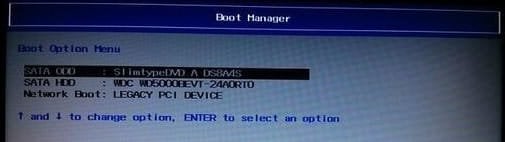
Then, in the start-up screen where it used to display 'Press <F2 > to enter SETUP' now changed to 'Prepare to boot OS'.
This automatically proceeds to the blue-background Boot Manager (that's what it only says at the top) which has the following choices (simplified):
1. boot via HDD (the local C with the OS)
2. boot via CD/DVD
3. network boot
There's no timeout here, so I picked HDD booting, which now boots into the Windows Logo as it would normally.
After logging in, no other keys (both built-in and USB keyboard) respond except the built-in keyboard Windows key.
Once I pressed that, the problem (square brackets) disappears, for the current session.
The above change in booting also renamed the booting OS from 'Windows 7 Ultimate' to 'Windows 7 Ultimate (recovered)'.
The following are copied from the EasyBCD program:
.
There is one entry in the Windows bootloader.
Default: Windows 7 Ultimate (recovered)
Timeout: 30 seconds
EasyBCD Boot Device: C:\Entry #1
Name: Windows 7 Ultimate (recovered)
BCD ID: {default}
Drive: C:\
Bootloader Path: \Windows\system32\winload.exe
.
(detailed)
Windows Boot Manager
--------------------
identifier {9dea862c-5cdd-4e70-acc1-f32b344d4795}
device partition=\Device\HarddiskVolume1
path \bootmgr
description Windows Boot Manager
locale en-US
inherit {7ea2e1ac-2e61-4728-aaa3-896d9d0a9f0e}
default {60cf4161-dd9c-11e0-8d39-8519be16c433}
resumeobject {881221ce-4e52-11e1-845e-806e6f6e6963}
displayorder {60cf4161-dd9c-11e0-8d39-8519be16c433}
toolsdisplayorder {b2721d73-1db4-4c62-bf78-c548a880142d}
timeout 30
Windows Boot Loader
-------------------
identifier {60cf4161-dd9c-11e0-8d39-8519be16c433}
device partition=C:
path \Windows\system32\winload.exe
description Windows 7 Ultimate (recovered)
locale en-US
recoverysequence {60cf415f-dd9c-11e0-8d39-8519be16c433}
recoveryenabled Yes
osdevice partition=C:
systemroot \Windows
resumeobject {881221ce-4e52-11e1-845e-806e6f6e6963}
.
I'm thinking (in the future) of making a bootable USB using the EasyBCD to do the System Repair (I don't even know if that'll fix it), but I wonder what causes all of this.
(additional info)
Also, when I set to Skip the Boot via EasyBCD, the Boot Manager still persists.
And if I added a new Win7 boot entry (making it default and moved it up), skipping the boot will hang at the Windows Logo screen (but without the logo), along with non-stop beepings.
Luckily, after spamming DOWN arrowkey, I managed to boot normally and reverted the EasyBCD changes.
For now, I'll have to put up with the annoying booting than mess up the computer making it worse.
I don't like typing with the built-in keyboard (and the touchpad) so I always connect a USB keyboard and mouse.
Yesterday (11-Aug), I unplugged the keyboard to use my USB HDD (to transfer files).
When I clicked the Windows ribbon, suddenly square-brackets were typed in non-stop, as if the physical key was held down.
I had to log it off and restart the computer (after safely removed the USB HDD).
Then, in the start-up screen where it used to display 'Press <F2 > to enter SETUP' now changed to 'Prepare to boot OS'.
This automatically proceeds to the blue-background Boot Manager (that's what it only says at the top) which has the following choices (simplified):
1. boot via HDD (the local C with the OS)
2. boot via CD/DVD
3. network boot
There's no timeout here, so I picked HDD booting, which now boots into the Windows Logo as it would normally.
After logging in, no other keys (both built-in and USB keyboard) respond except the built-in keyboard Windows key.
Once I pressed that, the problem (square brackets) disappears, for the current session.
The above change in booting also renamed the booting OS from 'Windows 7 Ultimate' to 'Windows 7 Ultimate (recovered)'.
The following are copied from the EasyBCD program:
.
There is one entry in the Windows bootloader.
Default: Windows 7 Ultimate (recovered)
Timeout: 30 seconds
EasyBCD Boot Device: C:\Entry #1
Name: Windows 7 Ultimate (recovered)
BCD ID: {default}
Drive: C:\
Bootloader Path: \Windows\system32\winload.exe
.
(detailed)
Windows Boot Manager
--------------------
identifier {9dea862c-5cdd-4e70-acc1-f32b344d4795}
device partition=\Device\HarddiskVolume1
path \bootmgr
description Windows Boot Manager
locale en-US
inherit {7ea2e1ac-2e61-4728-aaa3-896d9d0a9f0e}
default {60cf4161-dd9c-11e0-8d39-8519be16c433}
resumeobject {881221ce-4e52-11e1-845e-806e6f6e6963}
displayorder {60cf4161-dd9c-11e0-8d39-8519be16c433}
toolsdisplayorder {b2721d73-1db4-4c62-bf78-c548a880142d}
timeout 30
Windows Boot Loader
-------------------
identifier {60cf4161-dd9c-11e0-8d39-8519be16c433}
device partition=C:
path \Windows\system32\winload.exe
description Windows 7 Ultimate (recovered)
locale en-US
recoverysequence {60cf415f-dd9c-11e0-8d39-8519be16c433}
recoveryenabled Yes
osdevice partition=C:
systemroot \Windows
resumeobject {881221ce-4e52-11e1-845e-806e6f6e6963}
.
I'm thinking (in the future) of making a bootable USB using the EasyBCD to do the System Repair (I don't even know if that'll fix it), but I wonder what causes all of this.
(additional info)
Also, when I set to Skip the Boot via EasyBCD, the Boot Manager still persists.
And if I added a new Win7 boot entry (making it default and moved it up), skipping the boot will hang at the Windows Logo screen (but without the logo), along with non-stop beepings.
Luckily, after spamming DOWN arrowkey, I managed to boot normally and reverted the EasyBCD changes.
For now, I'll have to put up with the annoying booting than mess up the computer making it worse.
My Computers
-
At a glance
Windows 7 Ultimate 32-bit Service Pack 1 (Bui...Intel Celeron B815 @ 1.60GHzDDR3 Kingston (7F980000000000000000) 4096 MBIntel HD Graphics Family- Computer type
- Laptop
- Computer Manufacturer/Model Number
- Acer Aspire 4349
- OS
- Windows 7 Ultimate 32-bit Service Pack 1 (Build 7601)
- CPU
- Intel Celeron B815 @ 1.60GHz
- Motherboard
- HMA41_HR (0x00000234 - 0x00BCDCF4)
- Memory
- DDR3 Kingston (7F980000000000000000) 4096 MB
- Graphics Card(s)
- Intel HD Graphics Family
- Monitor(s) Displays
- 1
- Screen Resolution
- 1366x768
- Antivirus
- ESET NOD 32
- Other Info
- INSYDE bios V1.06 (09/29/2011) 2560 KB
Bought in 2012
-
- Computer type
- PC/Desktop