Window size to small

swift1965

New member
Local time
8:00 PM
Messages
9
Hi,
When I am loading a program or updating some progams the window that comes up is so small I can't make out which button to click. Is this a compatability problem with windows 7. Though this happened with an office 2010 email update. Will I have to keep changing screen resolution.
 

My Computer

OS
windows 7 home premium 32bit
Could you give a screen shot or a walkthrough of what you are doing? A bit difficult to fully understand your problem.
 

My Computer

Computer Manufacturer/Model Number
Three desktops and one laptop with good specs..
OS
Vista and now 7 in 32 and 64 bit.
Hard to get a screen shot. what happens is a small widow opens and the fonts are unreadable. I can see up to three buttons to click or a box to tick but have to guess what they do.
 

My Computer

OS
windows 7 home premium 32bit
Hold down CTRL & roll the middle mouse button... ;)
This zooms in & out in most browsers.

And welcome to the forums. :p

If not only your browsers please reply.
 

My Computer

Computer Manufacturer/Model Number
Asus
OS
Seven ultimate 32bit
CPU
Core2Duo E5700
Motherboard
Asus p5qlem
Memory
3GB DDR2
Graphics Card(s)
HD5670
Sound Card
Onboard
Monitor(s) Displays
Philips 18.5 widescreen
Screen Resolution
Depends
Hard Drives
500GB Samsung 7200RPM
PSU
500w Sparta
Case
Aerocool
Cooling
Standard + 2x 40's inserted
Keyboard
Multimedia
Mouse
Genius
Internet Speed
10meg.
Thank for your help. I will try what you said next time it happens. I tried it out here and it worked so fingers crossed!
 

My Computer

OS
windows 7 home premium 32bit
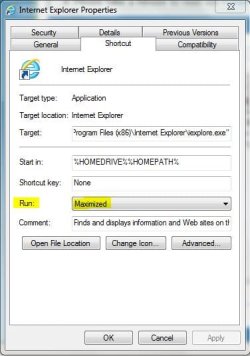
Another possible solution if using IE: look in lower right corner of screen for the magnifying glass. You can change screen zoom level here. Also, if you're running into this problem with an installed program, go to start menu > all programs. Right click on the installed program's icon > properties. In the program's properties dialog box that opens > shortcut tab > select maximized. That should open the program in full screen (or as large as the program can be opened.)

Capture.JPG
 

My Computer

Computer type
Laptop
Computer Manufacturer/Model Number
Sony Vaio VPCEB47GM Laptop
OS
Win 7 Pro 64-bit
CPU
Intel i5 2.4 Ghz
Memory
8GB DDR3
Graphics Card(s)
Intel HD 3000
Sound Card
IDT High Definition
Monitor(s) Displays
15.6 WGXA Anti-Glare LED
Screen Resolution
1280x800
Hard Drives
640Gb 7200rpm
Antivirus
MSE
Browser
Opera (primary) with IE9 backup
I use IE9 but I don't see a magnifying glass in the bottom right corner. If the Ctrl scroll does not work I'll try changing the program properties.

thanks for your help
 

My Computer

OS
windows 7 home premium 32bit
I use IE9 but I don't see a magnifying glass in the bottom right corner. If the Ctrl scroll does not work I'll try changing the program properties.

thanks for your help

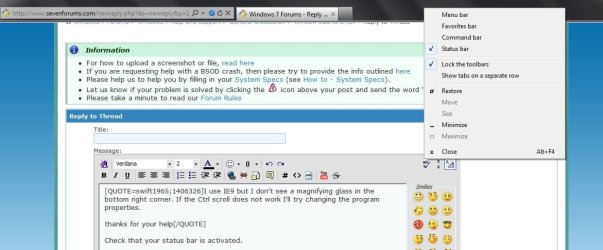
Check that your status bar is activated (it's deactivated by default.) Right click an empty section by the tabs and click on status bar to check mark it (activate it.)

status bar.JPG

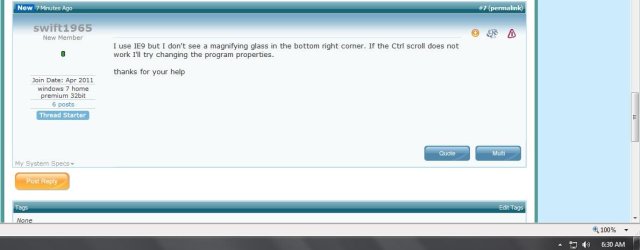
Once the status bar is activated you should see the magnifier icon.

magnifier.JPG
 

My Computer

Computer type
Laptop
Computer Manufacturer/Model Number
Sony Vaio VPCEB47GM Laptop
OS
Win 7 Pro 64-bit
CPU
Intel i5 2.4 Ghz
Memory
8GB DDR3
Graphics Card(s)
Intel HD 3000
Sound Card
IDT High Definition
Monitor(s) Displays
15.6 WGXA Anti-Glare LED
Screen Resolution
1280x800
Hard Drives
640Gb 7200rpm
Antivirus
MSE
Browser
Opera (primary) with IE9 backup
Glad we could assist. ;)
 

My Computer

Computer Manufacturer/Model Number
Asus
OS
Seven ultimate 32bit
CPU
Core2Duo E5700
Motherboard
Asus p5qlem
Memory
3GB DDR2
Graphics Card(s)
HD5670
Sound Card
Onboard
Monitor(s) Displays
Philips 18.5 widescreen
Screen Resolution
Depends
Hard Drives
500GB Samsung 7200RPM
PSU
500w Sparta
Case
Aerocool
Cooling
Standard + 2x 40's inserted
Keyboard
Multimedia
Mouse
Genius
Internet Speed
10meg.
I use IE9 but I don't see a magnifying glass in the bottom right corner. If the Ctrl scroll does not work I'll try changing the program properties.

thanks for your help

Check that your status bar is activated (it's deactivated by default.) Right click an empty section by the tabs and click on status bar to check mark it (activate it.)

View attachment 155486

Once the status bar is activated you should see the magnifier icon.

View attachment 155487

The "magnifying glass" that marsmimar is referring to is also known as the Zoom function. You should be able to increase the size of your entire IE page with that function. If that doesn't work well for you, you might try the actual magnifying function.

To Magnify Entire Page: Start, Search pane, and type: magnifier. When it comes up click the plus (+) sign. The entire page will magnify. Or, you can go to: Control Panel, All Control Panel Items, Ease of Access Center, Make Your Computer Easier to Use, Start Magnifier.

To Magnify a Certain Portion of the Screen - go to Start, click the Search pane, and type: magnifier. Click the program at the top. The Magnifier can be set to Docked Mode which places a re-sizable window at the top of the screen that follows the cursor. (To read more about Magnifier go to Start, click "Help & Support" on the right hand side, type in "magnifier.")

And, if none of the above help you, you might try changing your screen DPI.
 

My Computer

Computer Manufacturer/Model Number
HP Pavillion dv5t (generation 1)
OS
Vista 64 bit and 32 bit (SP2)
CPU
Intel(R) Core(TM)2 Duo Processor T9400 (2.53 GHz
Memory
4GB DDR2 System Memory (2 Dimm)
Graphics Card(s)
512 MB NVIDIA GeForce 9600M GT
Monitor(s) Displays
15.4" diagonal WSXGA+ High-Definition HP BrightView Widescre
Screen Resolution
1680 x 1050
Hard Drives
320GB 5400RPM SATA Hard Drive with HP ProtectSmart Hard Drive Protection
Keyboard
Built-in HP
Mouse
Built in - Synaptics TouchPad V6.5 on PS/2 Port
Internet Speed
Max
Other Info
~ Intel Next-Gen Wireless-N Mini-card w/Bluetooth ~ Blu-Ray ROM DVD+/-R/RW ~ Integ. HDTV Hybrid Tuner ~ 12 Cell Battery ~ MS Office (Home Premium) 2007 ~
Back
Top