
window/taskbar does not change with theme

johnguillen68

New member
Local time
3:17 PM
Messages
16
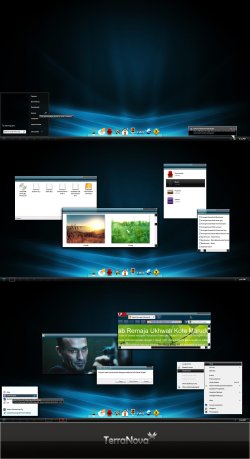
Ok, I've been seeing lots of great themes and I install them through: windows/resource/themes but and I see the name of the theme when I right click it to personalize. I click on the theme and hear the sound but the windows and task bar are still the same color as all my other themes. what am I doing wrong?

How can I get my theme looking like the this:
 

Attachments
  • Preview.jpg
    Preview.jpg
    274 KB · Views: 379

My Computer

OS
Windows 7
What theme is that? Did it come with a readme text?
I'm not a pro at that but I'm pretty sure you have to replace explorer to change your taskbar.
 

My Computer

Computer type
PC/Desktop
Computer Manufacturer/Model Number
Self Built
OS
Win 10 Pro x64
CPU
Intel I5-2500K @3.3GHz
Motherboard
Asrock P67 Extreme4
Memory
16GB G.Skill Ripjaws X (4x4GB)
Graphics Card(s)
EVGA GeForce 750 Ti SC 2GB
Sound Card
ASUS Xonar DG 5.1 Channels 24-bit 96KHz PCI Interface Sound
Monitor(s) Displays
auria eq2367
Screen Resolution
1920 x 1080
Hard Drives
250GB Samsung 850 EVO SSD
1TB WD Blue
1TB Hitachi
PSU
SeaSonic X 650W 80 Plus Gold
Case
Corsair Obsidian 750D
Cooling
Corsair H60, Three 140mm case fans
Keyboard
Logitech Wireless Keyboard K520
Mouse
Logitech Wireless Mouse M310
Internet Speed
Wave Broadband ~ 100 dn 5 up
Antivirus
Windows Defender, Malwarebytes Premium
Browser
Edge, IE11, Chrome
Other Info
Laptop specs: HP g7-1365dx /
CPU: AMD A6-3420M APU with Radeon(tm) HD Graphics /
RAM: Crucial 8Gb (2x4Gb) /
SSD: Crucial M4-CT128M4SSD2 ATA Device/ FW 000F /
GFX: AMD Radeon HD 6520G /
OS: Windows 10 Pro x64
it has a readme file but I'm probably not doing it right. the theme is called "terra Nova"
 

My Computer

OS
Windows 7

My Computer

Computer type
PC/Desktop
Computer Manufacturer/Model Number
Self Built
OS
Win 10 Pro x64
CPU
Intel I5-2500K @3.3GHz
Motherboard
Asrock P67 Extreme4
Memory
16GB G.Skill Ripjaws X (4x4GB)
Graphics Card(s)
EVGA GeForce 750 Ti SC 2GB
Sound Card
ASUS Xonar DG 5.1 Channels 24-bit 96KHz PCI Interface Sound
Monitor(s) Displays
auria eq2367
Screen Resolution
1920 x 1080
Hard Drives
250GB Samsung 850 EVO SSD
1TB WD Blue
1TB Hitachi
PSU
SeaSonic X 650W 80 Plus Gold
Case
Corsair Obsidian 750D
Cooling
Corsair H60, Three 140mm case fans
Keyboard
Logitech Wireless Keyboard K520
Mouse
Logitech Wireless Mouse M310
Internet Speed
Wave Broadband ~ 100 dn 5 up
Antivirus
Windows Defender, Malwarebytes Premium
Browser
Edge, IE11, Chrome
Other Info
Laptop specs: HP g7-1365dx /
CPU: AMD A6-3420M APU with Radeon(tm) HD Graphics /
RAM: Crucial 8Gb (2x4Gb) /
SSD: Crucial M4-CT128M4SSD2 ATA Device/ FW 000F /
GFX: AMD Radeon HD 6520G /
OS: Windows 10 Pro x64
Hi. I sincerely apologize for bringing this thread back from the dead, but I have a similar problem with this theme (Terranova). I patched the files and installed the theme correctly. The menus, windows, and start button all changed properly. My only problem now is that my taskbar looks the same, only black. Instead of the small square icons that the theme is supposed to provide, I still have the regular Windows 7 ones.

So my question is this: Where do you think my problem lies? To my knowledge, I've done everything properly and the only thing not working is the taskbar.

Please give me advice if you have any. (And sorry for reviving such an old thread)...
 

My Computer

Computer Manufacturer/Model Number
Cyberpowerpc
OS
Windows 7 Professional 64bit
CPU
AMD Phenom 9500 Quad-Core
Motherboard
ASUS M2N-SLI
Memory
3GB
Graphics Card(s)
Nvidia Geforce 9800GT
Sound Card
Soundblaster Audigy
I guess you mean these icons ?
Capture.JPG

Sorry mate those dont change automatically with the application of a theme . You are to do it manually, and one by one . The icons used there are Token . Download it first, and extract all of them in a real location .

Now place your shortcuts on desktop, right click on one > properties> Change icon . A change icon window will appear . Now browse to the location where you have stored the token icons, select your desired one , and click ok. The change icon window will be disappeared now . In the main properties window click on apply , and then on ok. One icon is changed . :D

Do it for all all, one by one . Then pin those to taskbar .
 

My Computer

Computer type
PC/Desktop
Computer Manufacturer/Model Number
Self Assembled
OS
Microsoft Windows 10 Pro Insider Preview 64-bit
CPU
Intel(R) Core(TM) i3-4130 CPU @ 3.40GHz
Motherboard
Gigabyte Technology Co., Ltd. B85M-D3H
Memory
Corsair Vengence 4GB x2 (8.00GB Dual-Channel DDR3 @ 798MHz)
Graphics Card(s)
2047MB GeForce GTS 450 (ZOTAC International)
Sound Card
Onboard (Realtek High Definition Audio)
Monitor(s) Displays
LG Flatron E2040T
Screen Resolution
1600x900
Hard Drives
Western Digital 1 TB
Seagate 500 GB
PSU
Corsair VS550
Case
Cooler Master K380
Cooling
Cooler Master Seidon 120V Plus
Keyboard
Logitech MK260r
Mouse
Logitech MK260r
Internet Speed
PMPL Broadband
Antivirus
Windows Defender + MBAM
Browser
Firefox
Other Info
Dell Studio 15" Laptop
Back
Top
